


How to Enable or Disable the OPT OUT Priority Rule
Learn how to enable the OPT OUT priority rule to automatically apply the OPT_OUT tag to contacts.

Share on WhatsApp


We provide a pre-configured rule that automatically applies the OPT_OUT tag whenever a customer requests to stop receiving messages or unsubscribes. You don't need to create this rule yourself. You can simply enable or disable it based on your requirements.
How the rule works
When the rule is enabled, our system checks incoming WhatsApp messages for common opt-out words such as:
- stop
- unsub
- unsubscribe
For example, if a customer sends “unsubscribe”, our system automatically adds the OPT_OUT tag to that contact.
Note: Adding the OPT_OUT tag does not necessarily block all outgoing messages. Whether messages are blocked depends on your configured OPT_OUT Tag Rule, flow, and broadcast settings. To learn more, refer to our article on How to Enable OPT_OUT Tag Rule.
To enable or disable the rule:
1. Go to See more and click Rules.
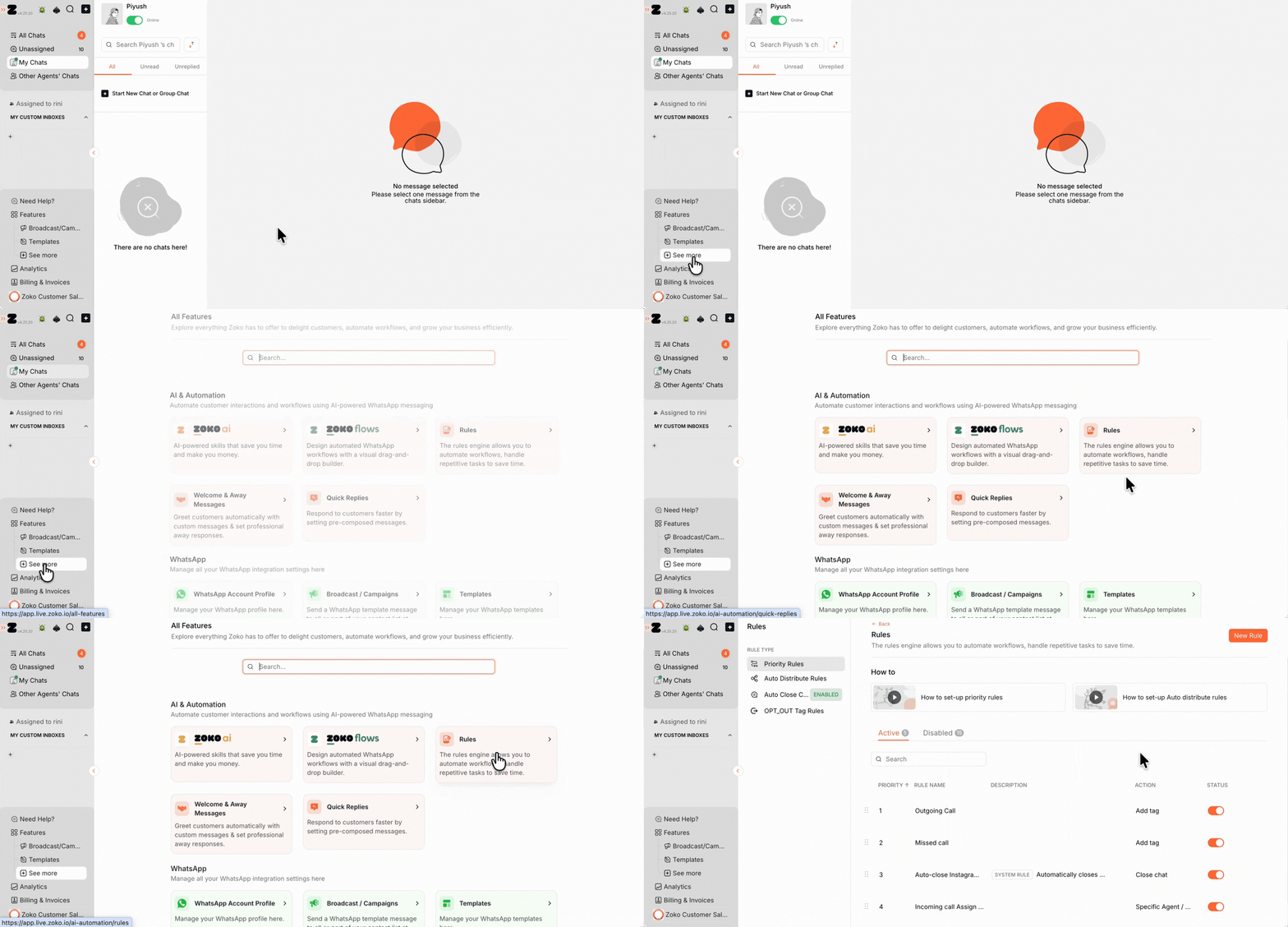
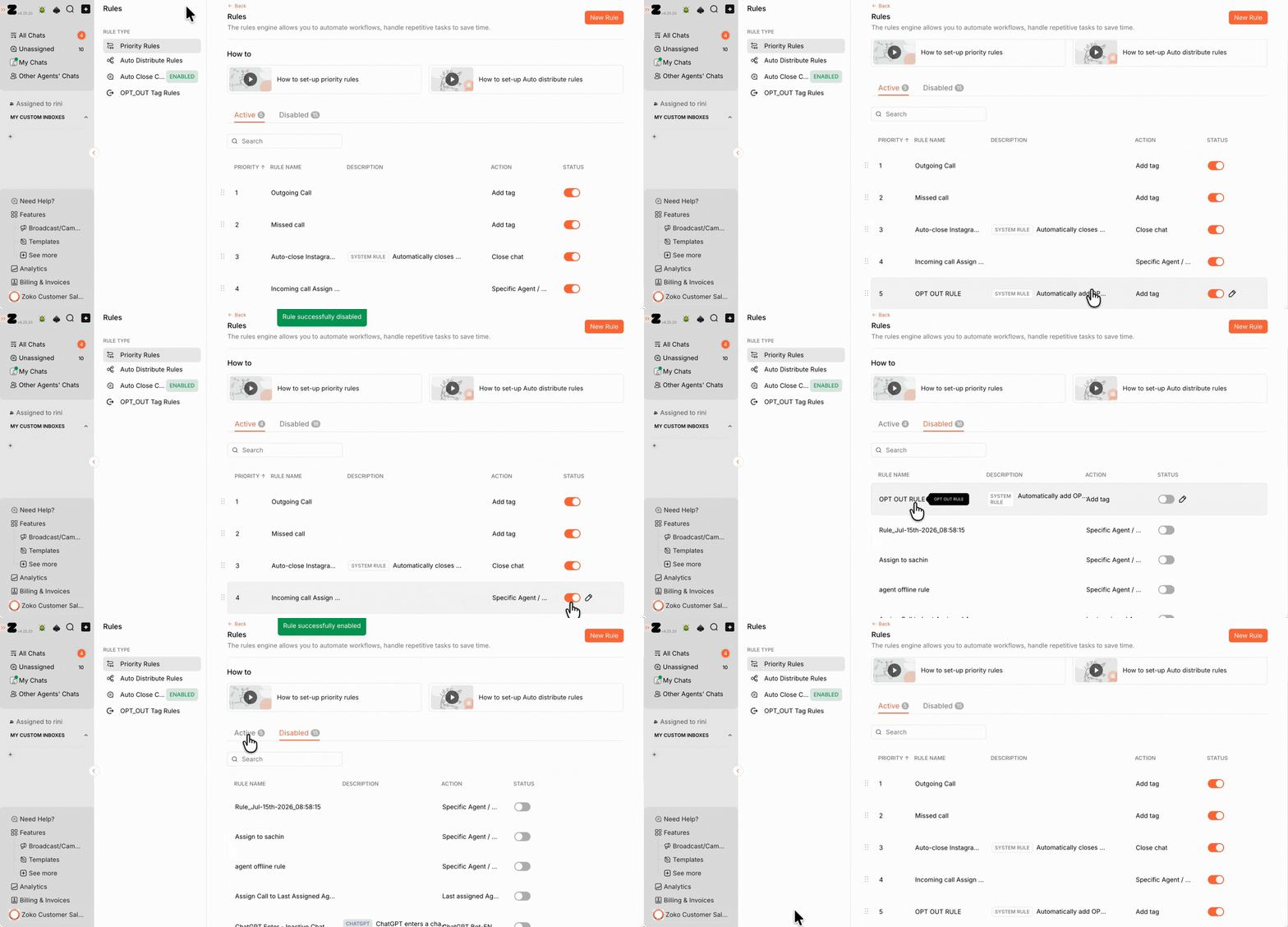
2. Under Priority Rules, find OPT OUT RULE and use the toggle to enable or disable it.
Note: If the rule is enabled, it will appear under the Active tab. If disabled, it will appear under the Disabled tab.
- Turn the rule on to automatically add the OPT_OUT tag when a customer sends an opt-out message.
- Turn the rule off to stop automatically adding the OPT_OUT tag based on these messages.
Keywords: Opt out rule, Opt out tag, Priority rules, disable opt out rule, Unsubscribe, Customer opt out, Automatic tag
