


How to Set Up WhatsApp Calling
Learn how to set up WhatsApp calling in Zoko to make voice calls.
.png)
Share on WhatsApp
.png)


WhatsApp Calling enables your team to communicate with customers through voice calls without leaving Zoko. Once enabled, agents can make outbound calls and receive incoming calls directly from the chat screen, allowing them to manage customer conversations from a single place.
In this article, I will show you how to enable WhatsApp Calling, configure its settings, and start making and receiving calls in Zoko.
To do this:
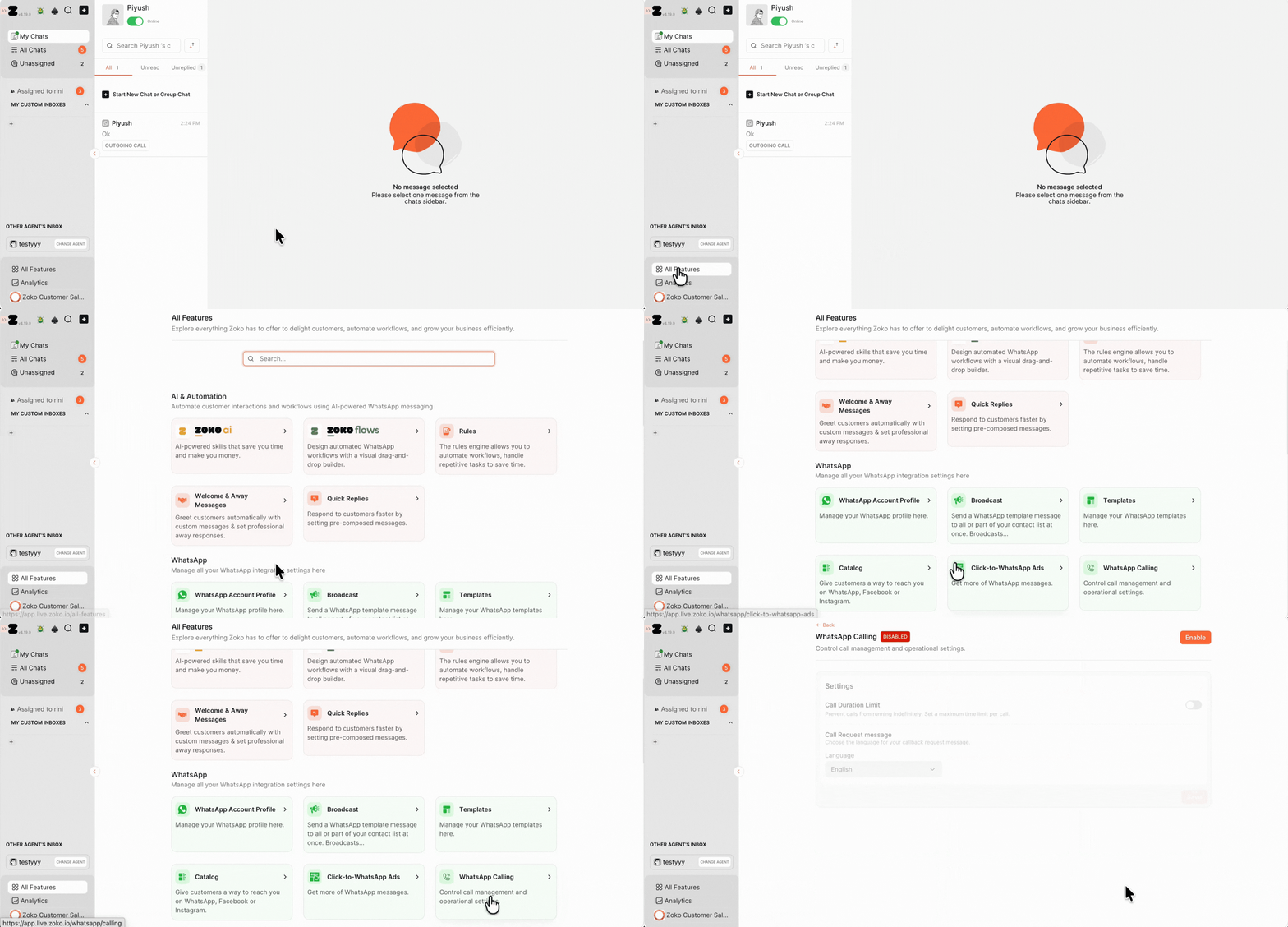
1. Go to All Features and click on WhatsApp Calling.
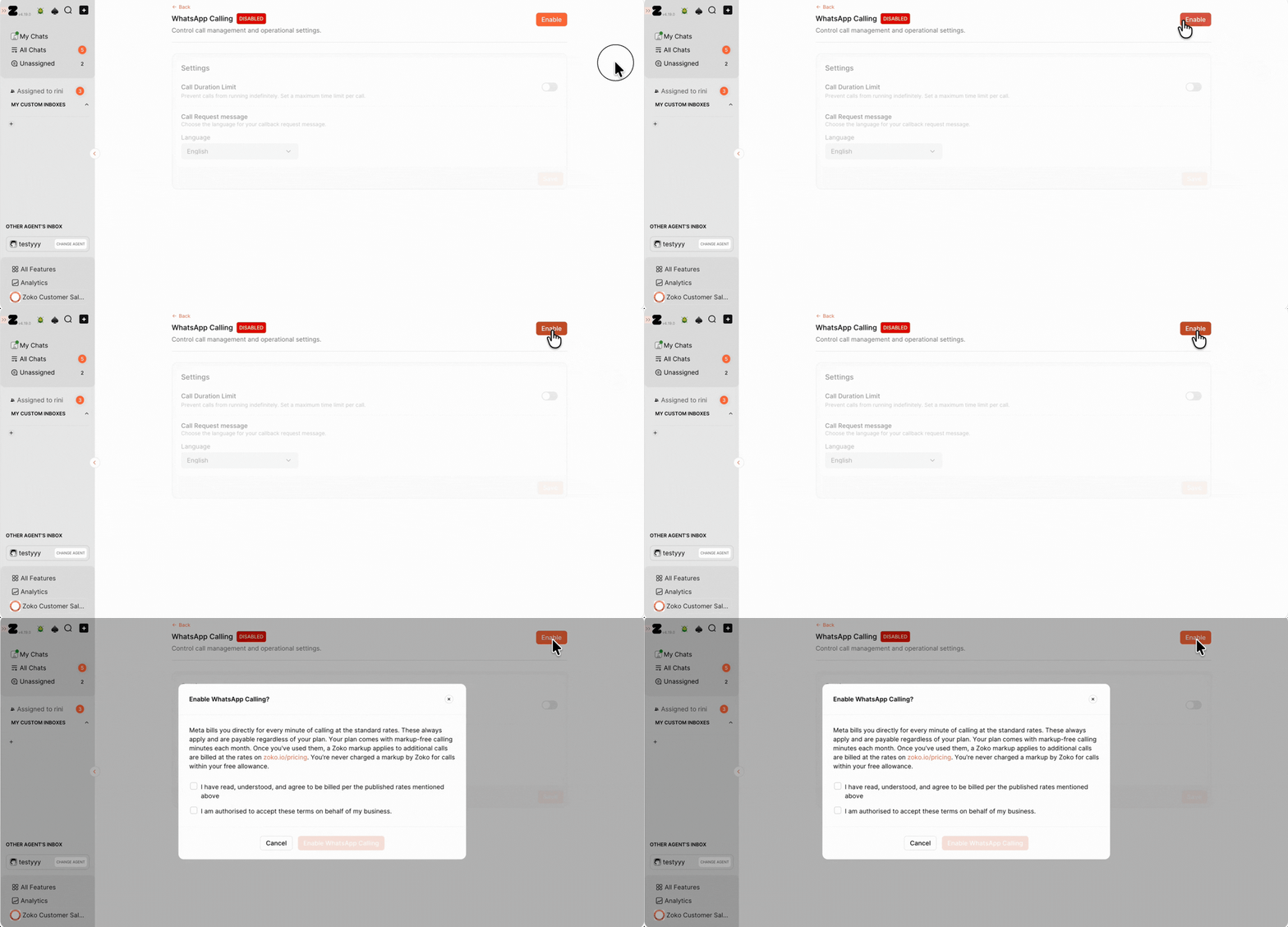
2. Click on Enable.
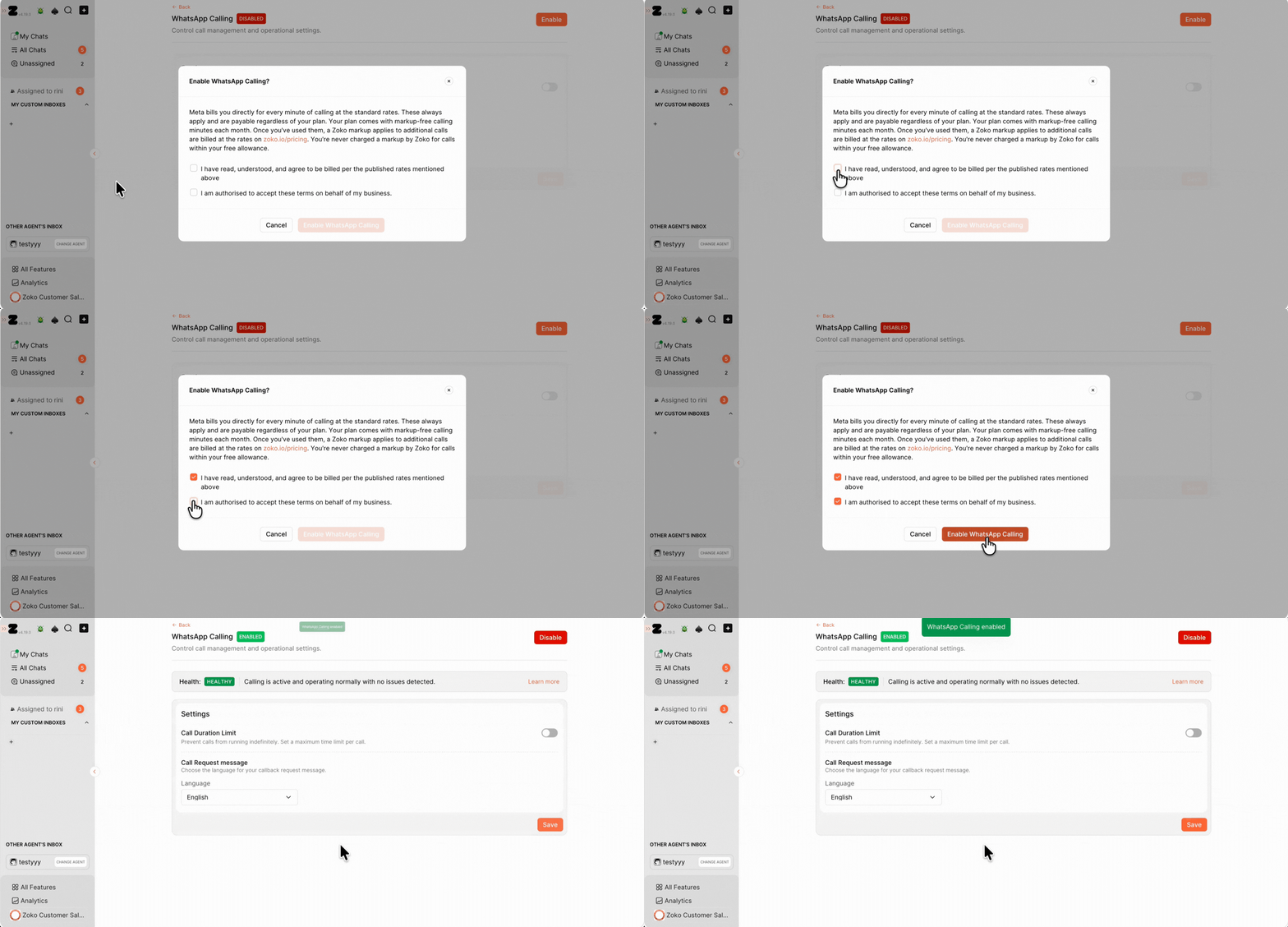
3. In the pop-up, read the T&C, select the confirmation checkbox, and then click on Enable WhatsApp Calling.
Configure Calling Settings (Optional)
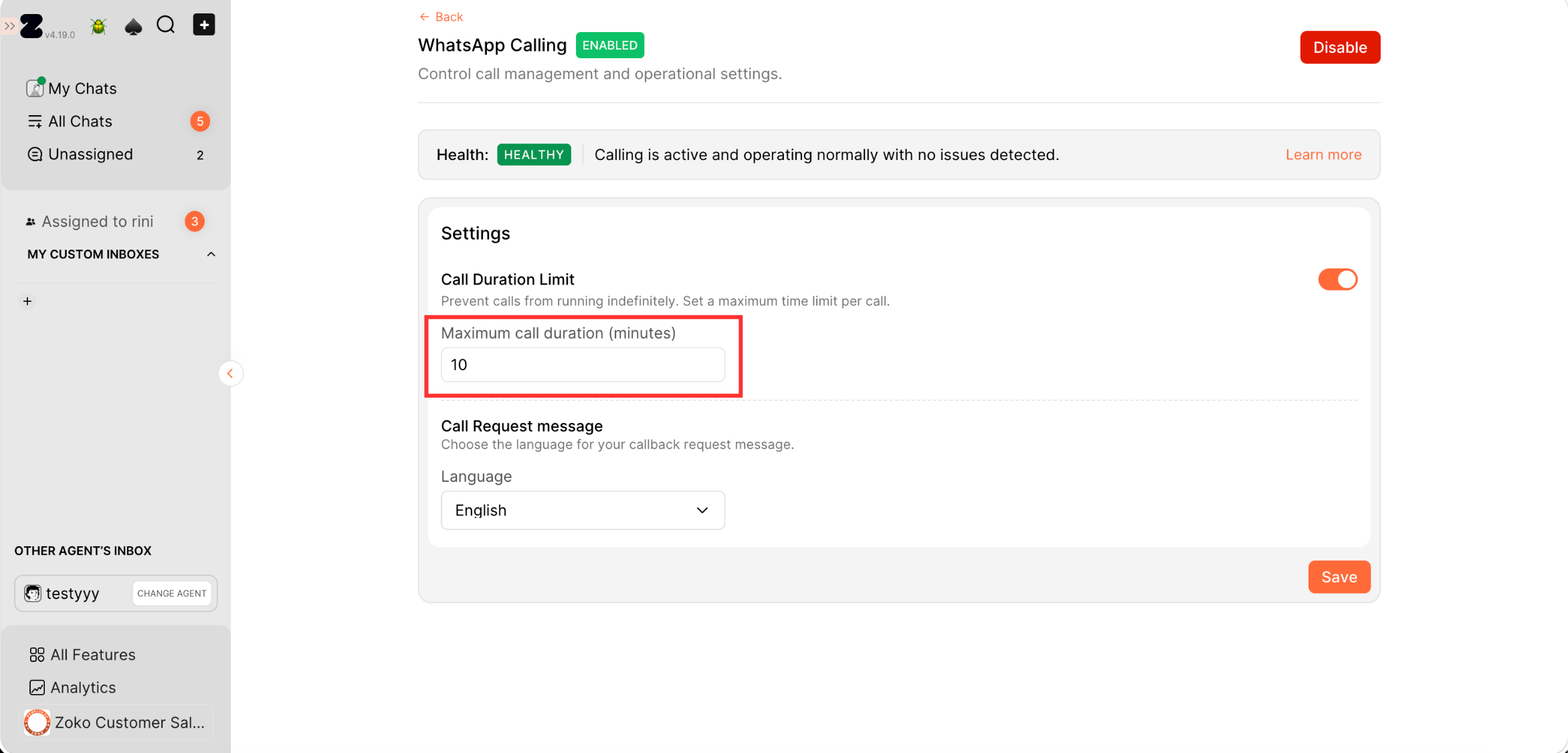
To prevent calls from running indefinitely, you can set a maximum duration for each call.
4. Turn on the Call Duration Limit toggle.
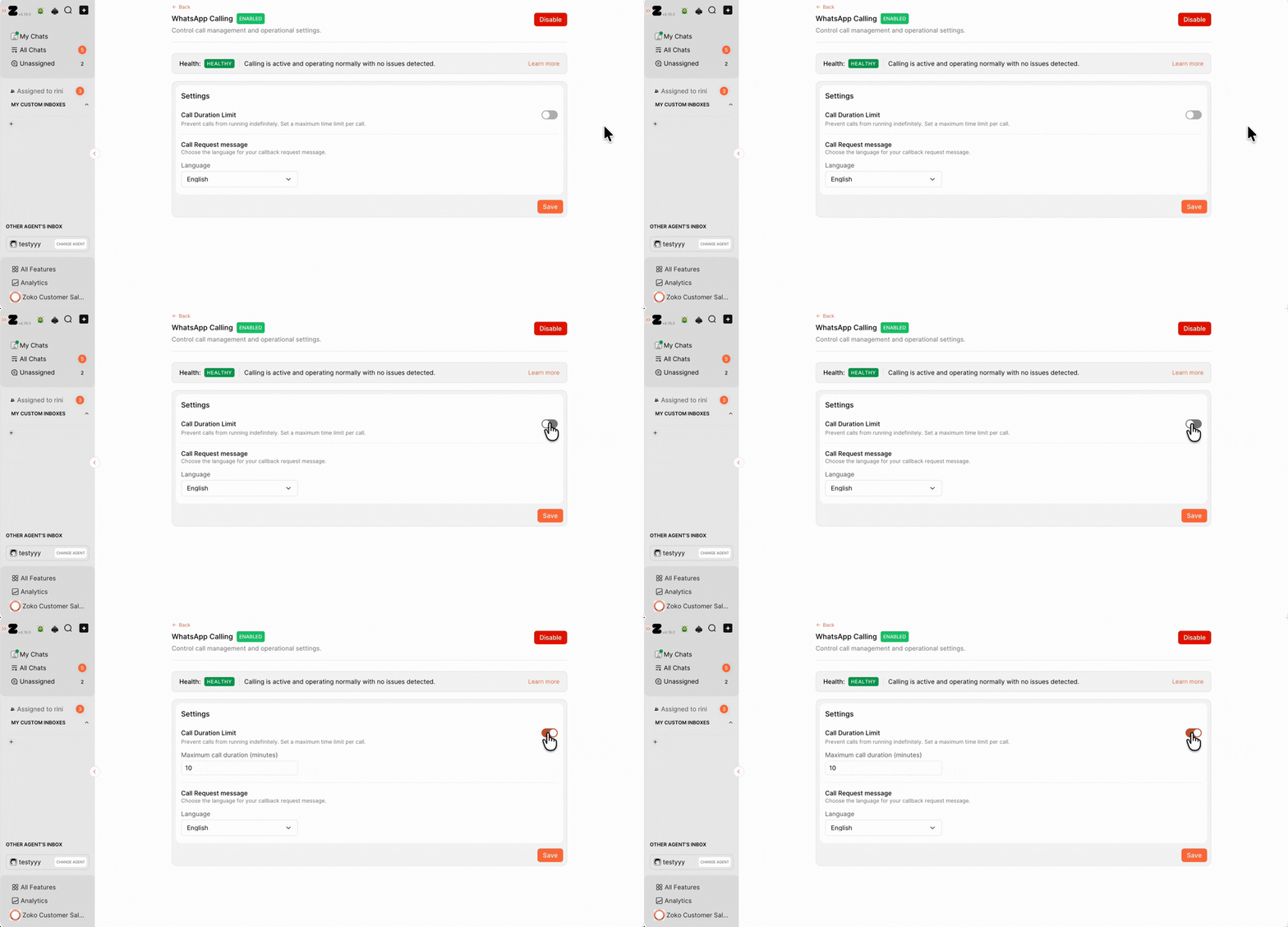
5. Type the maximum call duration in the field.
Once the limit is reached, the call will end automatically.
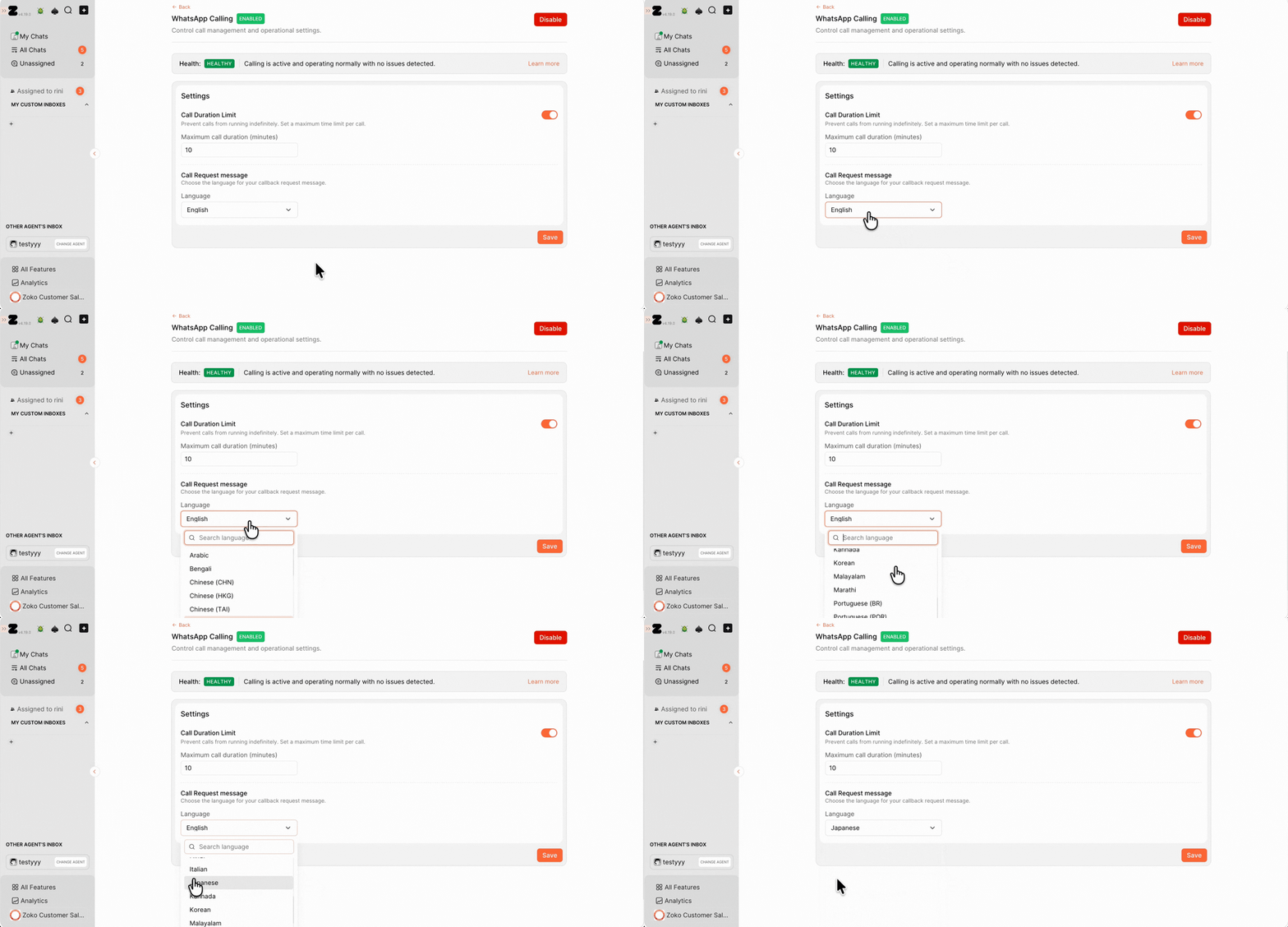
6. Click the Language dropdown and select the language in which customers should receive the callback request message.
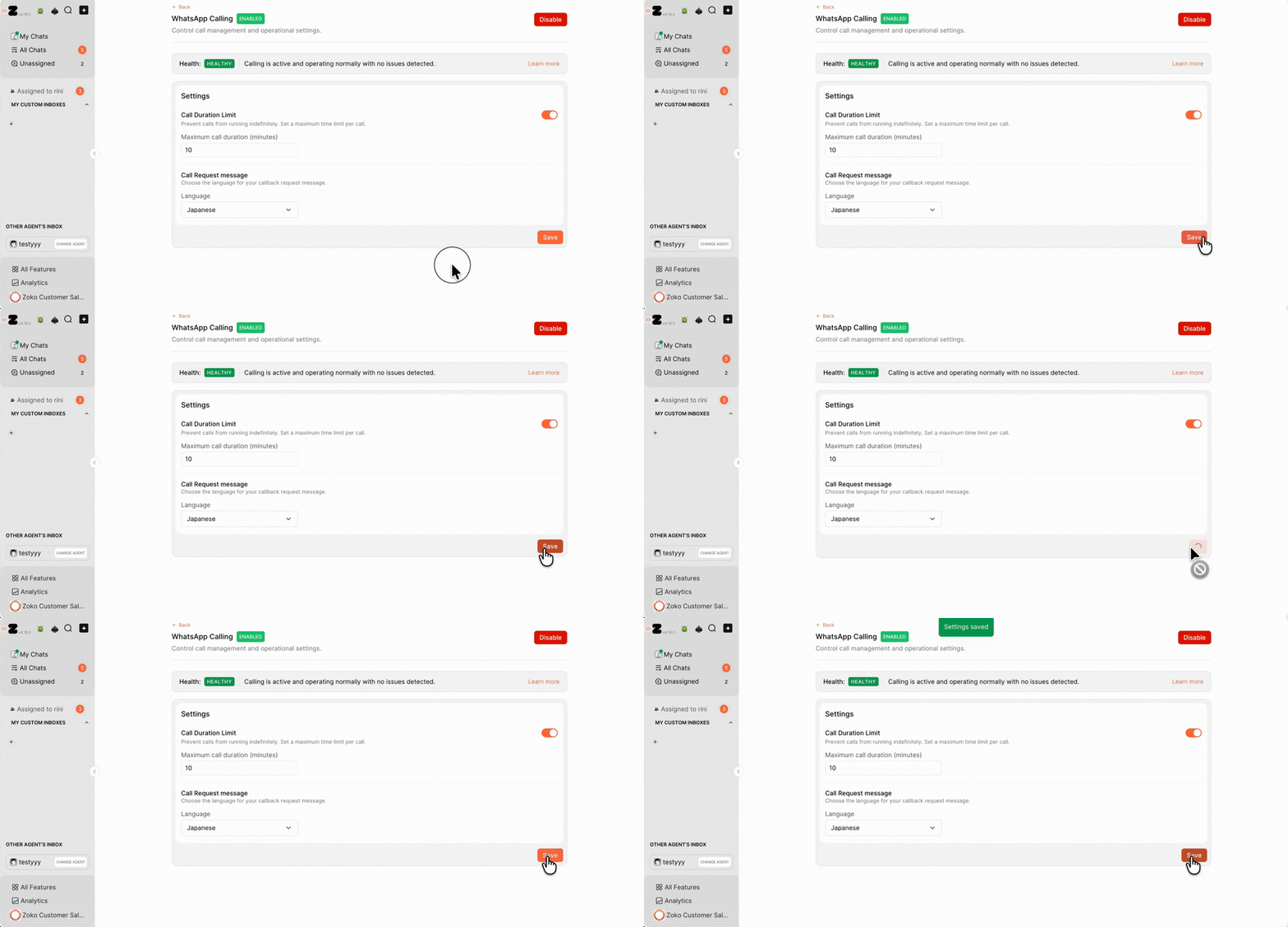
7. Click on Save.
Make a WhatsApp Call
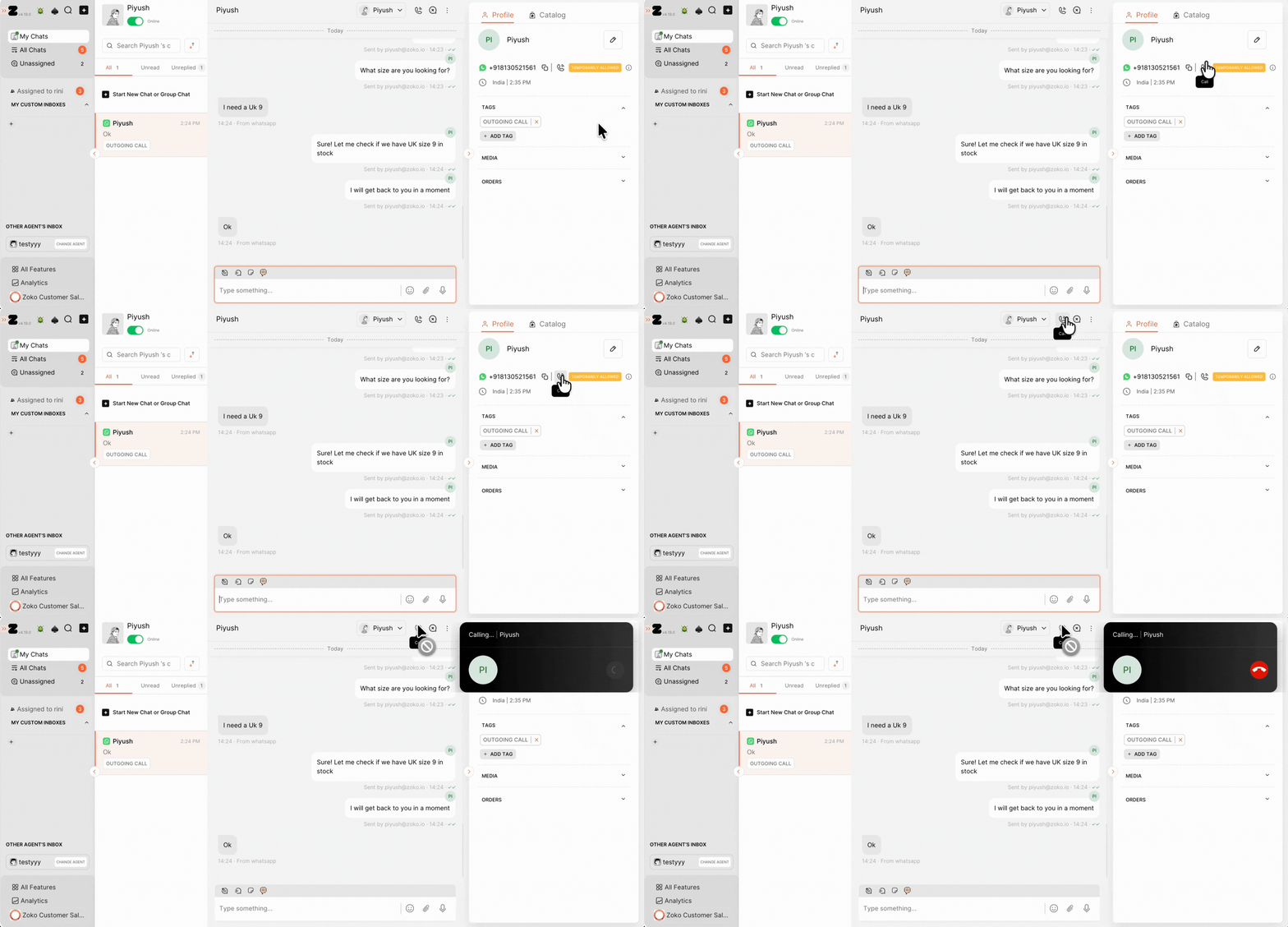
Once WhatsApp Calling is enabled, agents can start calling customers directly from the chat screen.
To make a call:
1. Go to the Chats screen and open the conversation of the customer you want to call.
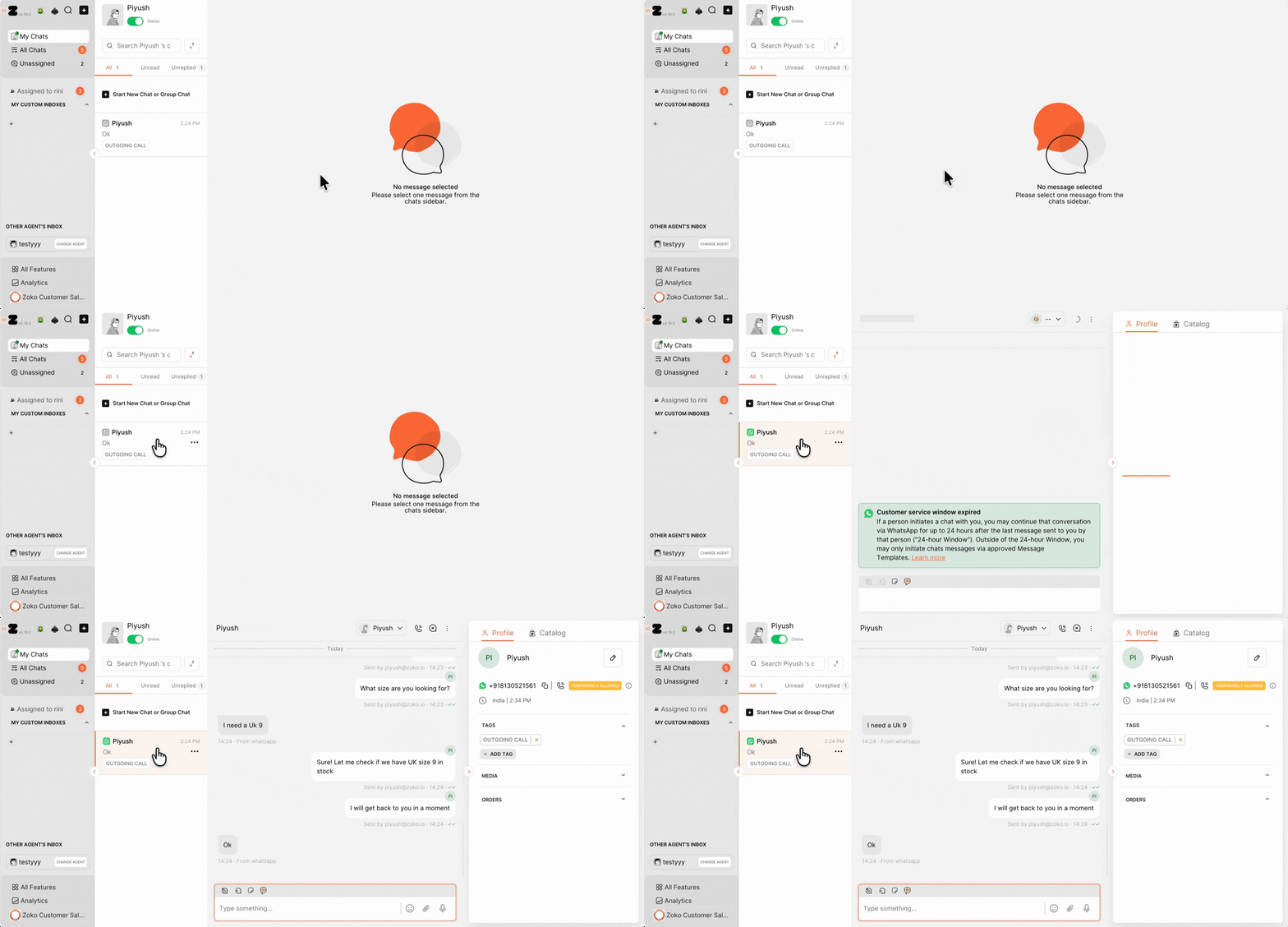
2. Click the Call icon from either the customer's profile or the top of the conversation to start the call.
To understand what each WhatsApp Calling Health Status means and what action to take, refer to Understand WhatsApp Calling Health Status.
Keywords: Enable WhatsApp calling, WhatsApp calling in Zoko, Receive WhatsApp calls, WhatsApp call duration limit, Set up WhatsApp calling
