


How to Create a Segment Using Broadcast Properties
Learn how to create a segment using Broadcast Properties in the Zoko dashboard.
.png)
Share on WhatsApp
.png)


Instead of manually filtering contacts after every campaign, you can save customers as a segment based on how they interacted with your WhatsApp broadcasts.
For example, you can create segments for contacts who:
- Were sent a broadcast
- Received a broadcast
- Read a broadcast
- Failed to receive a broadcast
- Responded to a broadcast
- Clicked a button or link in a broadcast
- Converted after a broadcast
Once created, you can use the segment when creating future WhatsApp broadcasts.
1. Go to All Features.
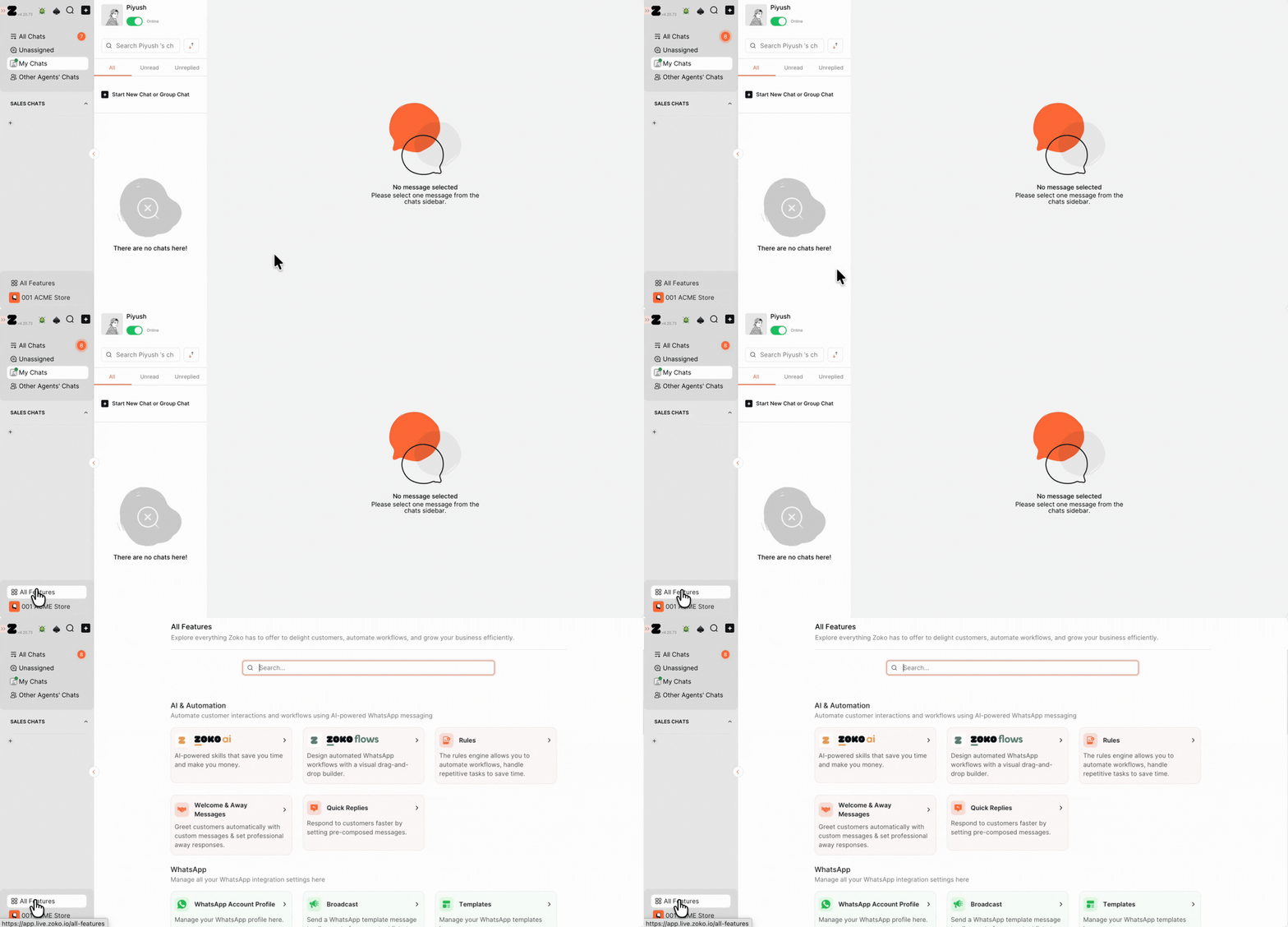
2. Scroll down and select Segments.
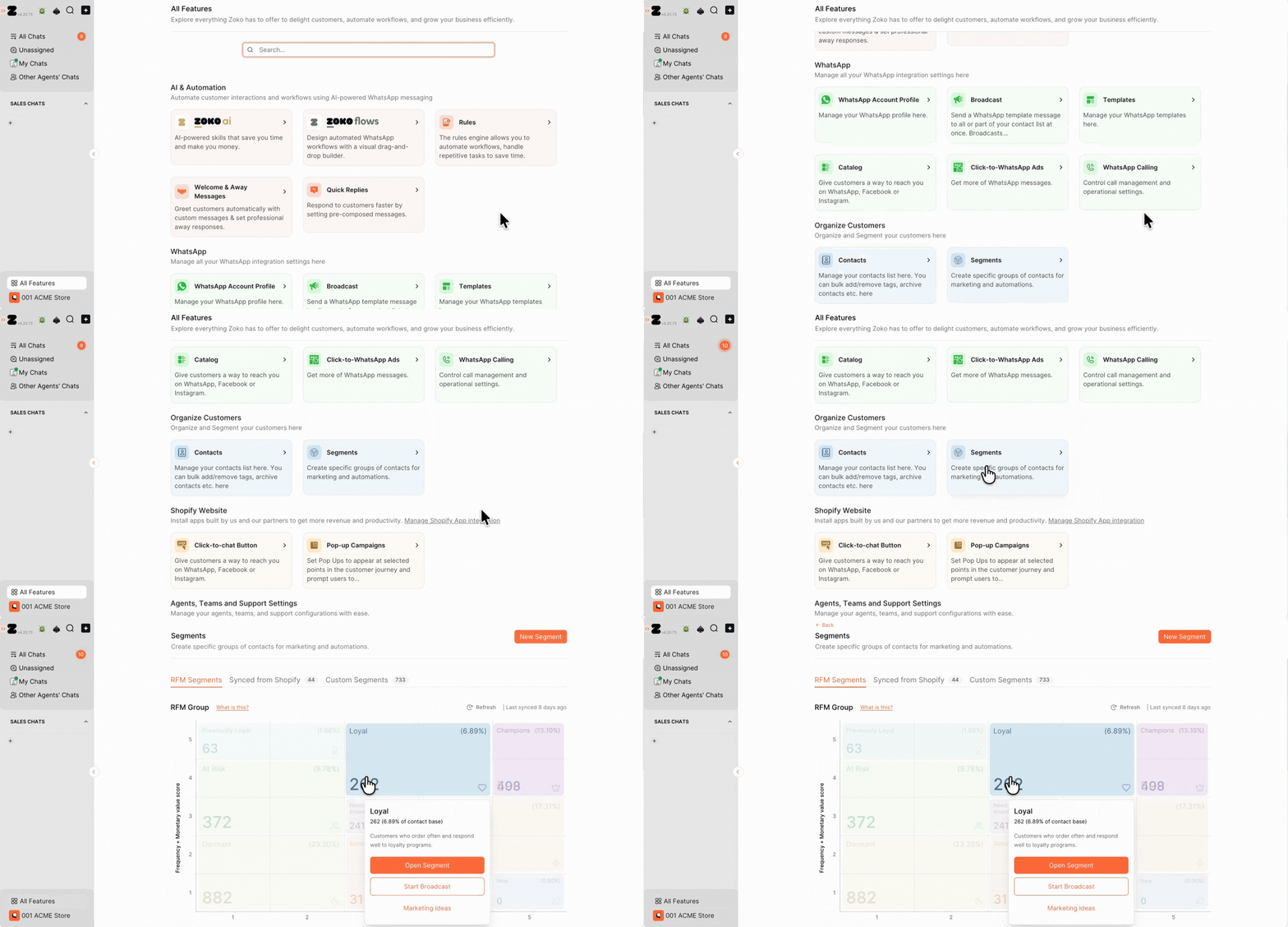
3. Click on New Segment.
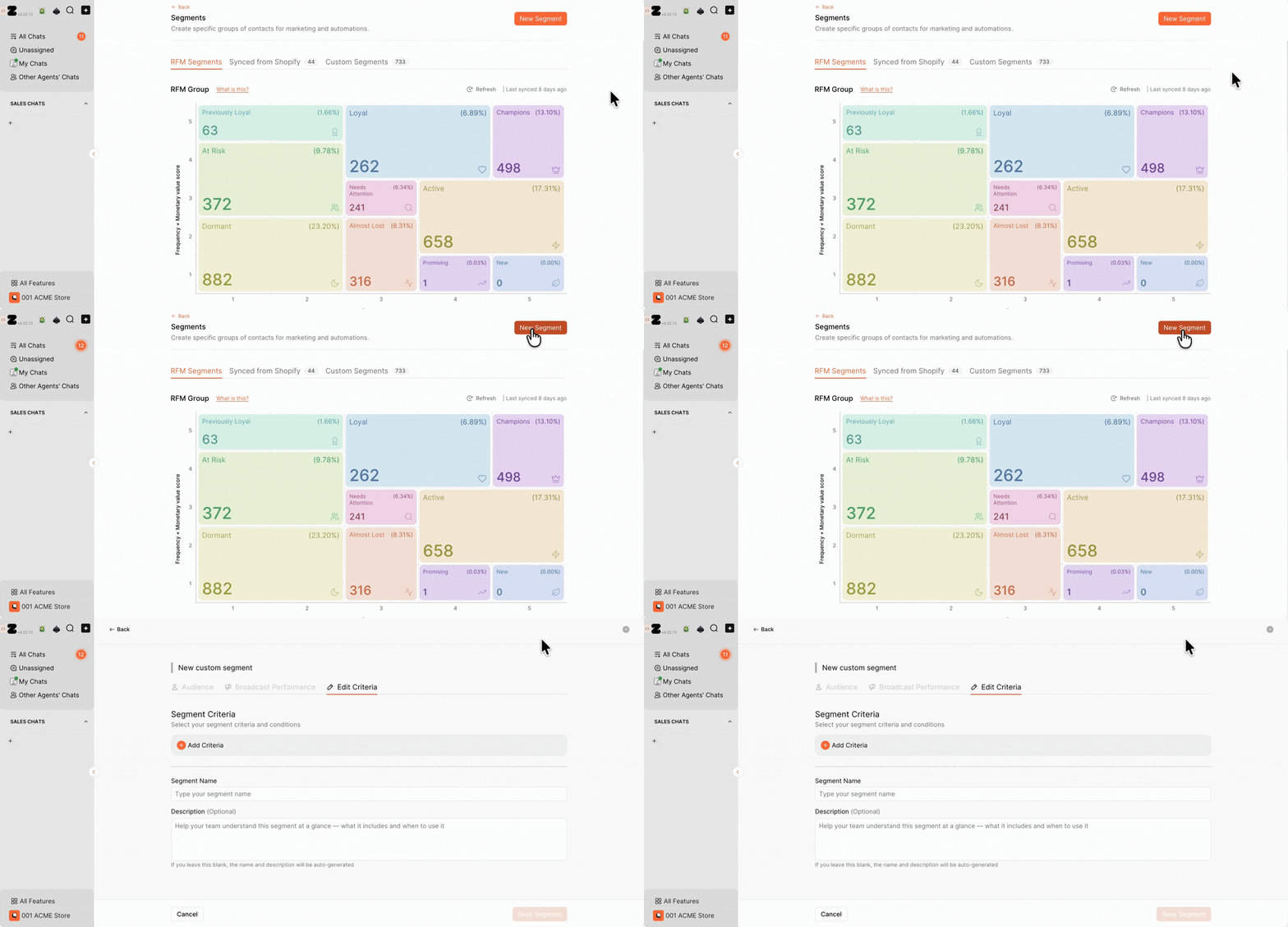
4. Click on Add Criteria and select Broadcast Properties.
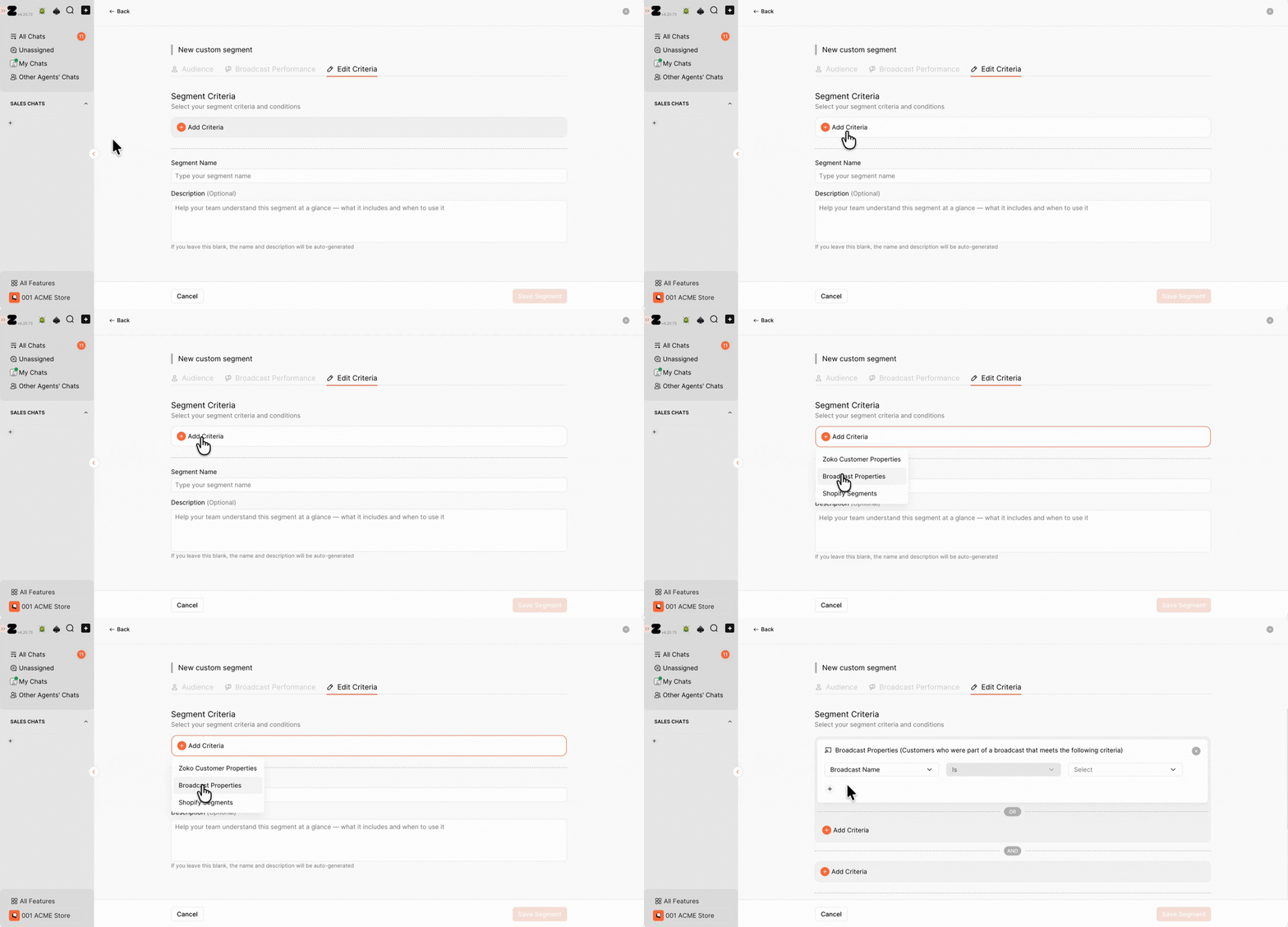
5. In the first Select drop-down, choose Broadcast Campaign or Broadcast Name, depending on the type of broadcast you want to filter by. In this case, we selected Broadcast Campaign.
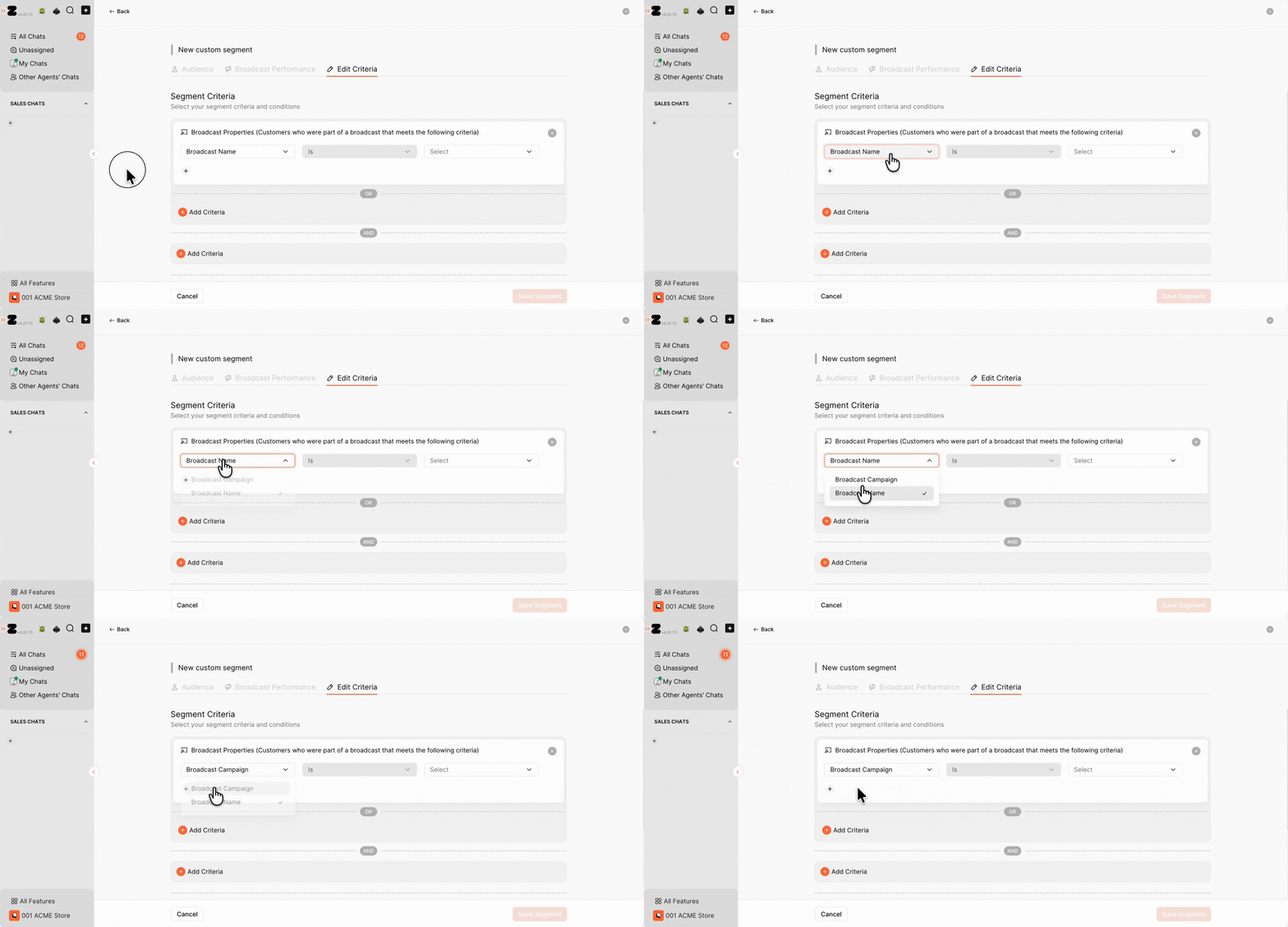
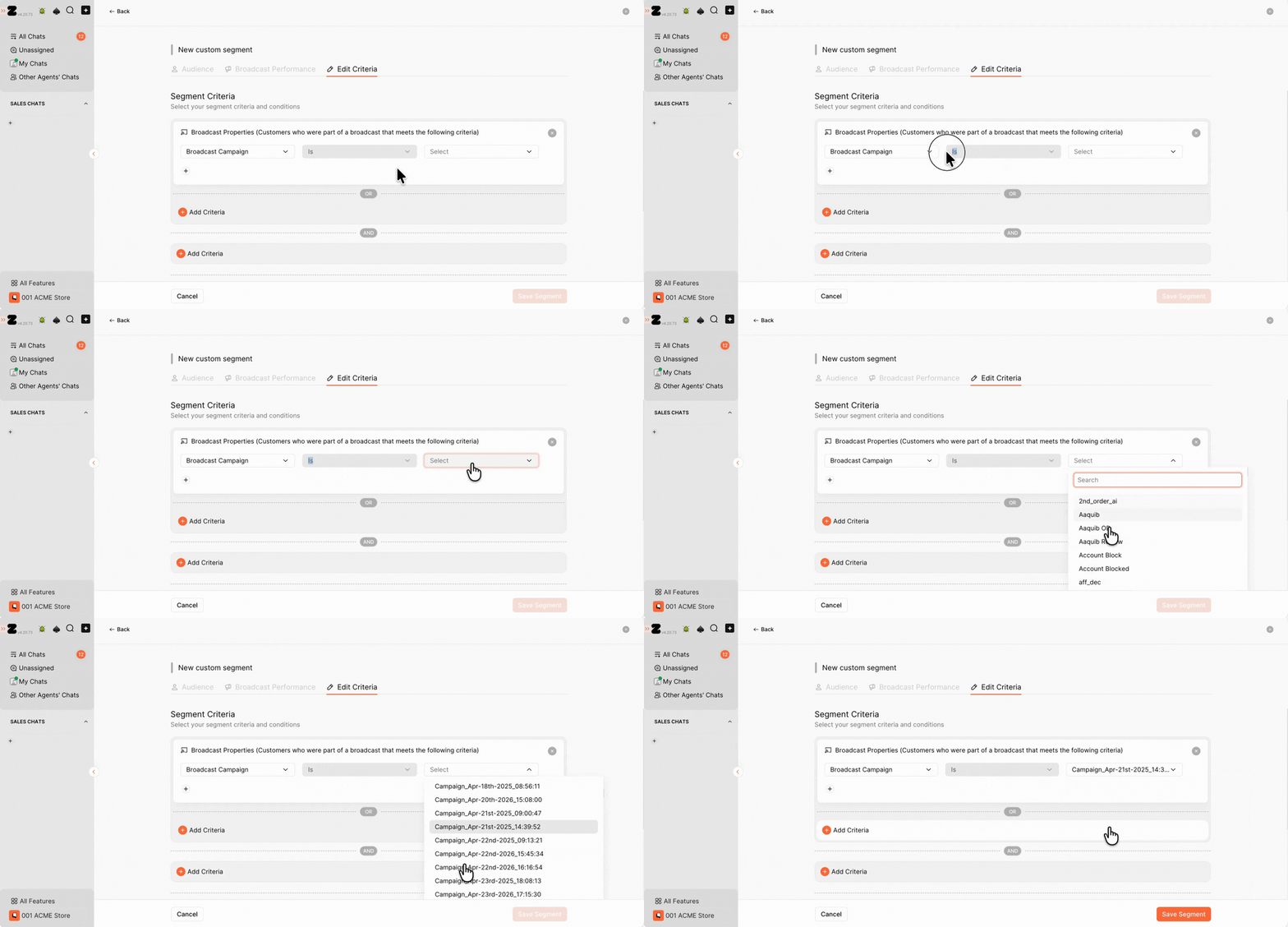
6. In the second Select drop-down, Is is selected by default. In the third field, select the broadcast campaign you want to use. In this case, we selected Single Series because the campaign we selected contains a single series.
Note: If the selected broadcast campaign contains multiple series, the Broadcast Series criteria will appear automatically. You can then select a specific series or choose Any Series to include all series in the campaign.
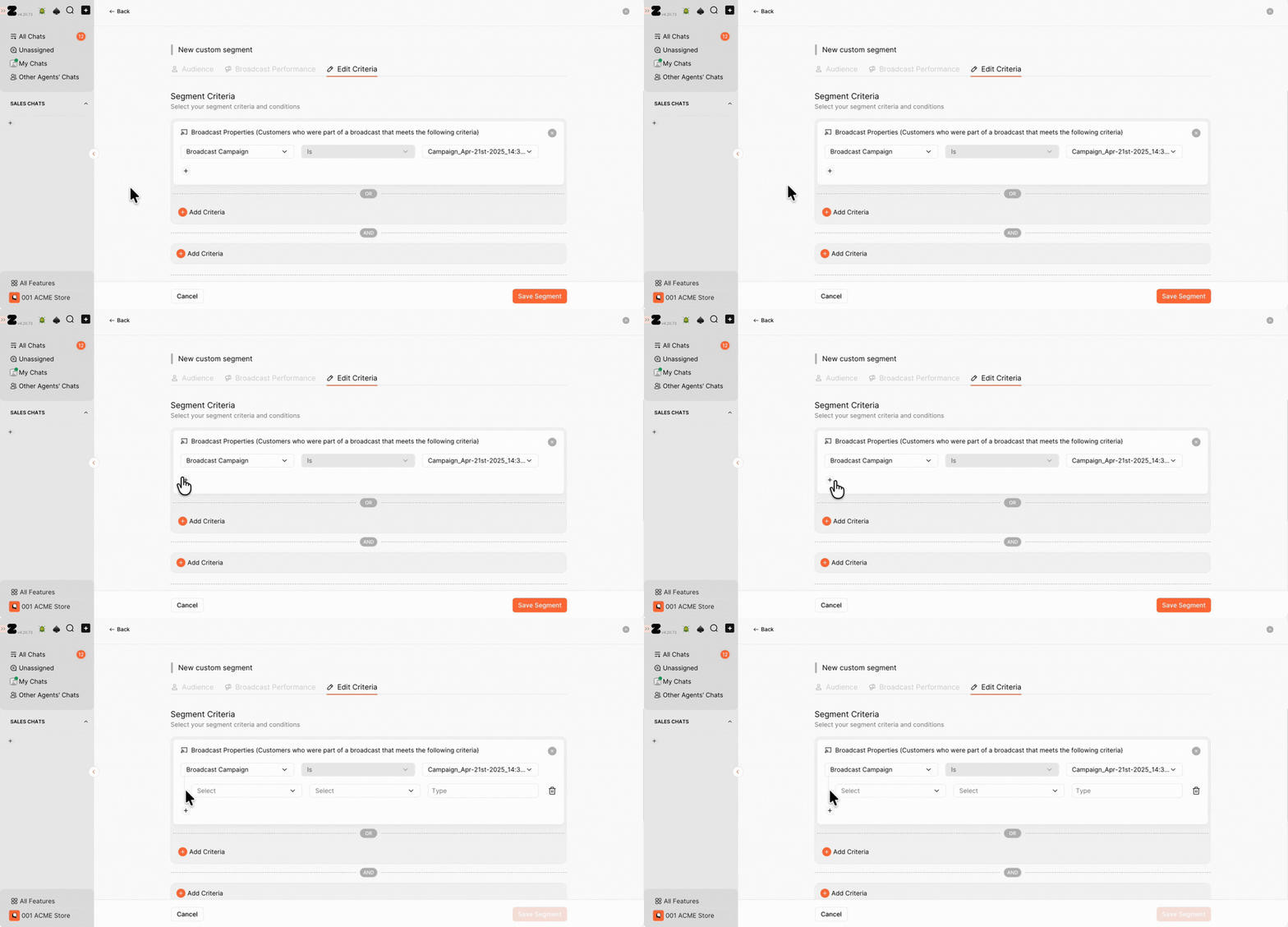
7. Click the + icon to add another criterion. This lets you further filter the contacts based on their interaction with the selected broadcast, such as whether the broadcast was Sent, Delivered, Read, Responded, Clicked, or Converted.
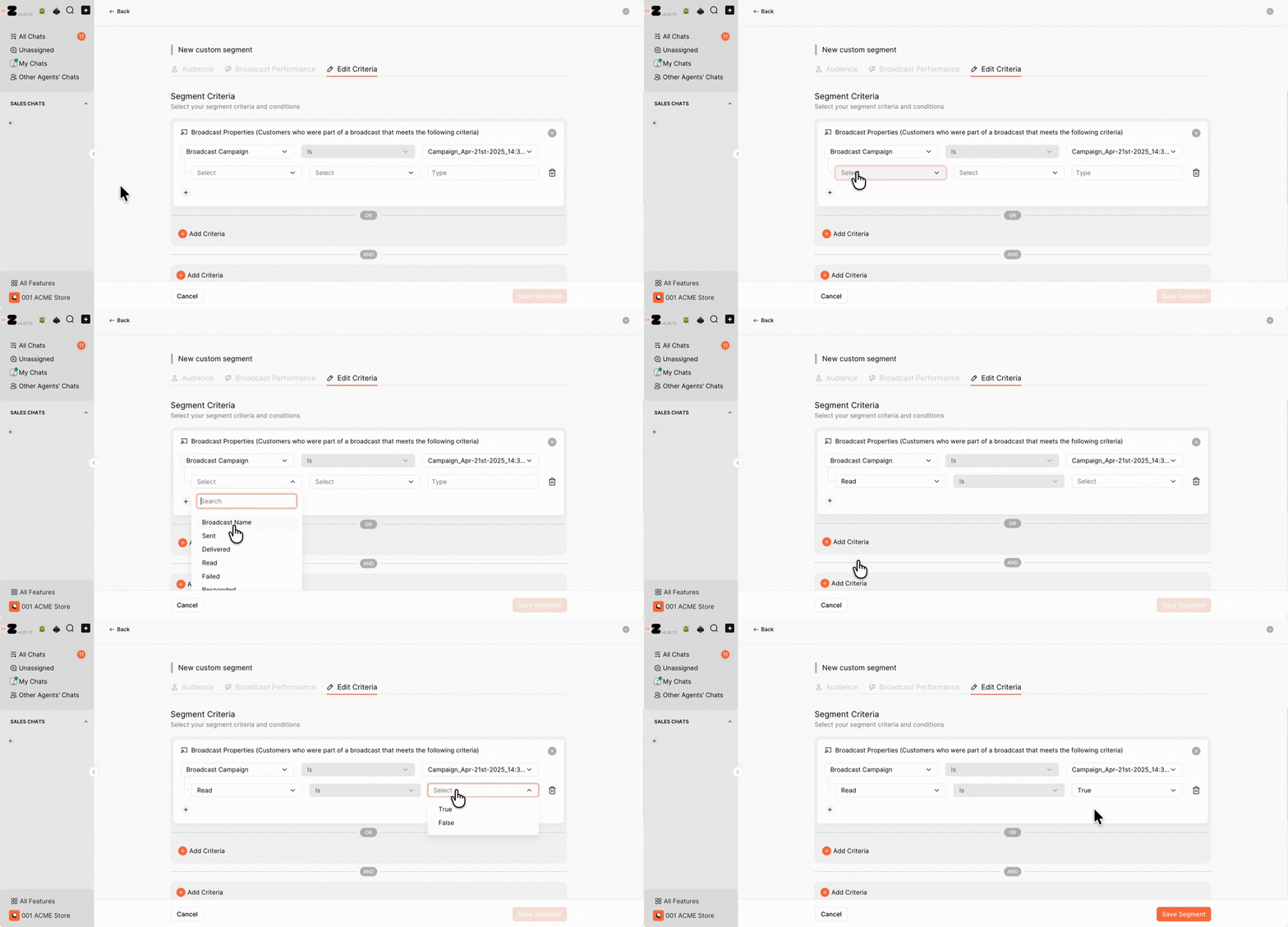
8. In the first Select drop-down, choose the broadcast property you want to use as a filter. In this example, we selected Read. In the second Select drop-down, Is is selected by default. In the third field, select the value based on the audience you want to include.
Here’s how the logic works:
- Read → Is → True = Contacts who have read the broadcast.
- Read → Is → False = Contacts who have not read the broadcast.
9. (Optional) Click Add Criteria to add more conditions and narrow down your audience.
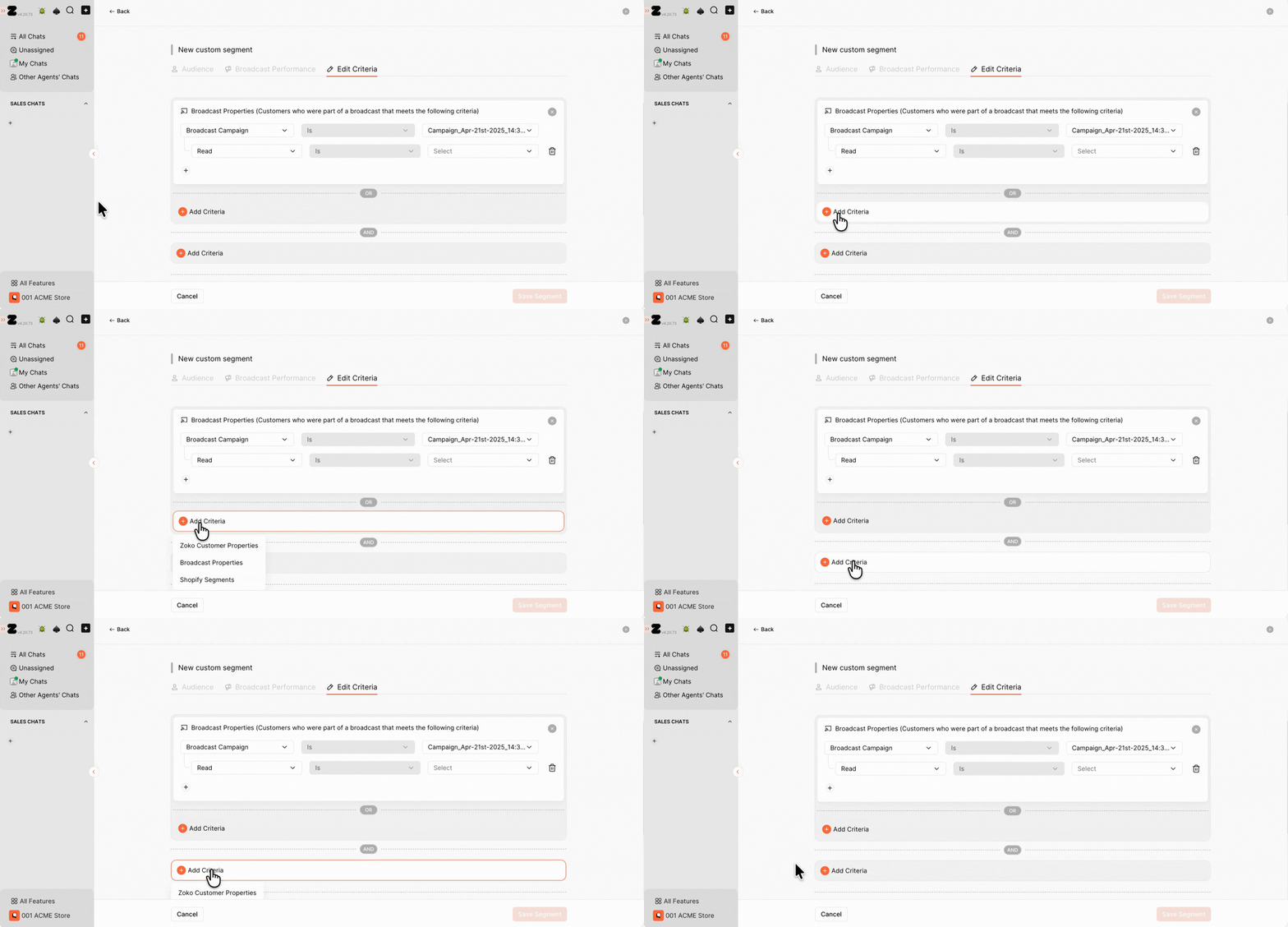
10. Type a Segment Name and Description, then click Save Segment.
Pro tip: If you're unsure what to enter, you can leave these fields blank. Zoko automatically generates a segment name and description when you save the segment.
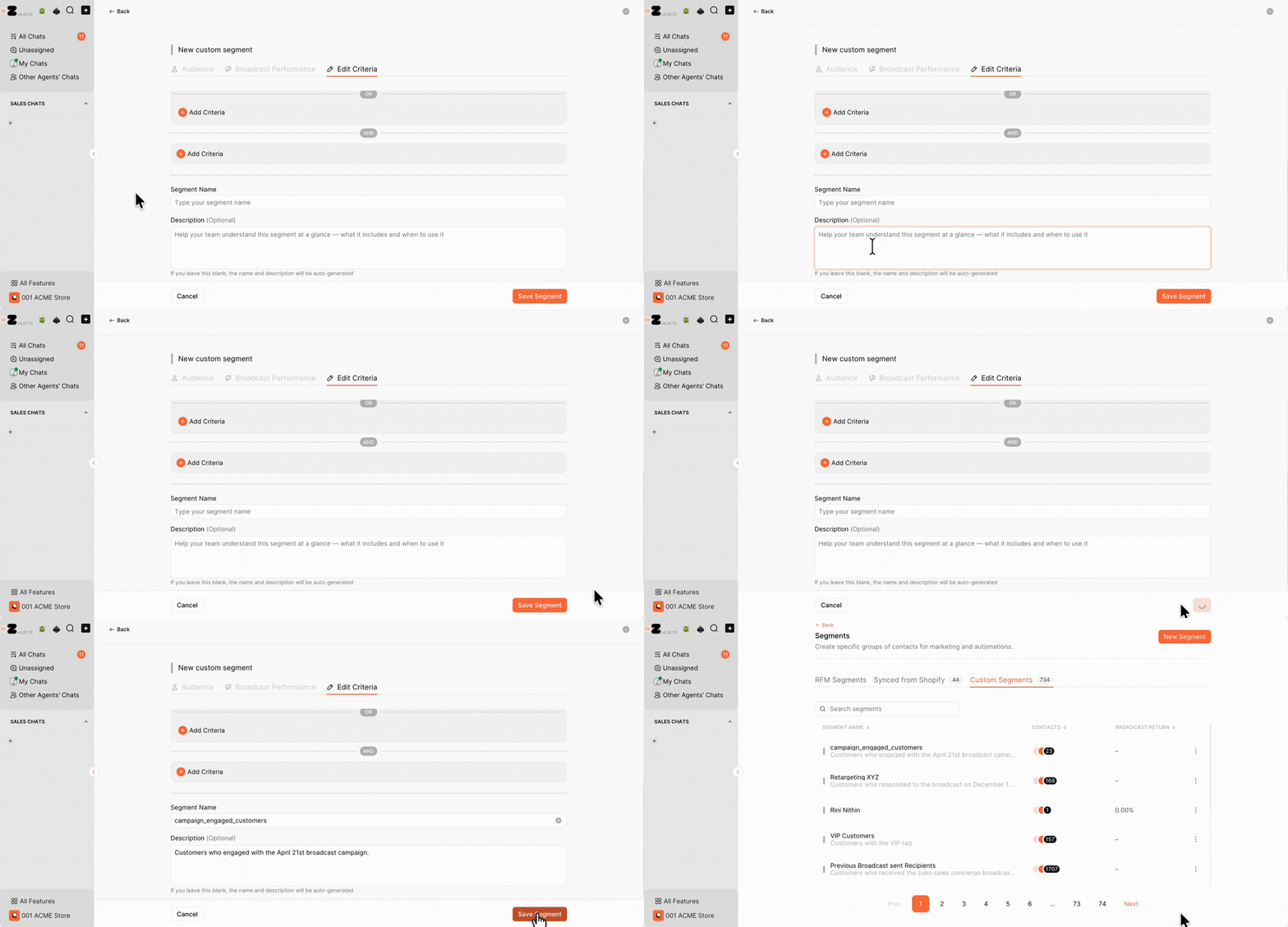
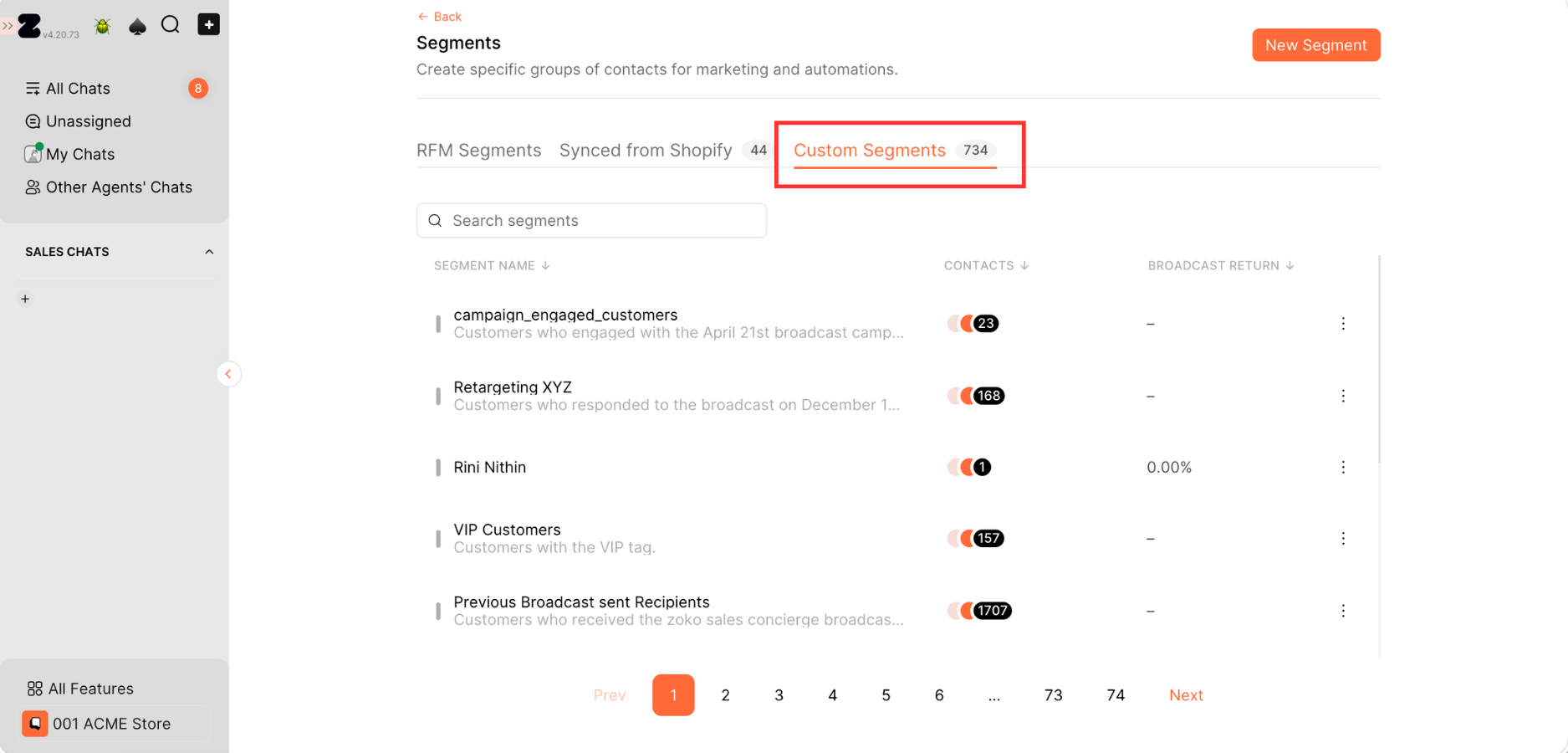
You can find all your saved segments under the Custom Segments tab.
Keywords: Broadcast segment, Broadcast properties, Create broadcast segment, Zoko broadcast segment, Broadcast filters, Segment contacts
