


How to Use RFM Segments in Zoko
Learn how to use RFM segments to target customers with relevant broadcasts.
.png)
Share on WhatsApp
.png)


RFM Segments automatically group your customers based on their purchasing behavior, helping you understand different customer groups and target them with relevant marketing campaigns.
You can view the customers in each RFM group, explore marketing ideas and templates, send targeted broadcasts, and check the performance of broadcasts sent to the segment.
To do this:
1. Go to All Features.
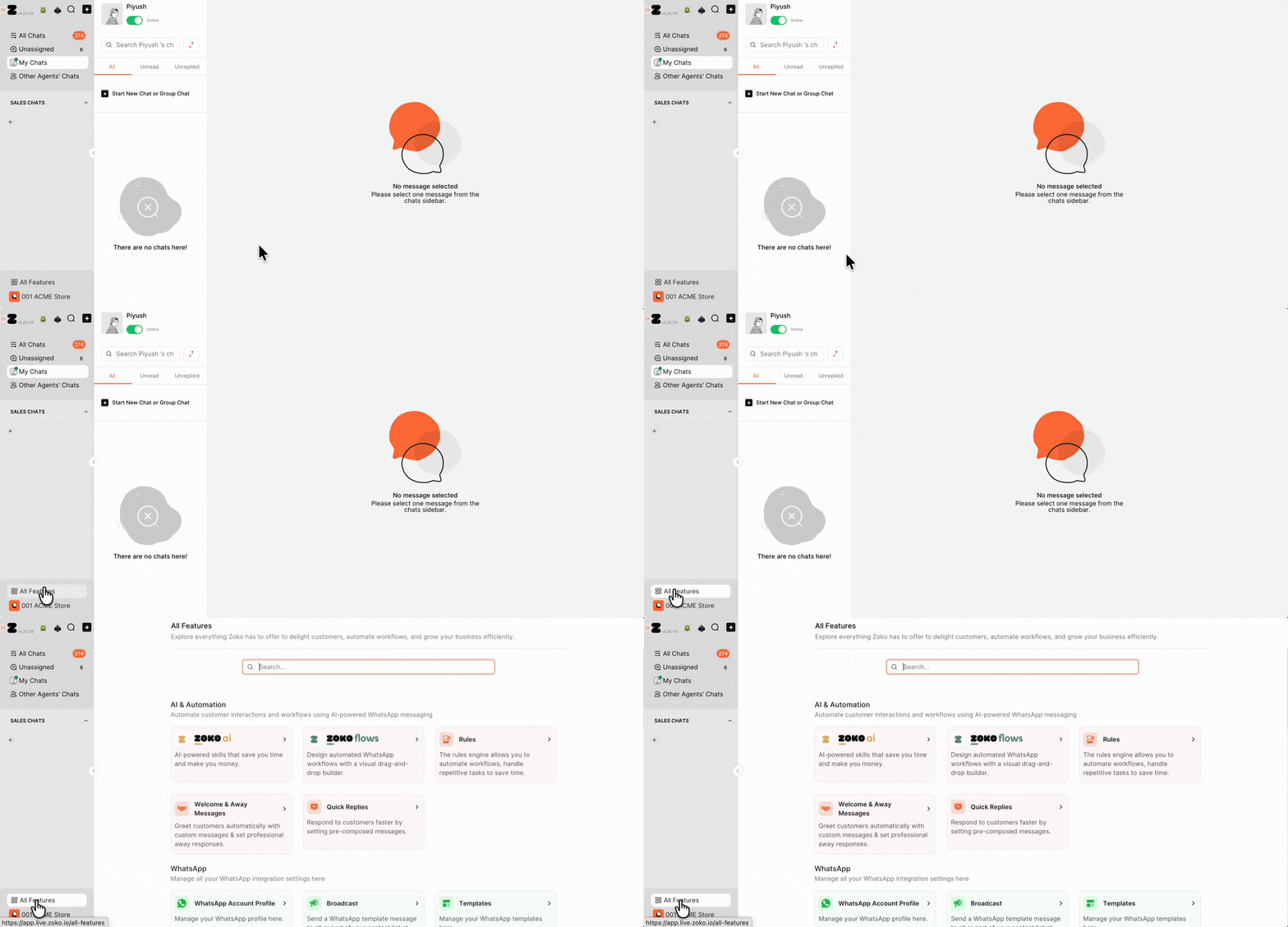
2. Scroll down and select Segments.
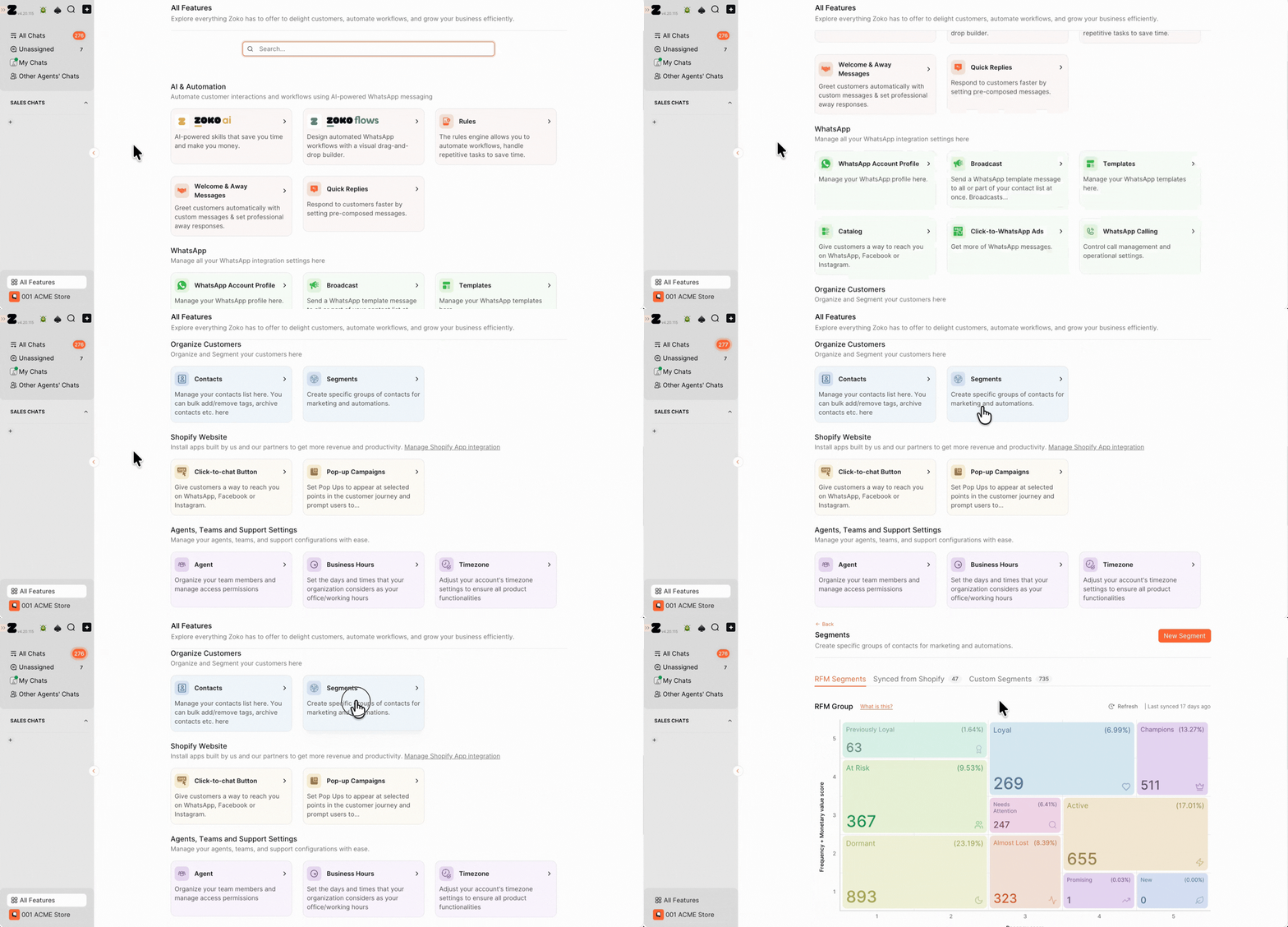
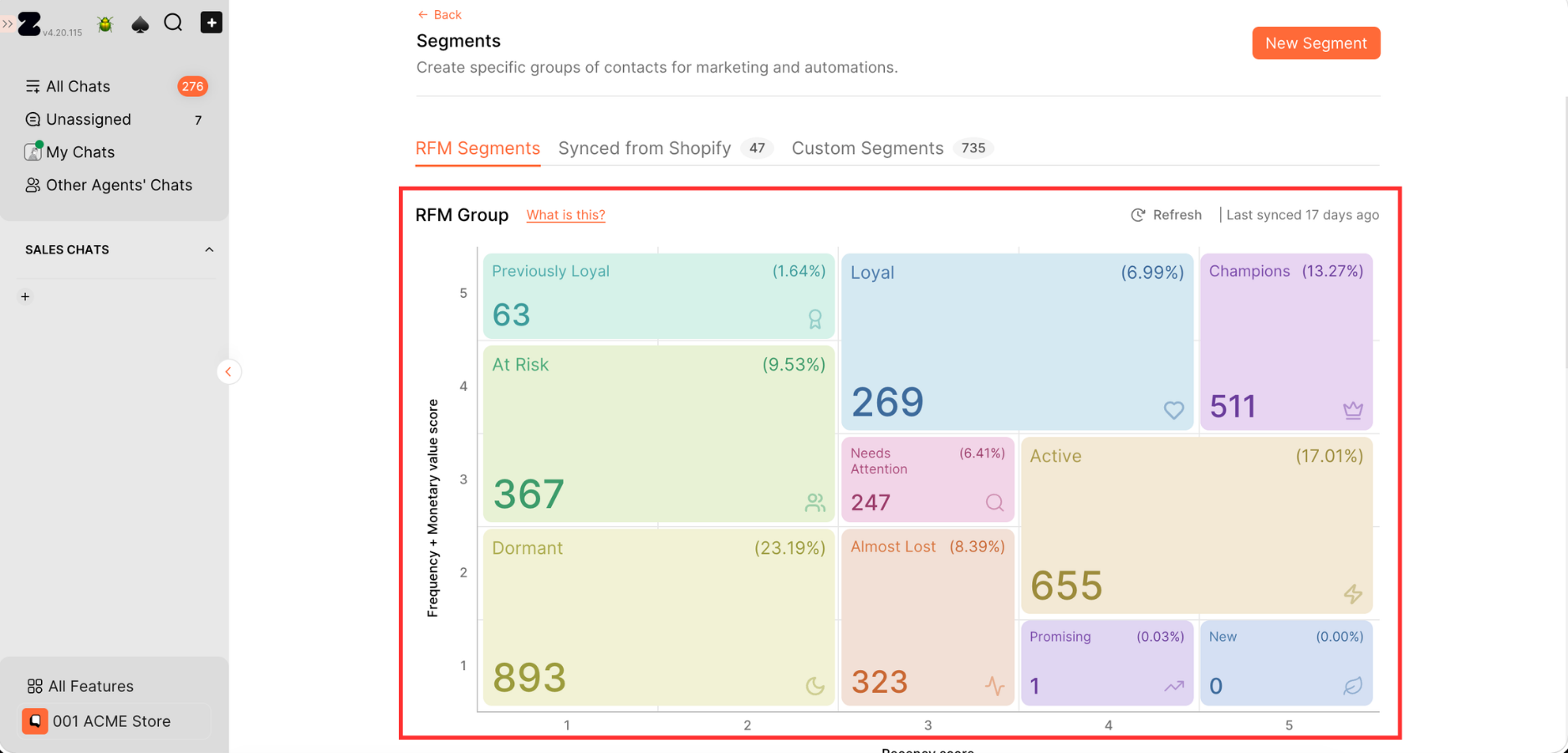
3. You can see the different RFM groups along with the number of customers in each group. To understand what each RFM group means, refer to Understand RFM Groups.
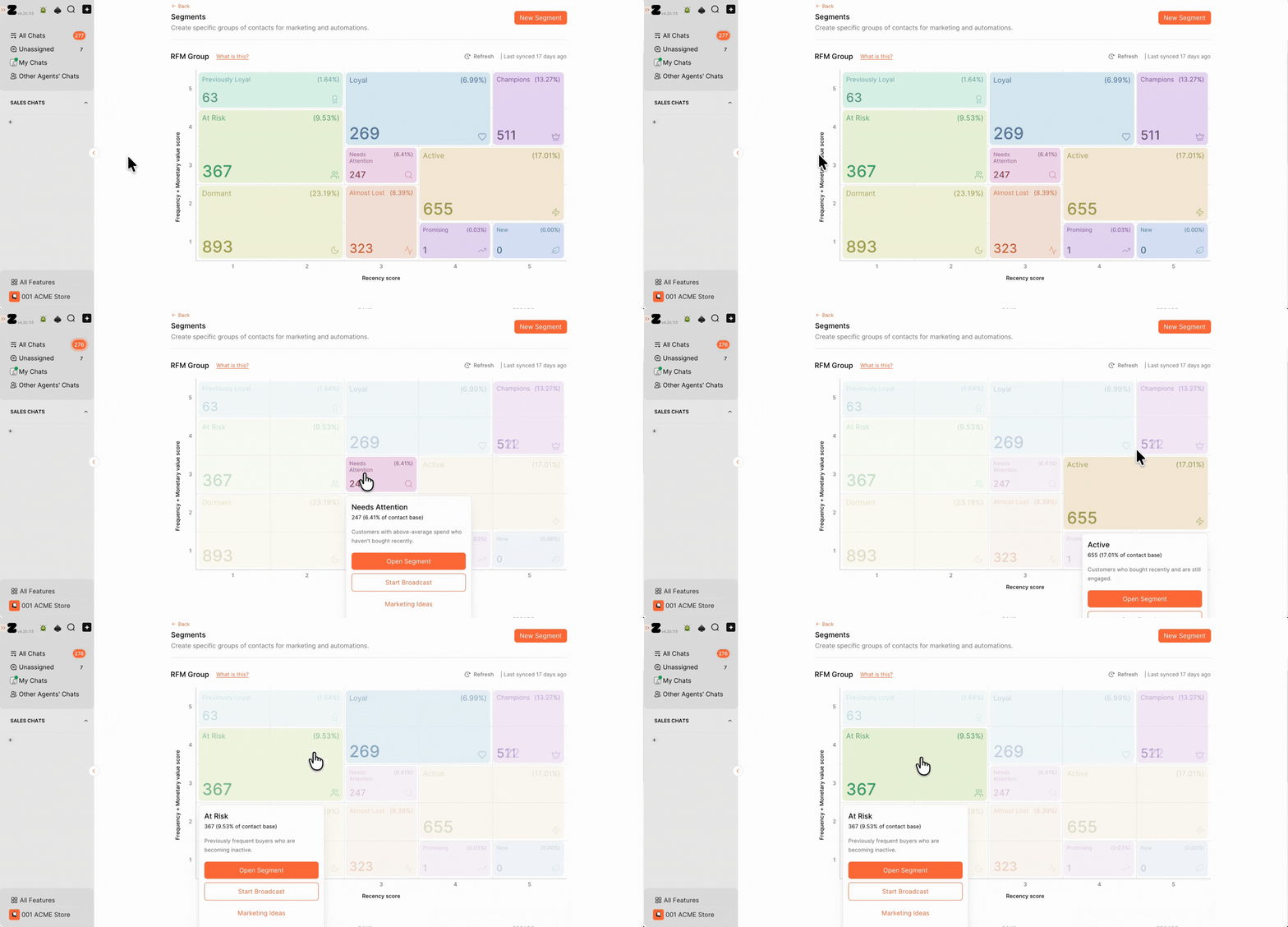
4. Hover over the RFM group you want to explore to see the available options.
View Segment Details, Marketing Ideas, and Templates
1. Click Open Segment.
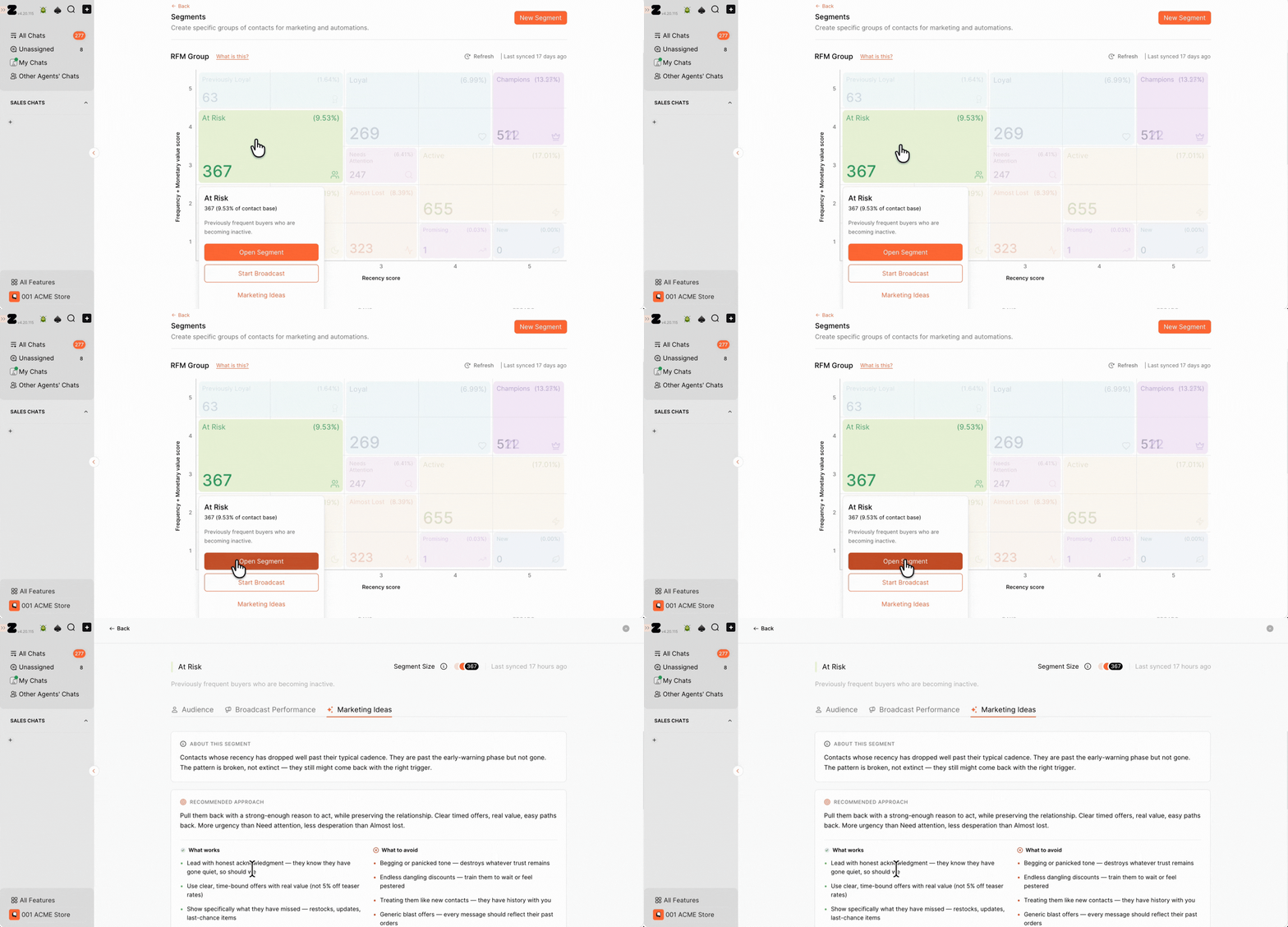
2. You’ll see the Segment Size, information about the RFM group, and Marketing Ideas.
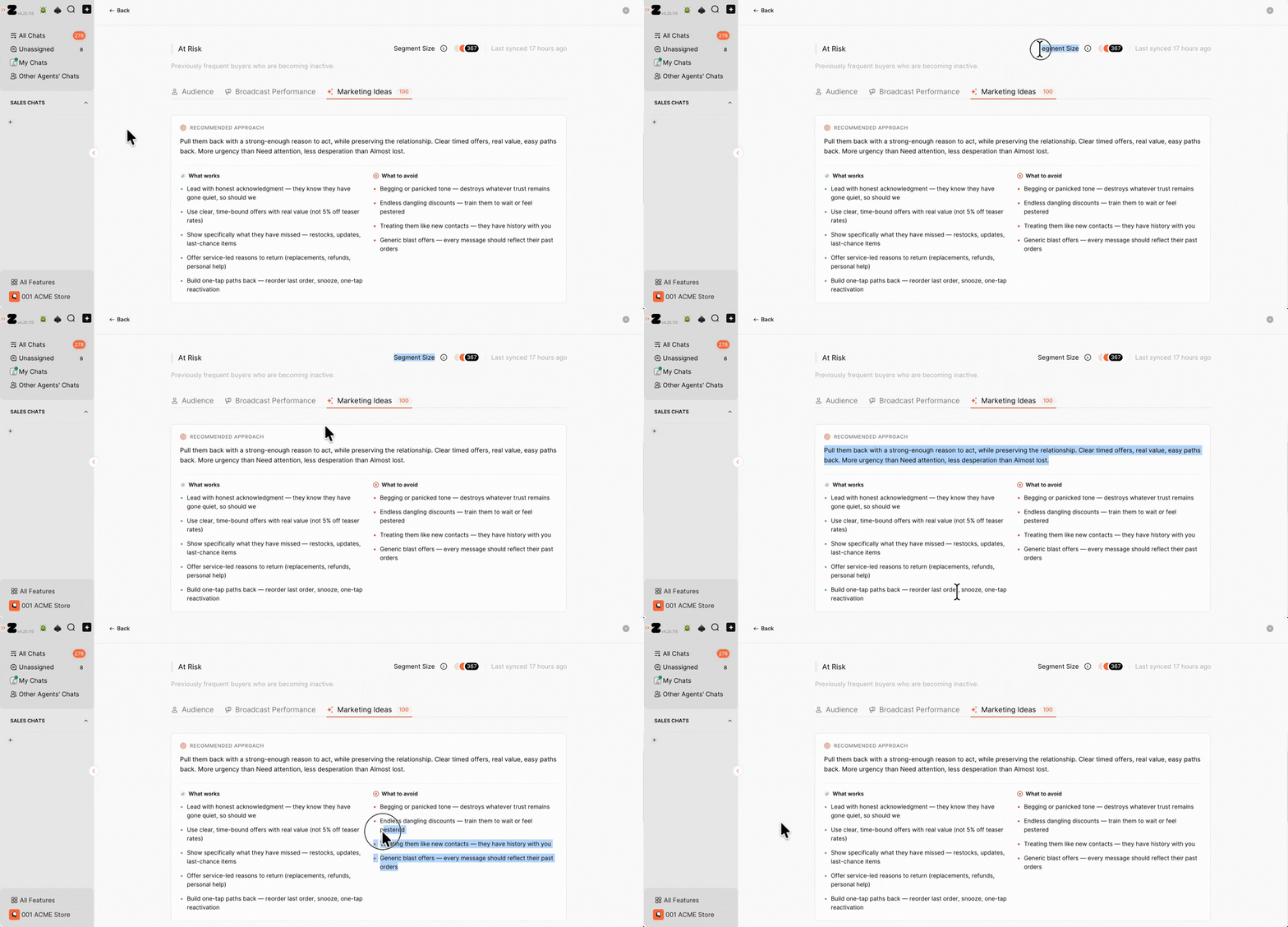
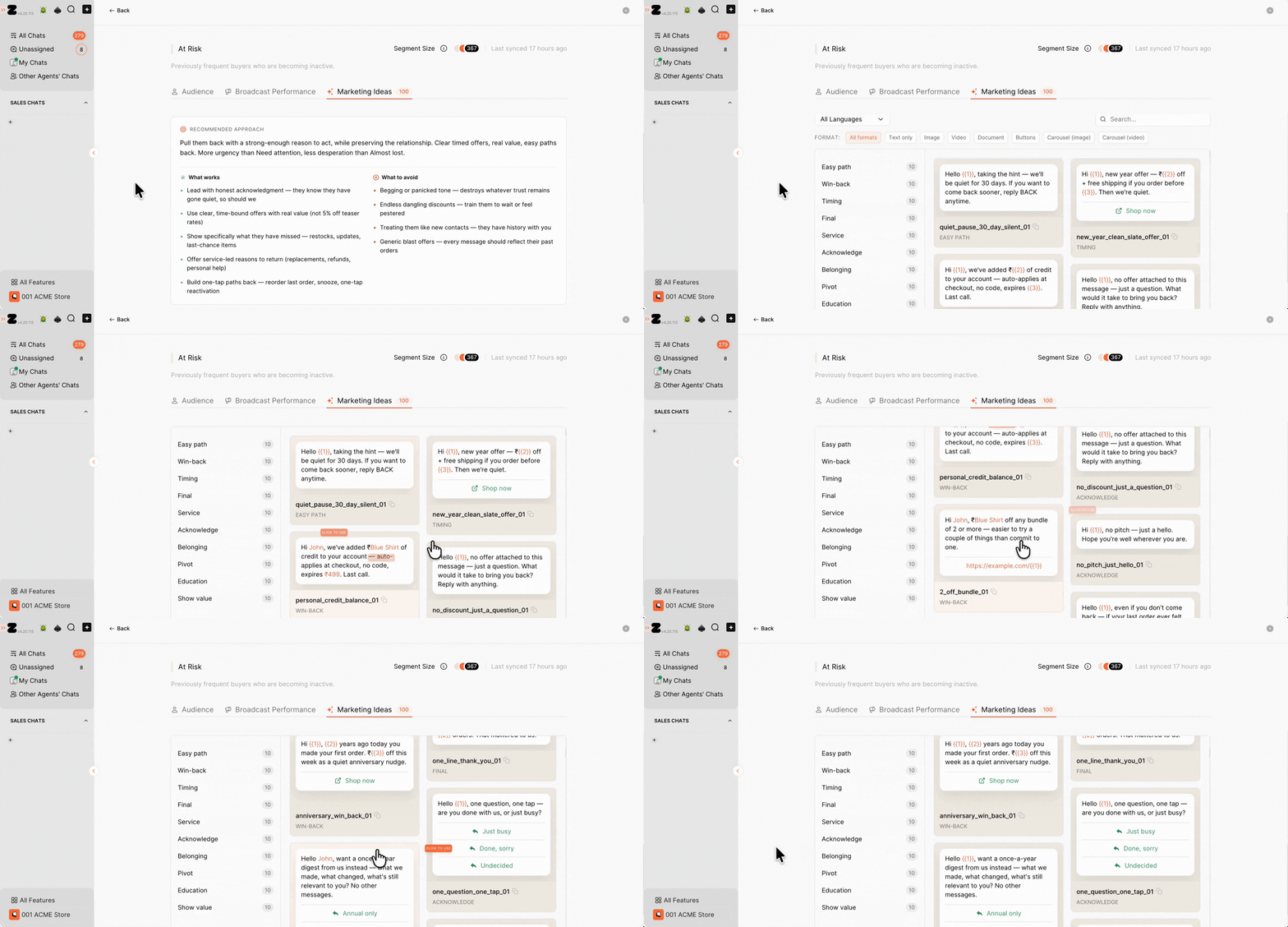
3. Scroll down to view the templates recommended for this RFM group.
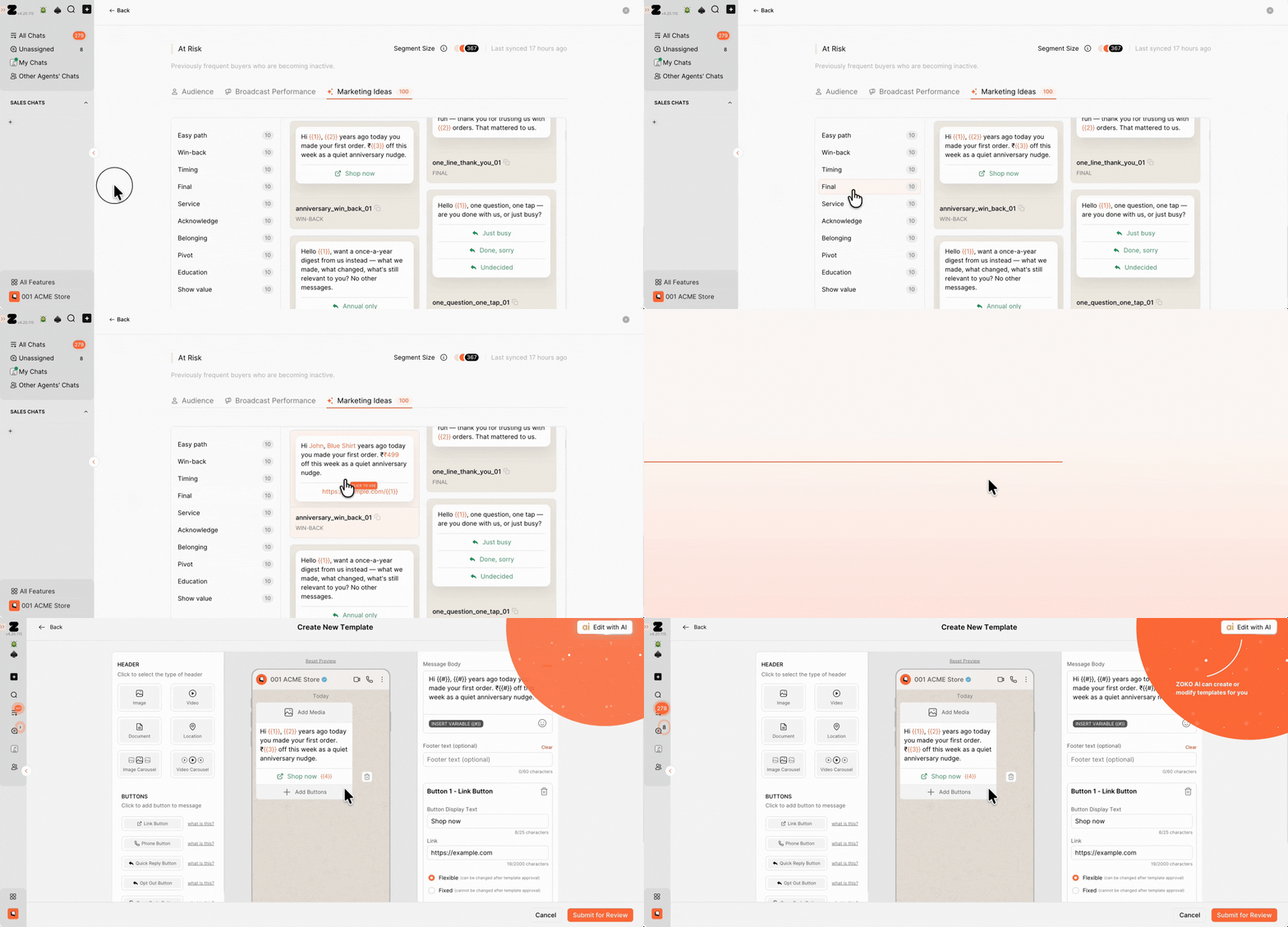
4. Click the template you want to use to open it in the template creation screen.
Pro tip: Make changes to the template if needed, then submit it for review.
View Customers in an RFM Segment
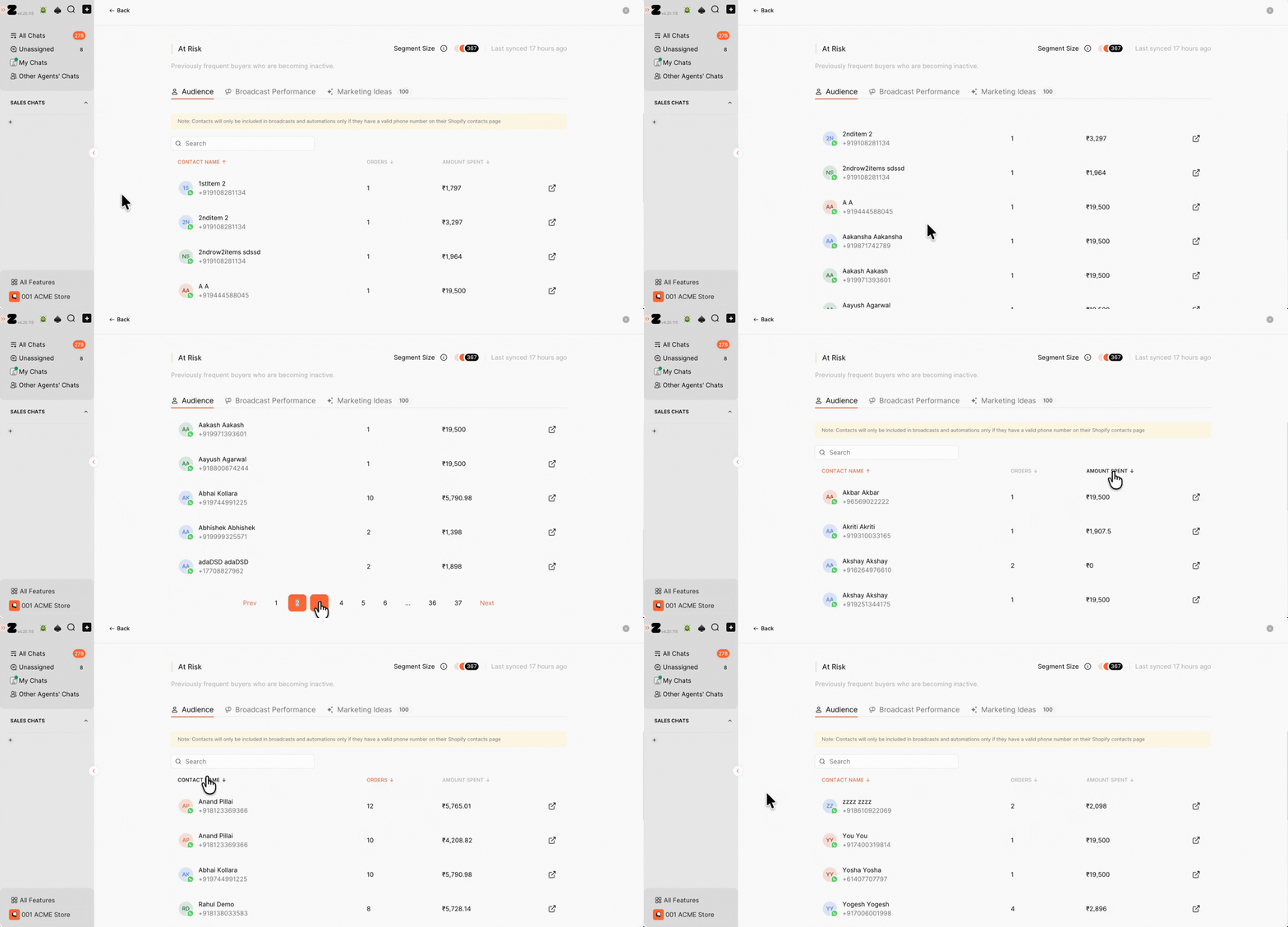
1. Go to the Audience tab.
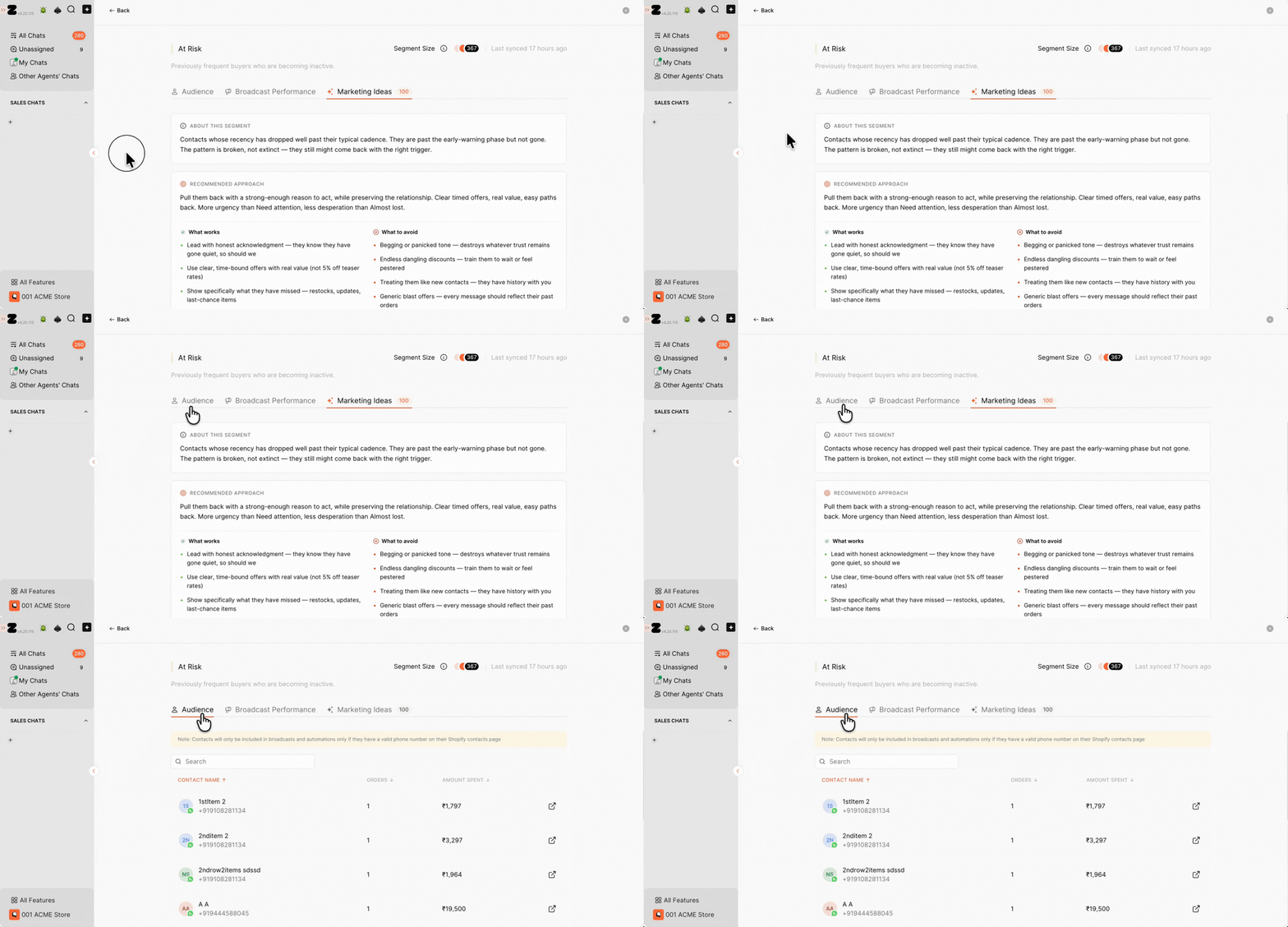
2. You’ll see the customers included in the RFM segment along with details such as their name, phone number, order count, and amount spent.
View Broadcast Performance
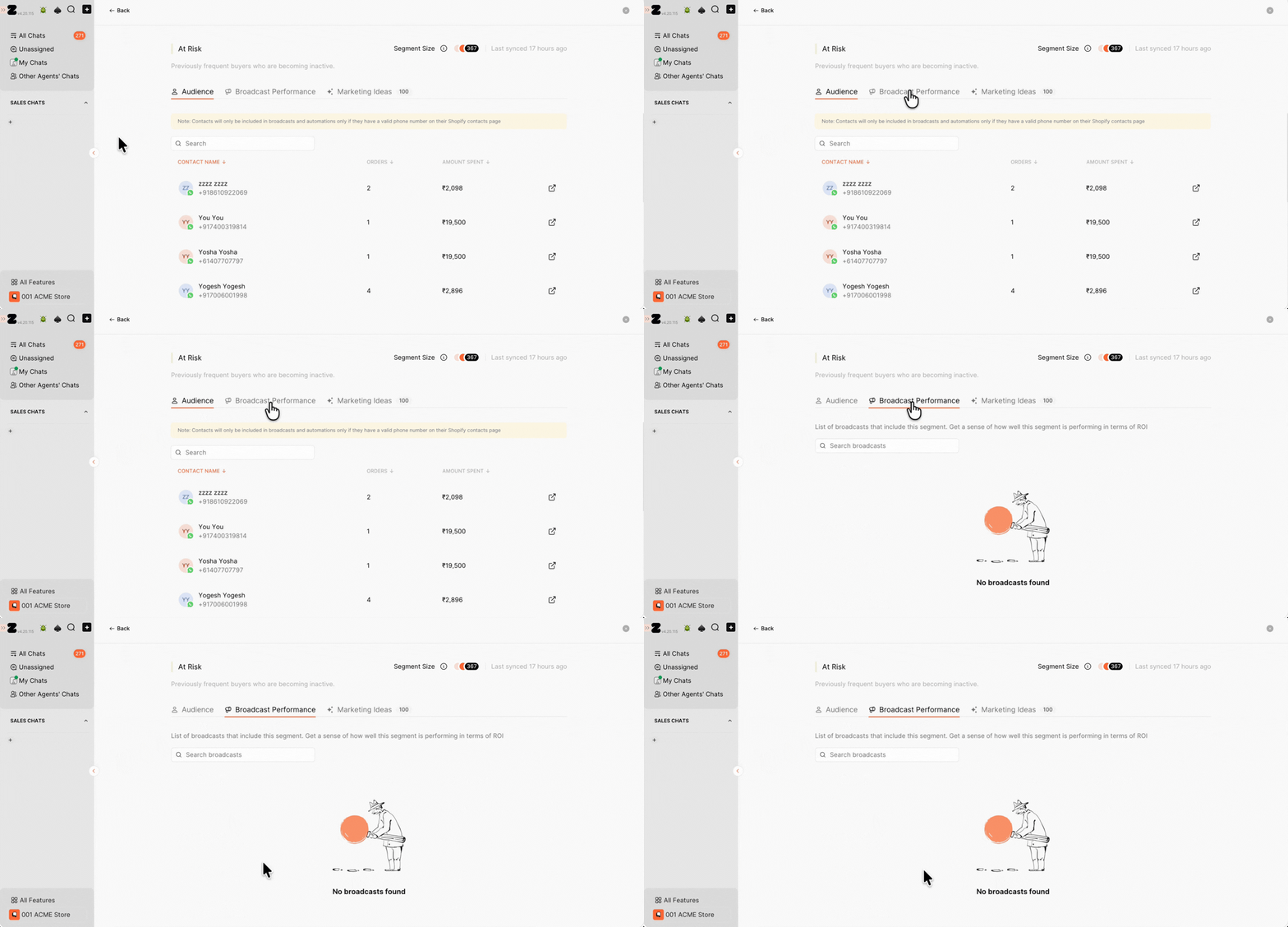
If you have previously sent a broadcast to the RFM segment, go to the Broadcast Performance tab to view its performance.
Send a Broadcast to an RFM Segment
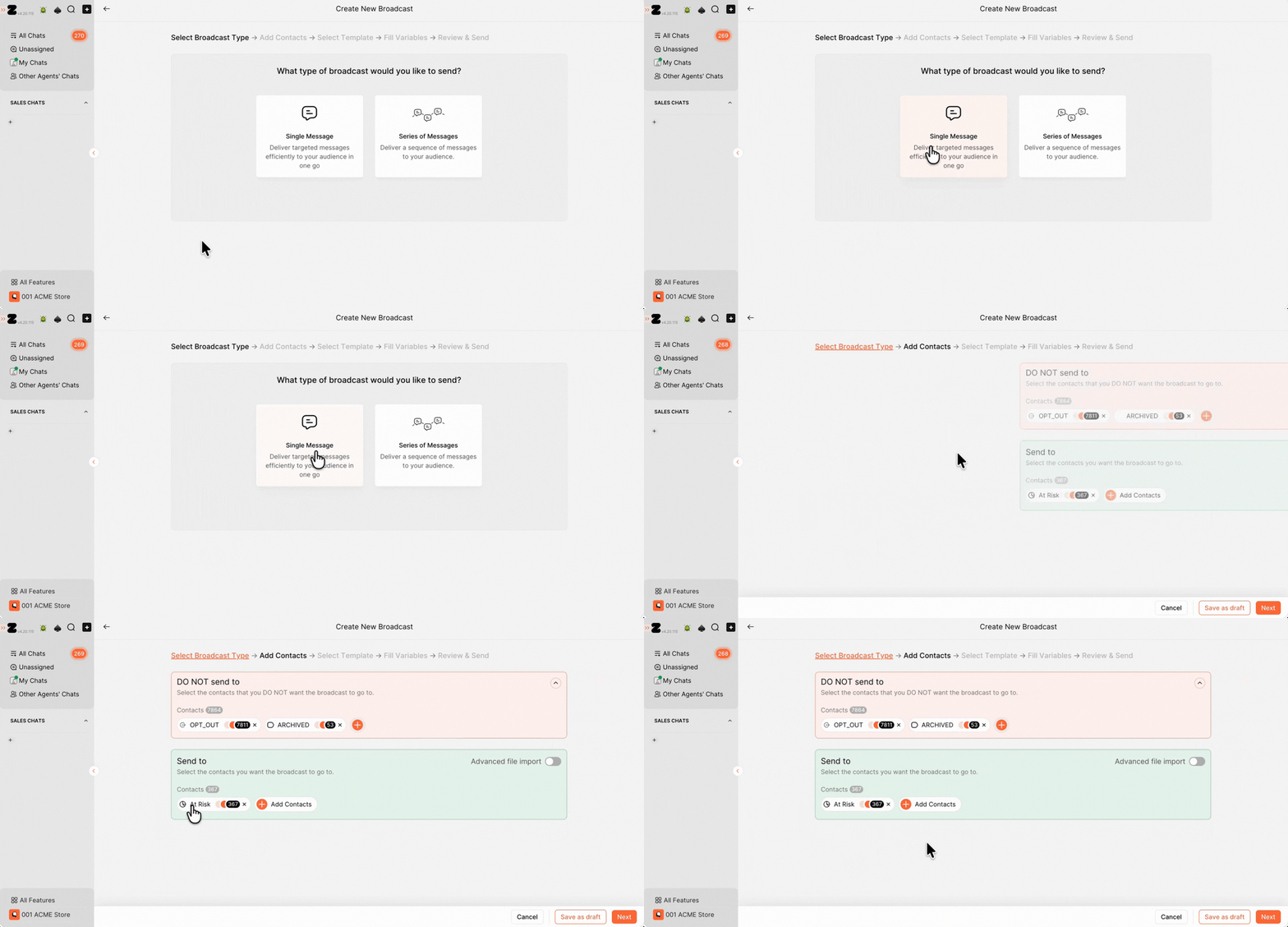
1. Hover over the RFM group you want to target and click Start Broadcast.
Note: You’ll be taken to the broadcast creation screen with the selected RFM segment already added as the audience.
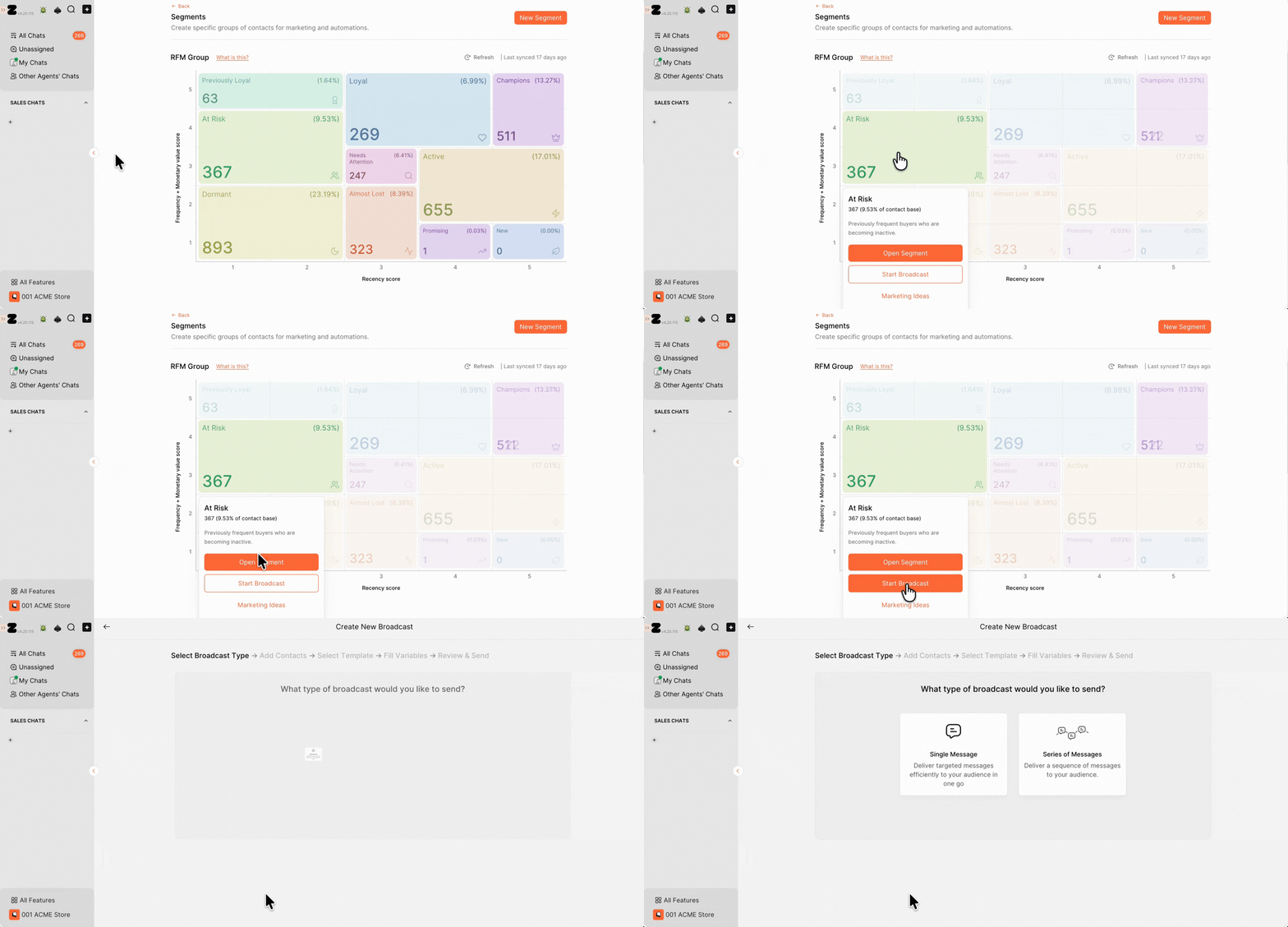
2. Select the broadcast message type, set up your broadcast as usual, and send it.
Refer to this article to learn how to set up a broadcast.
That’s it!
Keywords: RFM segments, Shopify segments, RFM groups, Customer segments, Shopify RFM contacts.
