


How to Set Up a WhatsApp Catalog in Zoko
Learn how to set up a WhatsApp Catalog in your Zoko dashboard.
.png)
Share on WhatsApp
.png)


A WhatsApp Catalog allows customers to browse your products directly within WhatsApp, making it easier for them to discover products and place orders without leaving the chat.
To set up your WhatsApp Catalog in Zoko, you'll first need to create product collections in Shopify. These collections are automatically synced to Zoko, where you can choose which products to display to your customers.
In this article, you'll learn how to:
- Create product collections in Shopify.
- Configure and customize your WhatsApp Catalog in Zoko.
Note: This feature is only available for Shopify stores connected to Zoko.
Step 1: Create Product Collections in Shopify
Before you can display products in your WhatsApp Catalog, you need to create one or more product collections in Shopify.
To do this:
1. Go to Shopify Admin >> Products >> Collections.
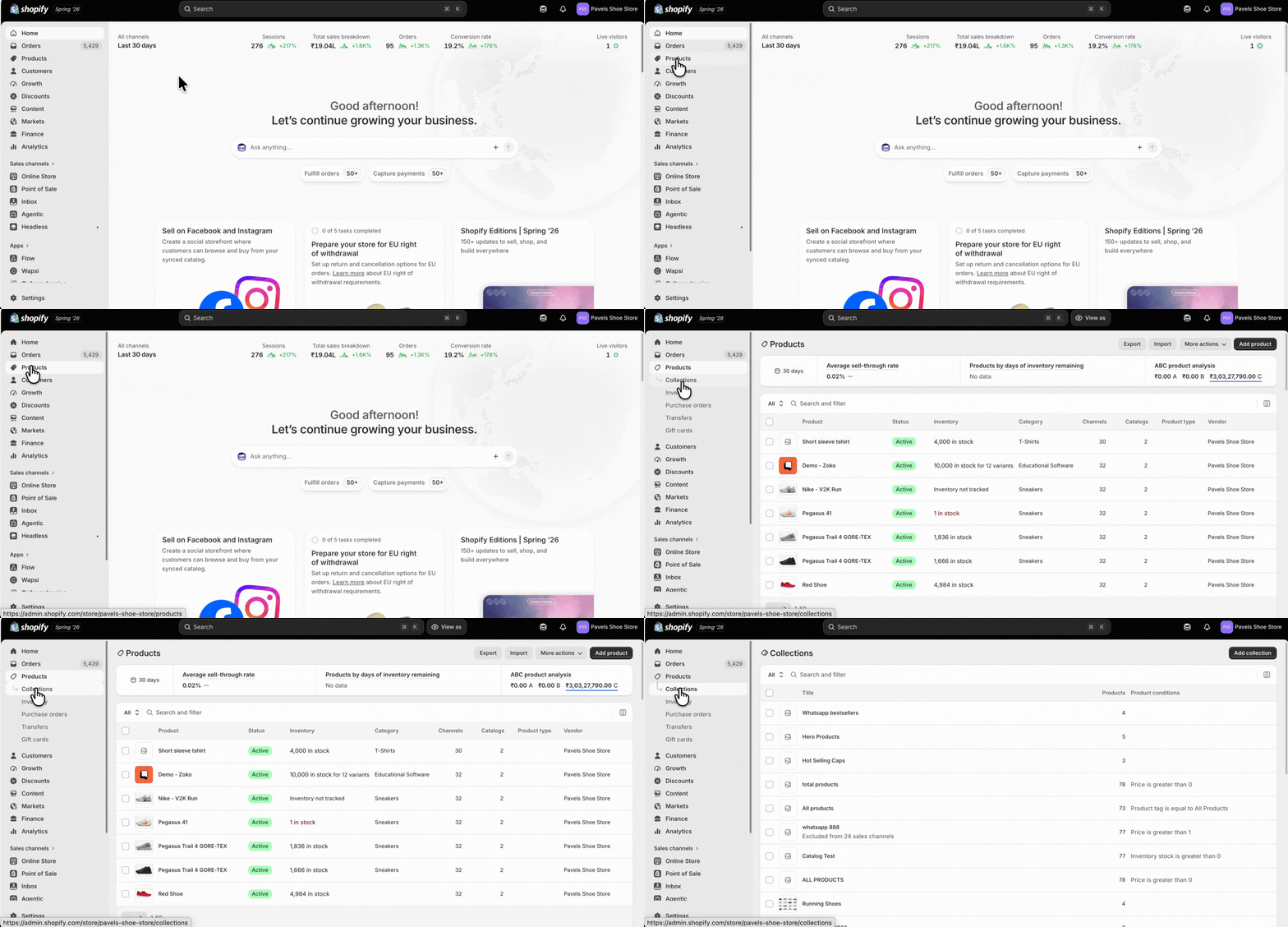
2. Click Add collection.
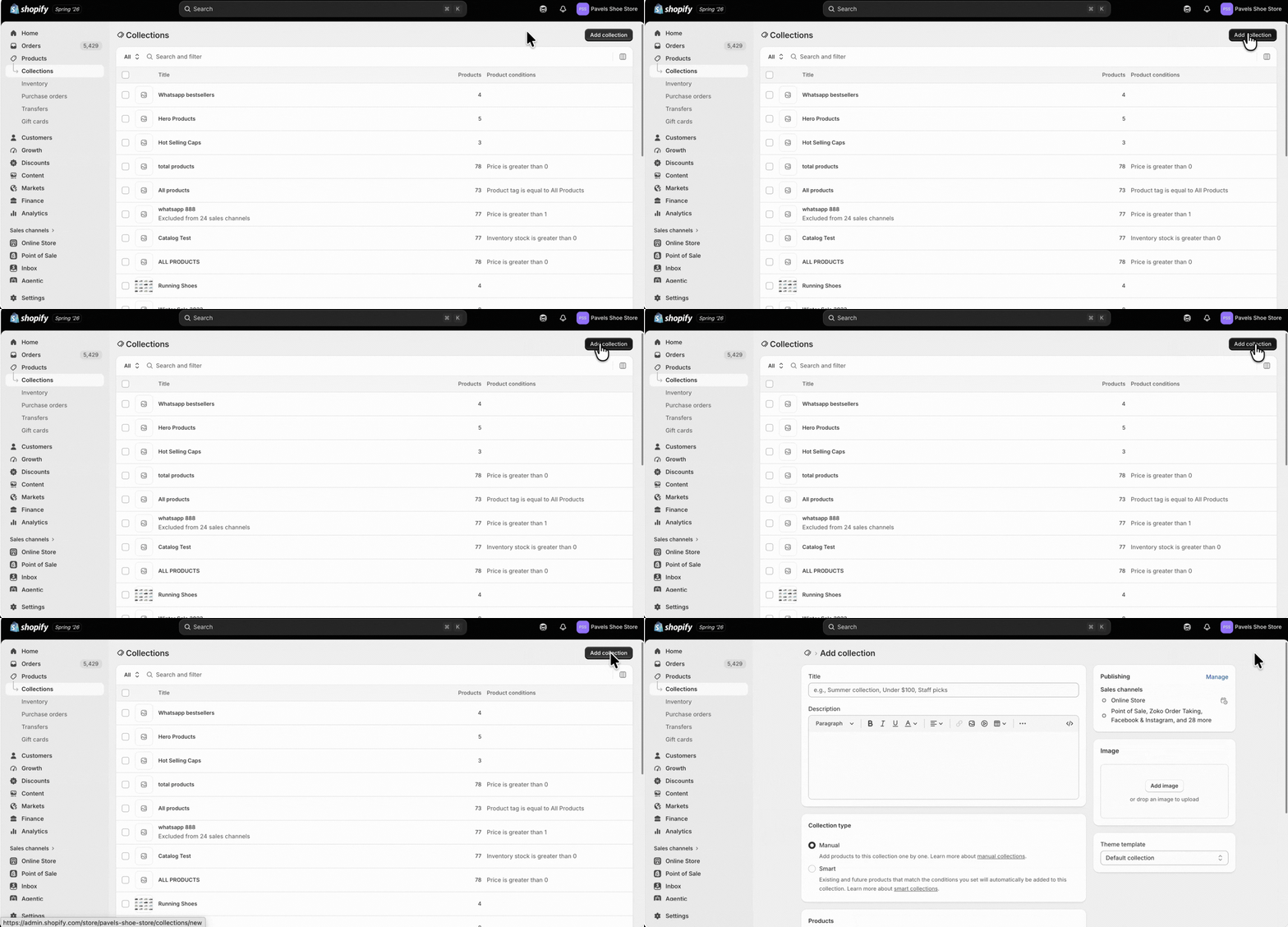
3. Type a name for the collection.
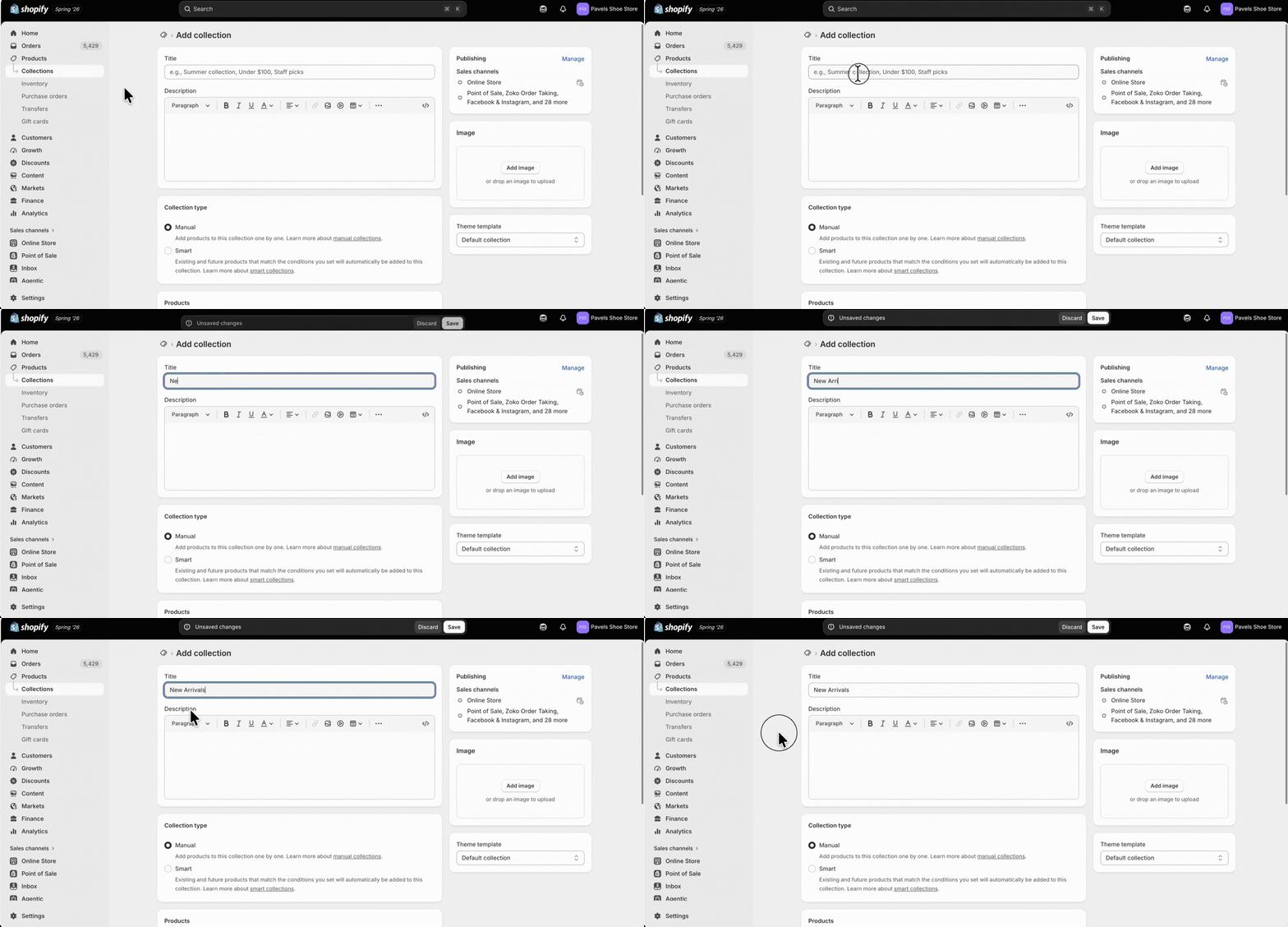
4. (Optional) Add a description.
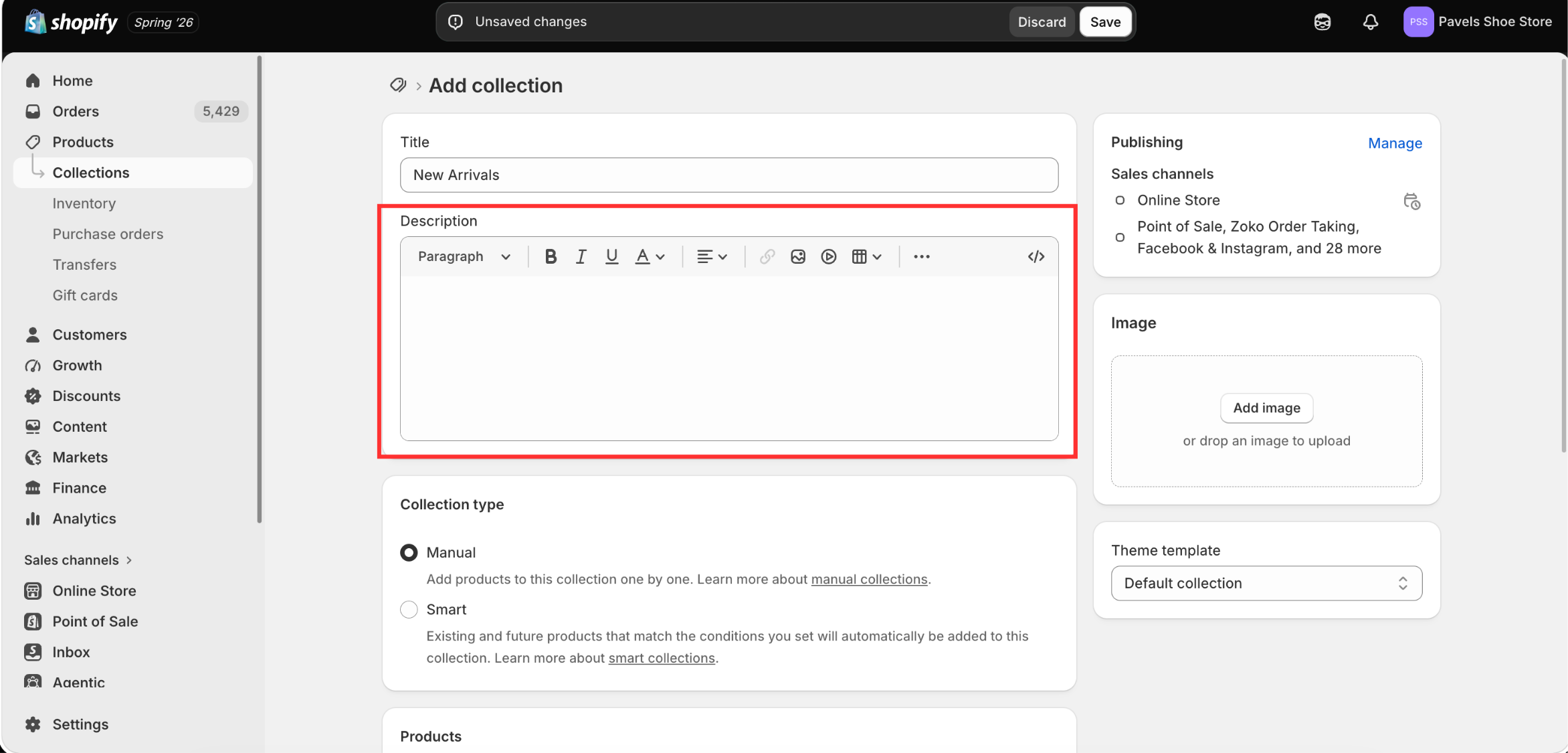
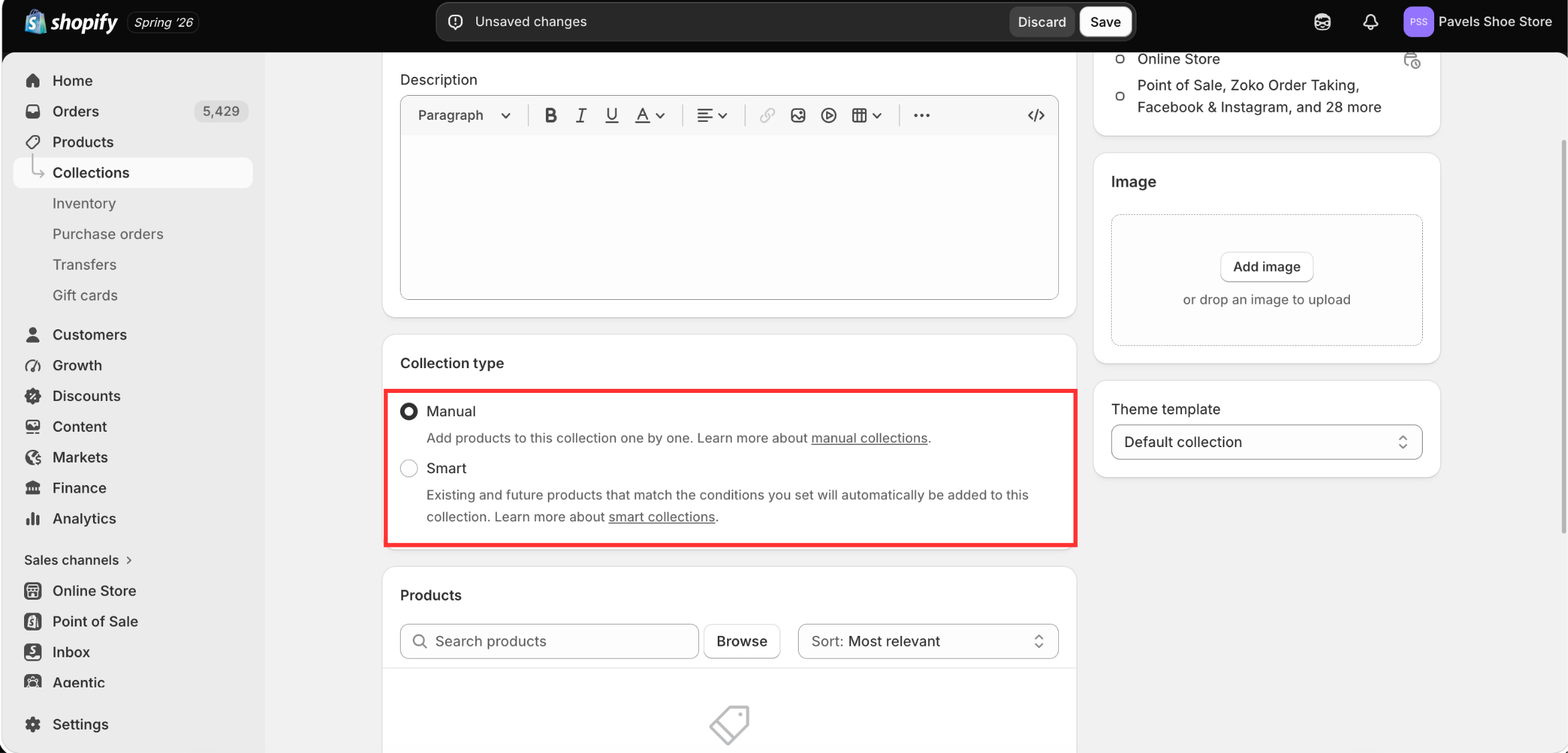
5. Choose whether you want to create a Manual or Smart collection.
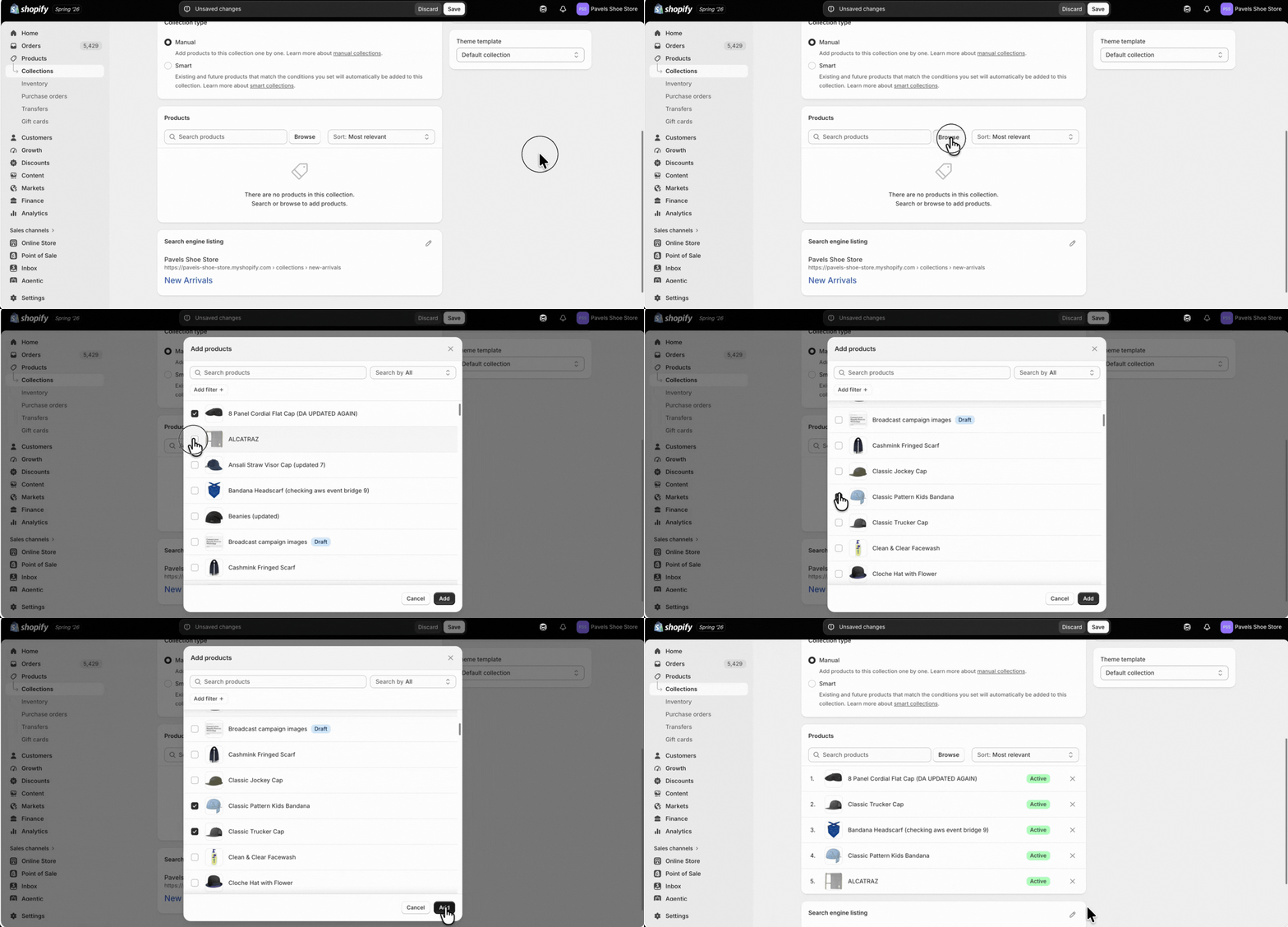
6. Since we selected a Manual collection, click Browse, select the products you want to include, and then click Add.
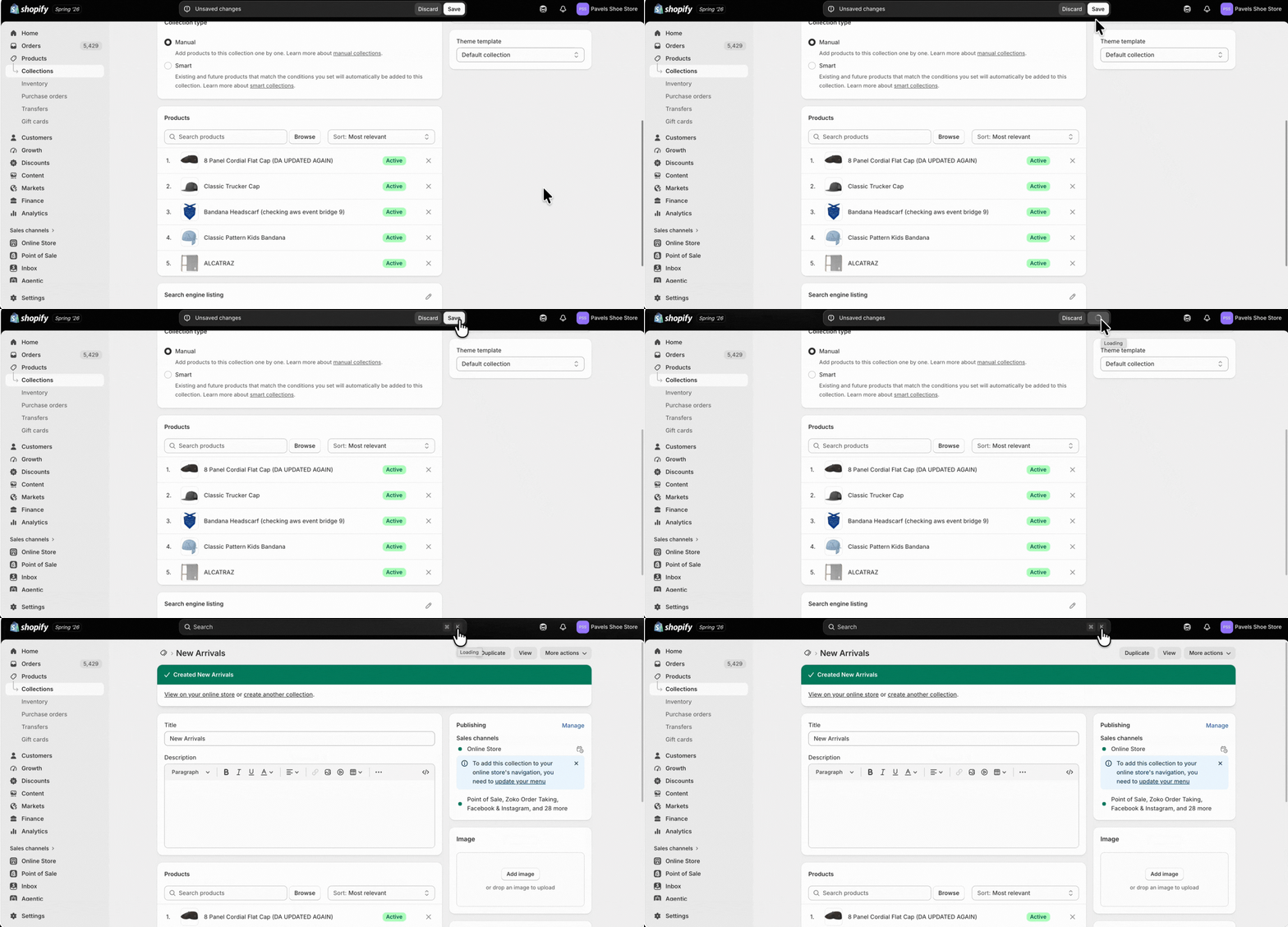
7. Click Save.
Step 2: Configure Your WhatsApp Catalog in Zoko
After your Shopify collections have synced, you can choose which products to display in your WhatsApp Catalog.
To do this:
1. Go to All Features and select Catalog.
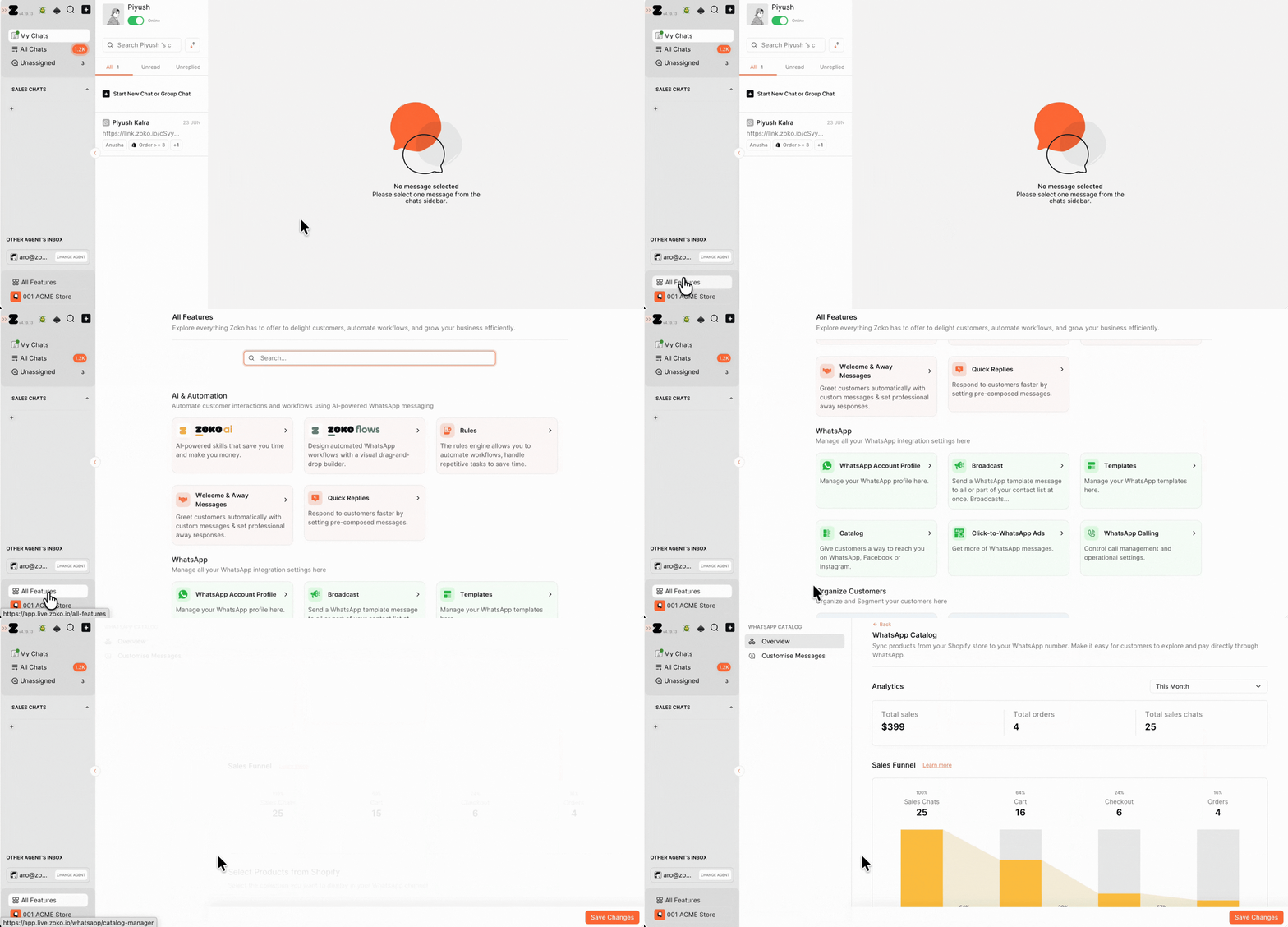
2. Scroll down and select the product collections you want to display in your WhatsApp Catalog.
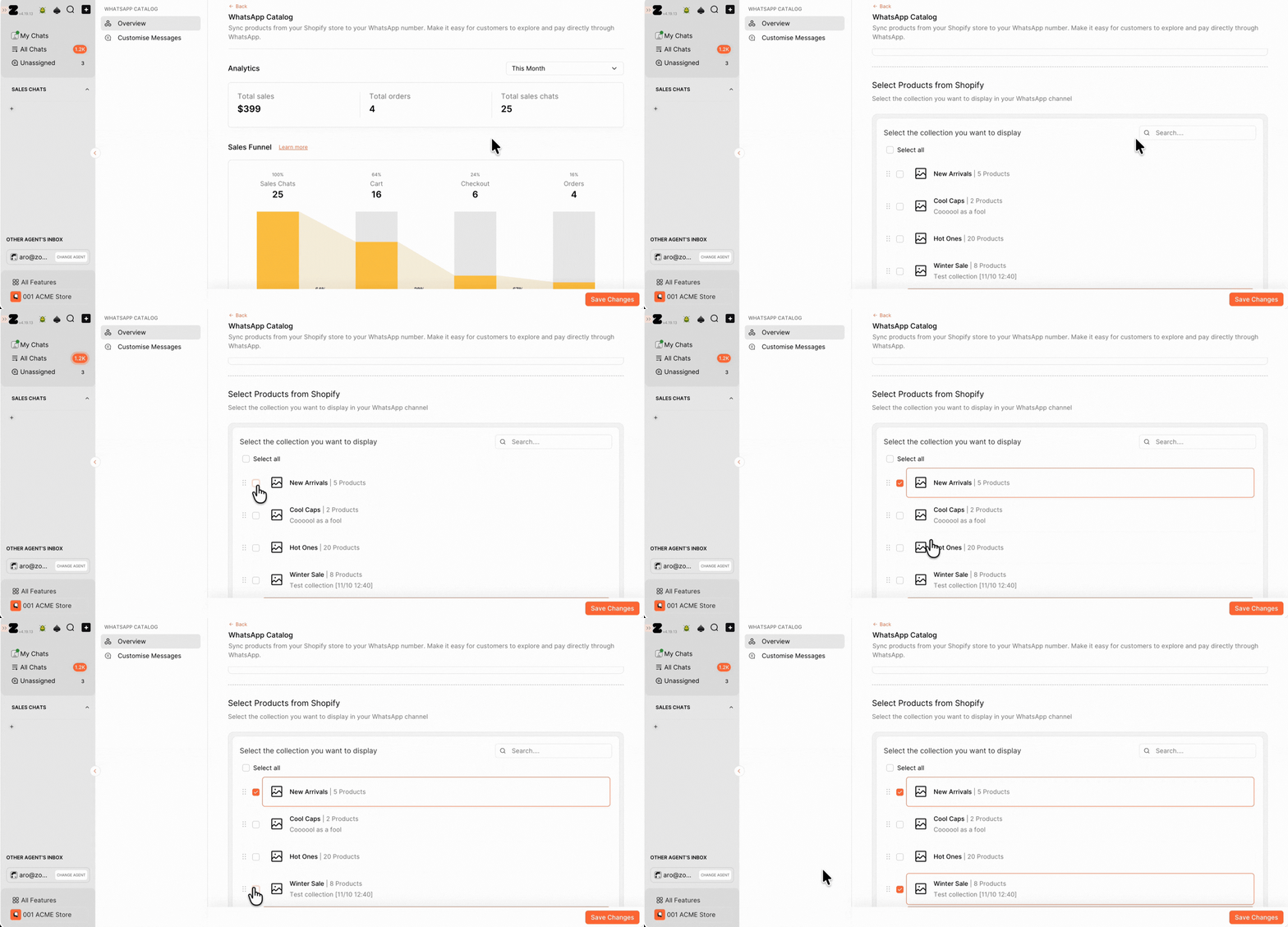
3. Click on Save Changes.
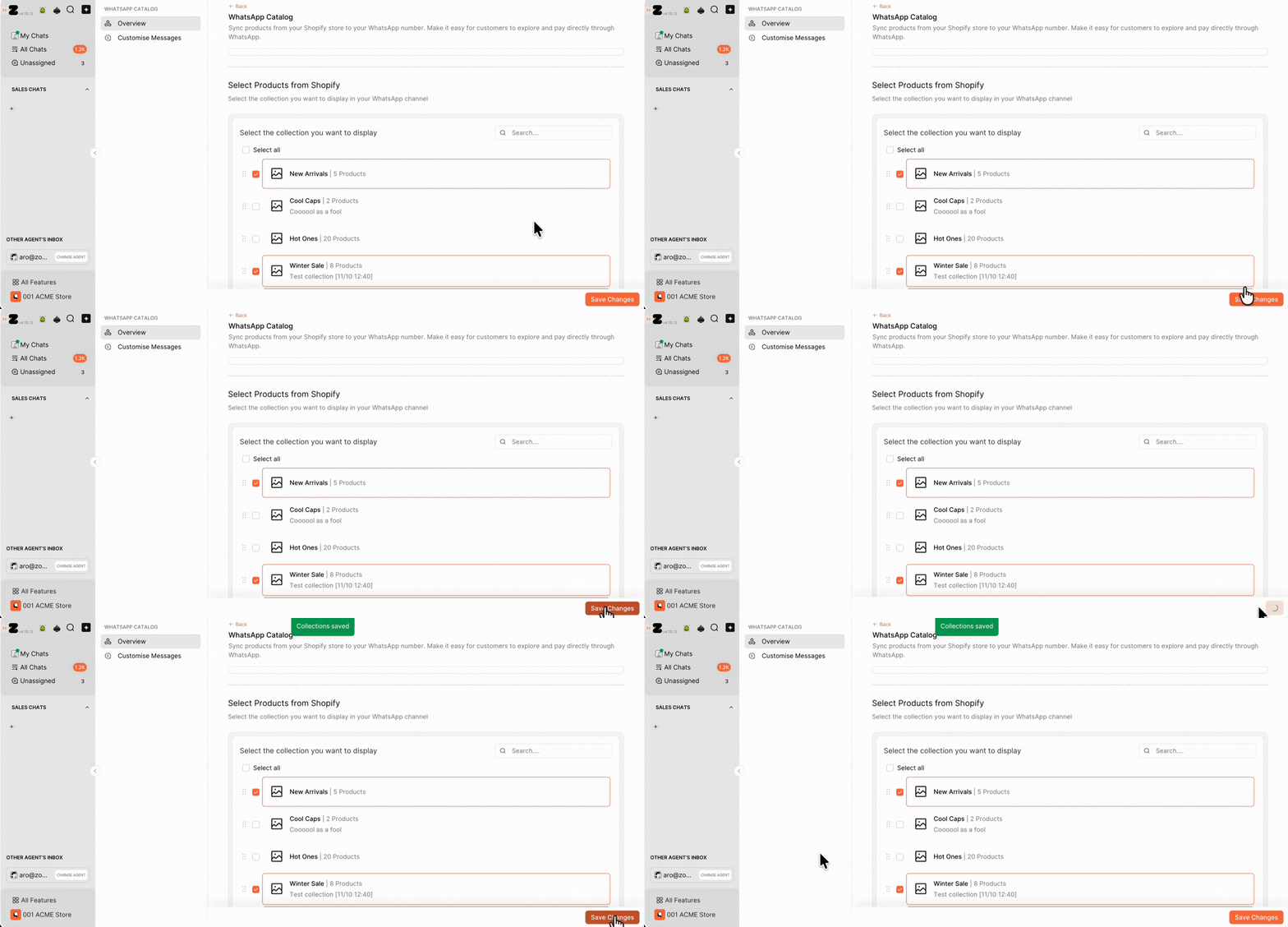
That's it! Your selected products are now available in your WhatsApp Catalog.
Customize Catalog Messages
You can also customize the messages sent to customers when sharing products, collections, or shopping carts on WhatsApp.
To do this:
1. Go to the Customize Messages.
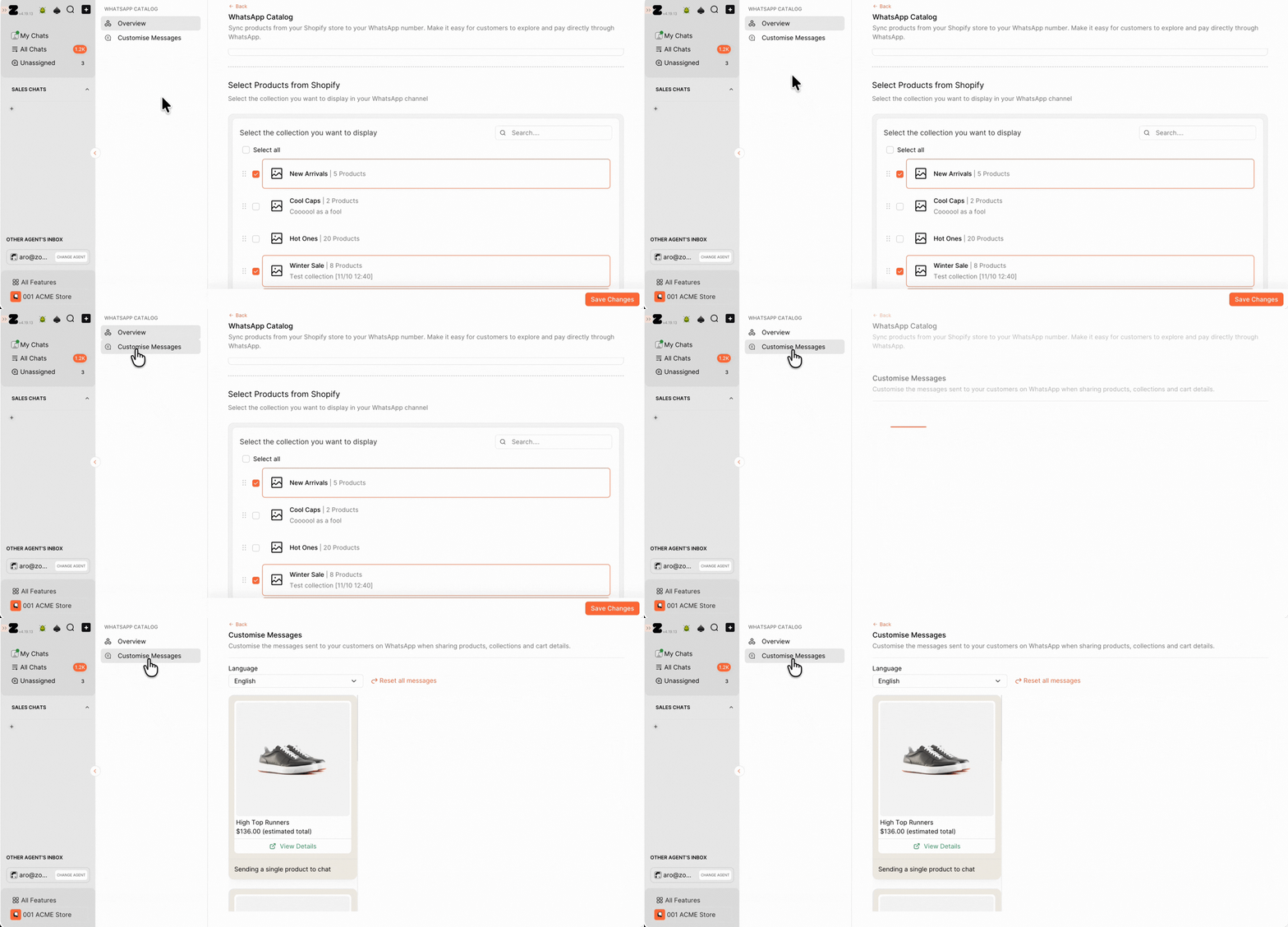
2. Select your preferred language from the dropdown menu.
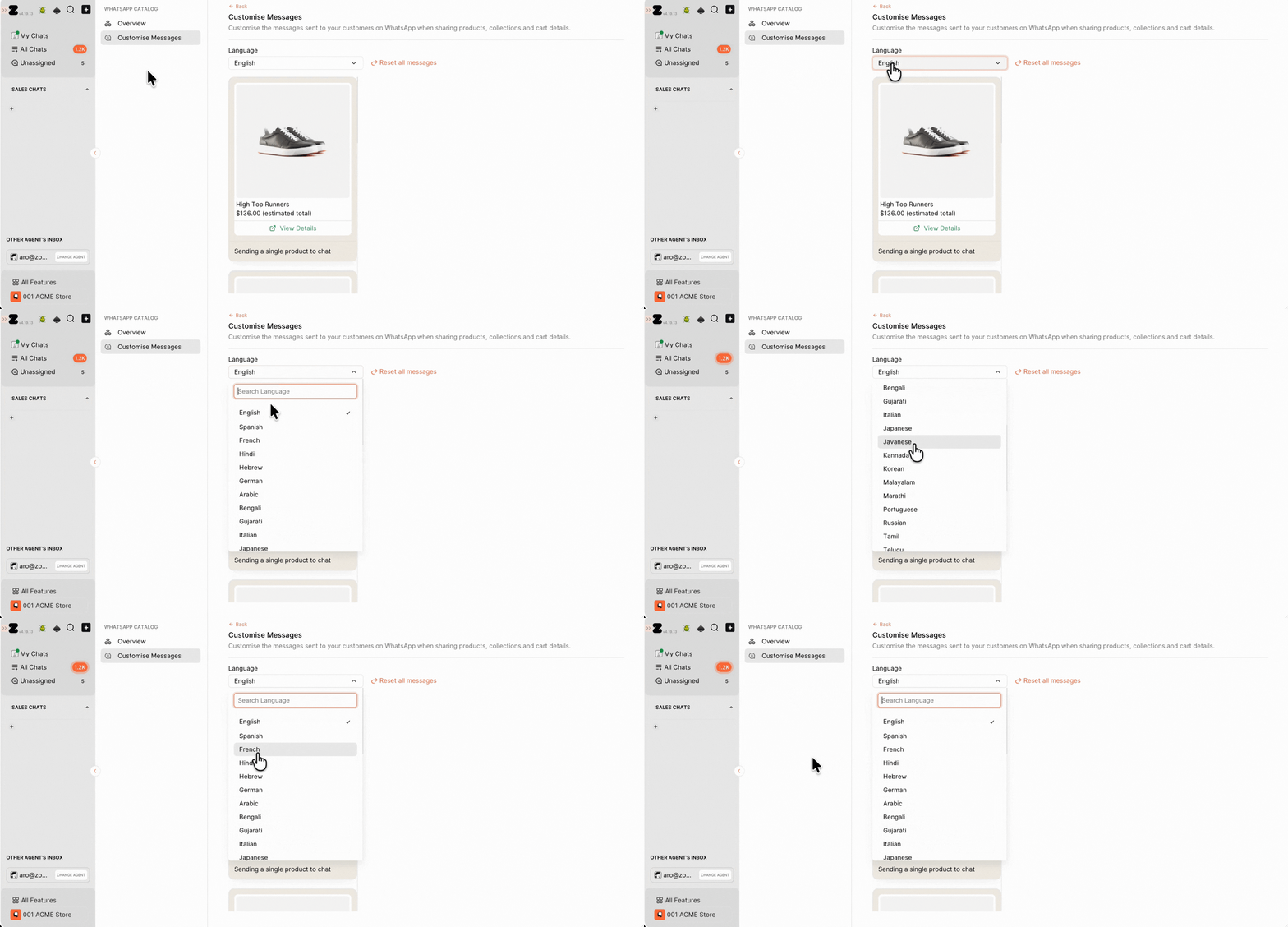
3. Select the message type you want to customize. In our case, we'll select Send Collection to Chat.
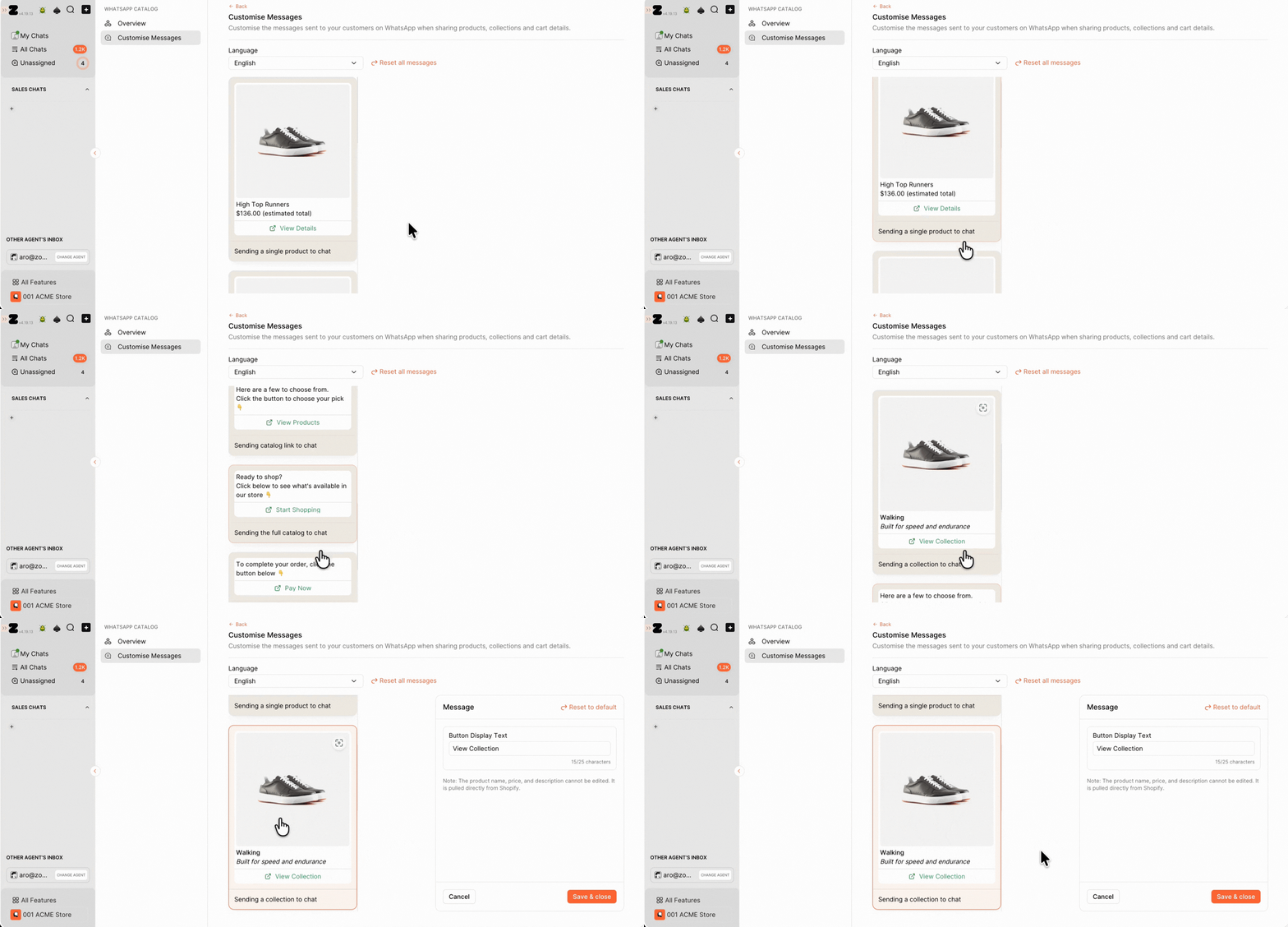
4. Edit the message as needed, then click Save and Close.
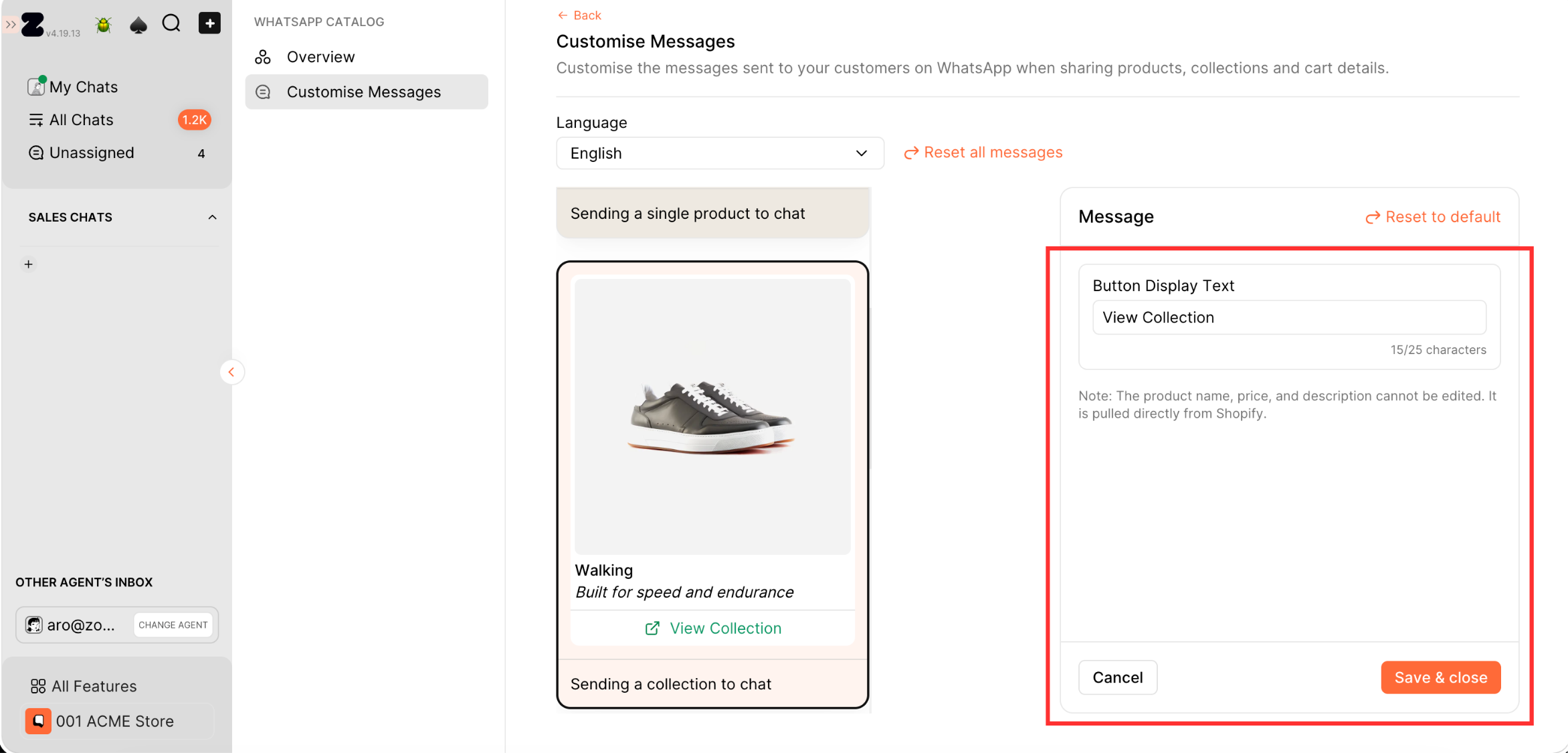
Keywords: WhatsApp catalog, Set up WhatsApp catalog, Zoko catalog, Shopify collections, Shopify product collections
