


How to Create Shopify Segments and Use Them in Zoko
Learn how to create Shopify segments and use them in Zoko for targeted broadcasts.
.png)
Share on WhatsApp
.png)


Shopify segments help you group customers based on specific conditions, making it easier to target the right audience. Once you create a segment in Shopify, it automatically syncs to Zoko, where you can use it to create targeted broadcasts.
Create a Segment in Shopify
1. Go to your Shopify Admin.
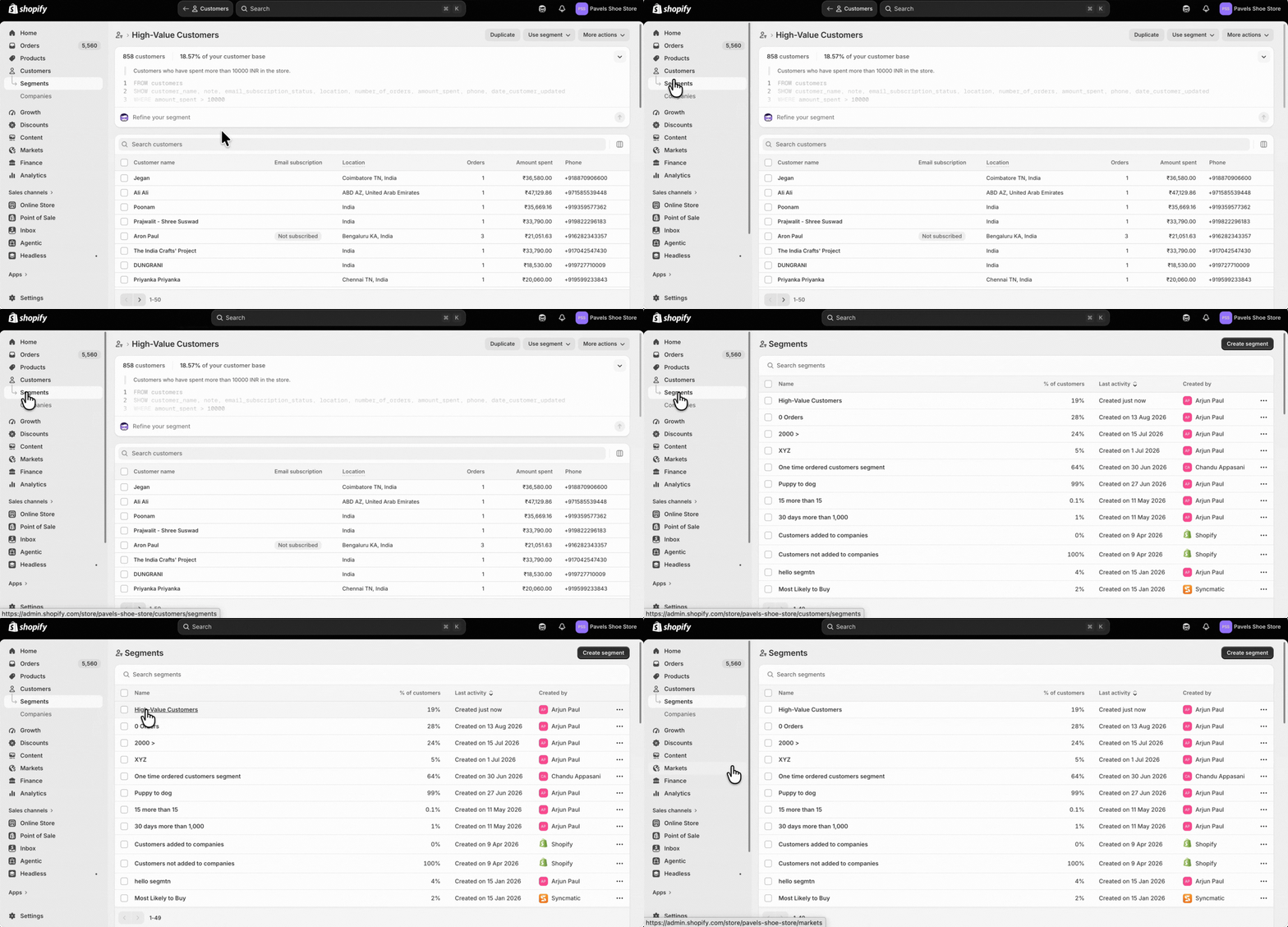
2. 2. On the left sidebar, click on Customers.
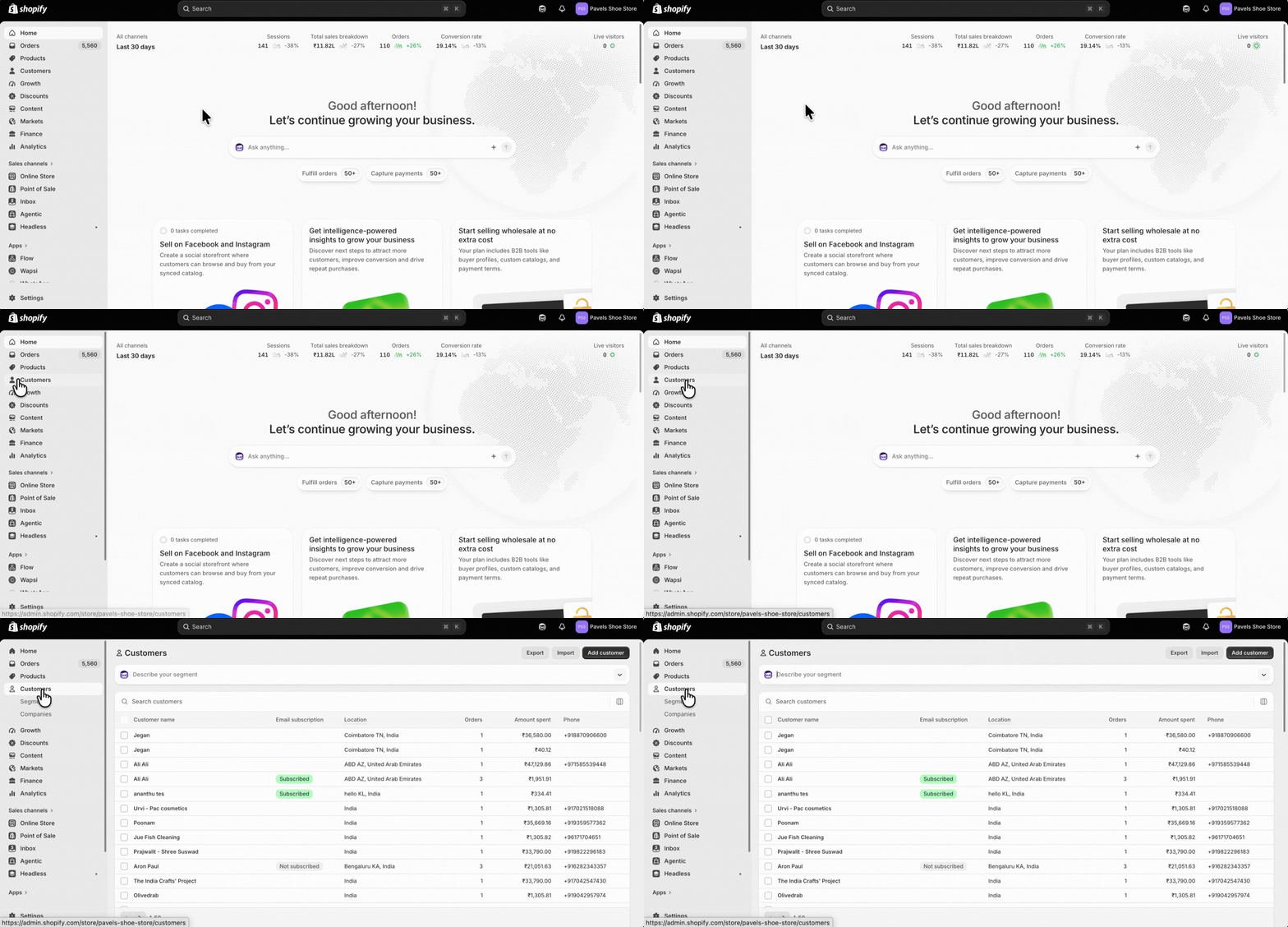
3. Click the down arrow to reveal the filter options.
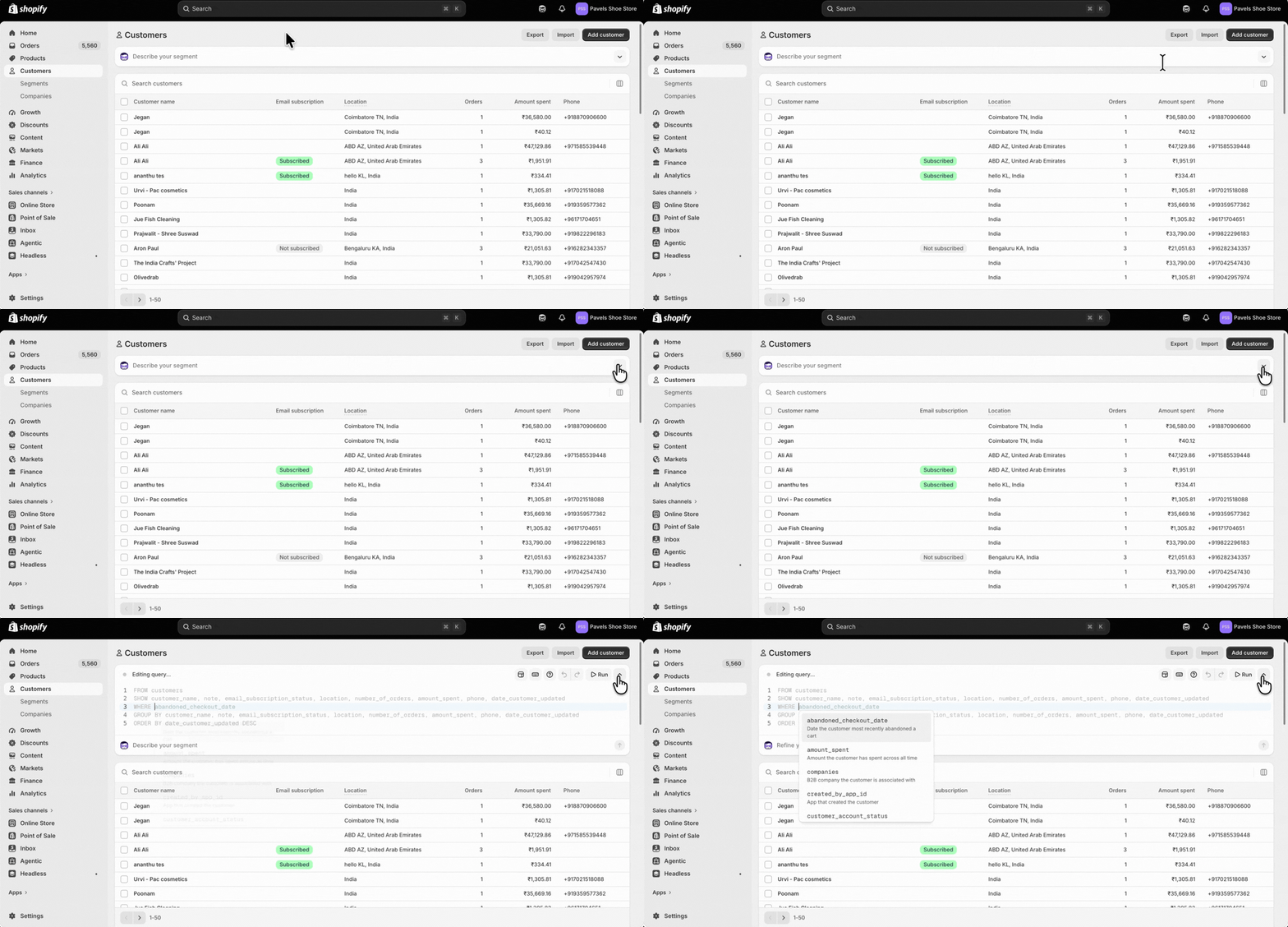
4. Choose the conditions that define the customers you want to include in your segment. For example, we’re creating a segment for customers who have spent more than 10,000. Once you have set your conditions, click Run to create the segment.
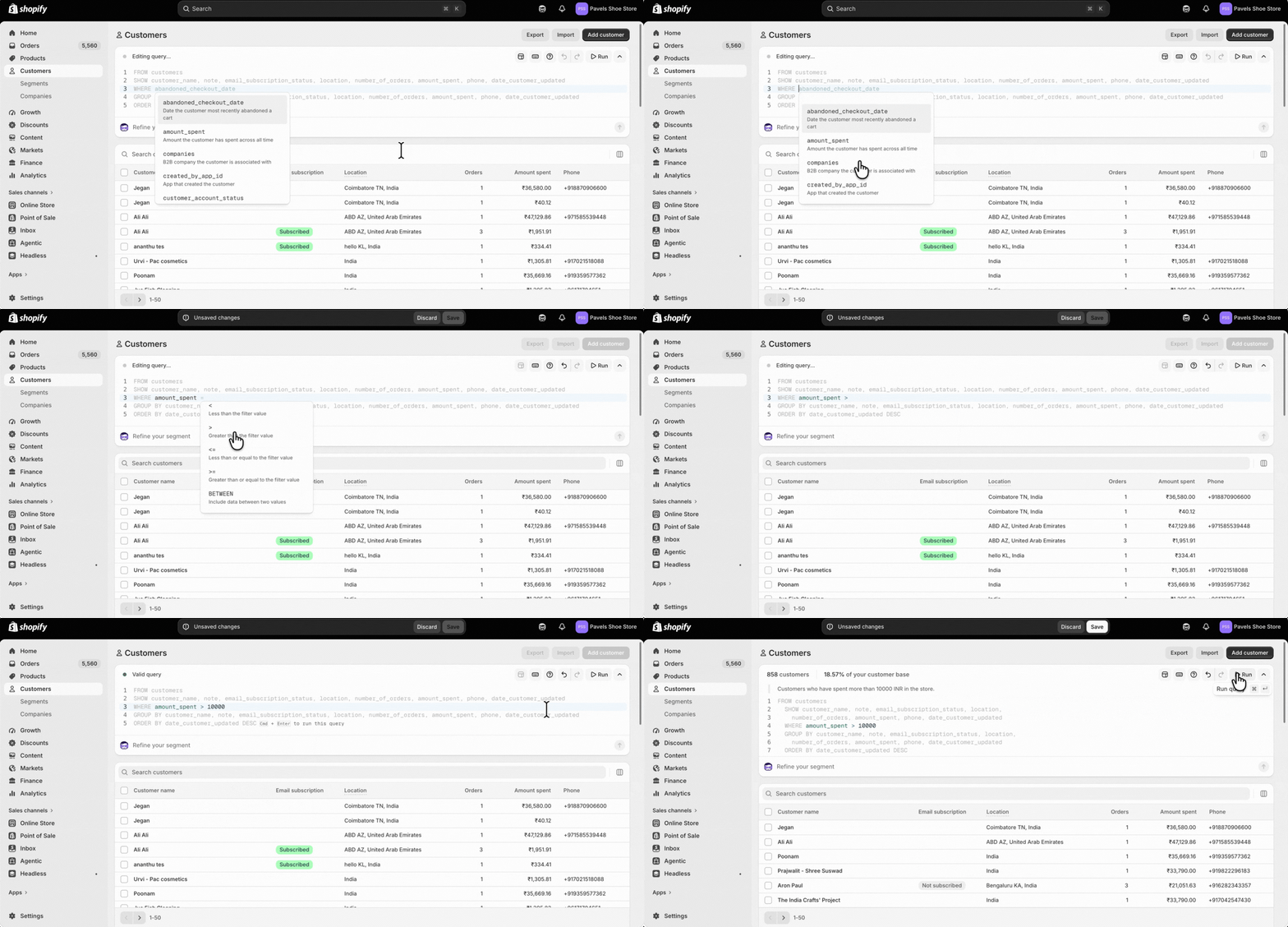
5. You will now see the customers who match your selected conditions. Click Save, type a name for your segment in the pop-up, and click Save again to create it.
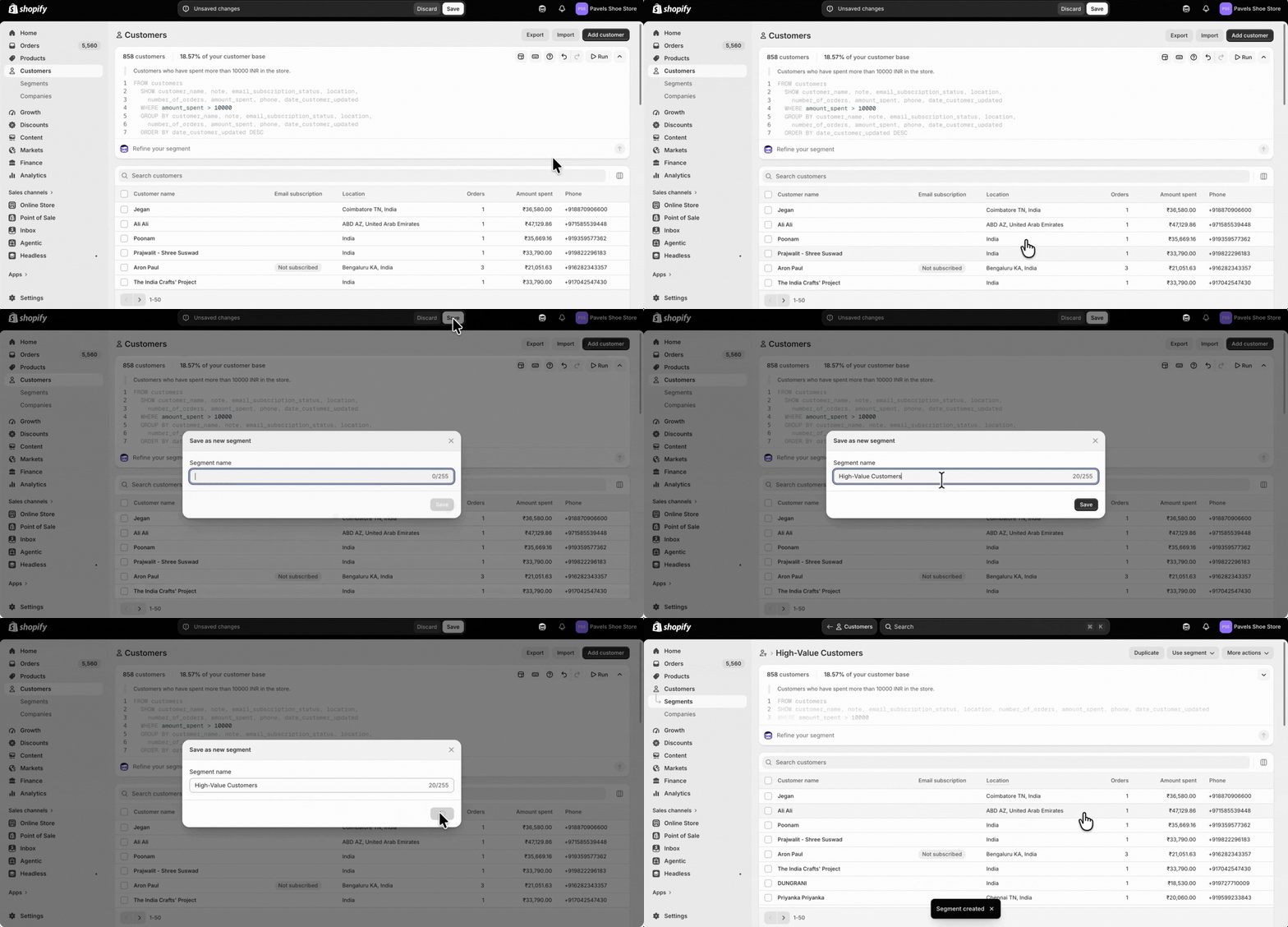
6. Now, go to Segments to view all your saved customer segments.
Find the Segment in Zoko
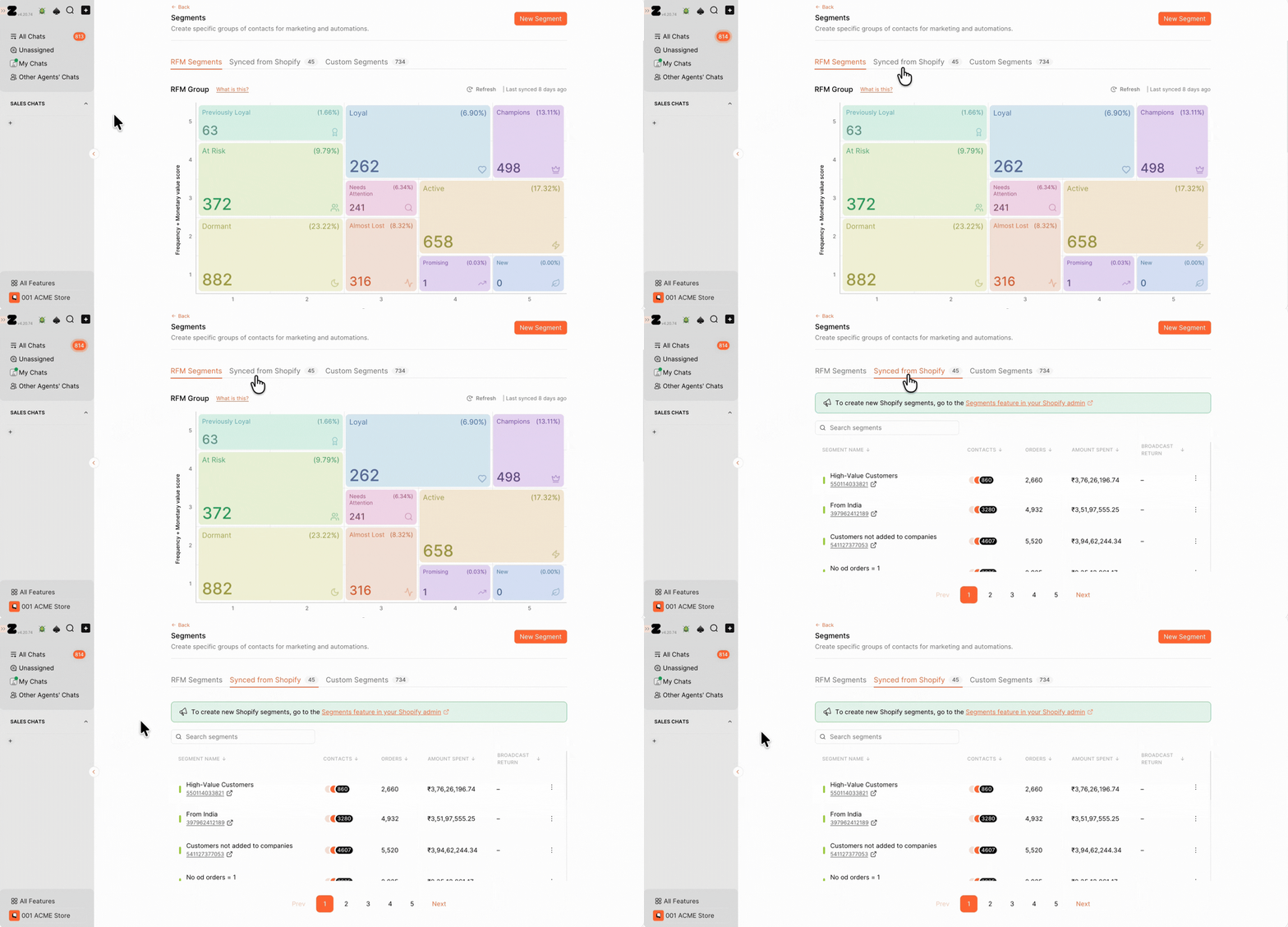
You don't need to manually sync the segment. Once the segment is created in Shopify, it automatically syncs to Zoko.
1. Go to All Features and select Segments in Zoko dashboard.
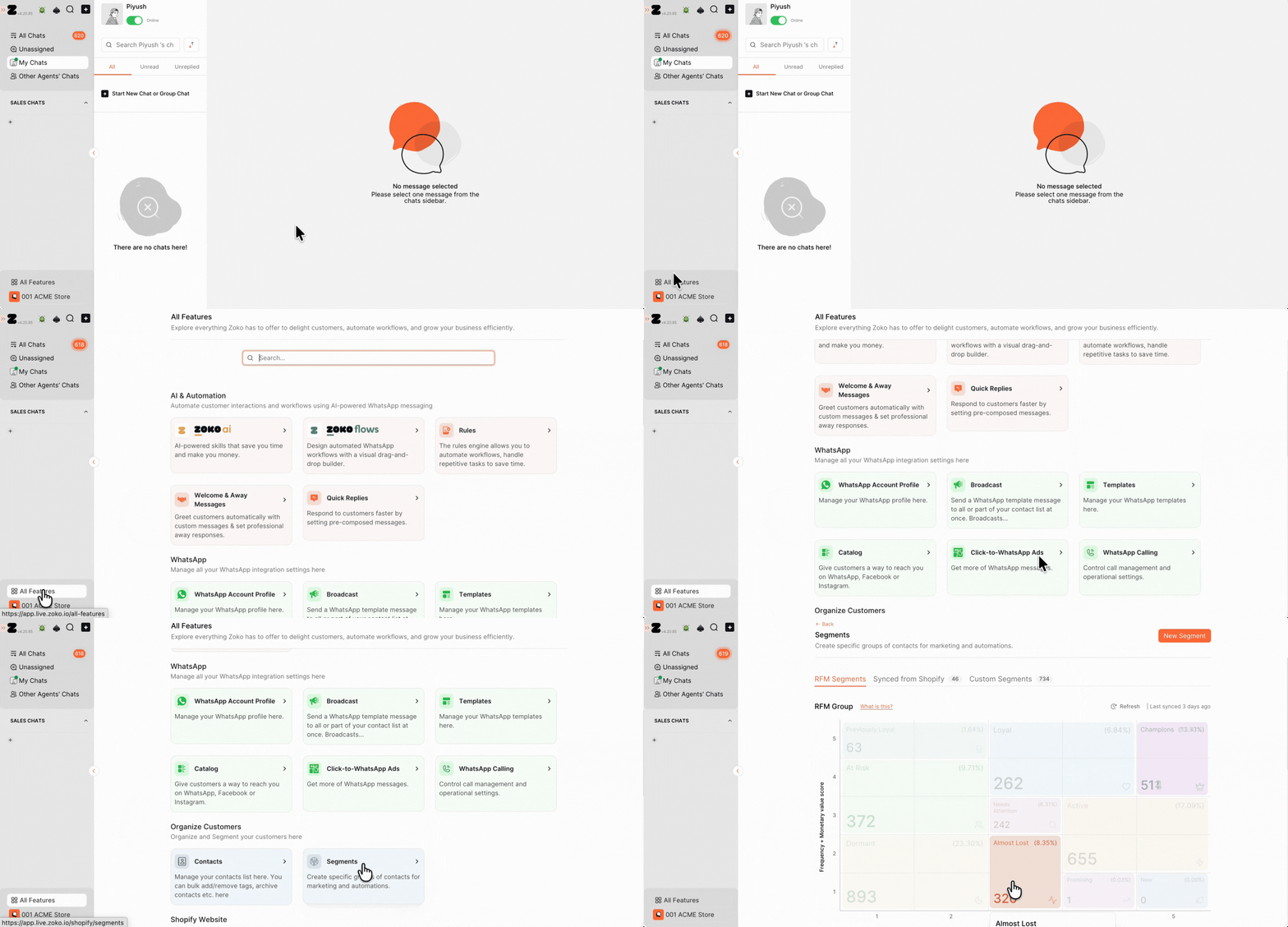
2. Click on Synced from Shopify.
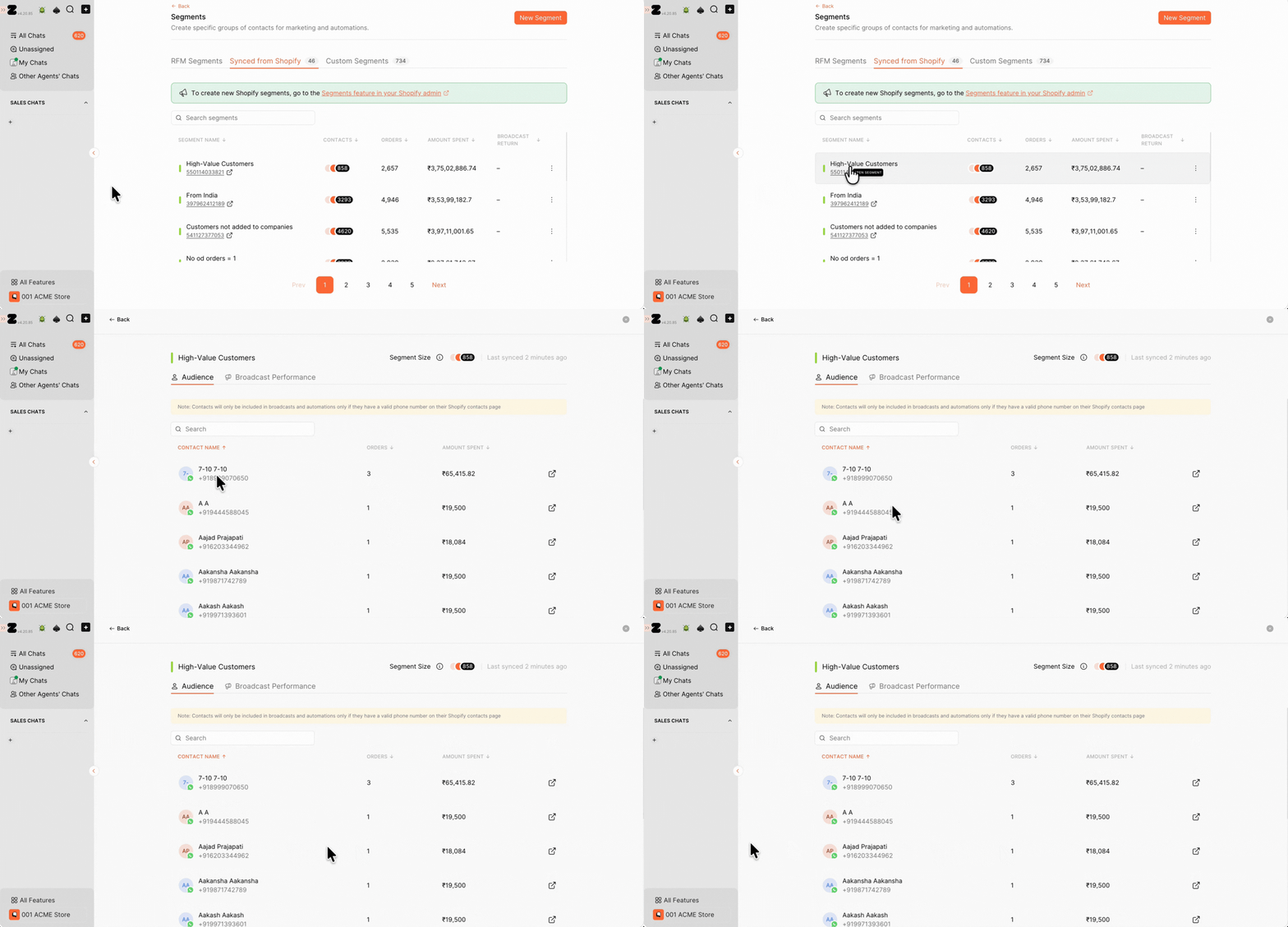
3. Click on the segment to view the customers included in it and their details.
Use the Segment for a Broadcast
You can manage each synced Shopify segment using the three-dot menu next to it. From here, you can start a broadcast for the segment, open the segment in Shopify to make changes, download the contact details, or refresh the segment to get the latest changes from Shopify.
1. Click on Start Broadcast. (You will be taken to the broadcast creation screen, with the segment already selected as the audience.)
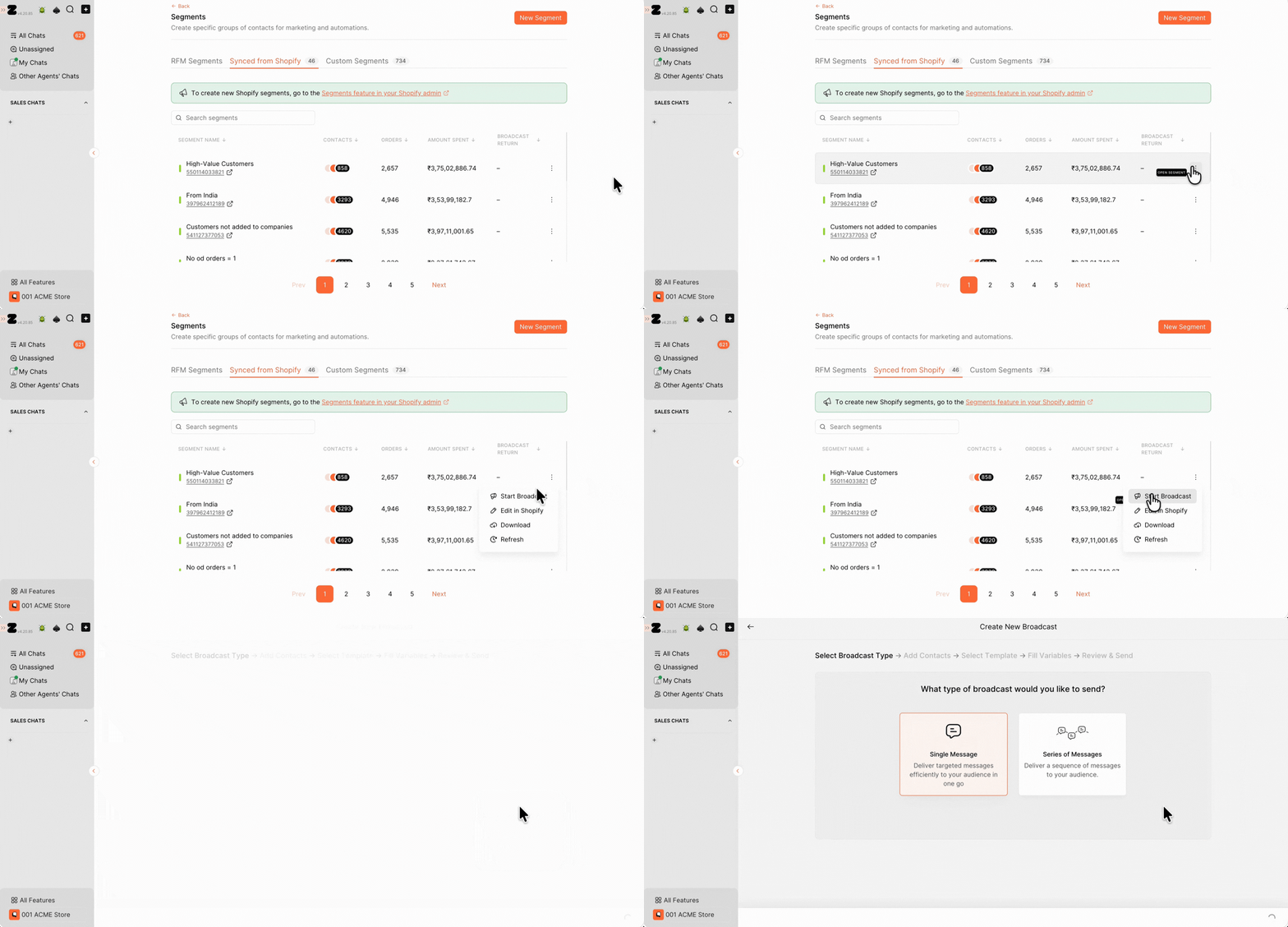
2. Select the broadcast type you want to use to continue.
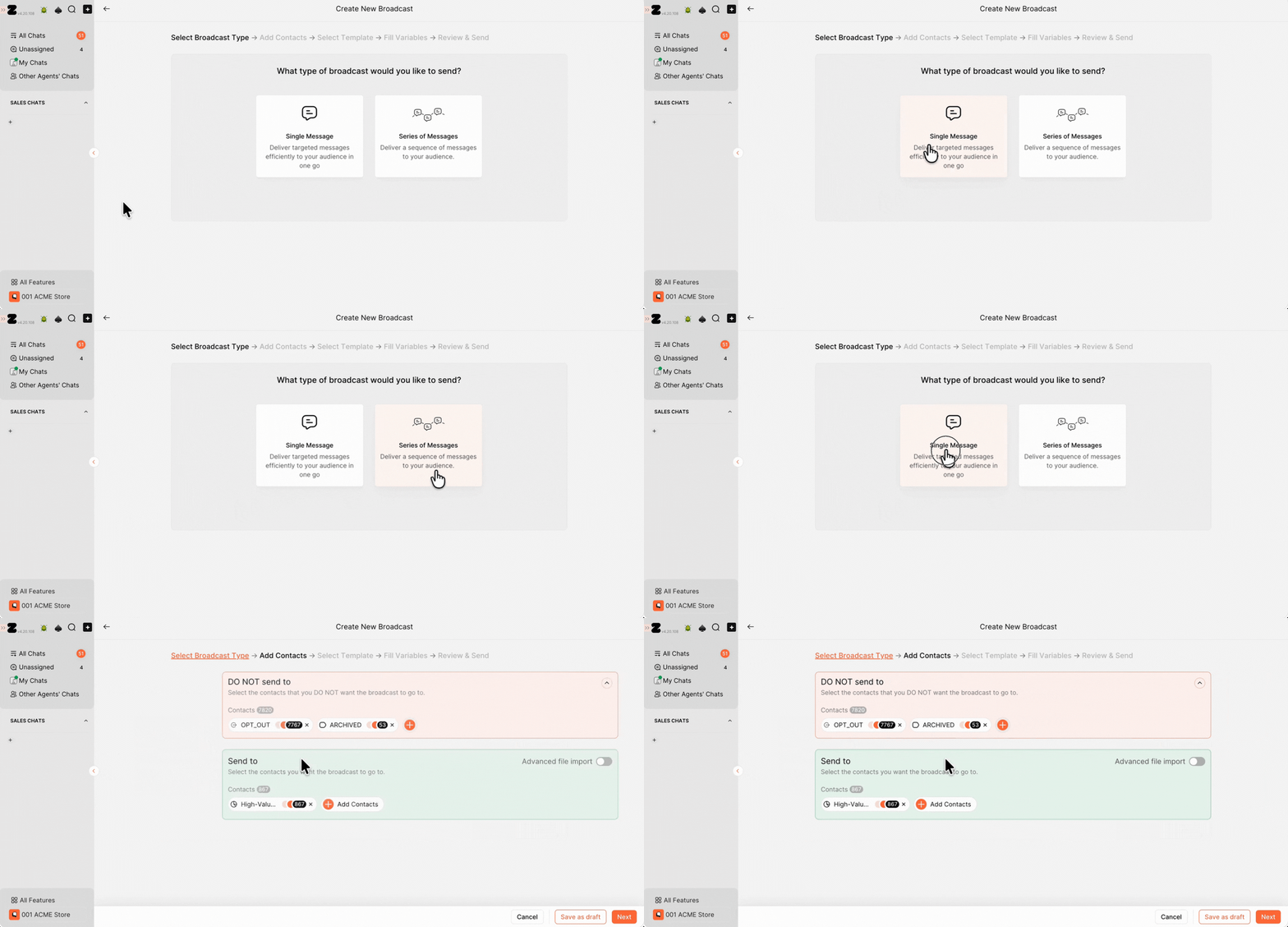
3. You should see the customers from the selected segment under Send to. Click Next and continue setting up your broadcast as usual.
Refer to this article on How to Setup Broadcast.
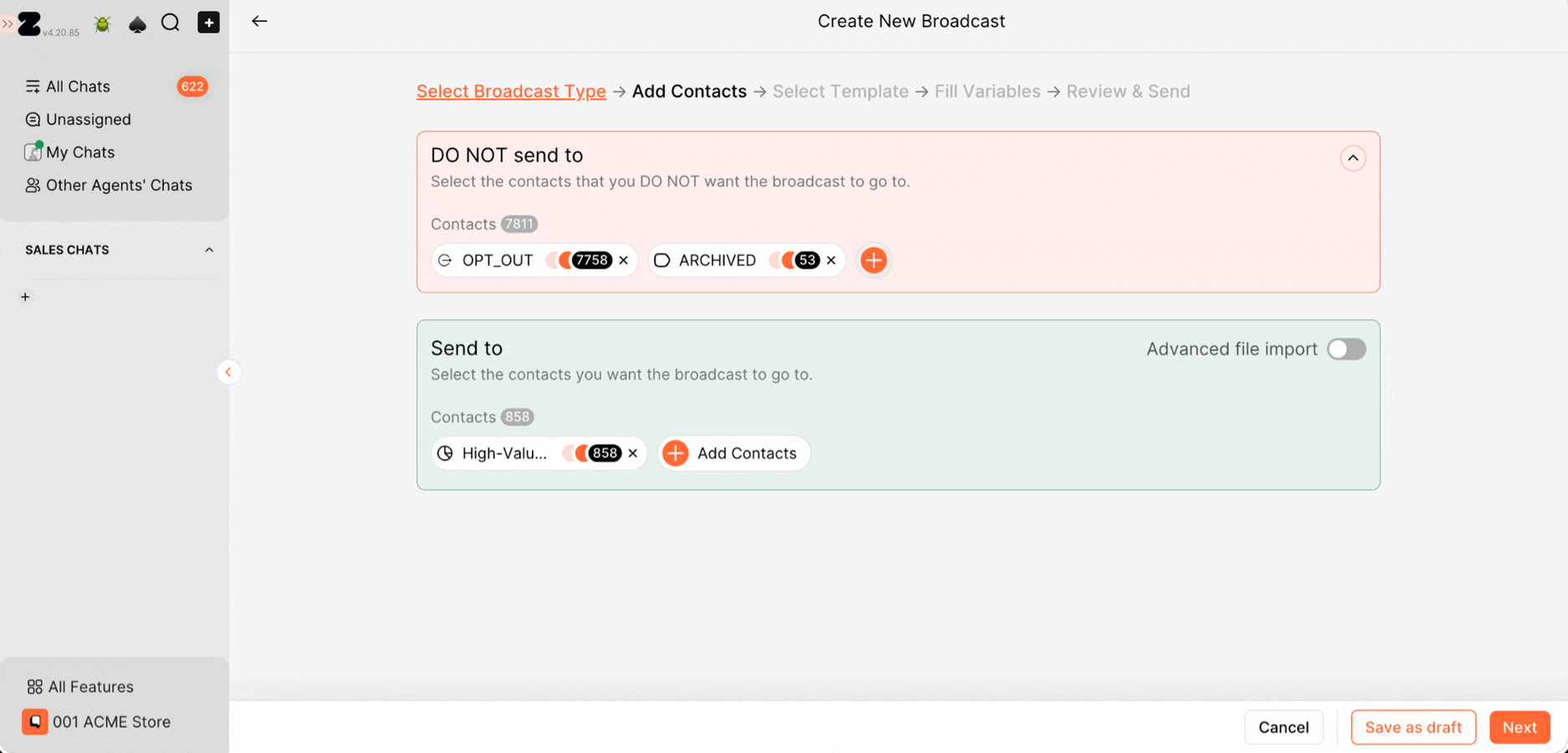
Alternatively, you can also select the Shopify segment directly when creating a broadcast. In the Send to section, search for the segment by its name and select it.
That's it!
Keywords: Shopify segments, Create Shopify segment, Zoko segment, Shopify customer segmentation.
