


How to Create a Group
Learn how to create a WhatsApp group on Zoko.
.png)
Share on WhatsApp
.png)


Creating a WhatsApp group in Zoko helps you bring a small set of customers into one place for focused, high-value interactions. You can add up to 8 members per group, making it ideal for VIPs, high-value buyers, or exclusive communities. It makes it easy to share updates, answer queries, and showcase products in a more direct and efficient way.
Note: You can create groups only if your WhatsApp number has a blue tick. Refer to our article on how to apply for the blue tick.
To do this:
1. Click on the + icon.
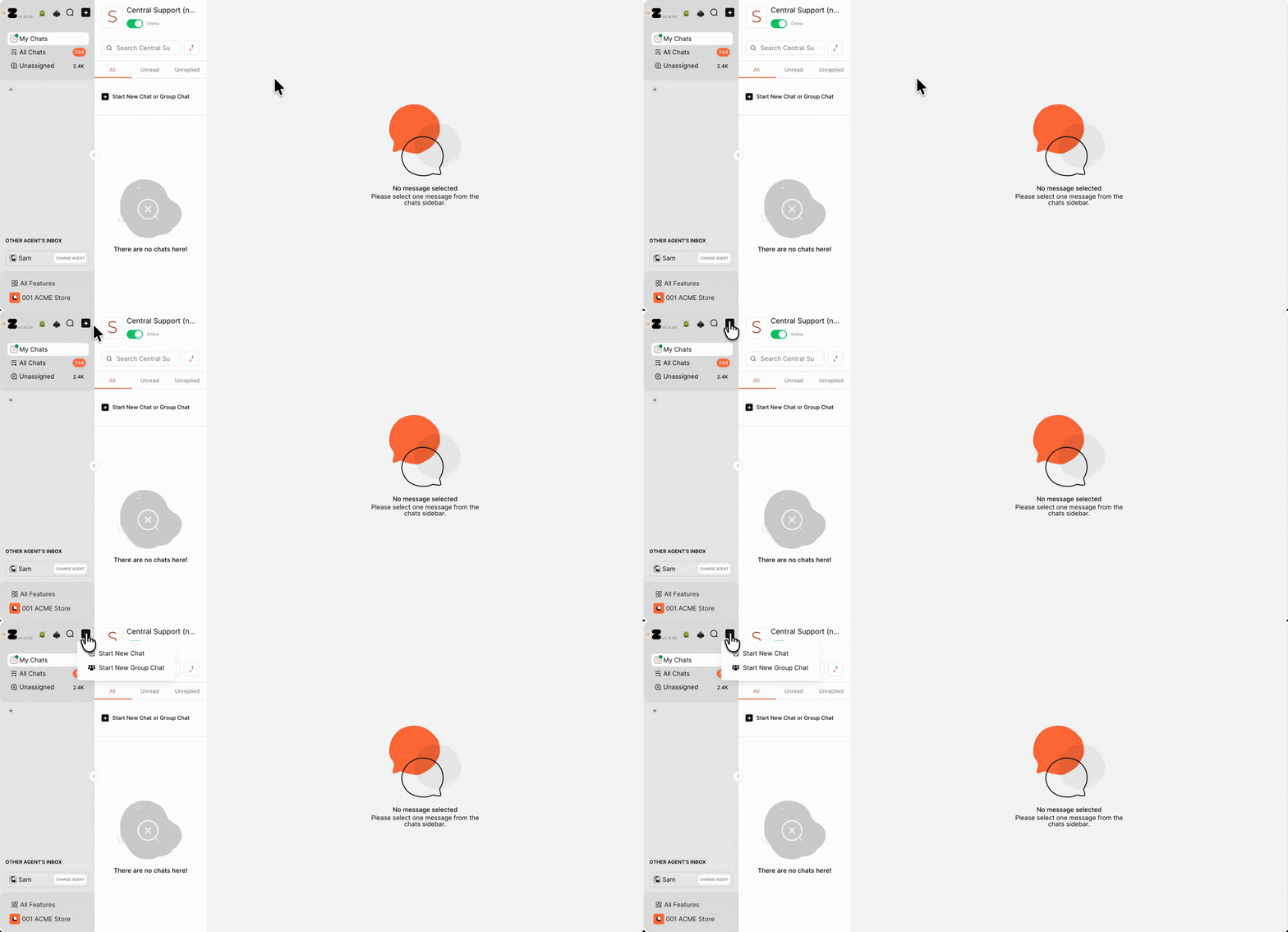
2. Select Start New Group Chat to instantly create a new group, which will be automatically assigned to you.
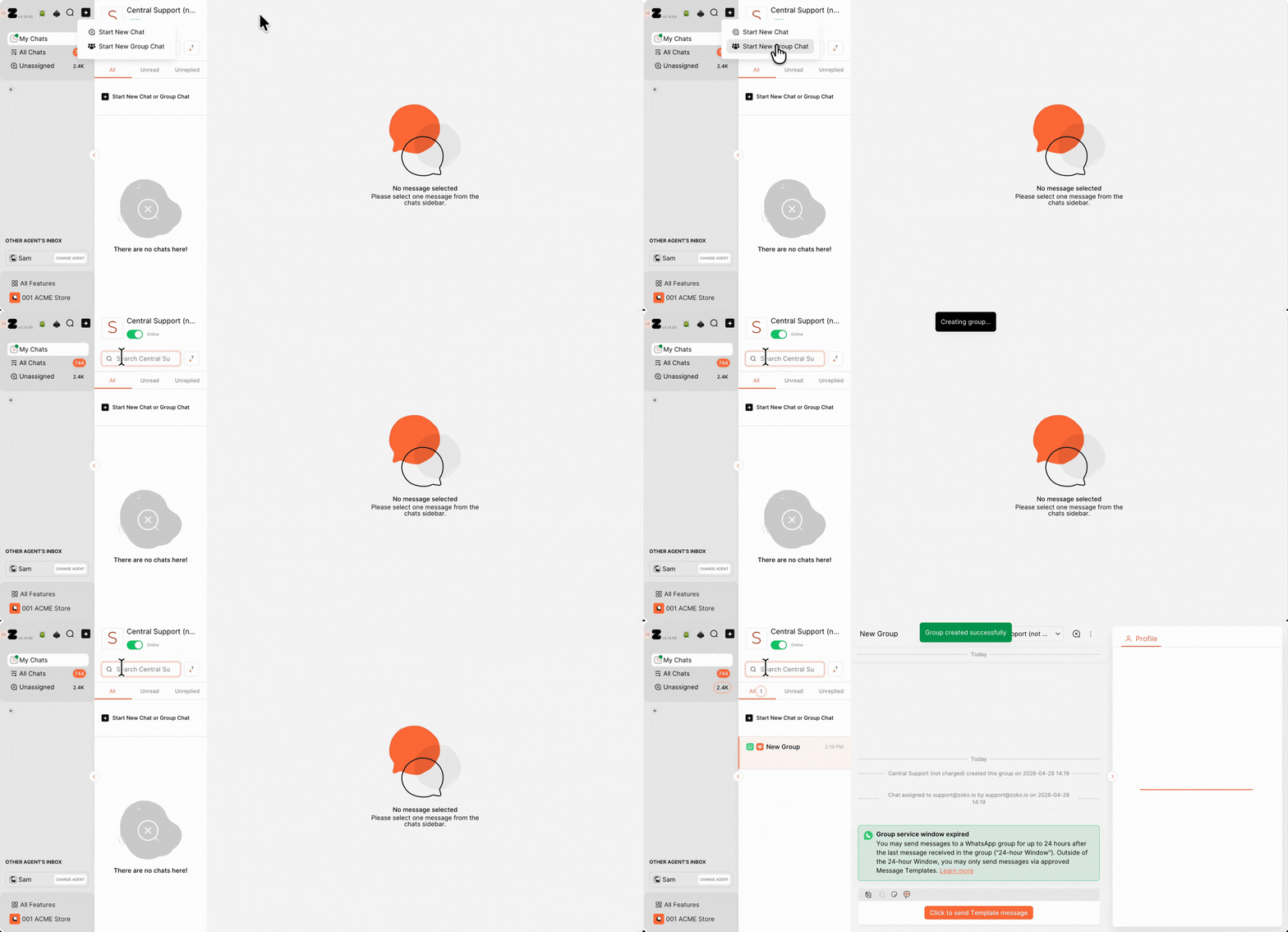
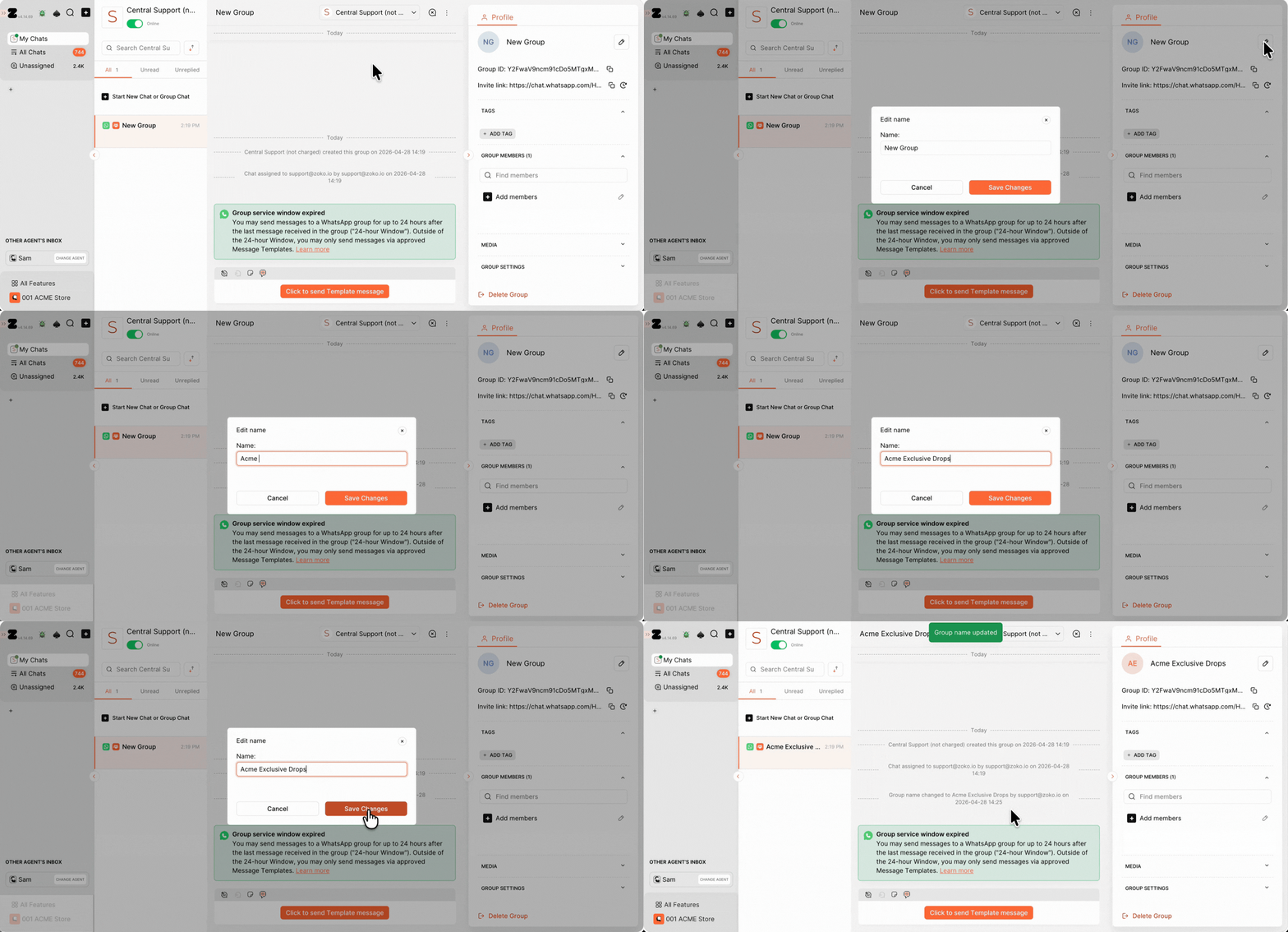
3. Edit Group Name
- Click on the pencil icon.
- Type your preferred group name.
- Click Save changes.
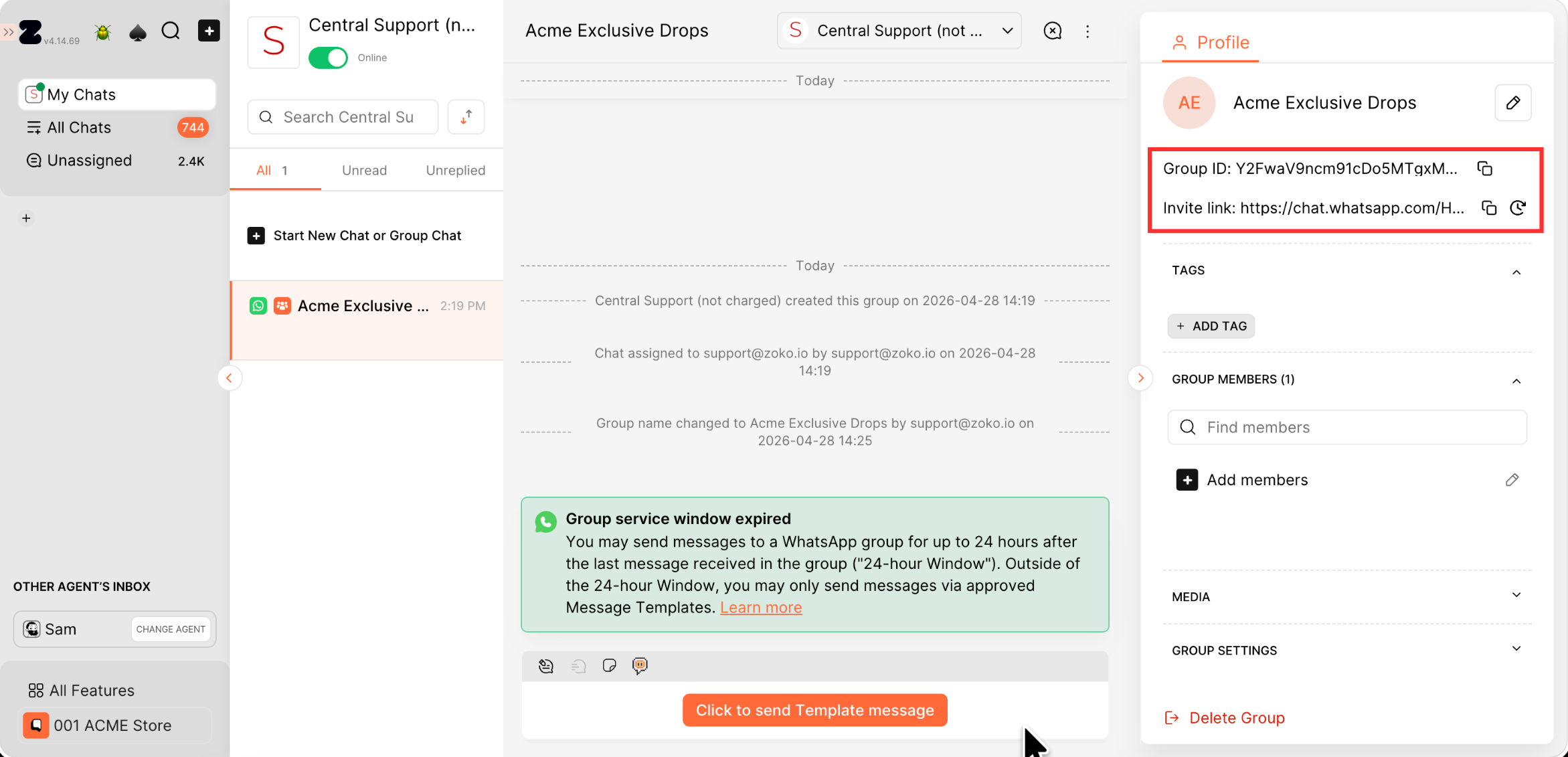
4. Let’s look at three important elements of a group:
- Group ID: A unique identifier for your group, used for internal purposes only.
- Invite Link: A shareable link that allows others to join the group.
- Reset Invite Link: Generates a new invite link and disables the previous one.
5. Click on Add Tag, enter the tag name, and apply it to the group. Tags help you quickly find and organize groups based on their purpose or category.
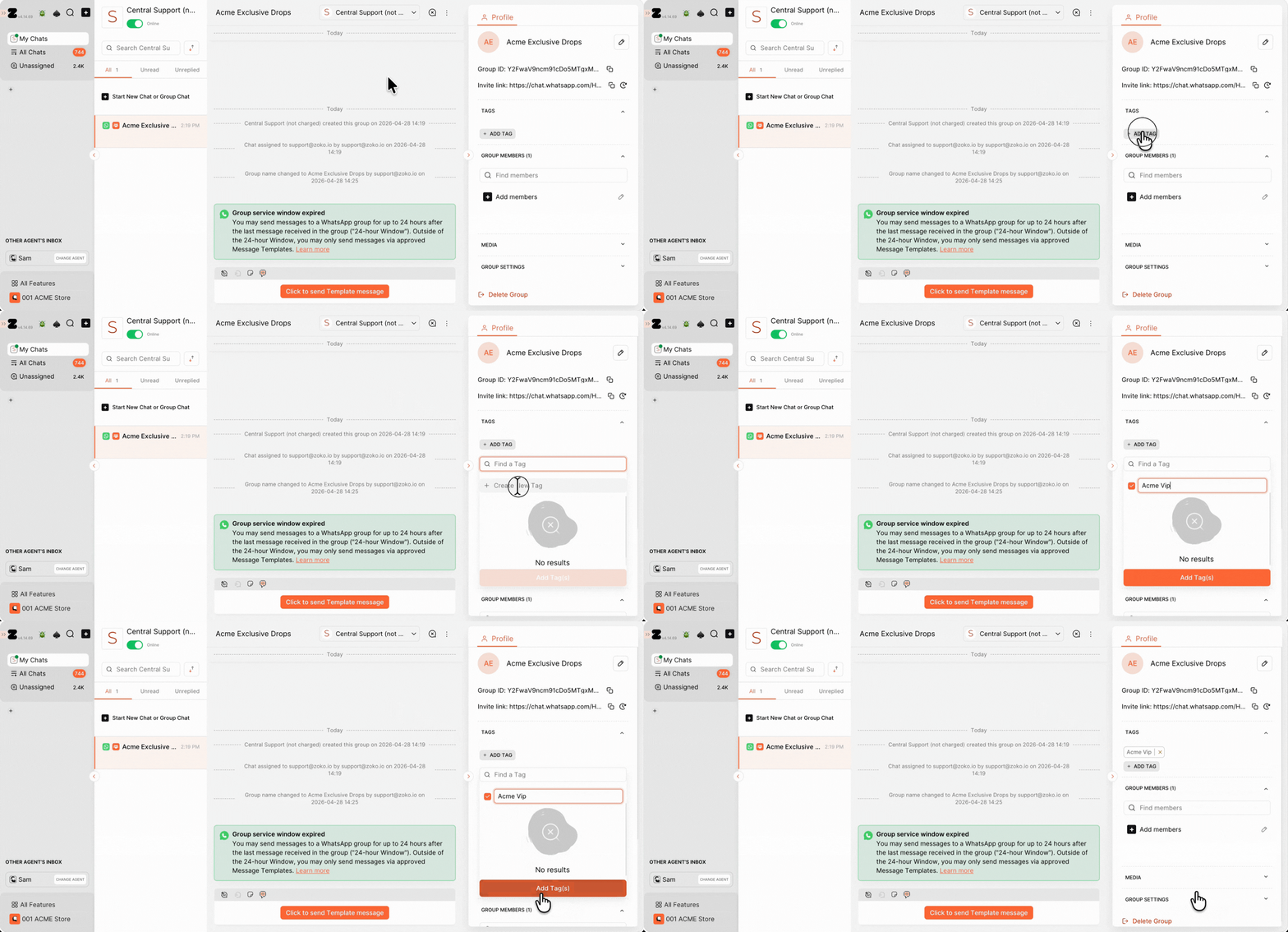
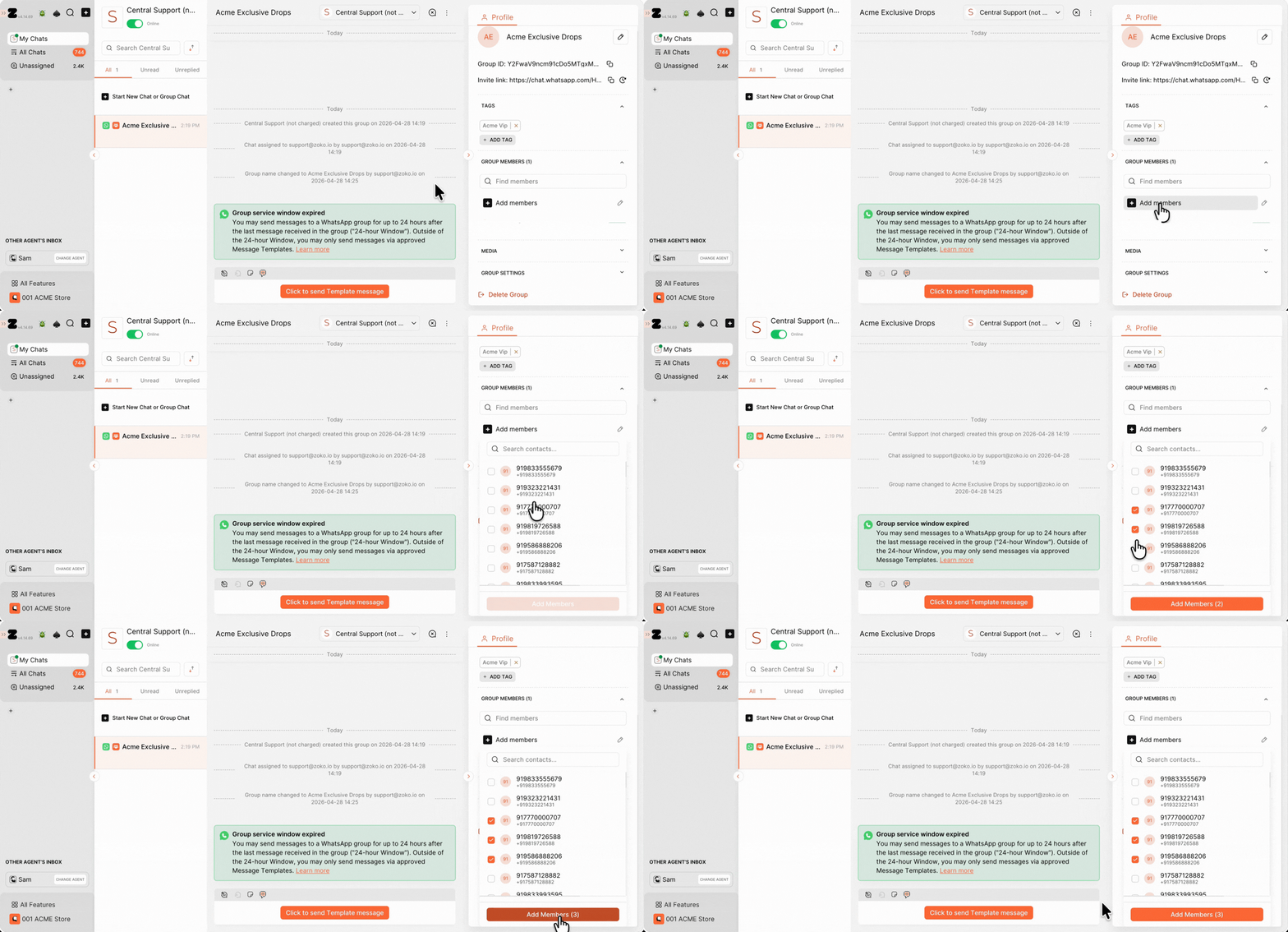
6. To add members, click on Add Members, select the contacts you want to include, and click Add Members again to confirm. The selected contacts will be added to your group instantly.
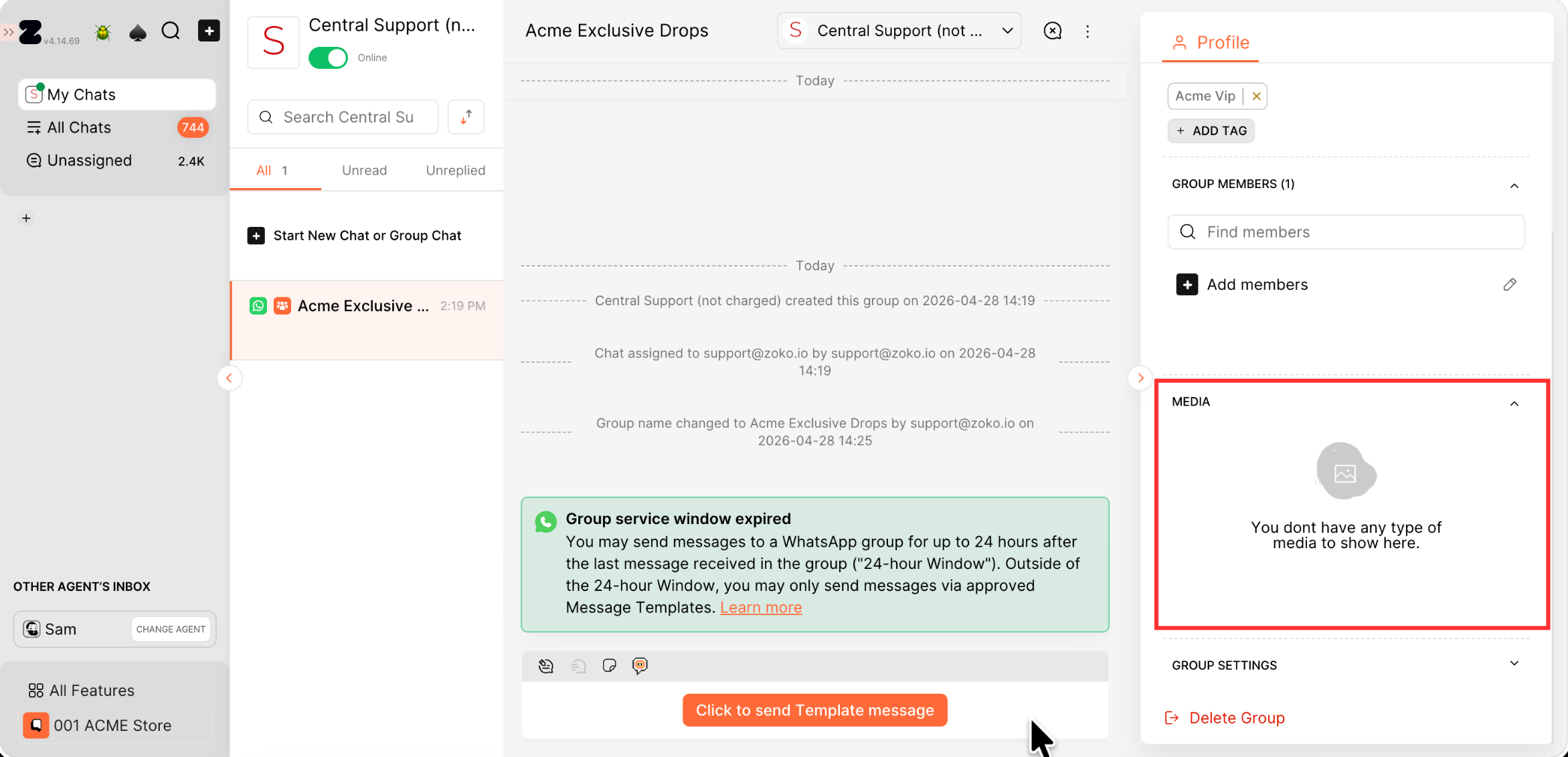
7. You can access all shared media, such as files and images, in one place within the group, whether it is shared by you or your customers.
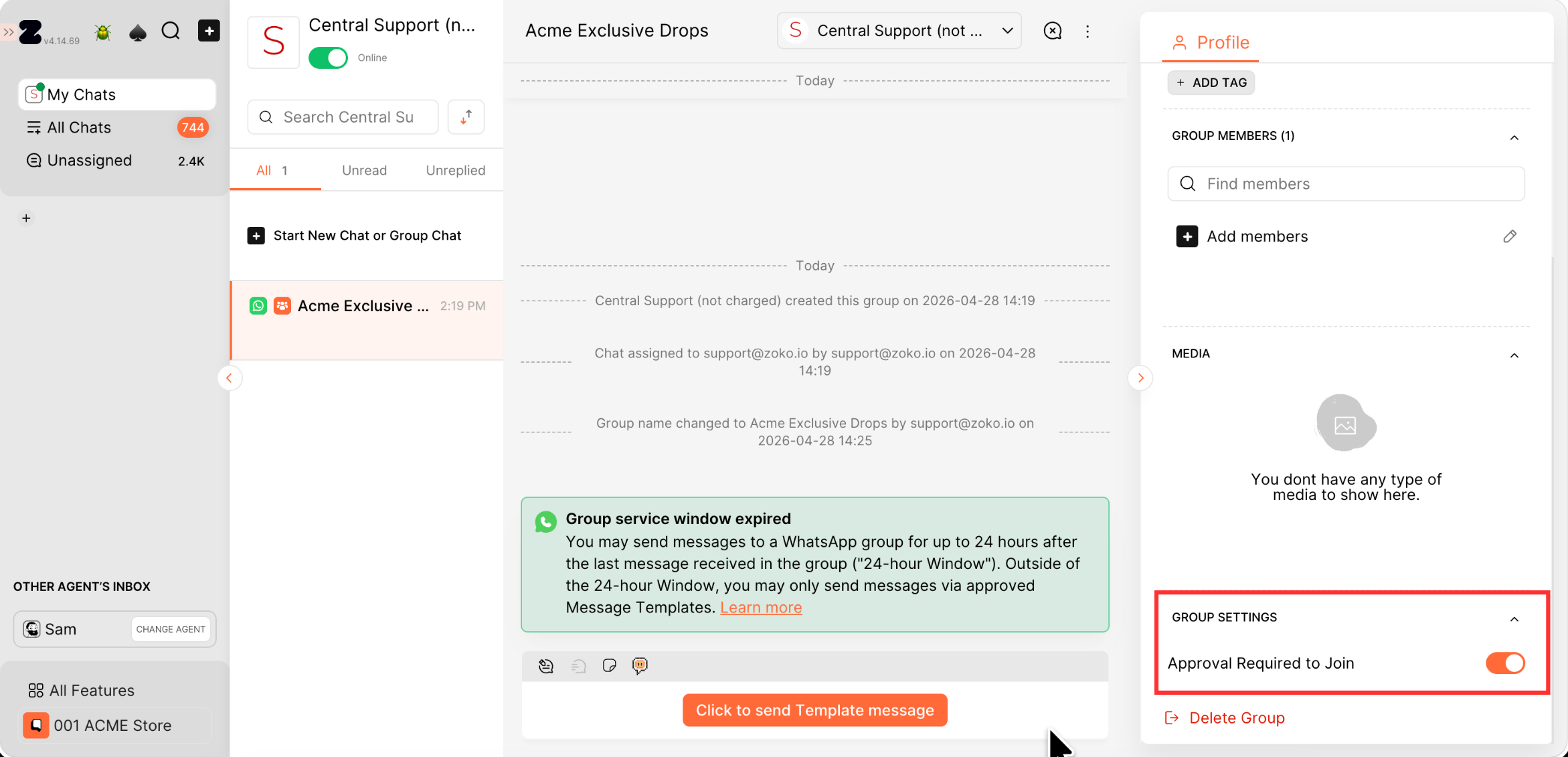
8. To make the group private, enable the Approval Required to Join toggle in Group Settings. Once turned on, anyone trying to join the group will need your approval first, giving you full control over who becomes a member.
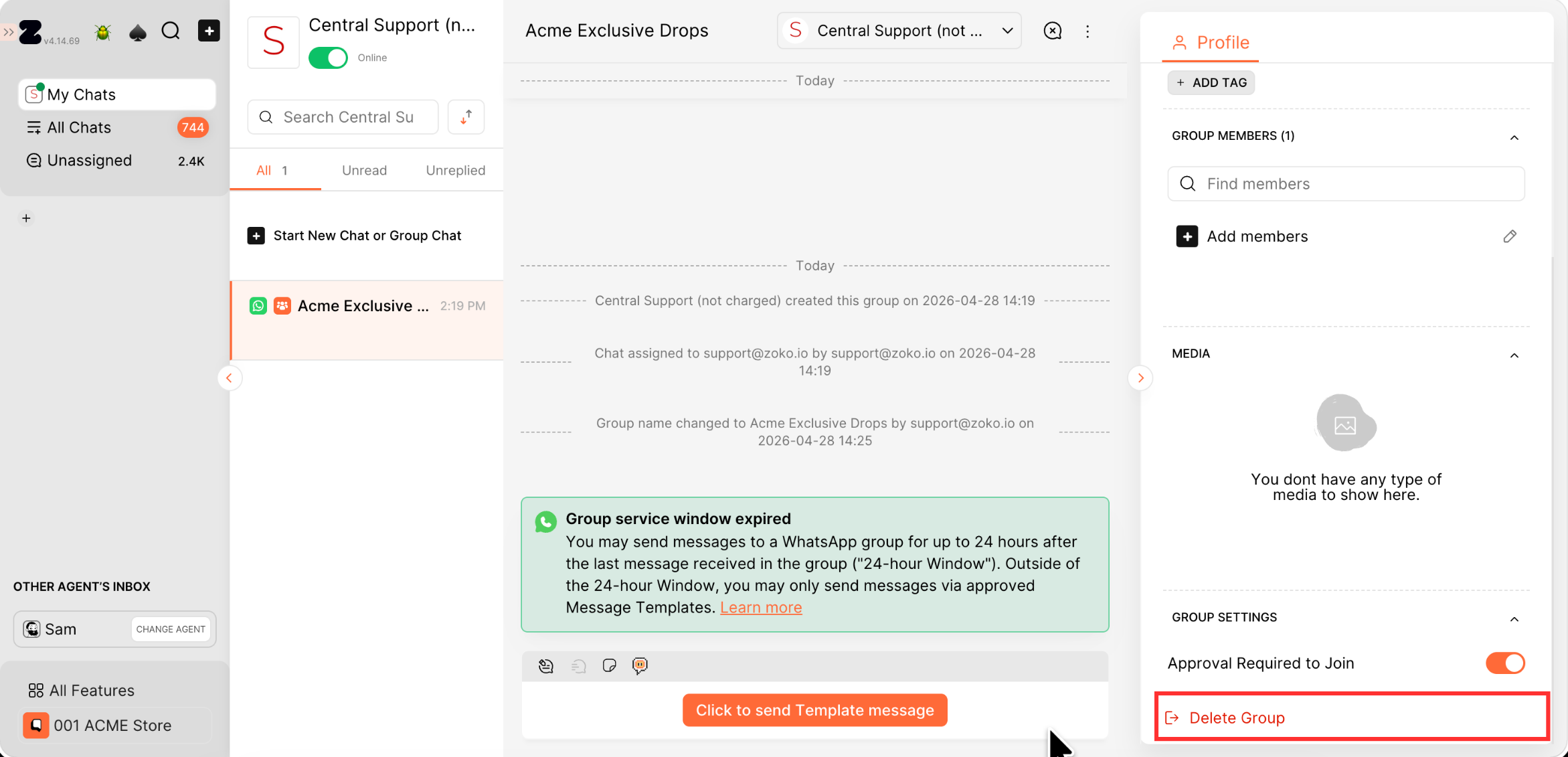
9. You can also delete the group by clicking on the Delete Group option.
Keywords: WhatsApp group, Group chat, Zoko group, Group invite link, Group chat feature, Add members.
