


How to Create Custom Inboxes
.png)
Share on WhatsApp
.png)


Custom Inboxes help you organize conversations based on your workflow. You can route chats to specific teams, prioritize important messages, and improve response time.
In this article, we’ll cover:
- Creating a New Inbox
- Creating a New Inbox Folder
- Deleting an Inbox or Folder
Create a New Inbox
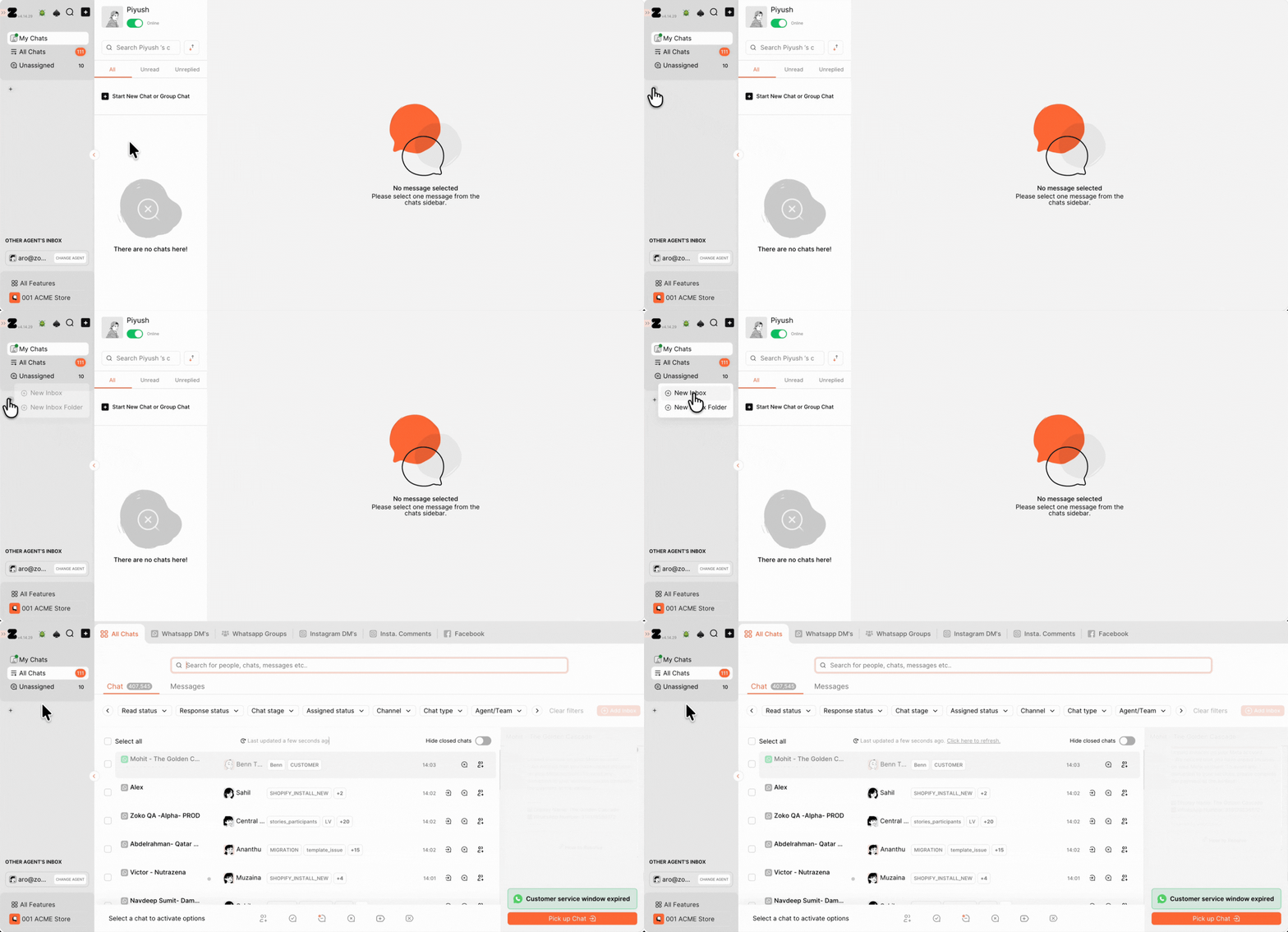
1. Go to All Chats, or click on the + icon and select New Inbox.
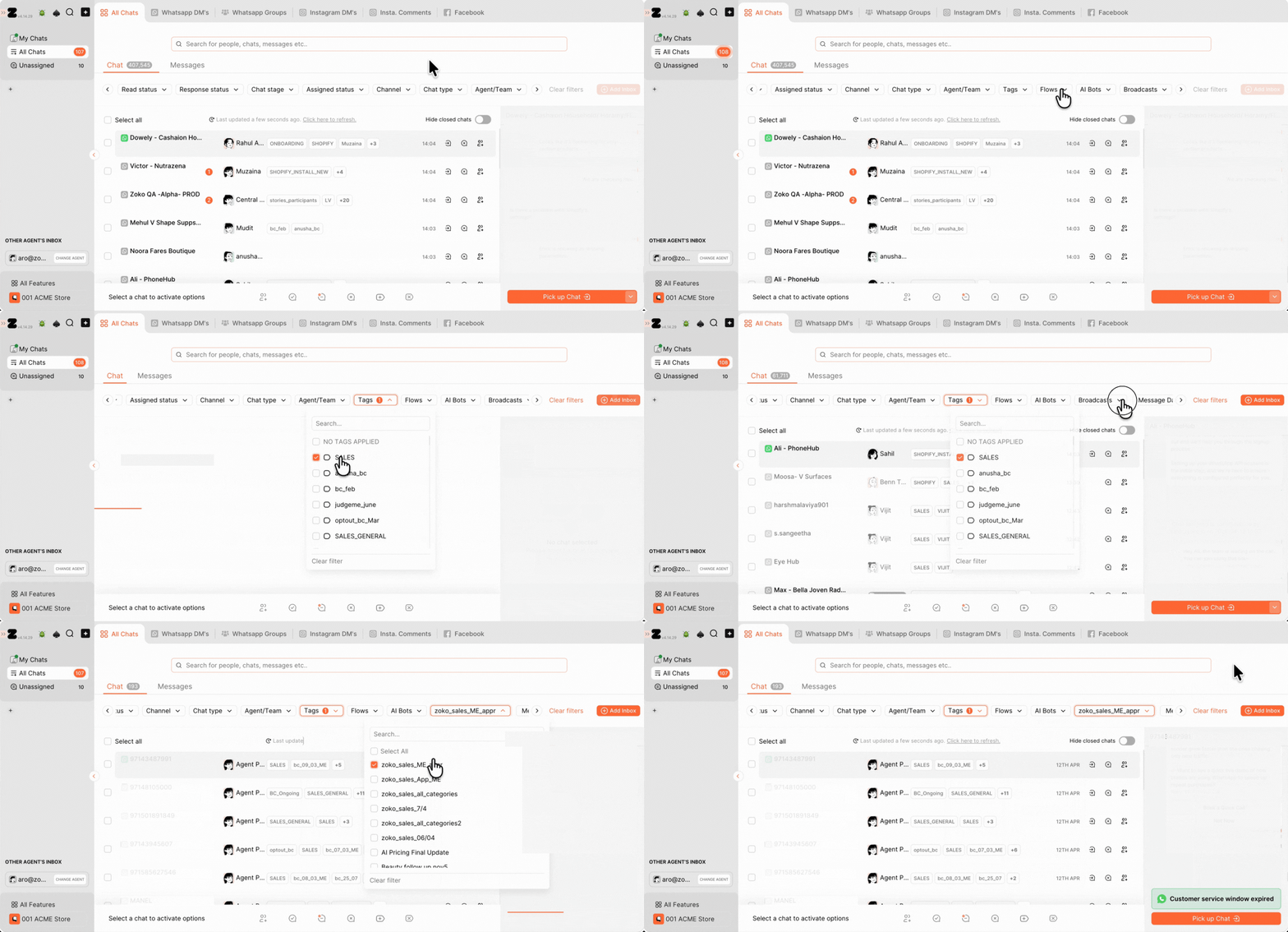
2. Set the filter conditions to define which conversations should appear in the inbox. For example, you’ve sent a broadcast to customers and want only those replies to be handled by your sales team. In this case, select tag as filter and choose the broadcast name.
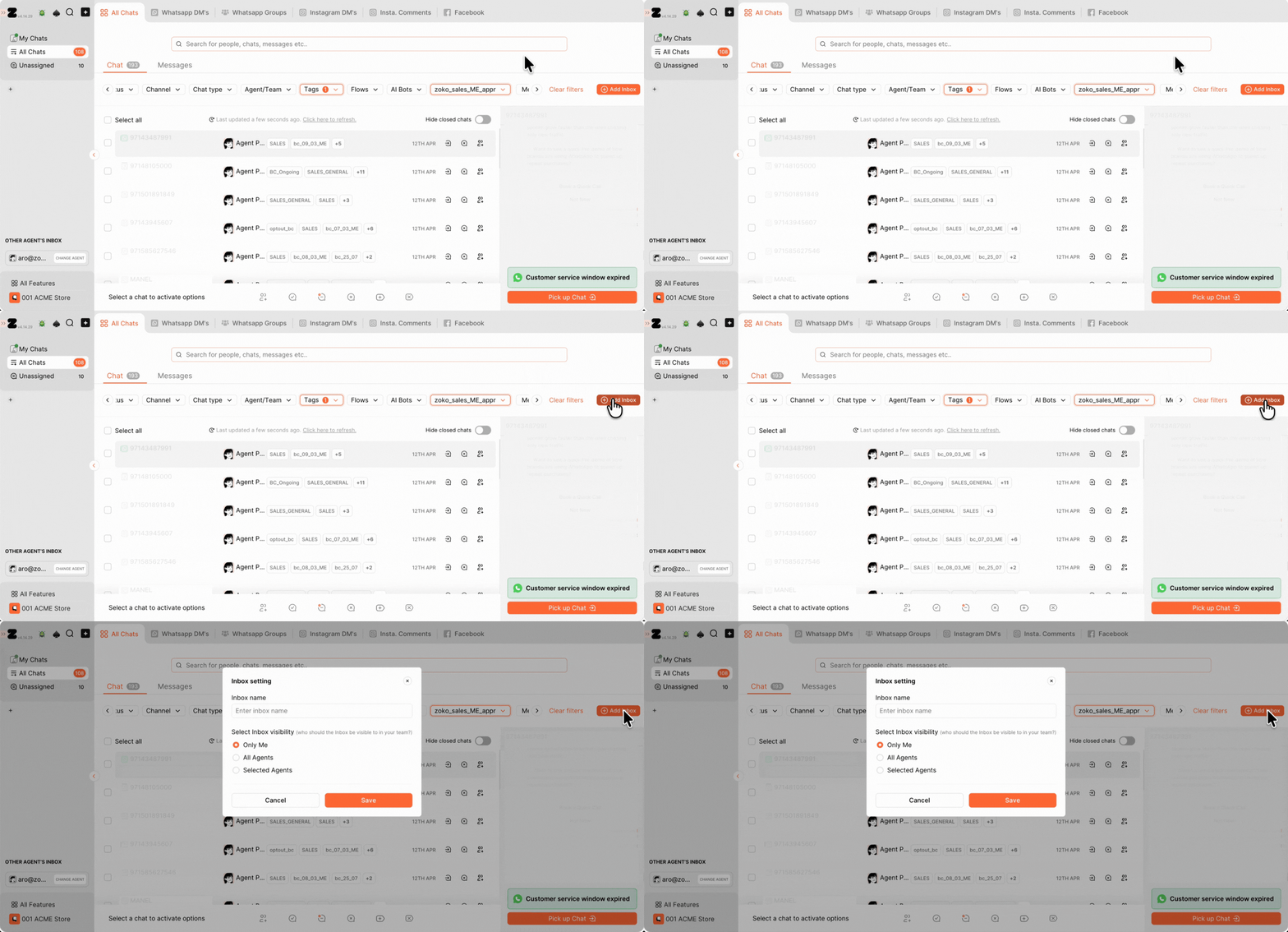
3. Click on Add Inbox.
4. Type the Inbox name. For example, Sales follow up.
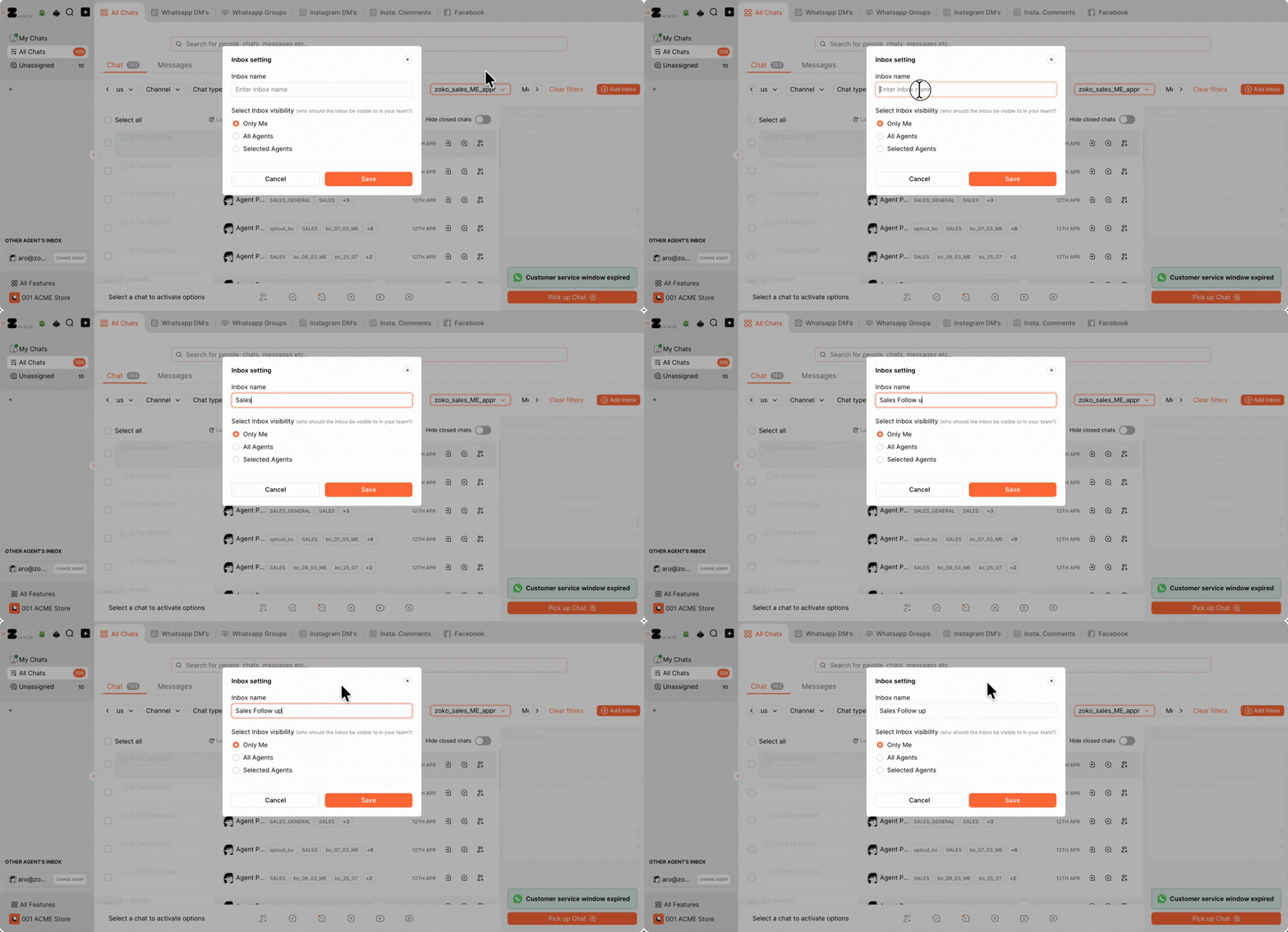
5. Choose who can access this inbox. For example, if you want only specific agents to handle it, select Selected Agents and choose the relevant team members.
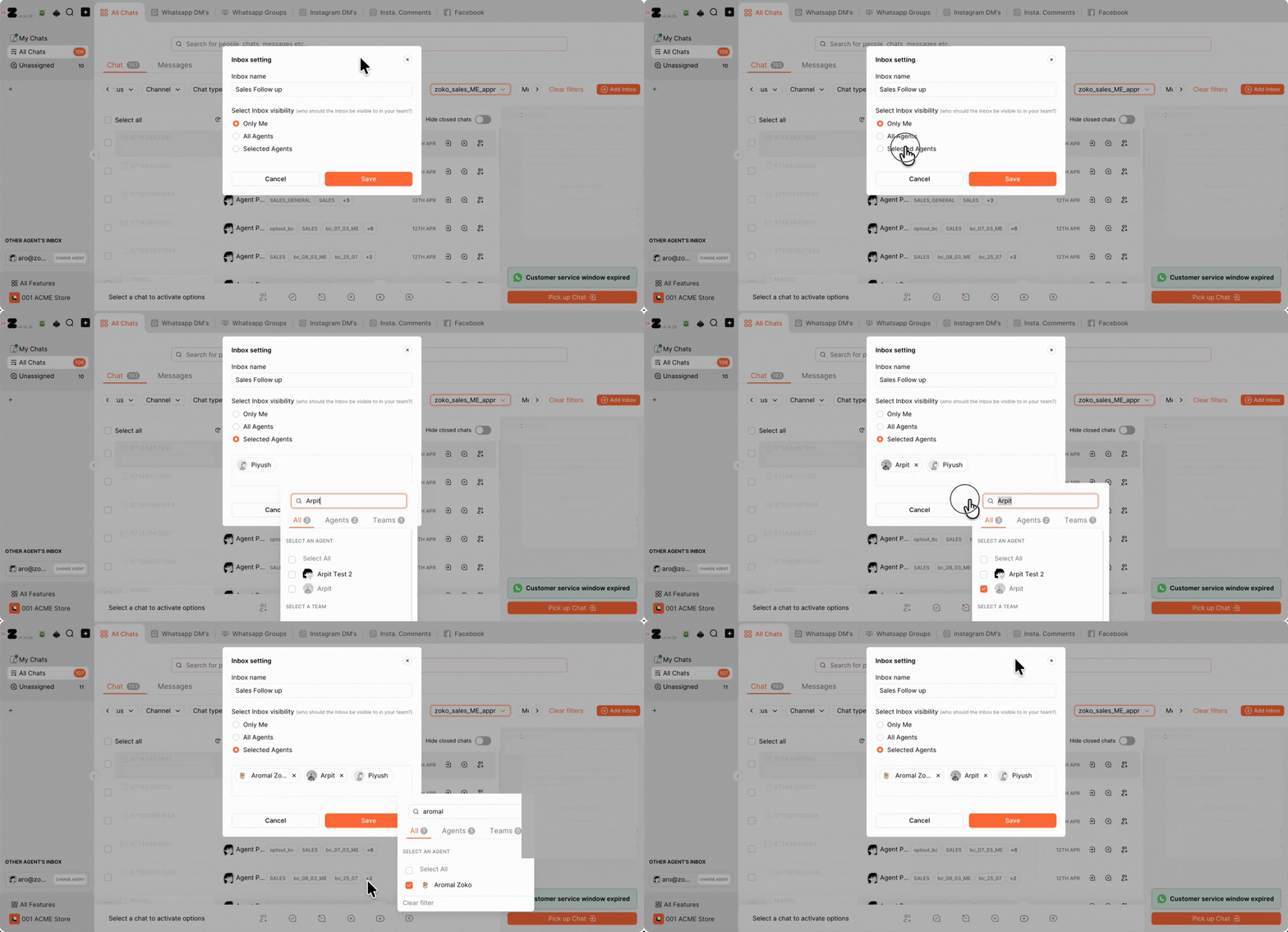
6. Click on Save.
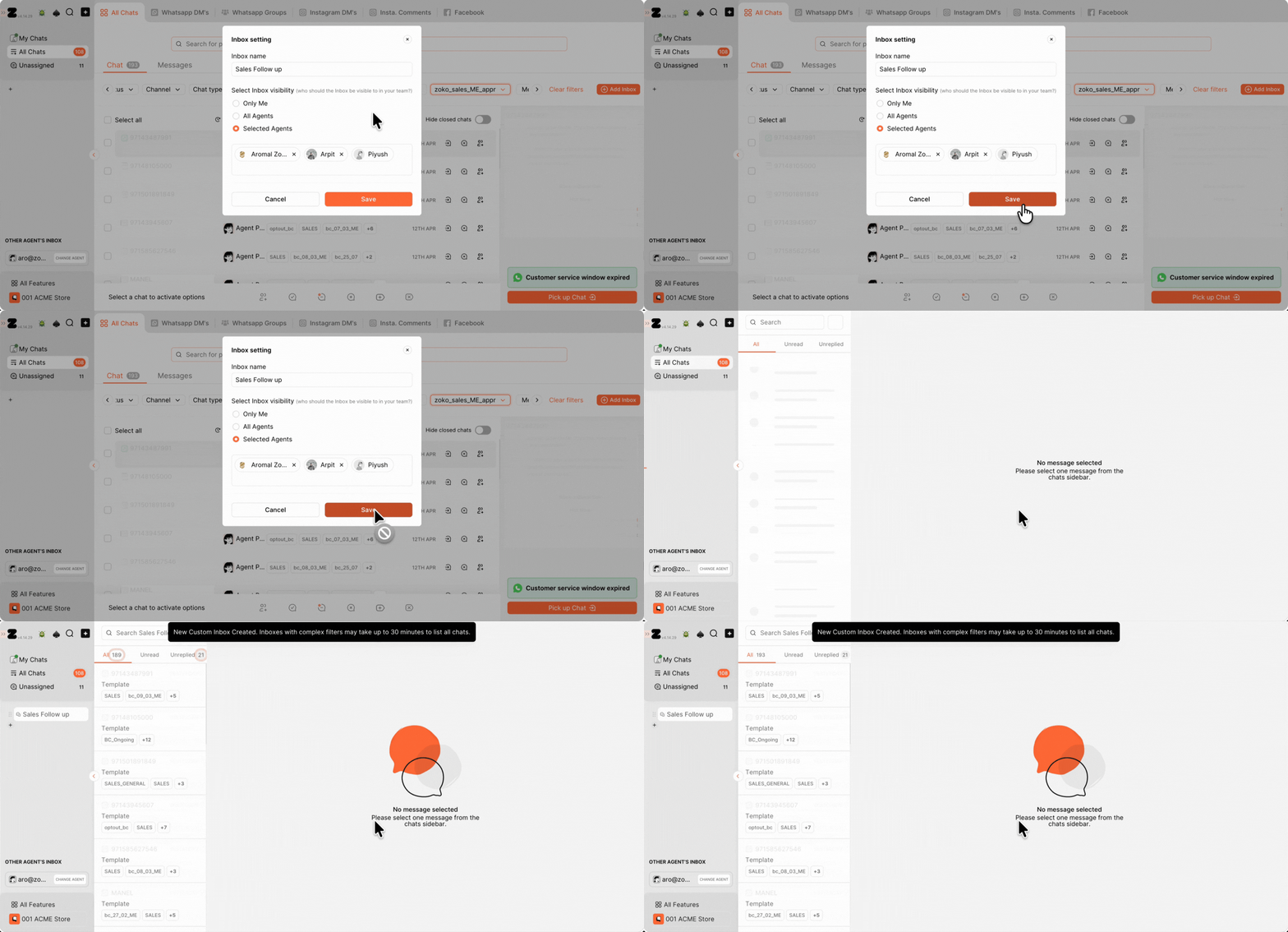
Now, all matching conversations will automatically appear in this inbox. Your team can directly open the inbox and handle relevant chats without manual filtering.
Create a New Inbox Folder
Inbox Folders help you organize multiple inboxes, similar to how you organize files into folders. This keeps your dashboard clean and organized. These folders are personal, meaning only you can see the folders you create.
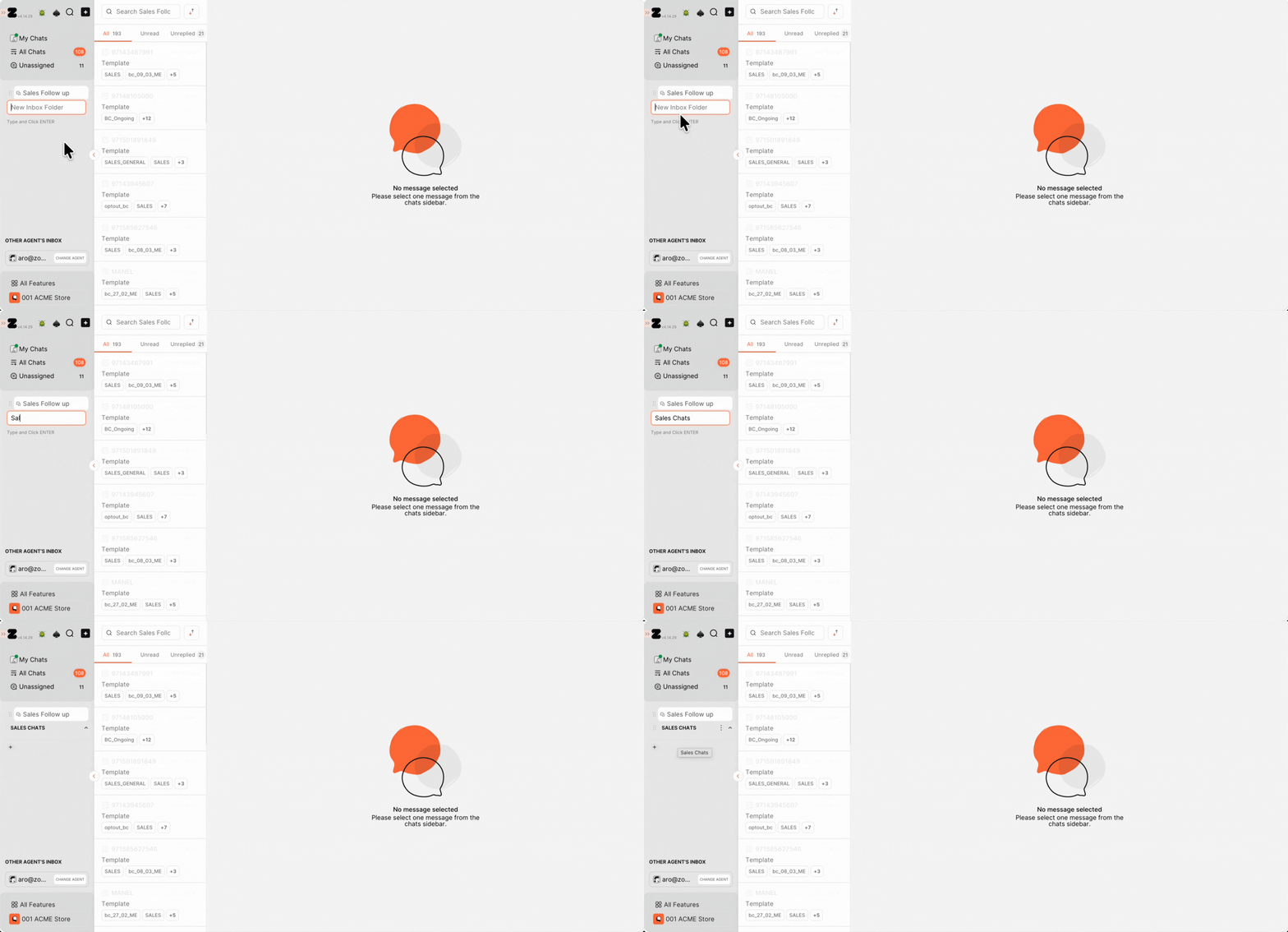
1. Click on the + icon and select New Inbox Folder.
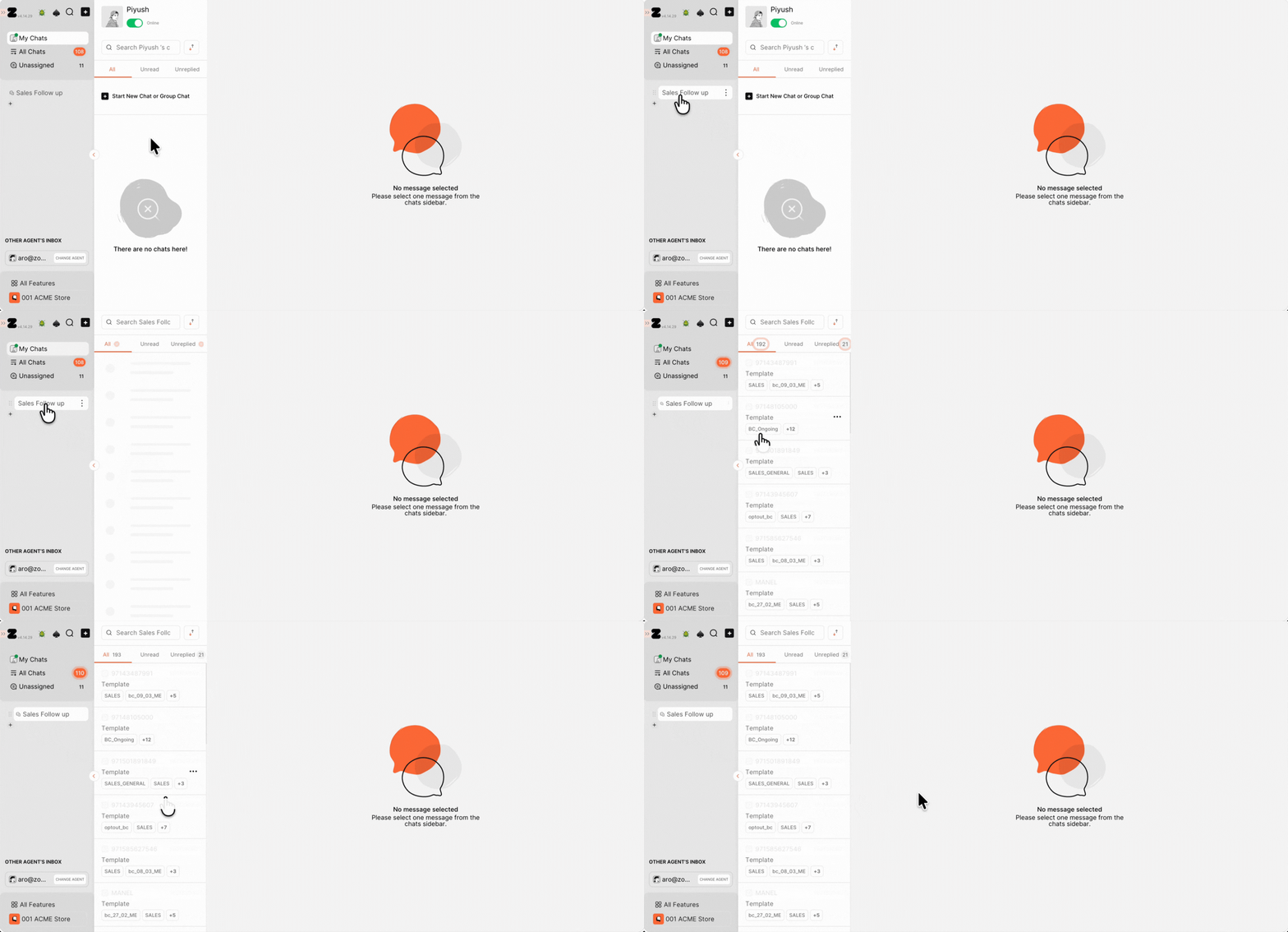
2. Type the Folder name and hit Enter.
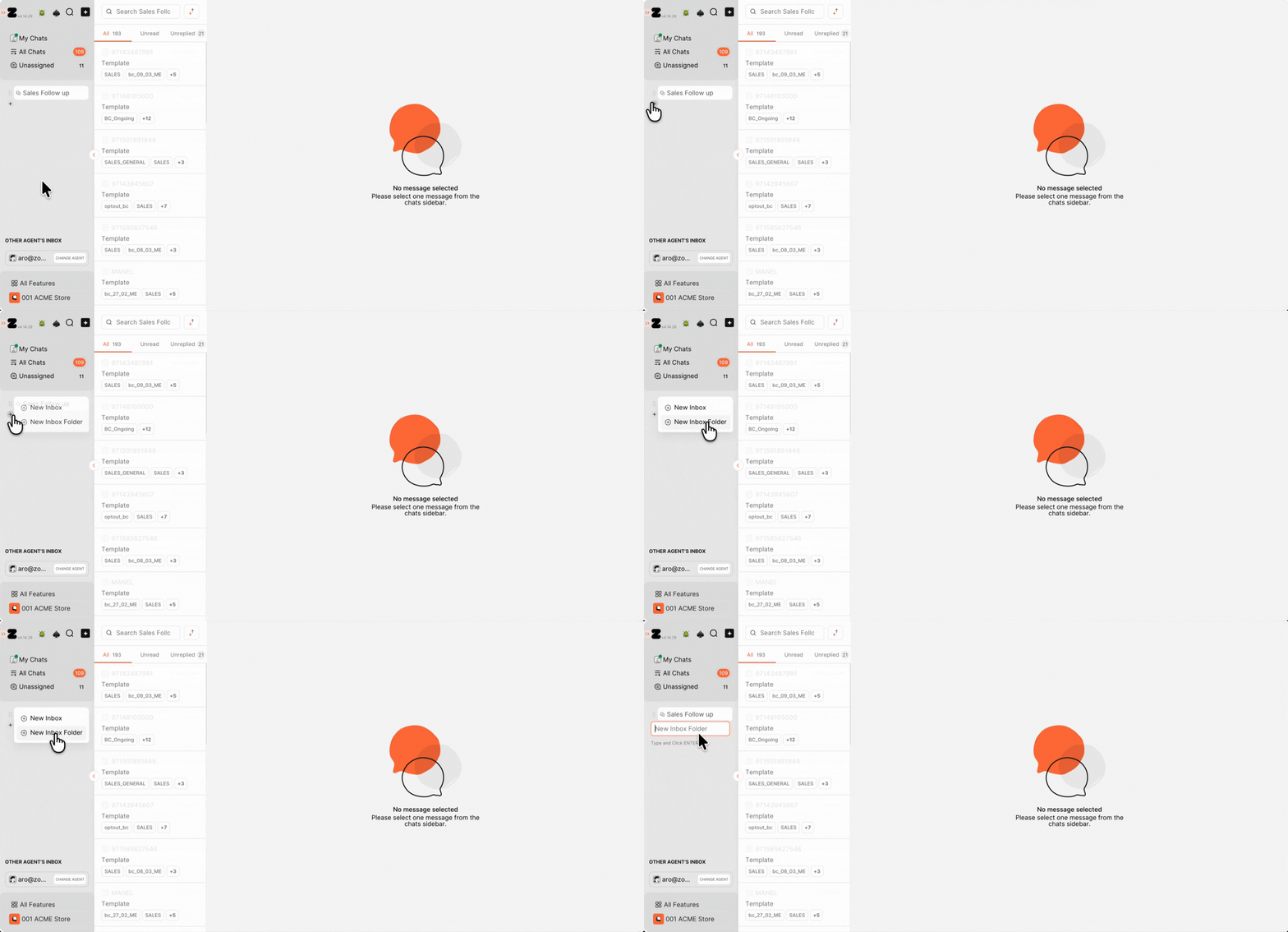
3. Drag and drop inboxes into the folder.
Pro tip: Once an inbox is added to a folder, you can expand the folder to view it or collapse it to hide it.
Delete Inbox or Folder
1. Hover over the inbox or folder and click on the three dots.
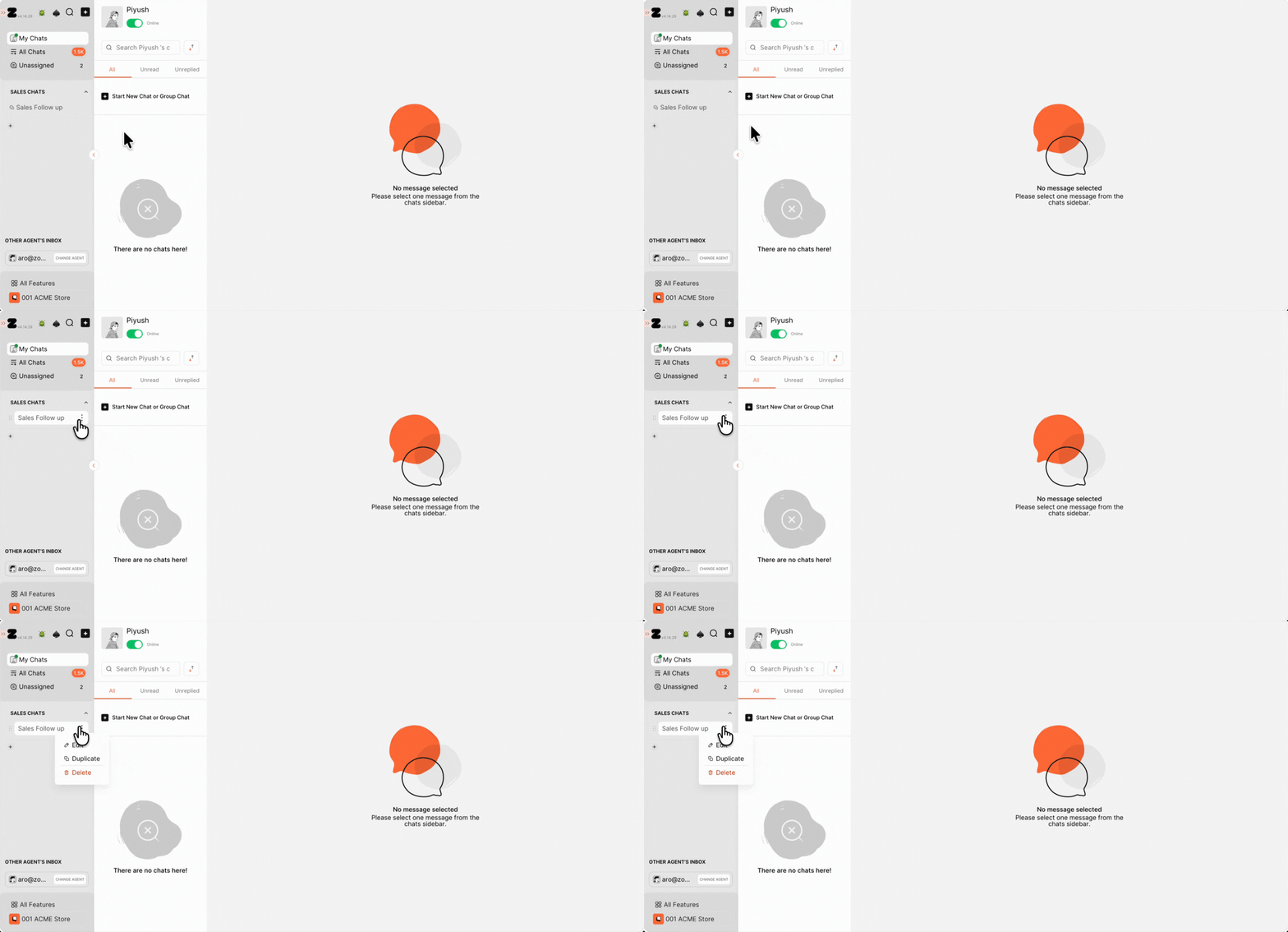
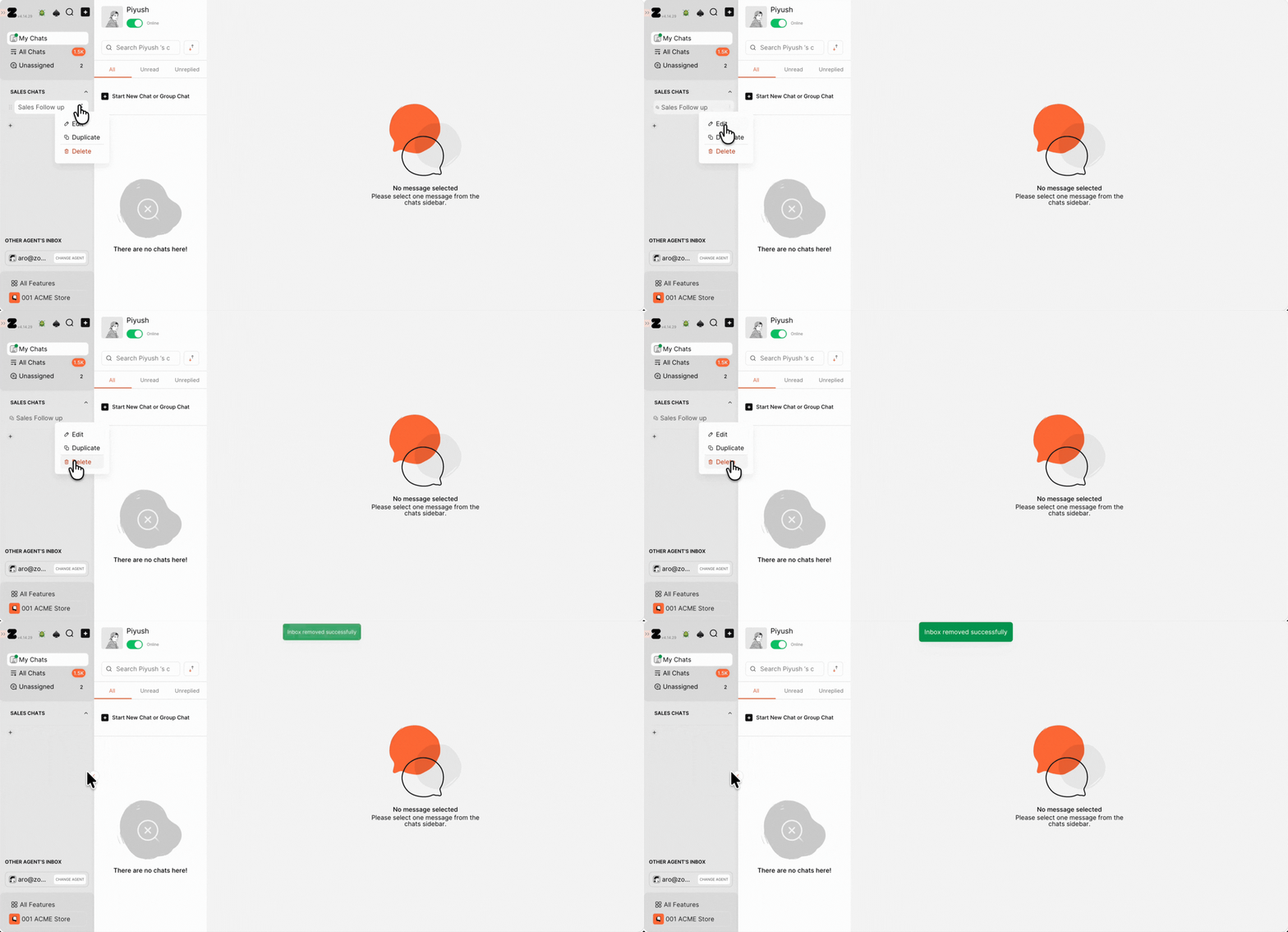
2. Select Delete.
Note: Only the user who created the inbox or folder can delete it.
That’s how it works! Now you’ve learned everything about Custom Inboxes.
Keywords: Custom Inbox, WhatsApp Inbox, Shared Inbox, Team Inbox, Inbox Filters, Chat Routing
