


How to Enable OPT_OUT Tag Rule
Learn how to configure the OPT_OUT Tag Rule in Zoko.

Share on WhatsApp


The OPT_OUT tag helps you control which contacts can receive outgoing messages. Depending on the OPT_OUT setting you choose, you can either block all messages to contacts with the OPT_OUT tag or decide which types of messages should be blocked.
To do this:
1. Go to All Features and click on Rules.
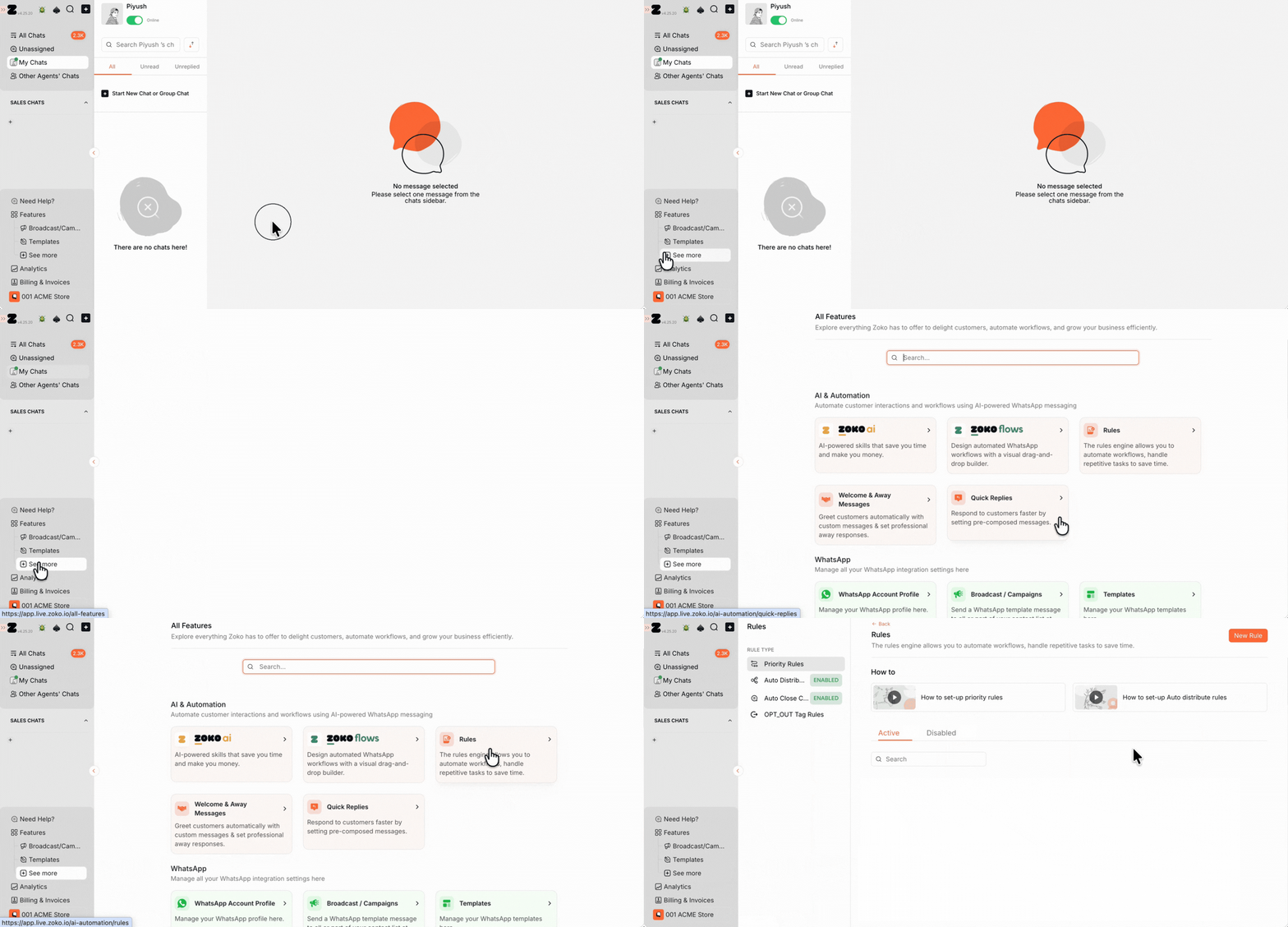
2. Select OPT_OUT Tag Rules.
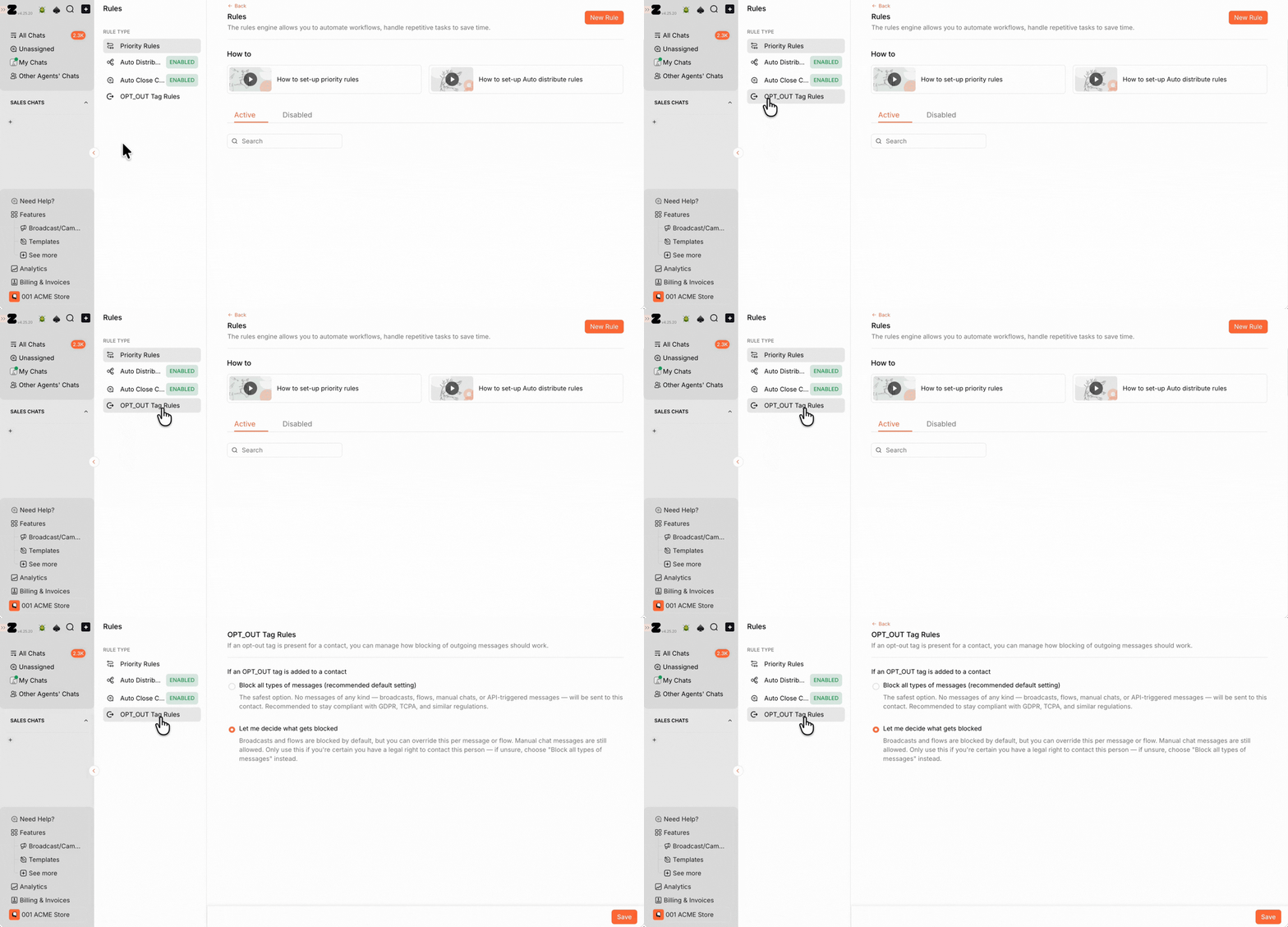
3. Choose how you want to handle contacts with the OPT_OUT tag. You’ll see two options:
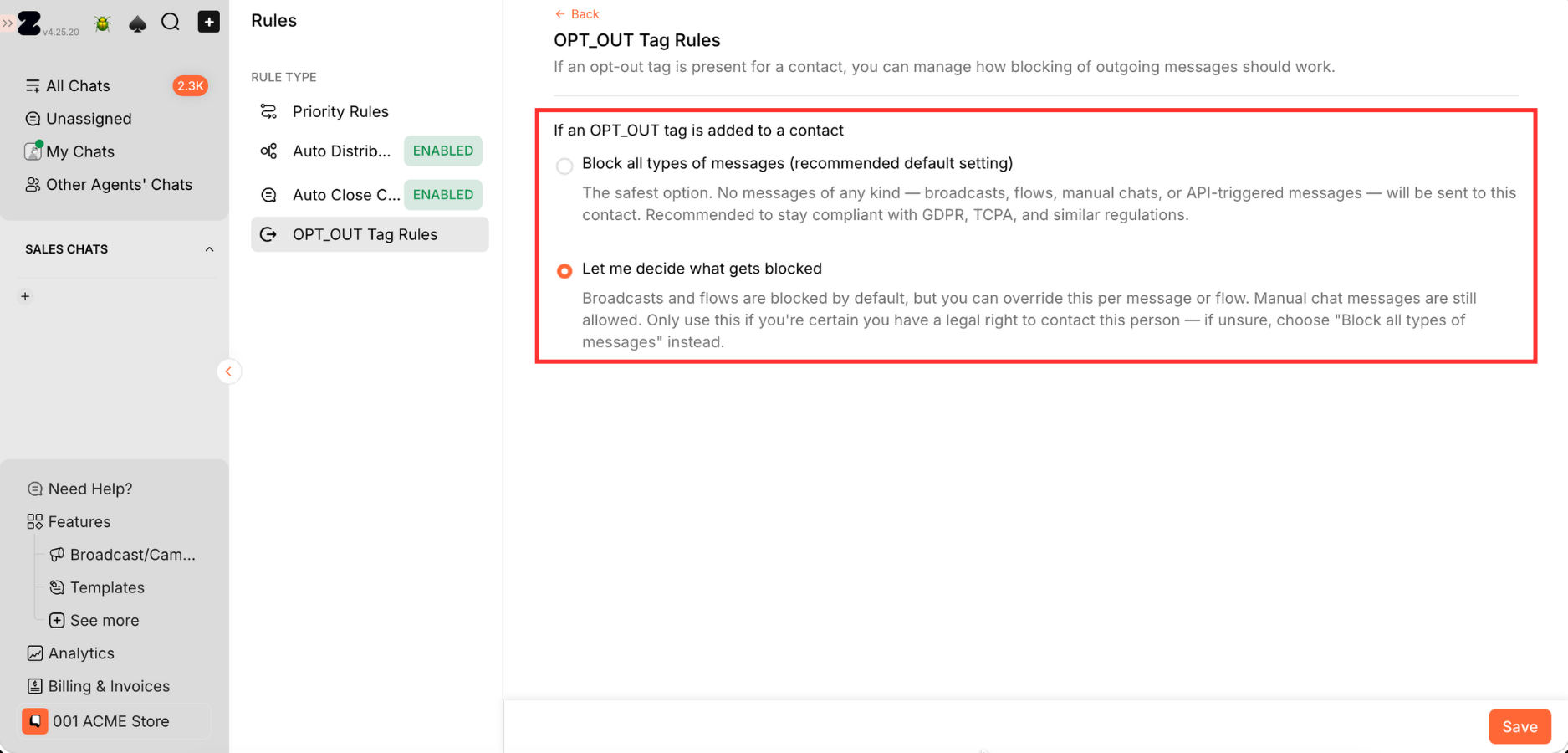
Block all types of messages
This is the recommended default setting. When a contact has the OPT_OUT tag, all outgoing messages are blocked for that contact, including:
- Broadcasts
- Flow messages
- Manual messages
- API-triggered messages
With this setting, no messages will be sent to the contact while the OPT_OUT tag is present.
Let me decide what gets blocked
This option gives you more control over how contacts with the OPT_OUT tag are handled. You can decide at the individual broadcast or flow level whether these contacts should be included.
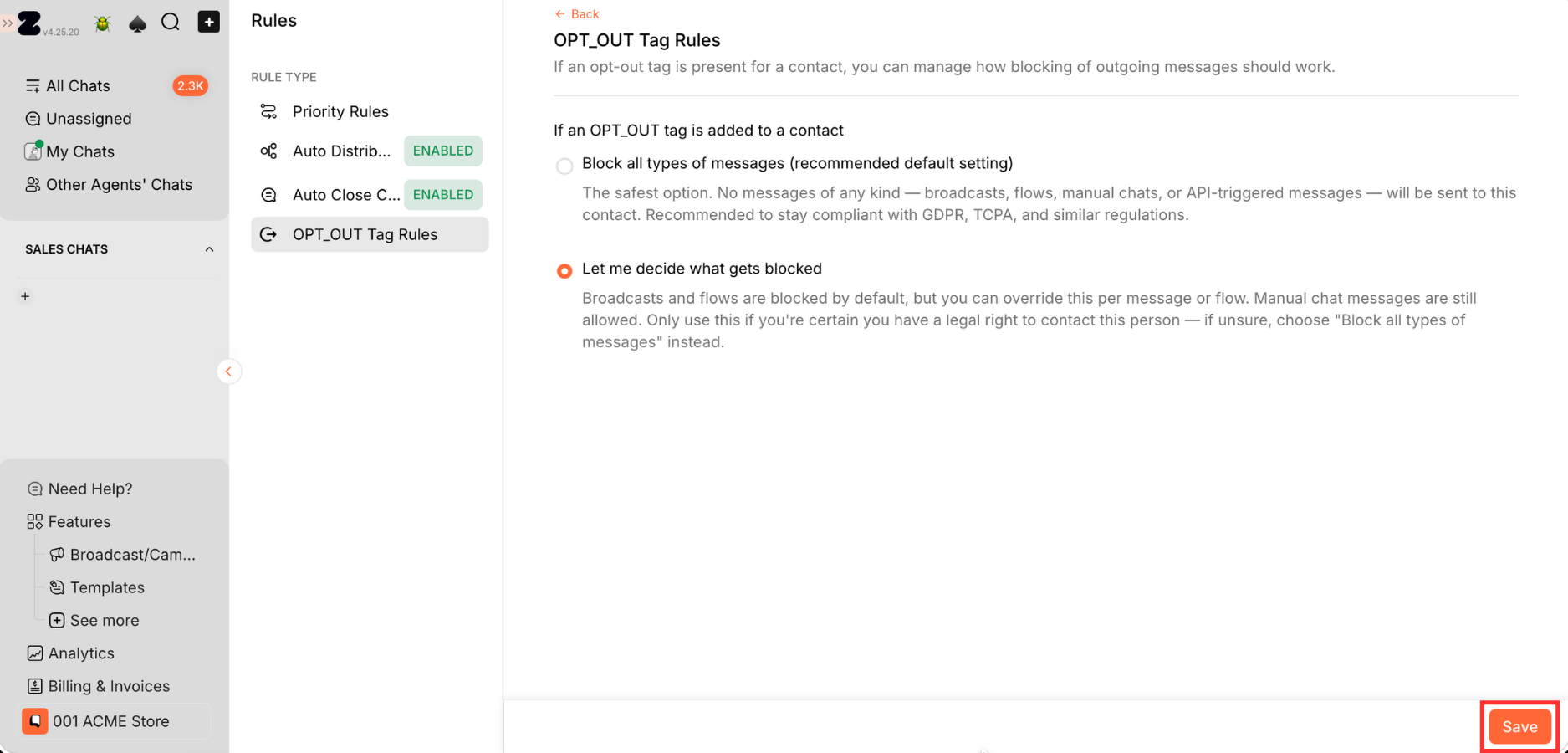
4. After selecting your preferred option, click Save.
Keywords: Opt out tag, Configure opt out settings, Block outgoing messages, Opt out contacts, GDPR settings, WhatsApp messaging compliance
