


How to Block and Unblock a Customer
Learn how to block a WhatsApp customer from your Zoko inbox and unblock them whenever needed.

Share on WhatsApp


If you no longer want to receive messages from a particular customer, you can block them directly from their chat in Zoko.
Once blocked, the customer's messages, reactions, and calls won't reach your inbox.
Important: If you don't see the Block customer option in your chat, it might be because your store isn't on Zoko Cloud yet. Please contact our support team, and we'll be happy to help you.
How to Block a Customer
1. Select the customer's chat, then click the three-dot menu next to their name at the top of the chat.
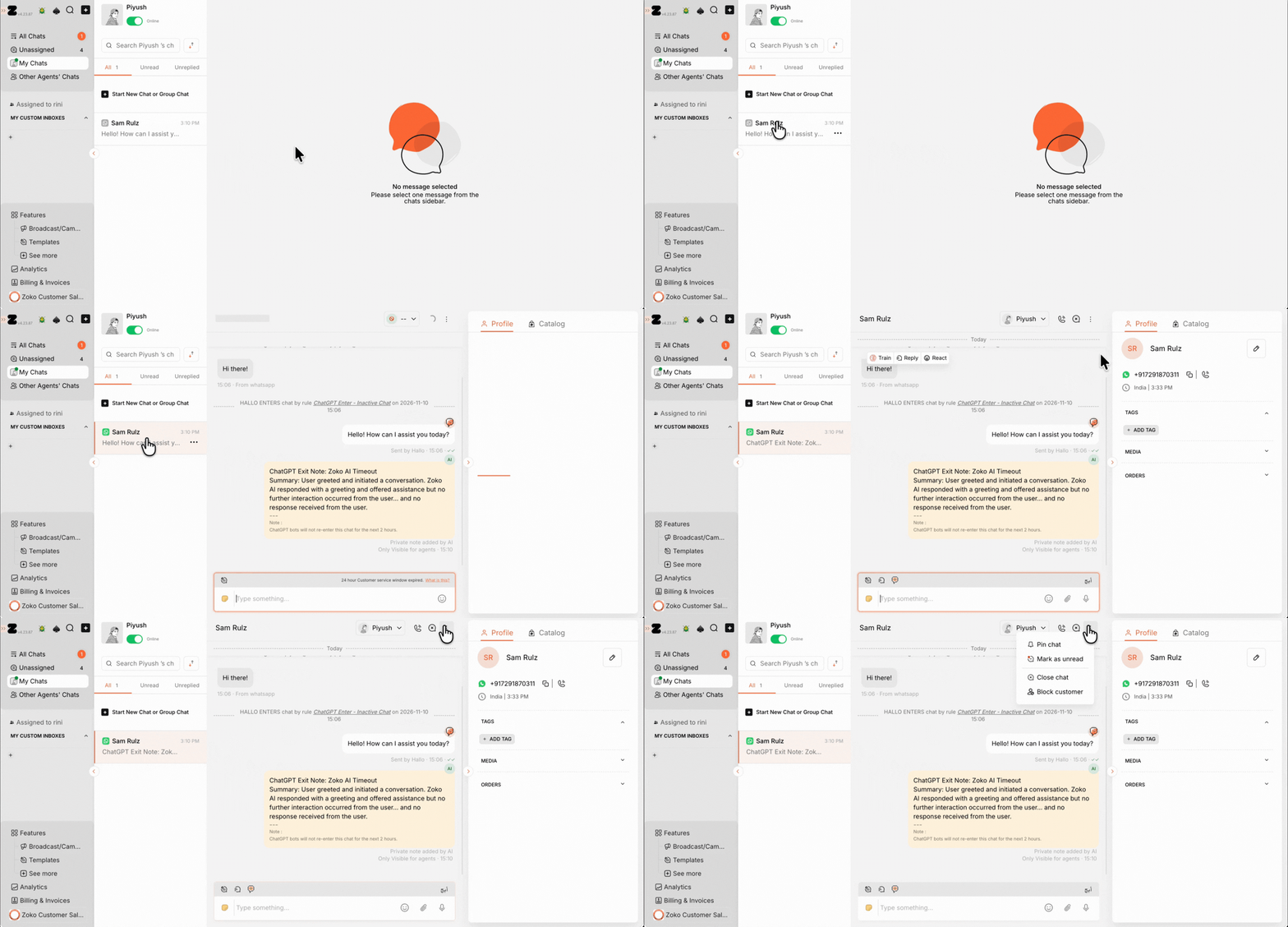
2. Select Block customer.
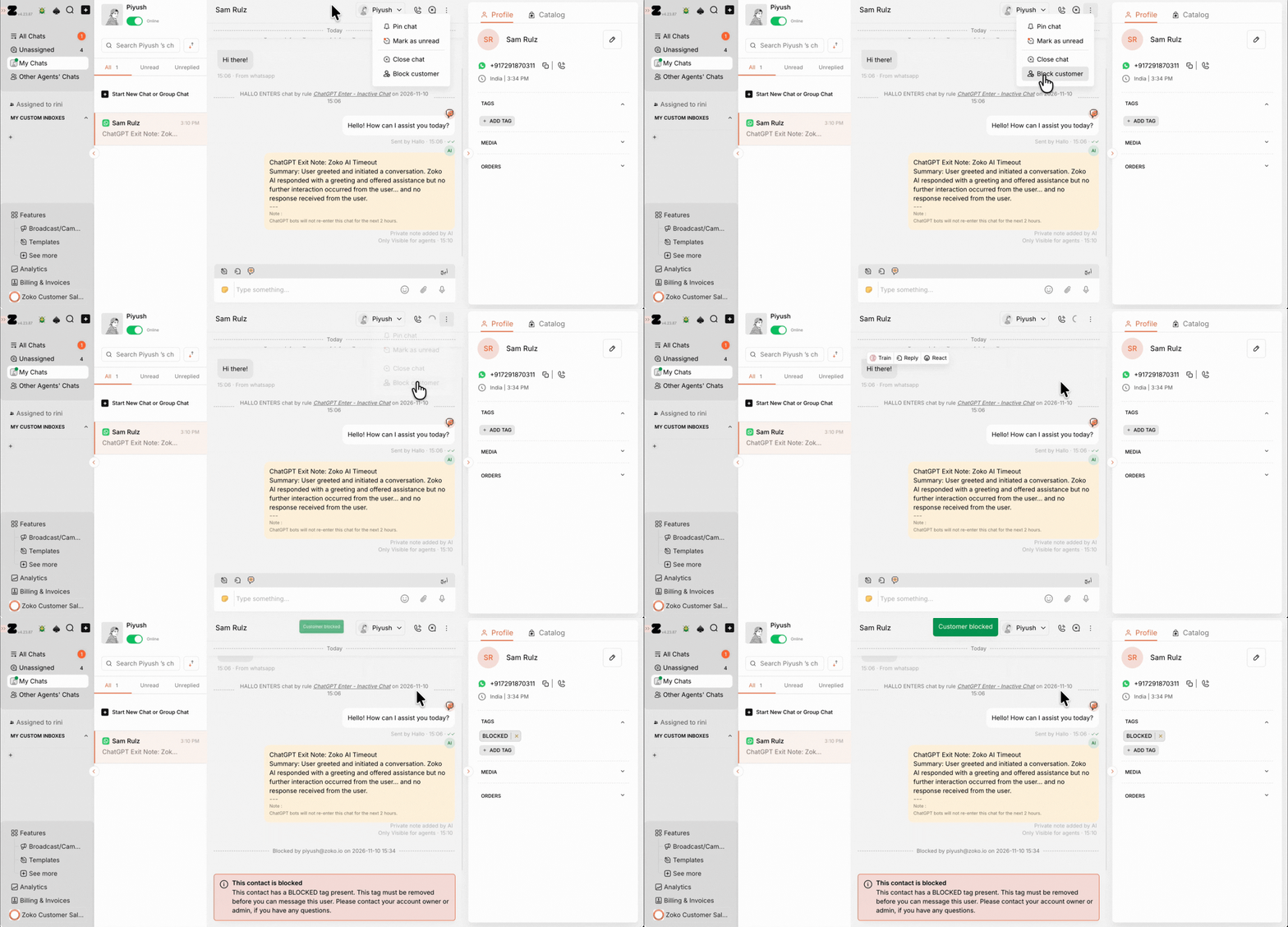
What Happens After Blocking a Customer?
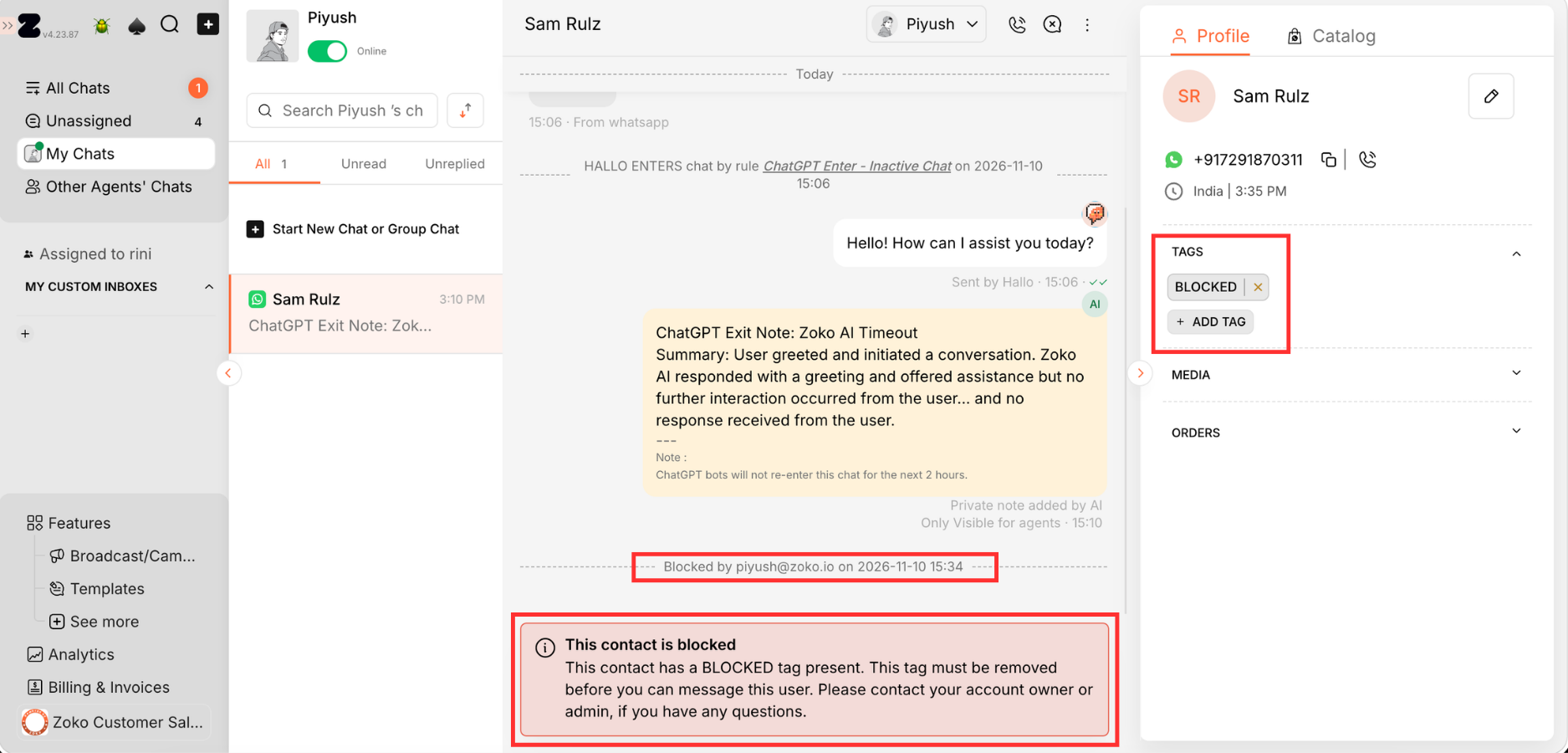
After blocking a customer, you will notice the following changes:
- BLOCKED tag: A
BLOCKEDtag is automatically added to the customer's profile. - Blocked banner: The message box is replaced with a banner indicating that the customer is blocked. You won't be able to send messages to them.
- System message: A message appears in the chat showing who blocked the customer and when.
Note: Blocking a customer doesn't automatically close their chat. The chat will remain in your inbox until you manually close it. You can close the chat to keep your inbox organized.
Blocking also doesn't delete the customer's existing chat history. Any new messages, reactions, or calls sent while they're blocked are dropped and won't reach your inbox.
How to Unblock a Customer
To unblock a customer, you'll first need to find their chat.
Step 1: Find the Blocked Customer
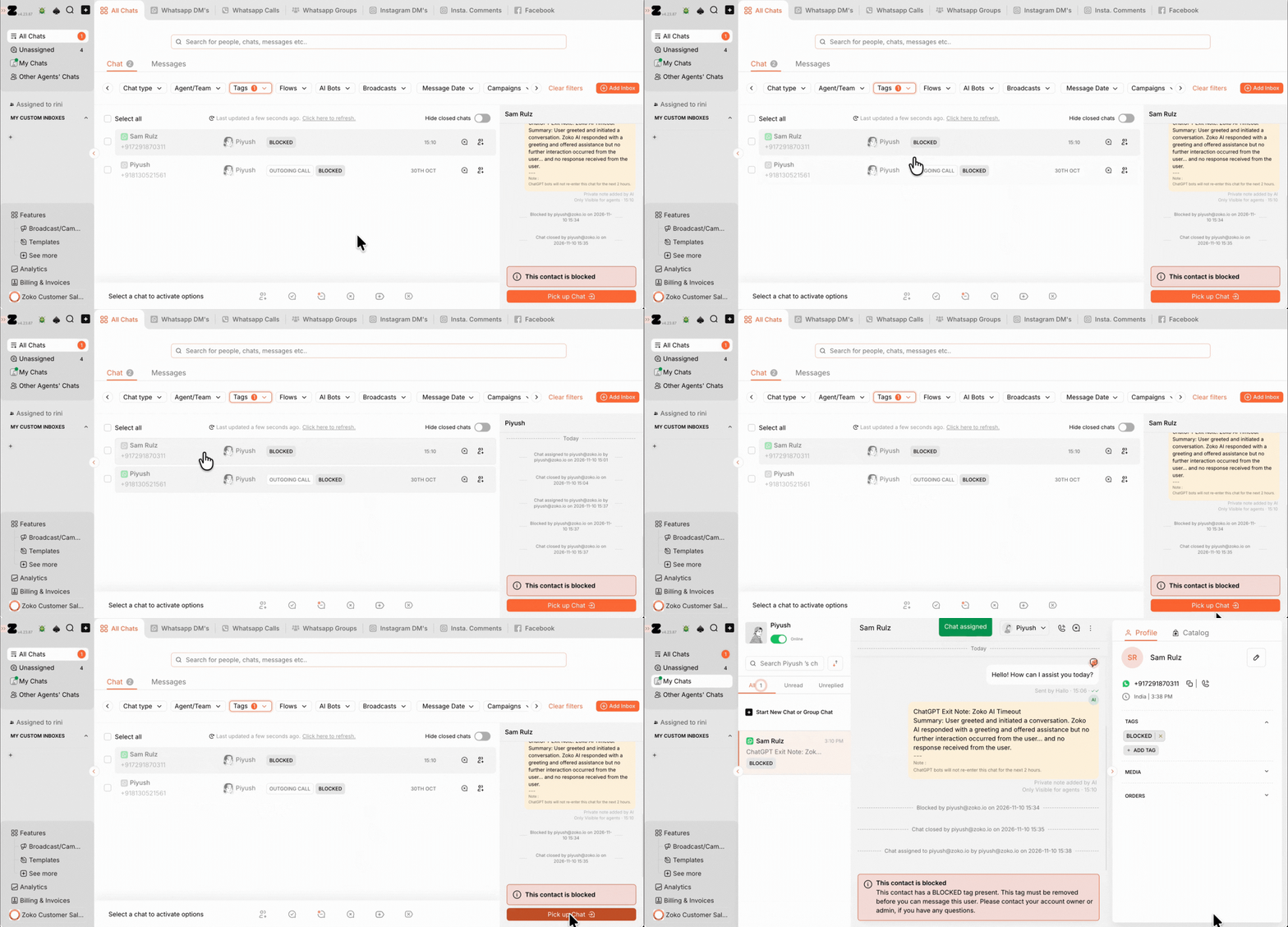
1. Go to All Chats, click the Tags filter at the top, then search for and select the BLOCKED tag.
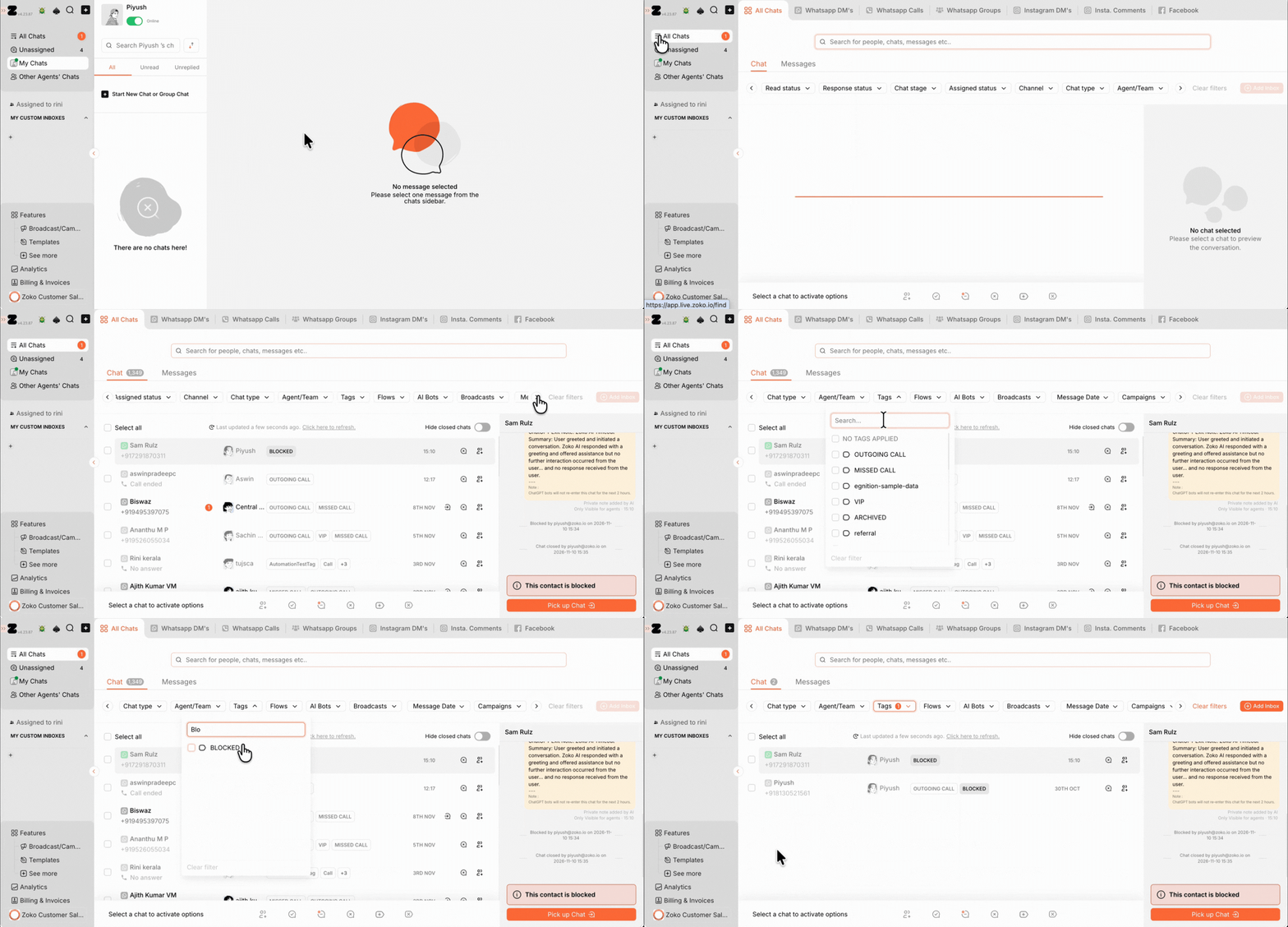
2. You'll now see all chats with the BLOCKED tag. Select the customer you want to unblock and click Pick up chat to open their chat.
Step 2: Unblock the Customer
There are two ways to unblock a customer. You can choose either method.
1. Click the three-dot menu next to the customer's name.
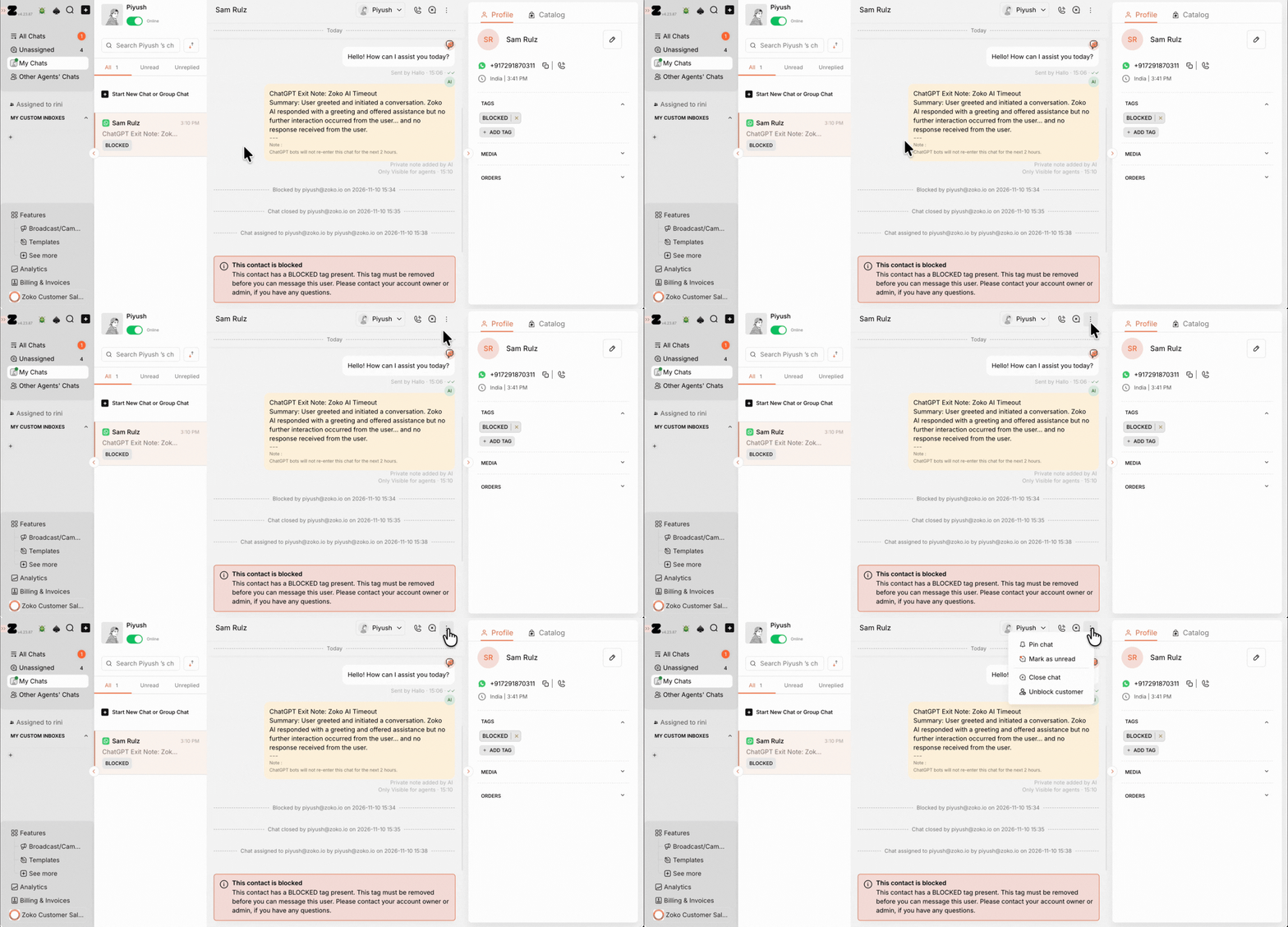
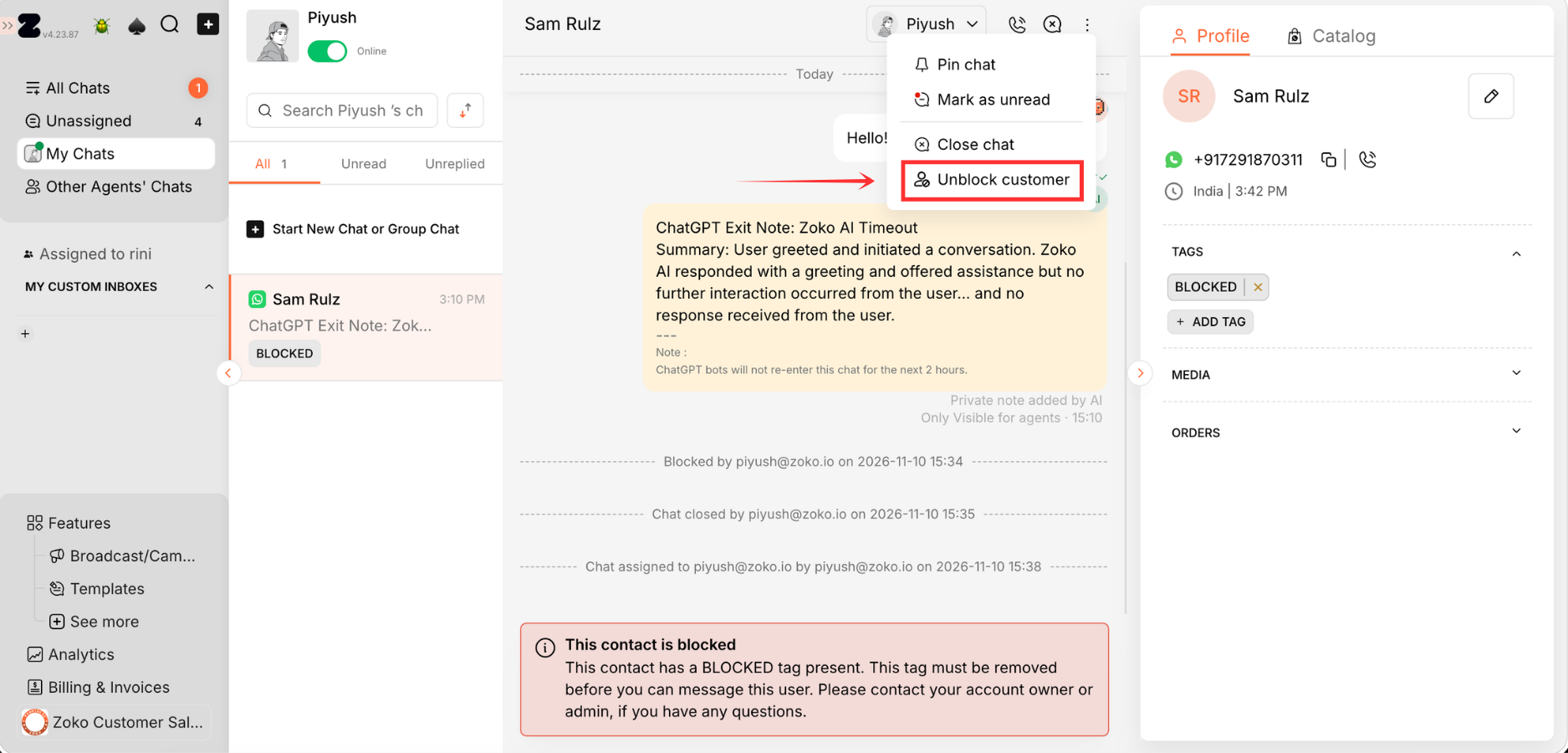
2. Select Unblock customer.
OR
In the Profile tab on the right-hand side, under Tags, find the BLOCKED tag and click the X next to it. Then click Delete in the confirmation pop-up to unblock the customer.
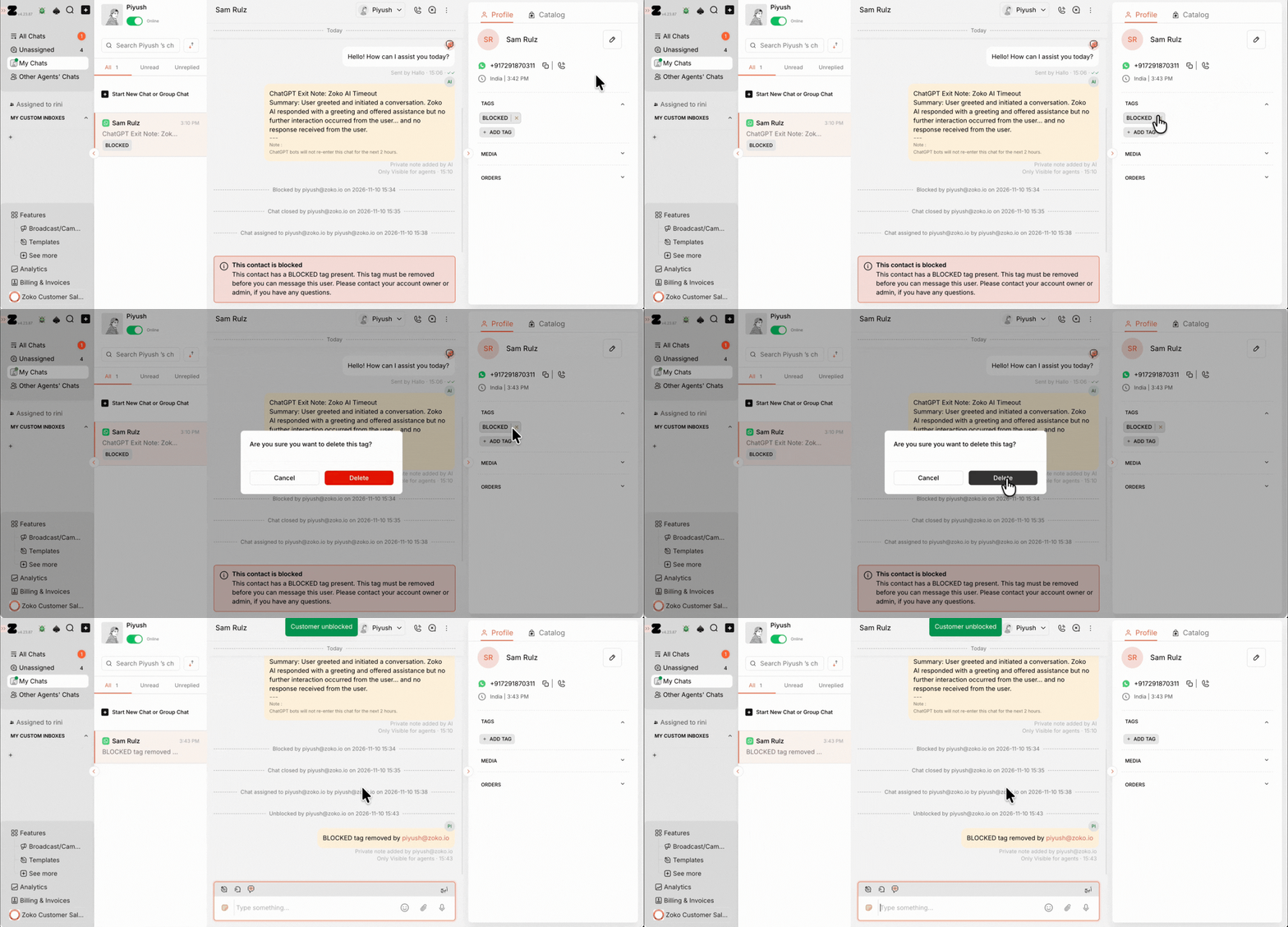
Once unblocked, the message box becomes available again, and the customer can send messages to your business.
A system message will also appear in the conversation showing who unblocked the customer and when.
Keywords: Block customer, Unblock customer, Block WhatsApp contact, Unblock WhatsApp contact, Blocked chat, BLOCKED tag, Remove BLOCKED tag, Blocked customer, Manage blocked customers, Zoko inbox, Block WhatsApp messages, Find blocked customers
