


How to Create a Limited-Time Offer Template
Learn how to create and send a Limited Time Offer template from the Zoko dashboard
.png)
Share on WhatsApp
.png)


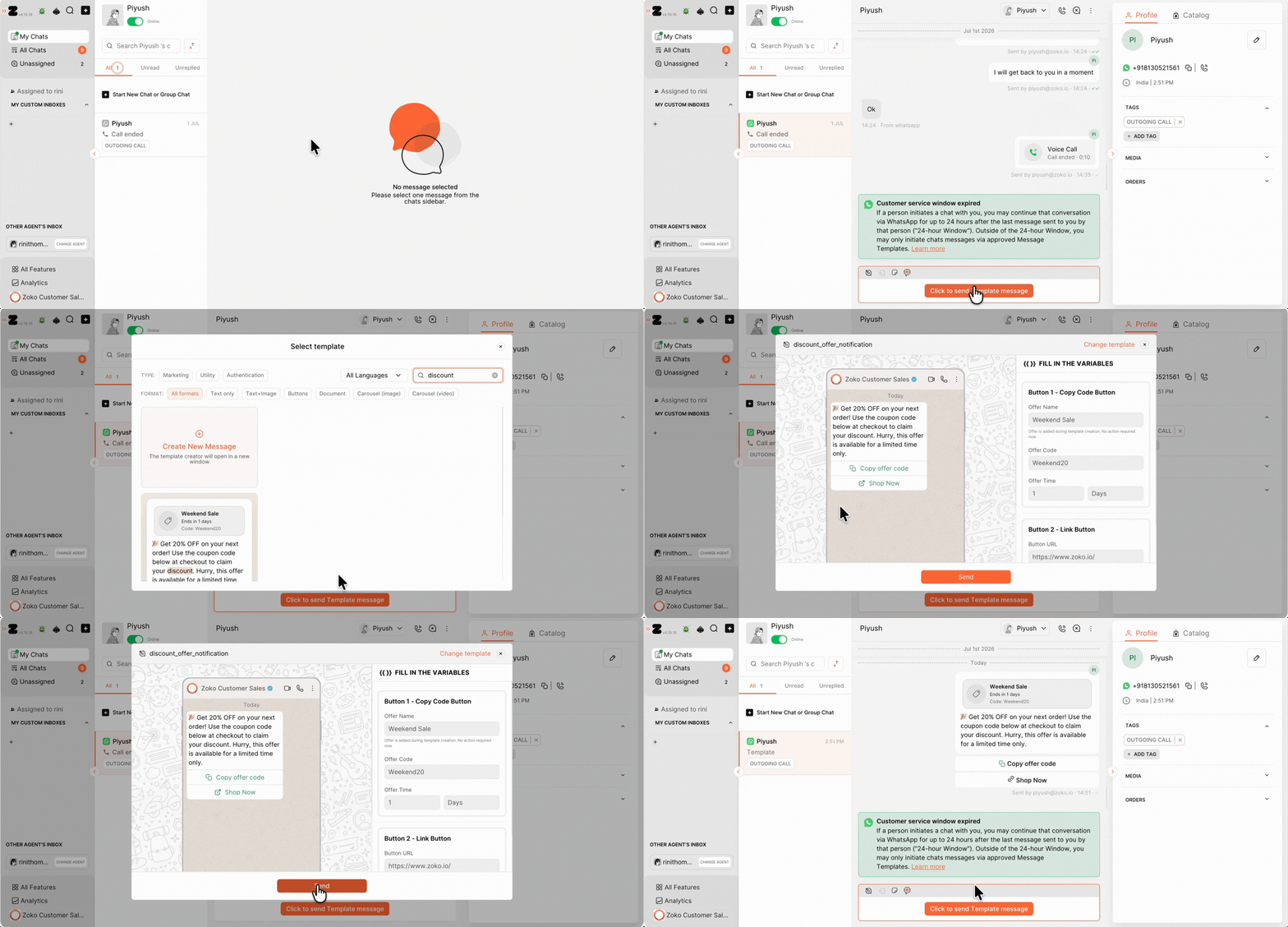
Limited Time Offer templates help you create urgency by promoting discounts, flash sales, festive offers, or exclusive deals that expire after a specific period. Customers can view the offer, copy the coupon code, and see exactly when it expires, encouraging them to act before the countdown ends.
Send the offer from Zoko
See how to send a Limited Time Offer template from the Zoko dashboard.
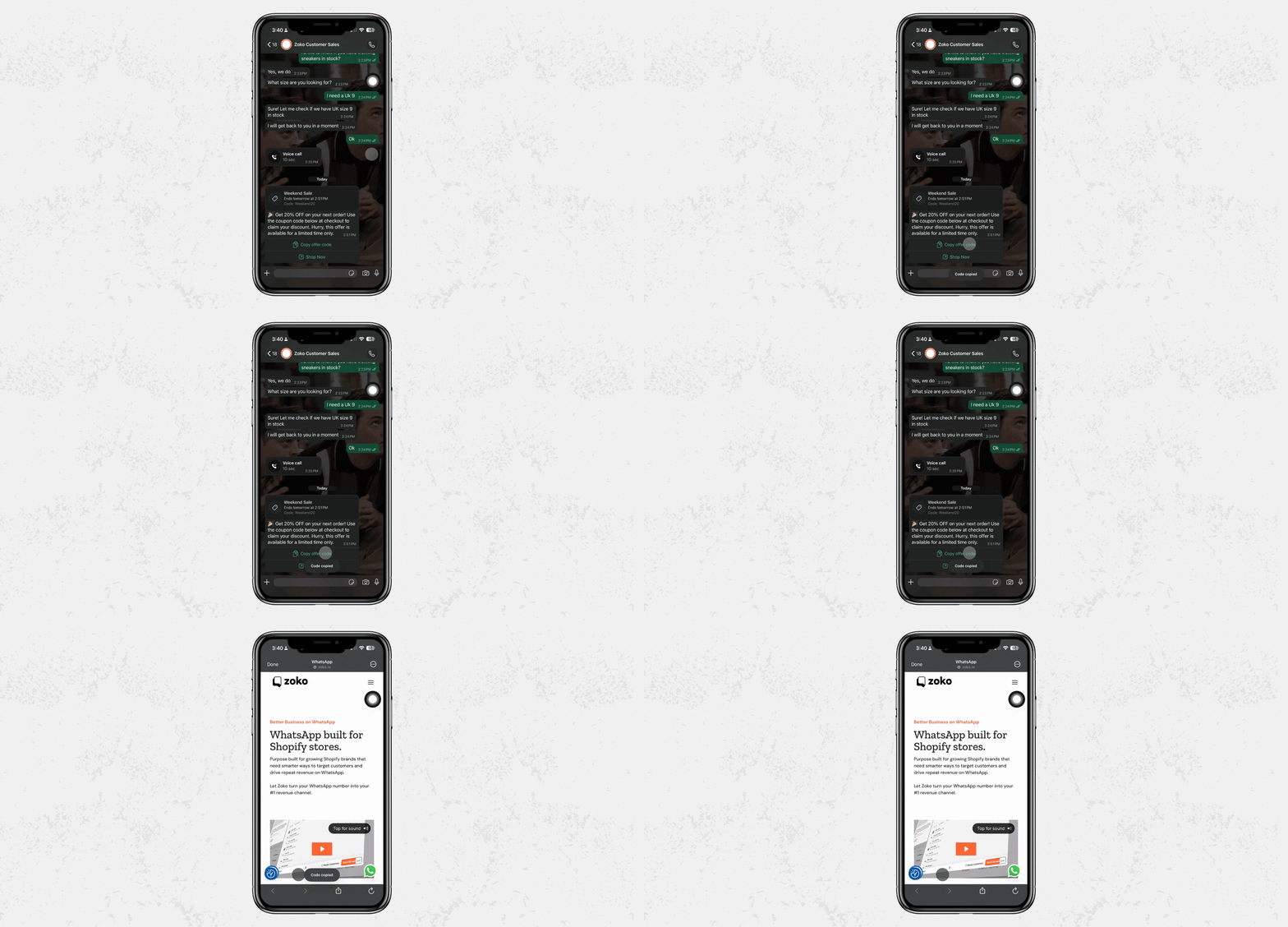
How customers see the offer in WhatsApp
See how the offer appears to customers in WhatsApp, including the coupon code, expiry countdown, and website button.
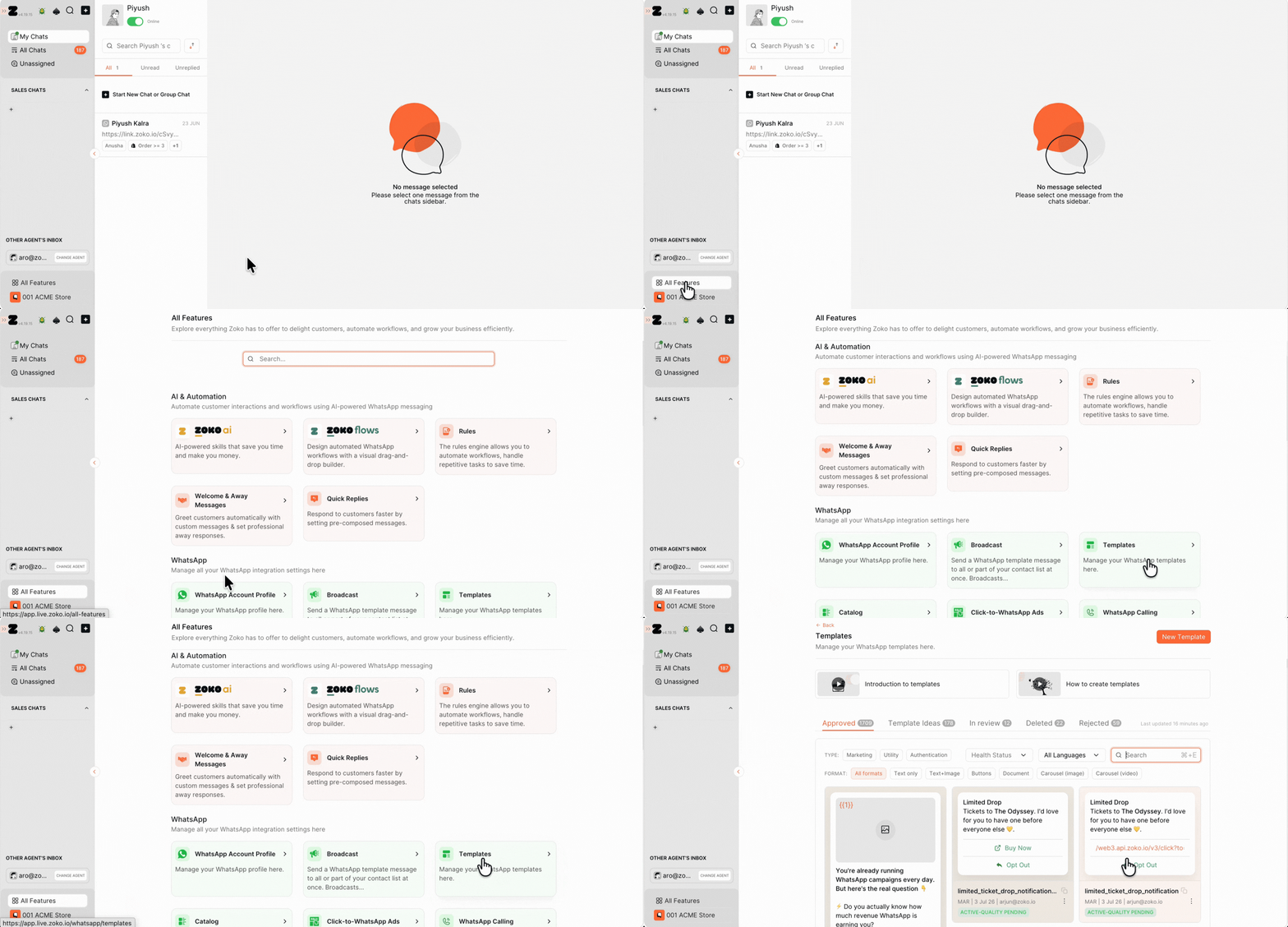
To do this:
1. Go to All Features and select Templates.
2. Click on New Template.
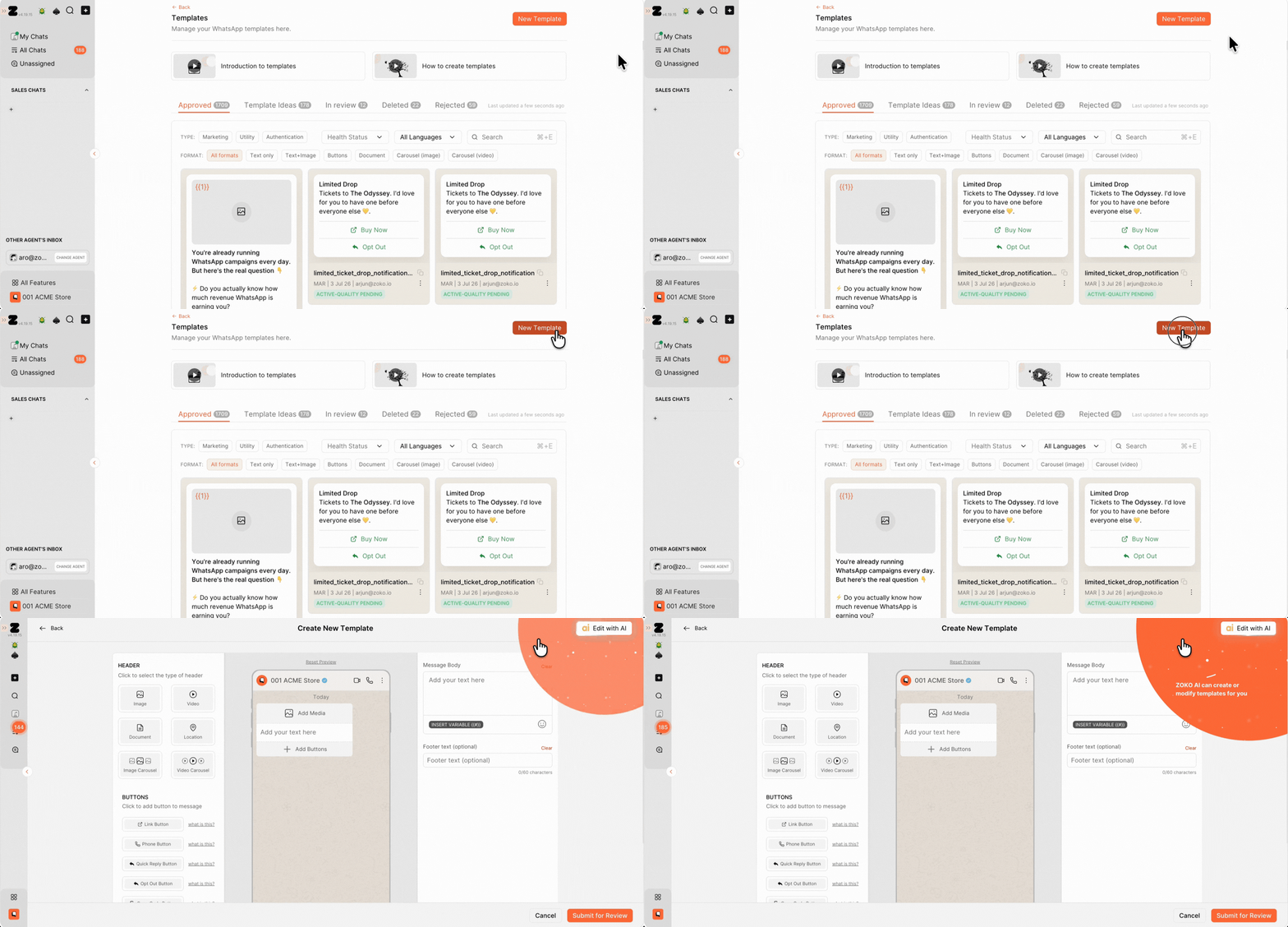
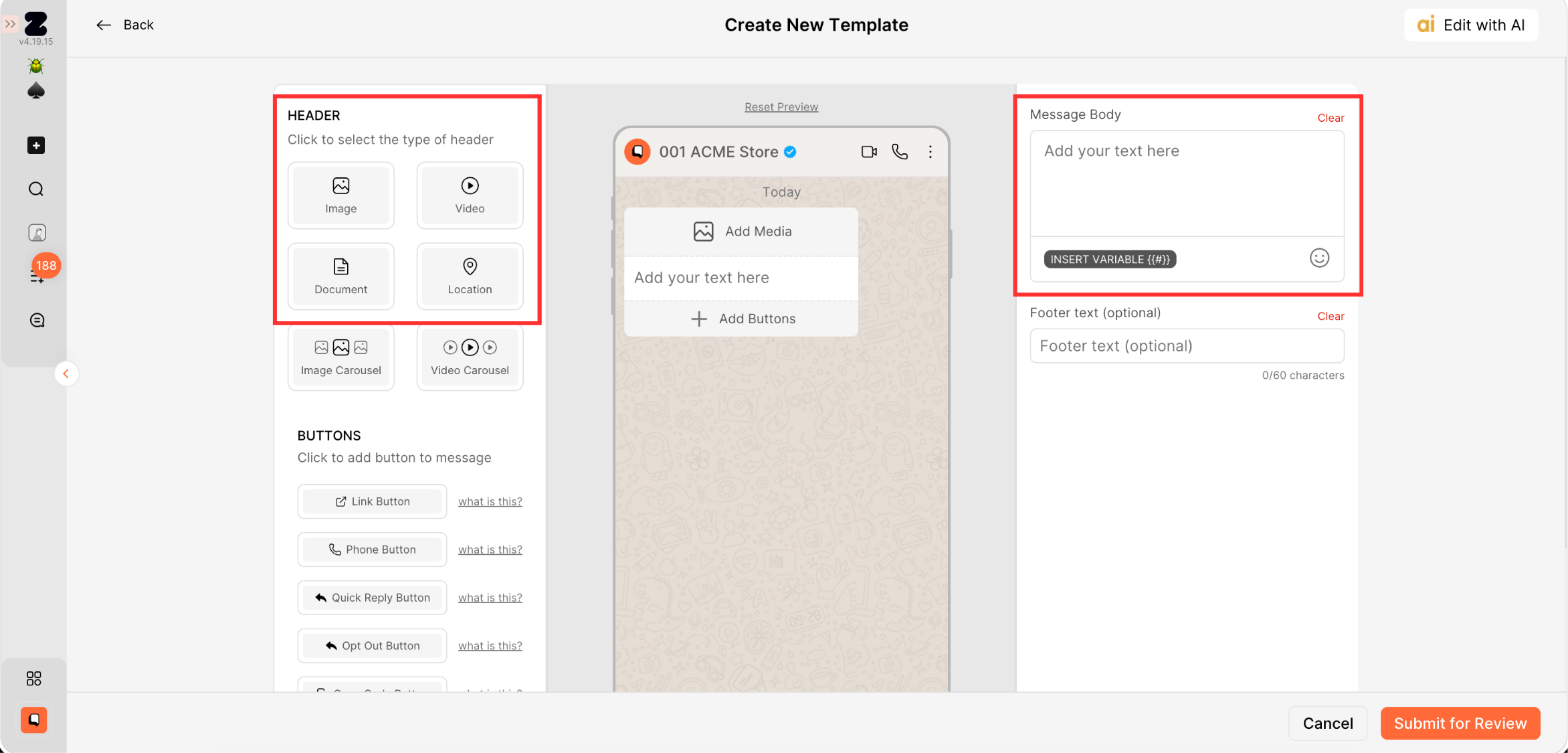
3. Configure your template:
- Select a Header (Image, Video, or Document) if required. (Carousel is not supported)
- Type your message in the Message Body.
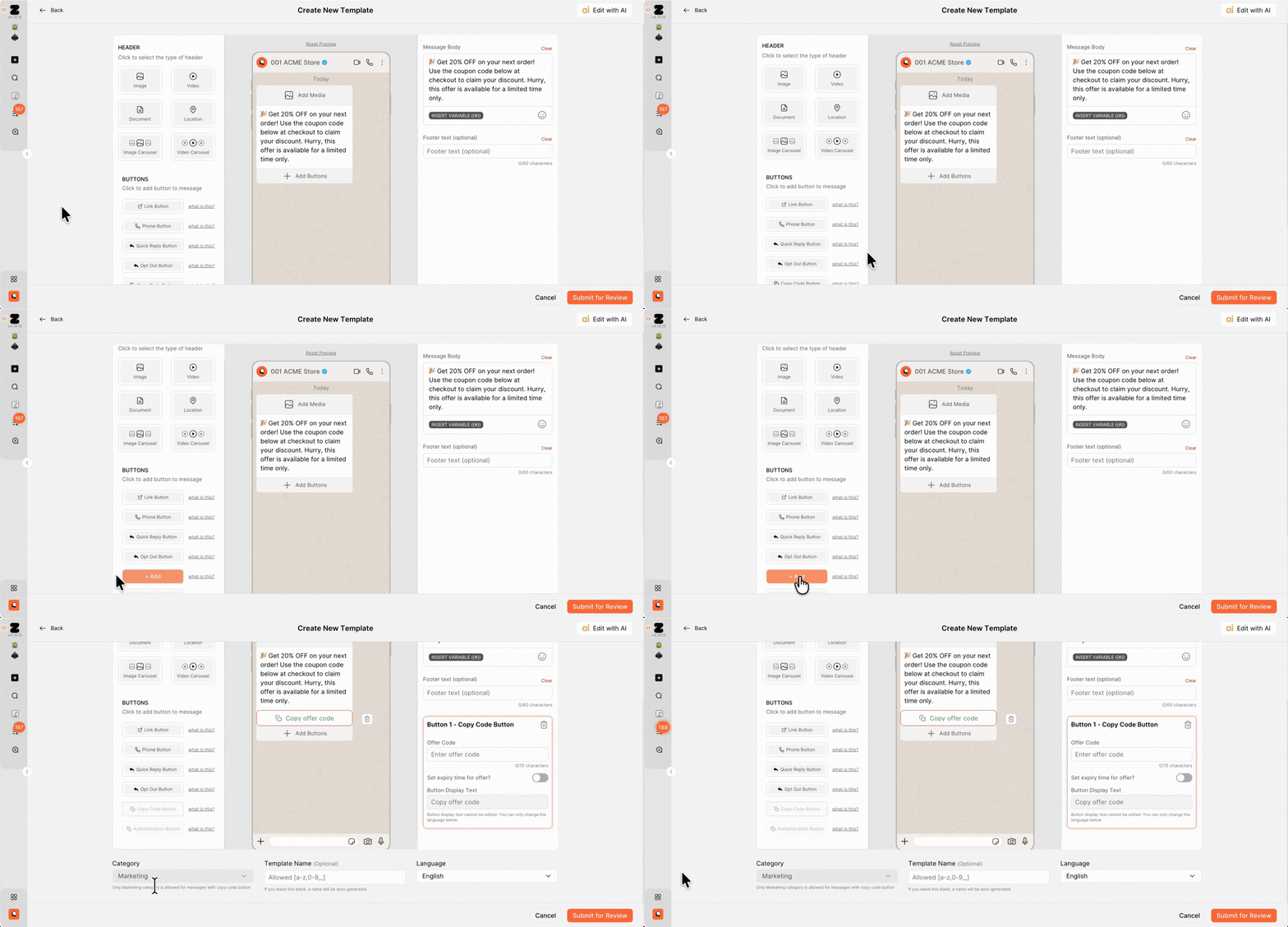
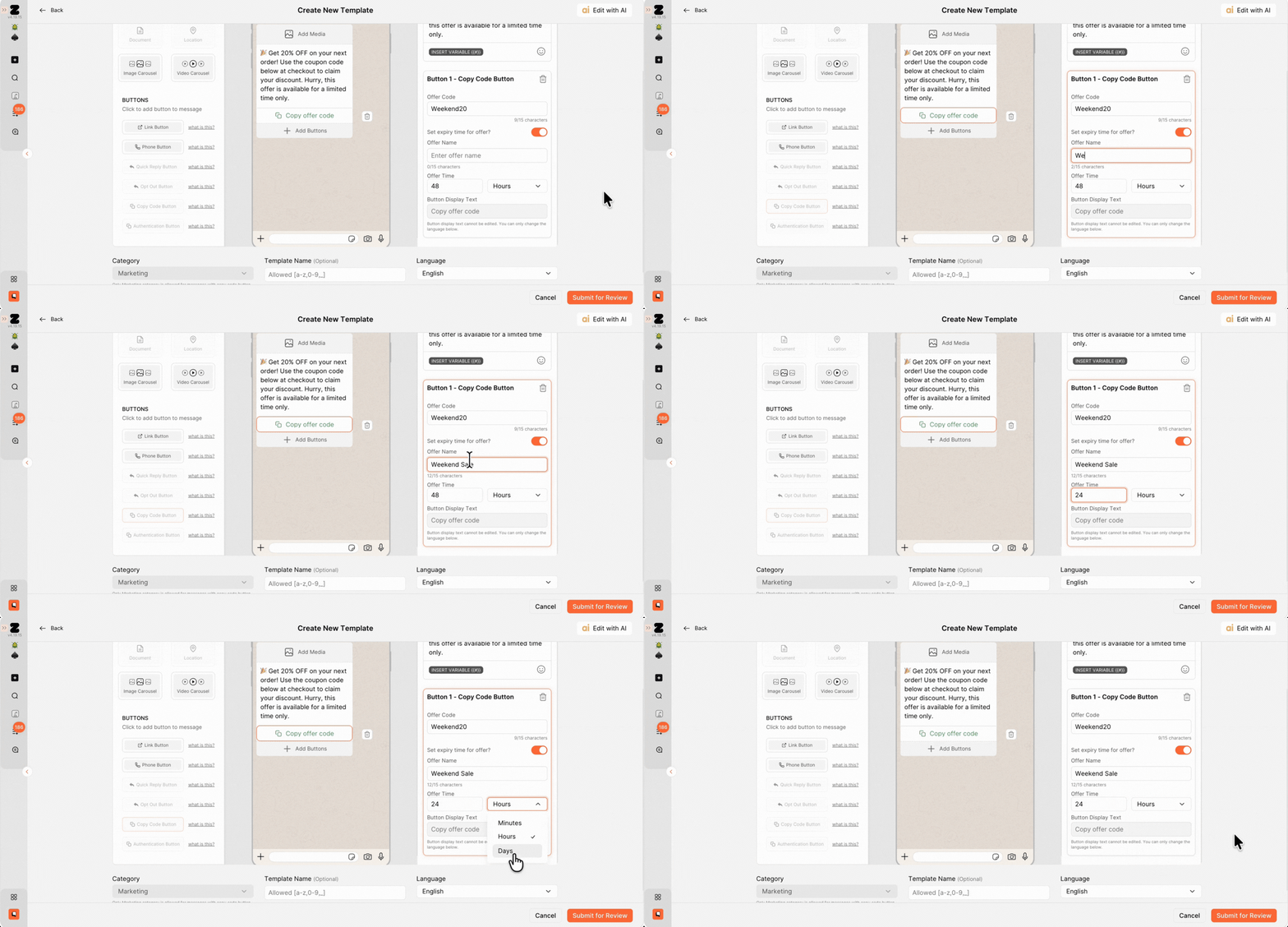
4. Click on Copy Code Button.
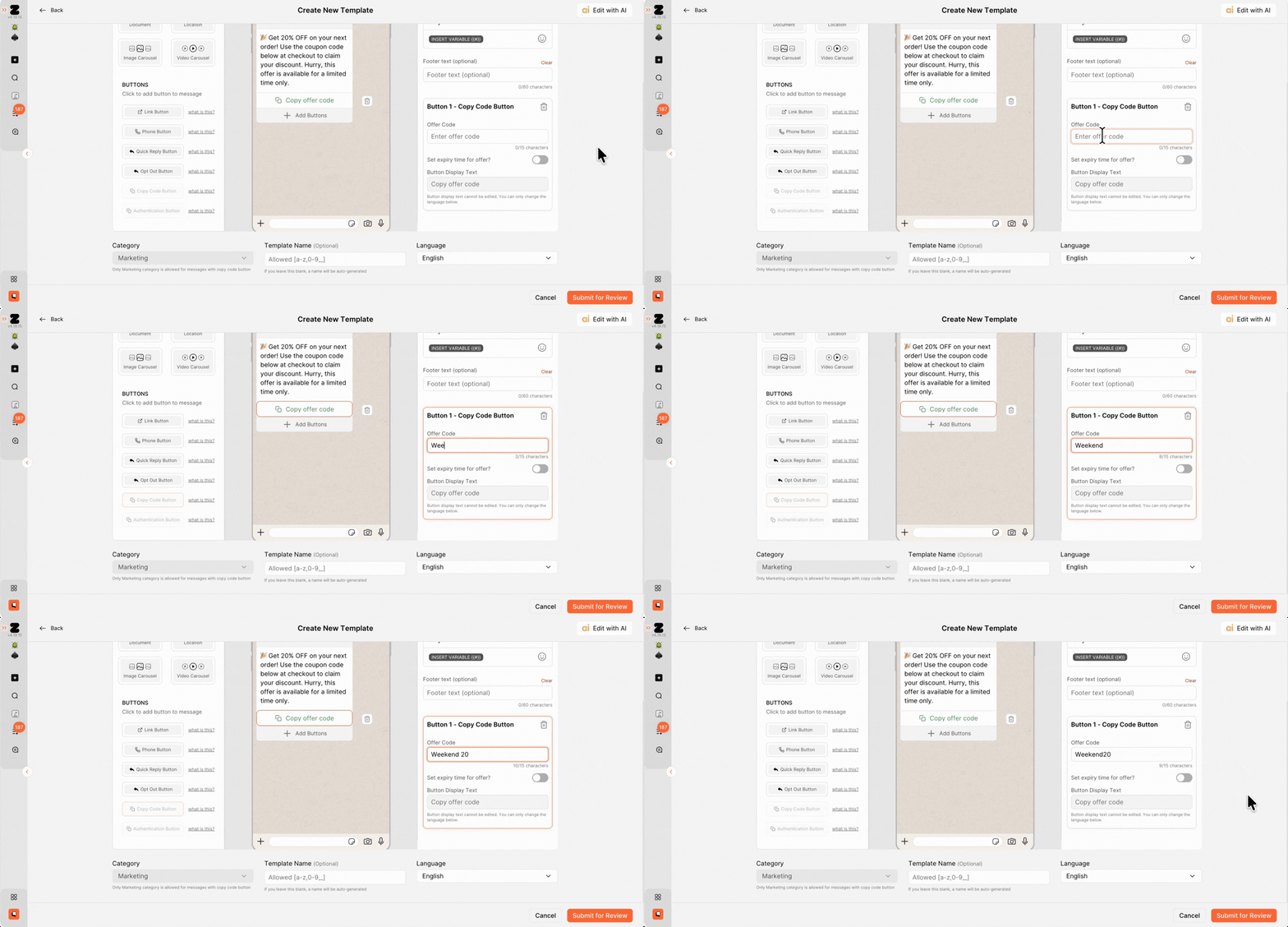
5. In the right panel, type the coupon code you want to share with customers. (Make sure the coupon code has already been created in Shopify; otherwise, customers won't be able to redeem the offer.)
6. Turn on the Set Expiry Time for Offer toggle to show an expiry countdown. You can skip this if you don't want to show a countdown.
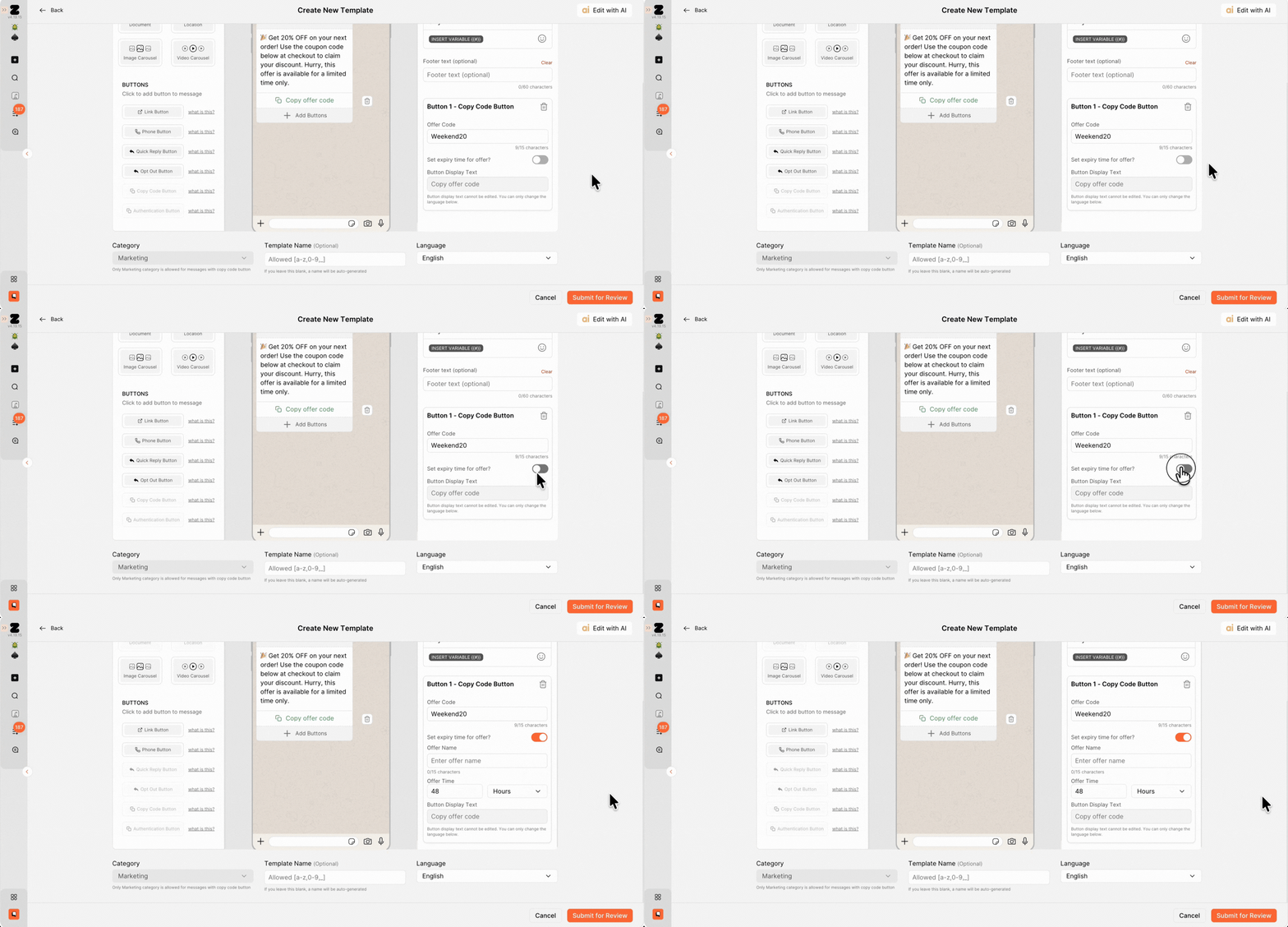
7. Type an Offer Name, which customers will see at the top of the offer card in WhatsApp, and specify how long the offer should remain valid in minutes, hours, or days.
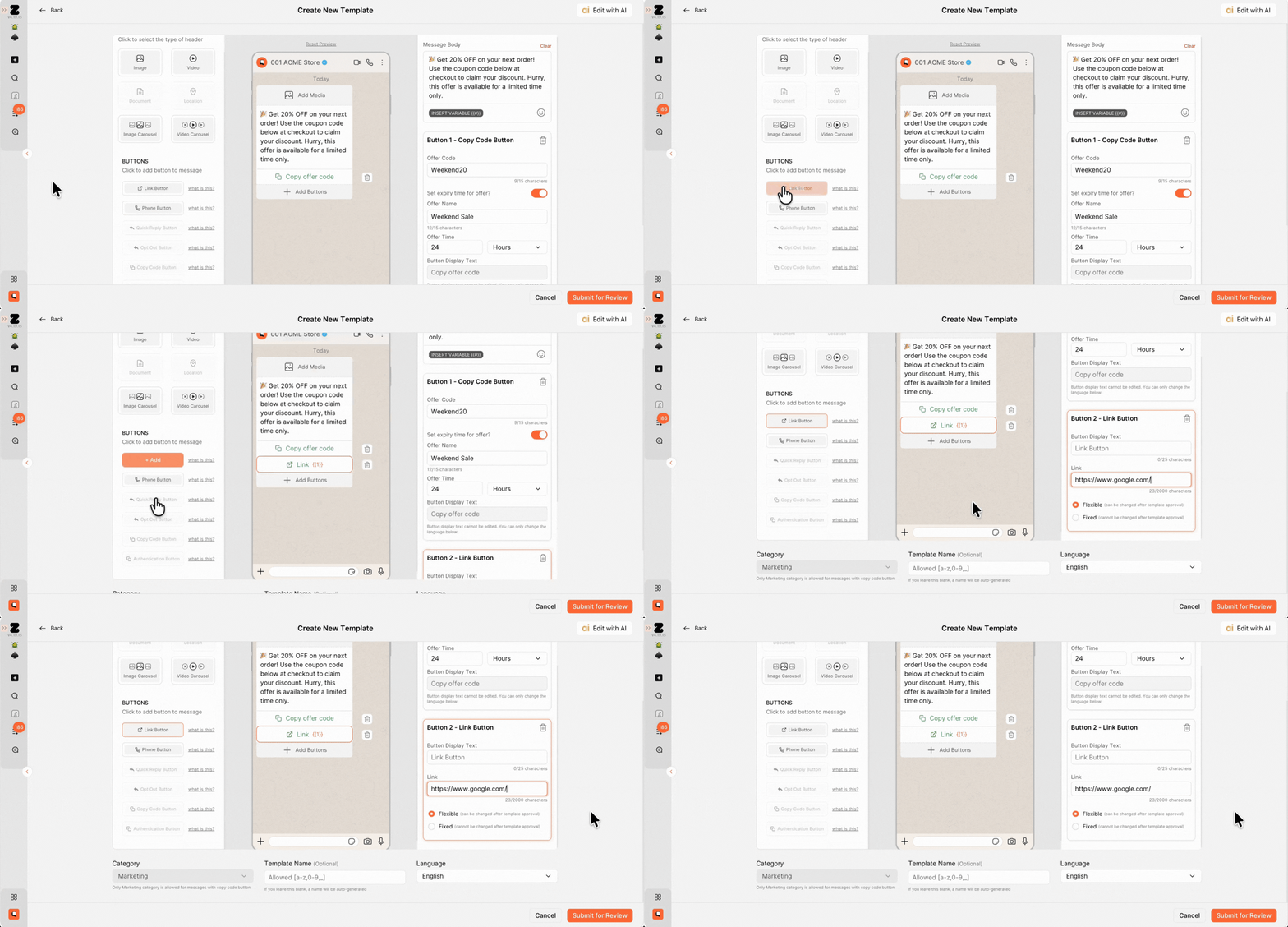
8. Click the Link button and add the URL to your store where customers can redeem the offer. This link should take customers to the page where they can purchase the product and apply the copied coupon code at checkout.
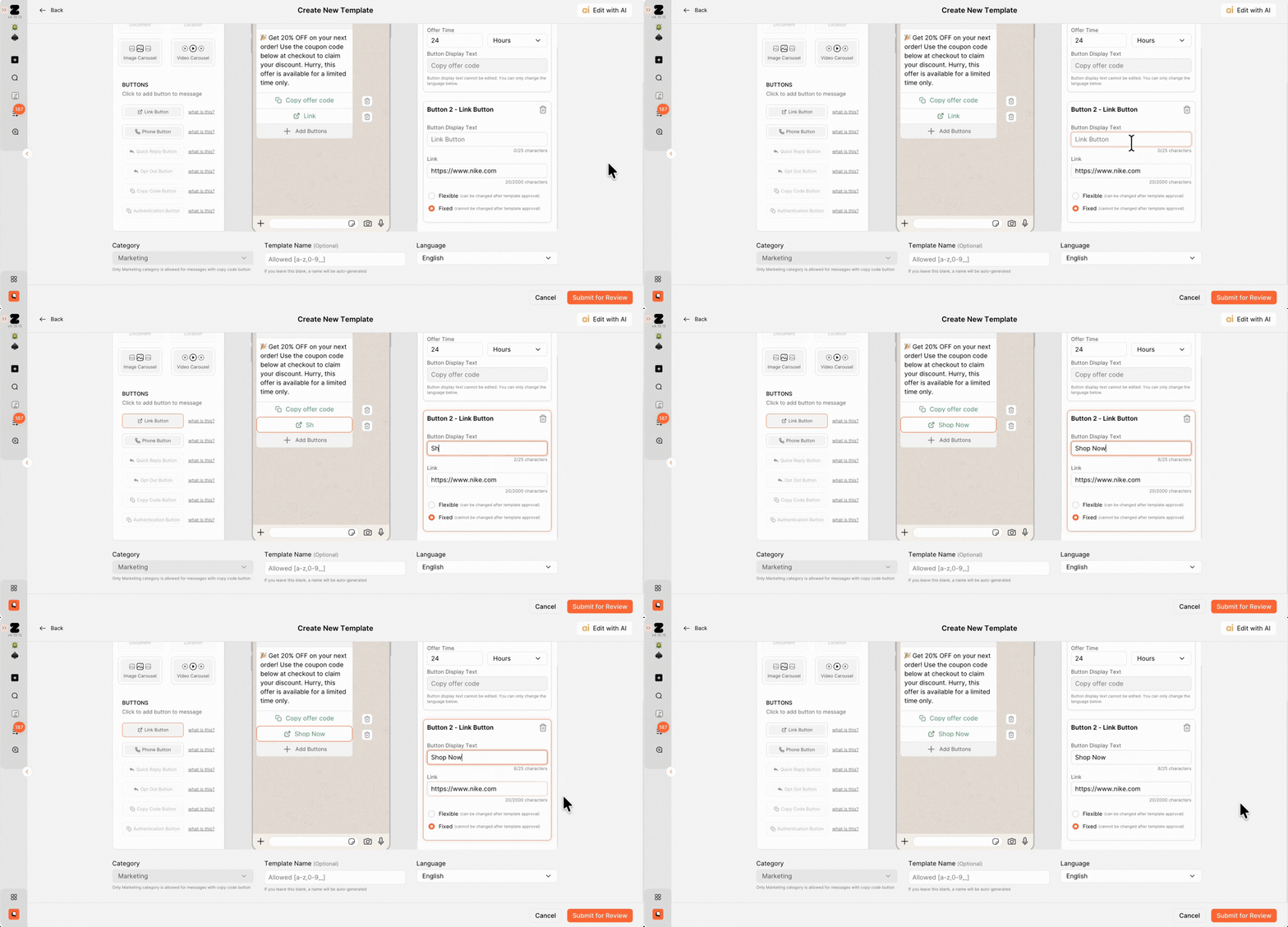
9. Type the button display name that customers will see in WhatsApp, then select the link type you want to use.
10. Click Submit for Review.
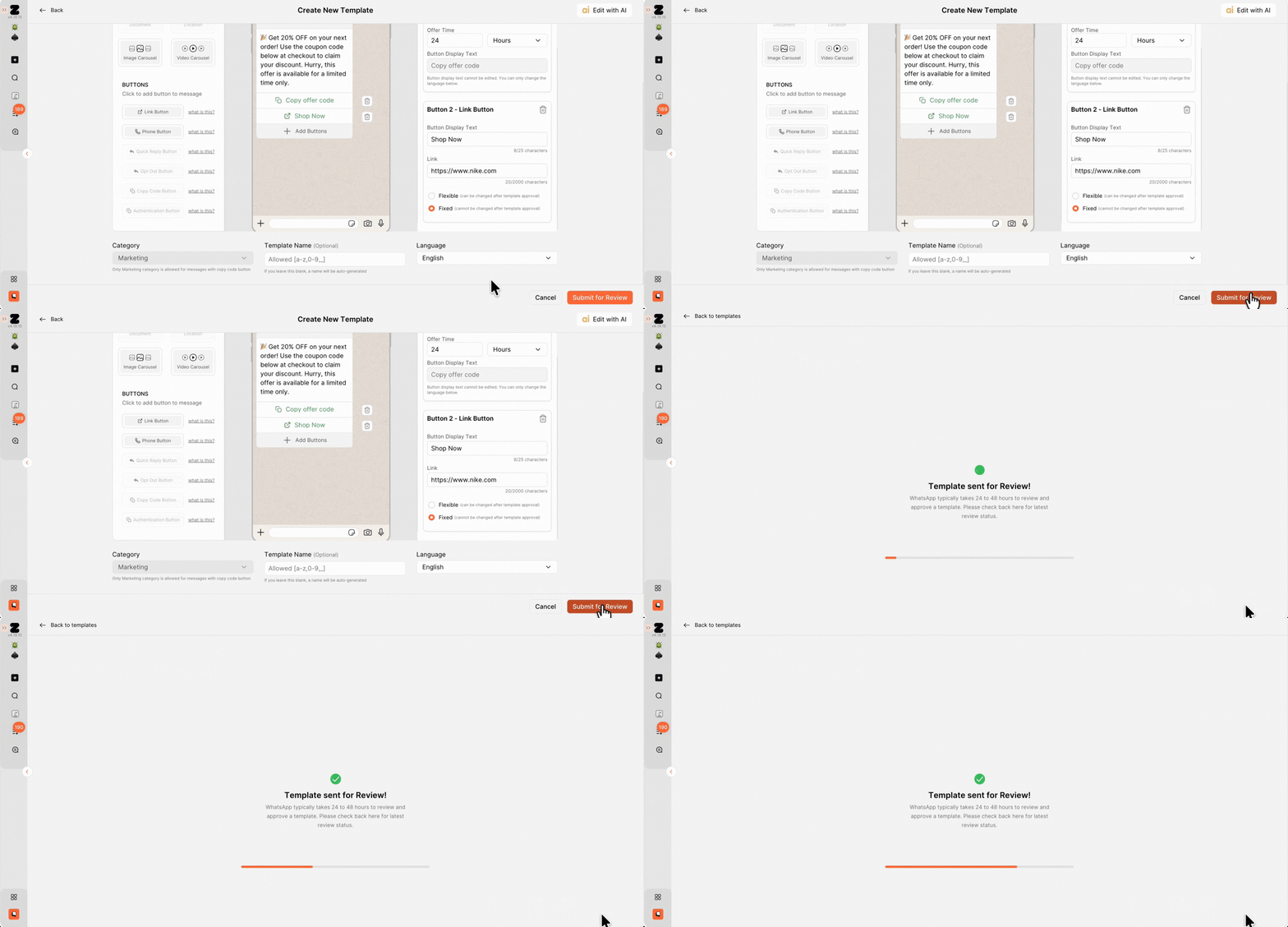
That's it! Your template will be submitted to WhatsApp for approval. Once it's approved, you can start using it.
Keywords: Copy Code Button, Create template, Limited time discount template, Offer template, WhatsApp discount, Shopify code discount
