


How to Create a Segment Using Customer Properties
Learn how to create a customer segment using Customer Properties in Zoko
.png)
Share on WhatsApp
.png)


Customer Segments let you group contacts based on specific criteria. Instead of selecting contacts manually every time, you can save a group of contacts as a segment and reuse it whenever needed.
For example, you can create segments based on:
- Date the contact was created in Zoko
- WhatsApp number of the contact
- Customer channel
- Zoko tag(s) assigned to the contact
- Display name of the contact
Once created, you can use the segment when creating WhatsApp broadcasts.
To do this:
1. Go to All Features.
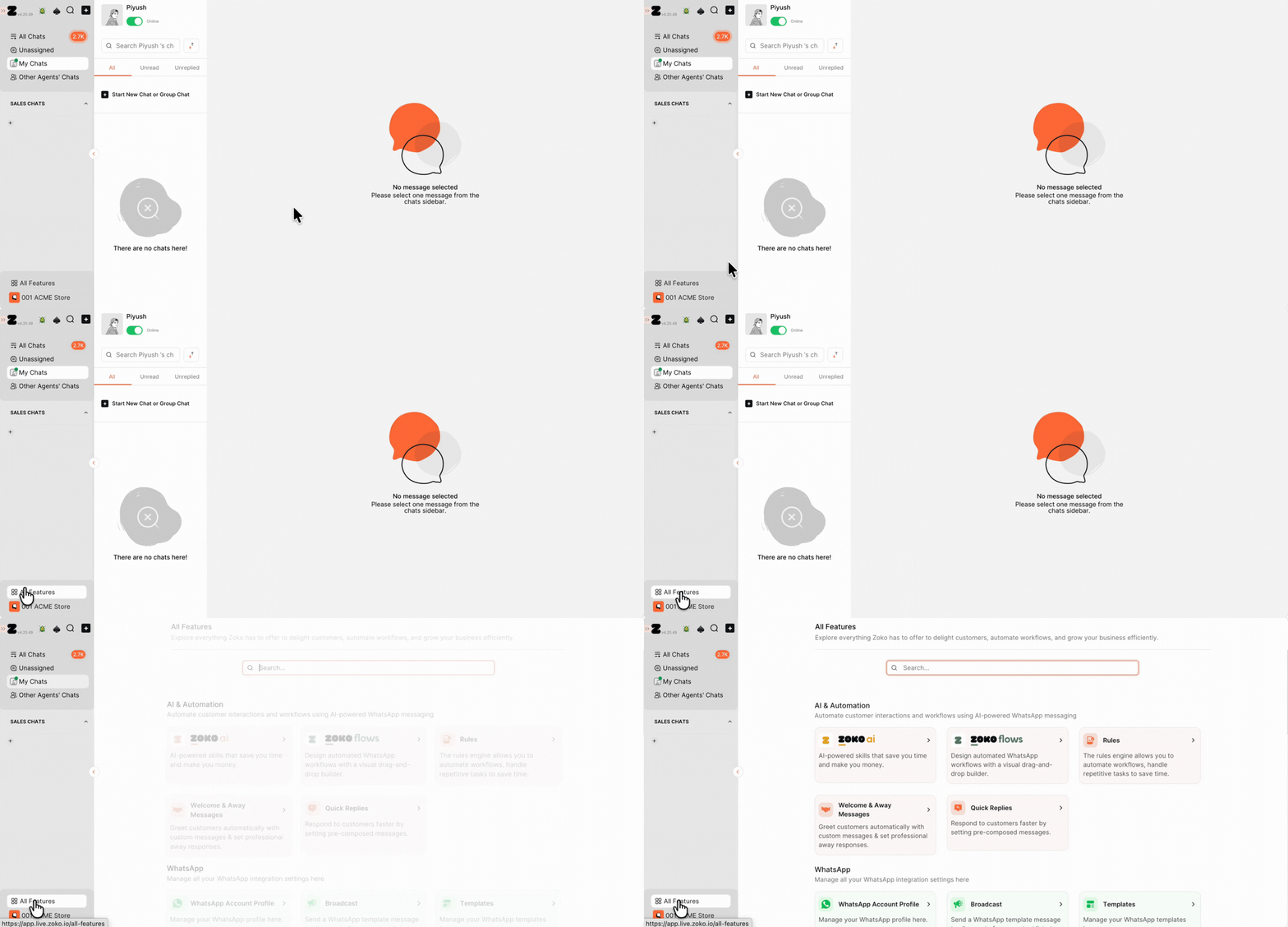
2. Scroll down and select Segments.
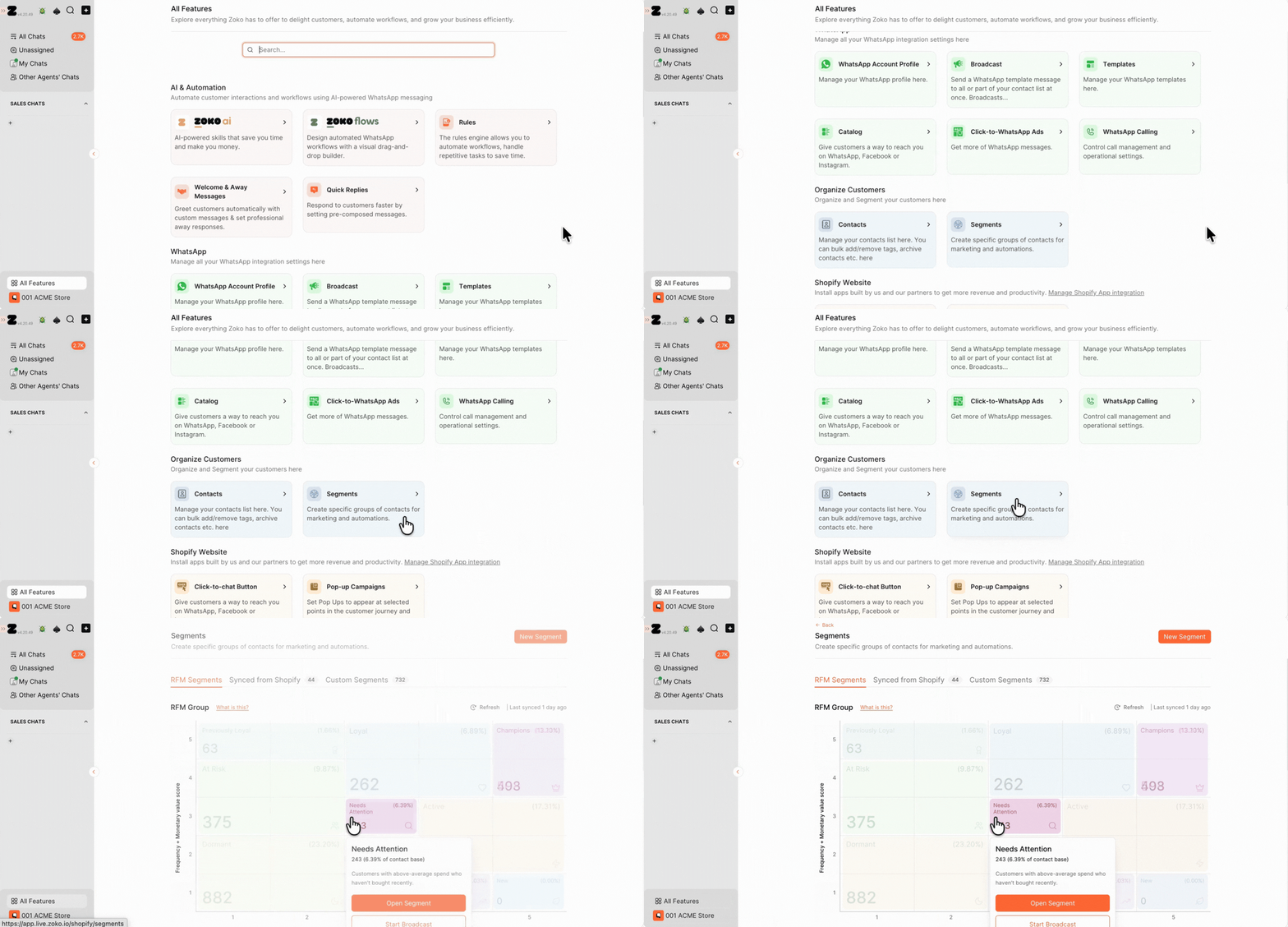
3. Click on New Segment.
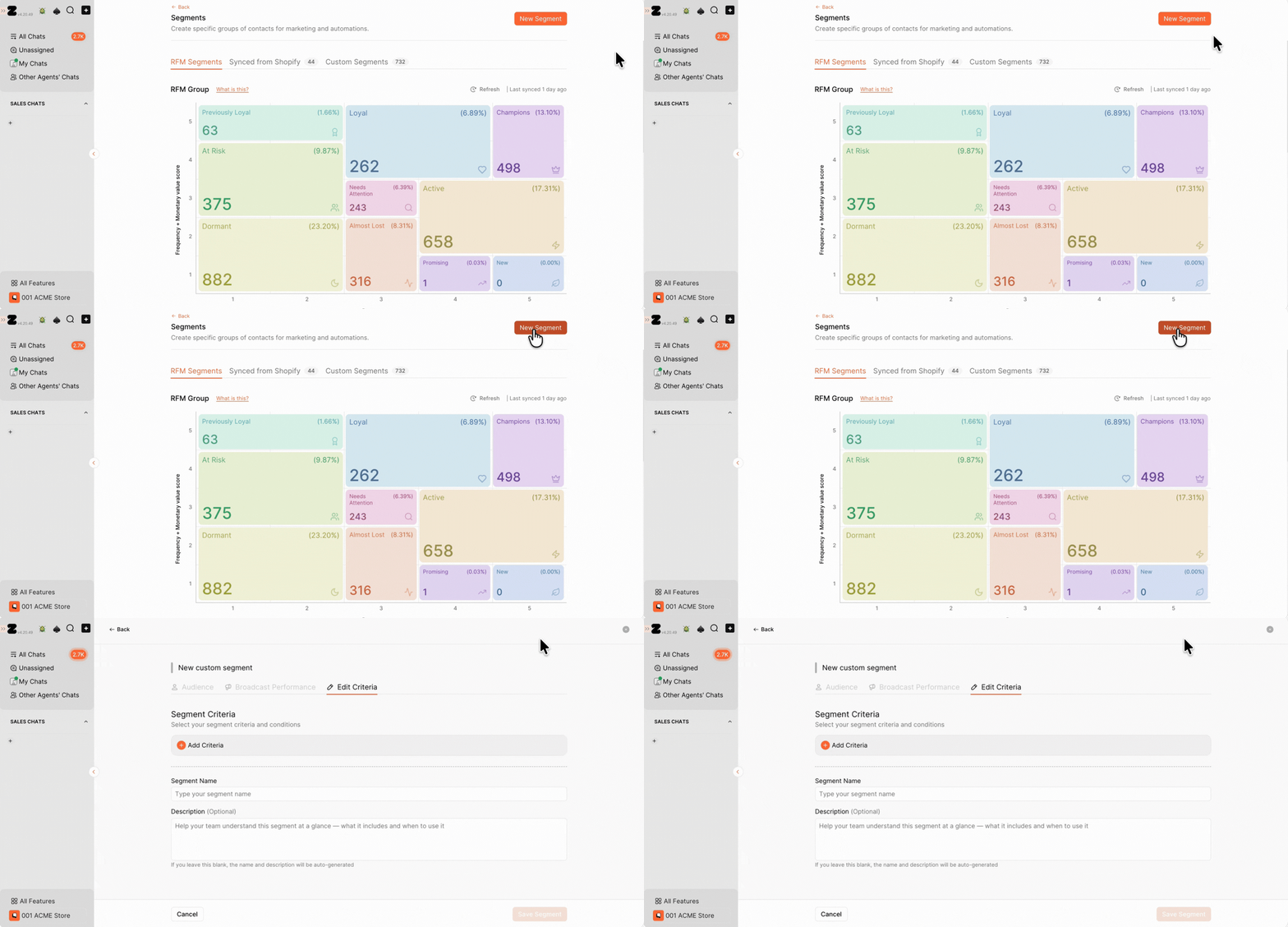
4. Click on Add Criteria and select Zoko Customer Properties.
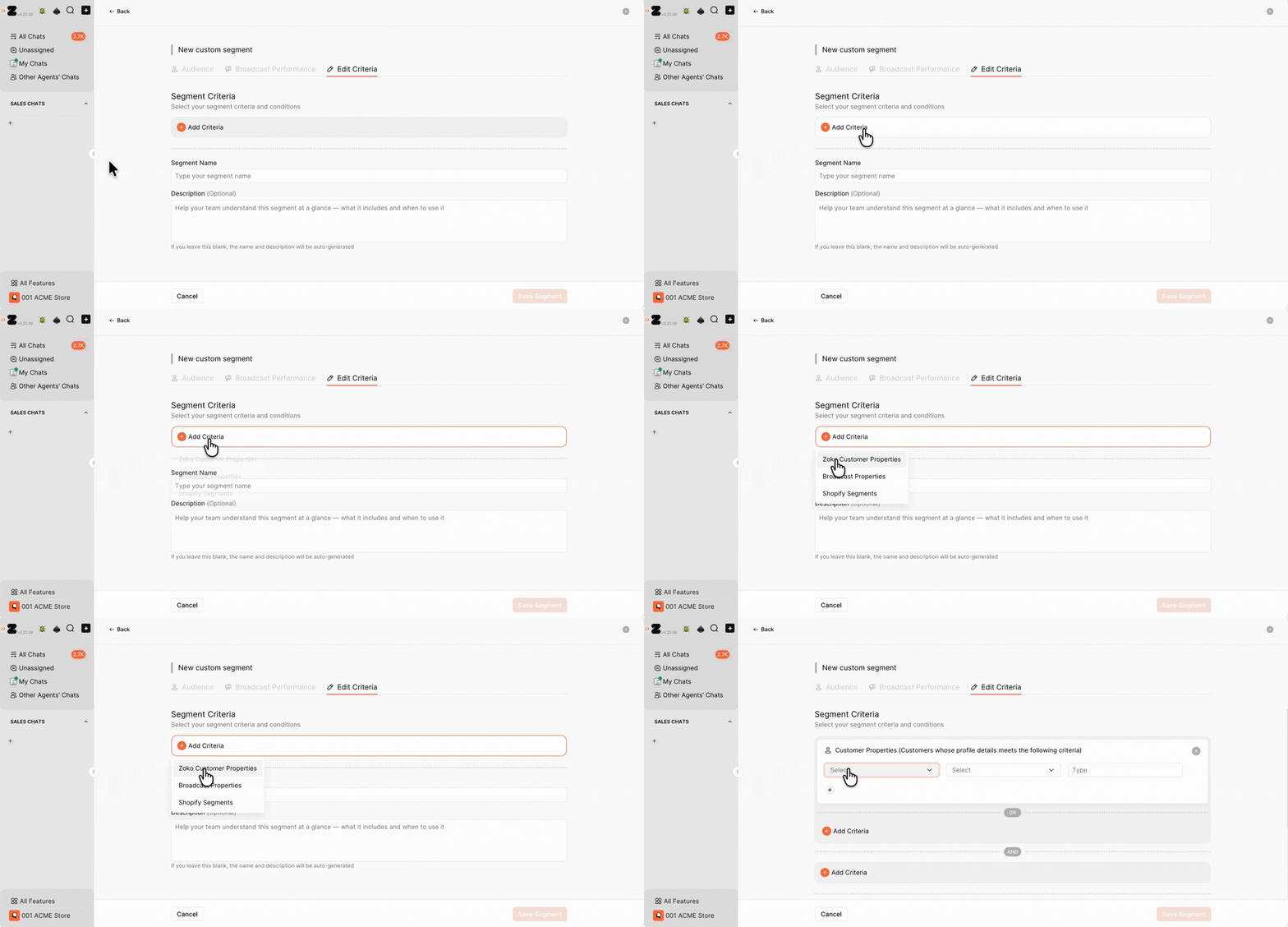
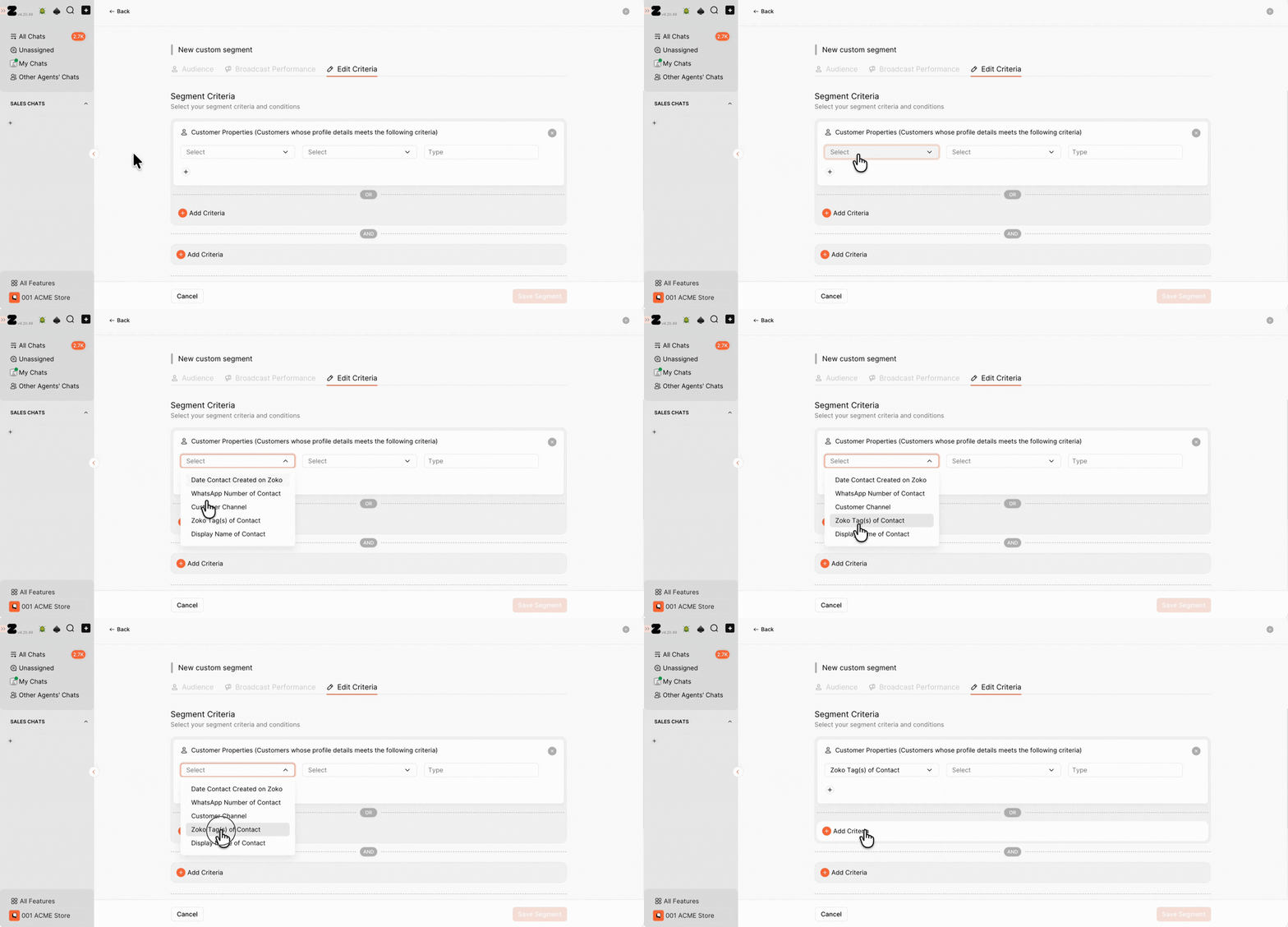
5. In the first Select drop-down, choose the customer property you want to filter by. In our case, we selected Zoko Tag(s) of Contact.
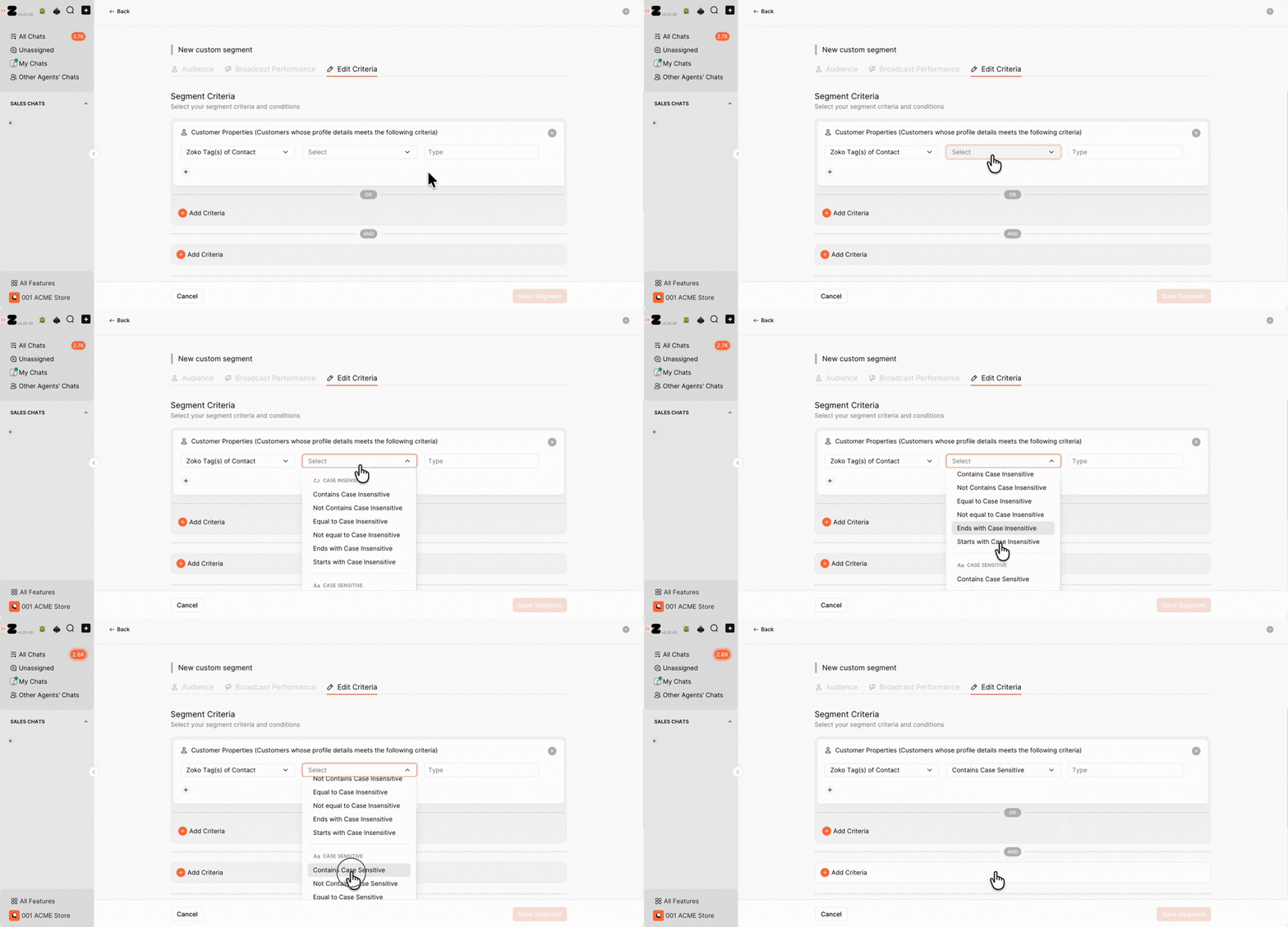
6. In the second Select drop-down, choose the condition (for example, Contains or Equals). In our case, we selected Contains (Case Sensitive).
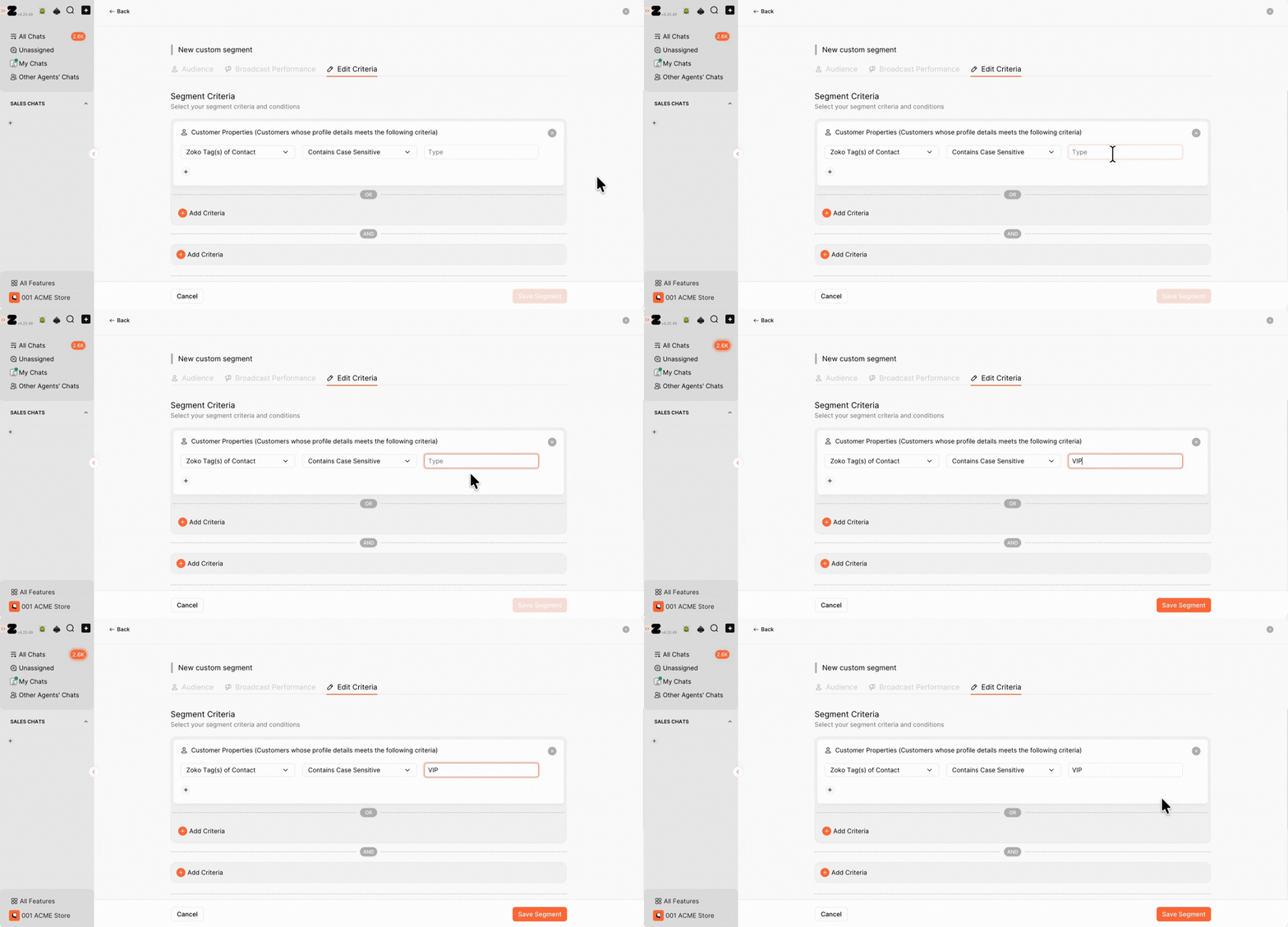
7. Type the value in the Type field.
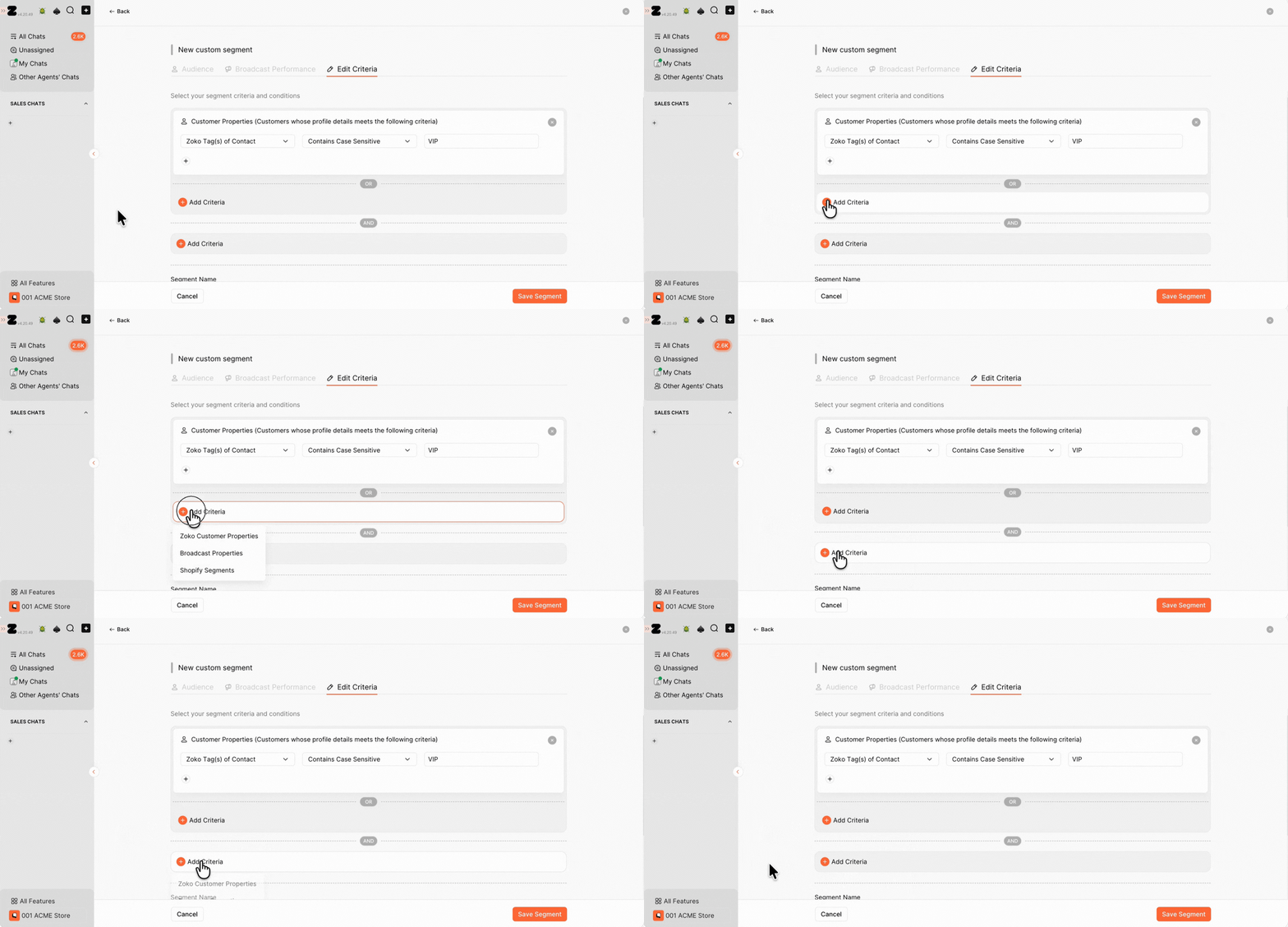
8. (Optional) Click Add Criteria to add more conditions using AND or OR.
9. Type a Segment Name and Description.
Pro tip: If you're unsure what to enter, you can leave these fields blank. Zoko automatically generates a segment name and description when you save the segment.
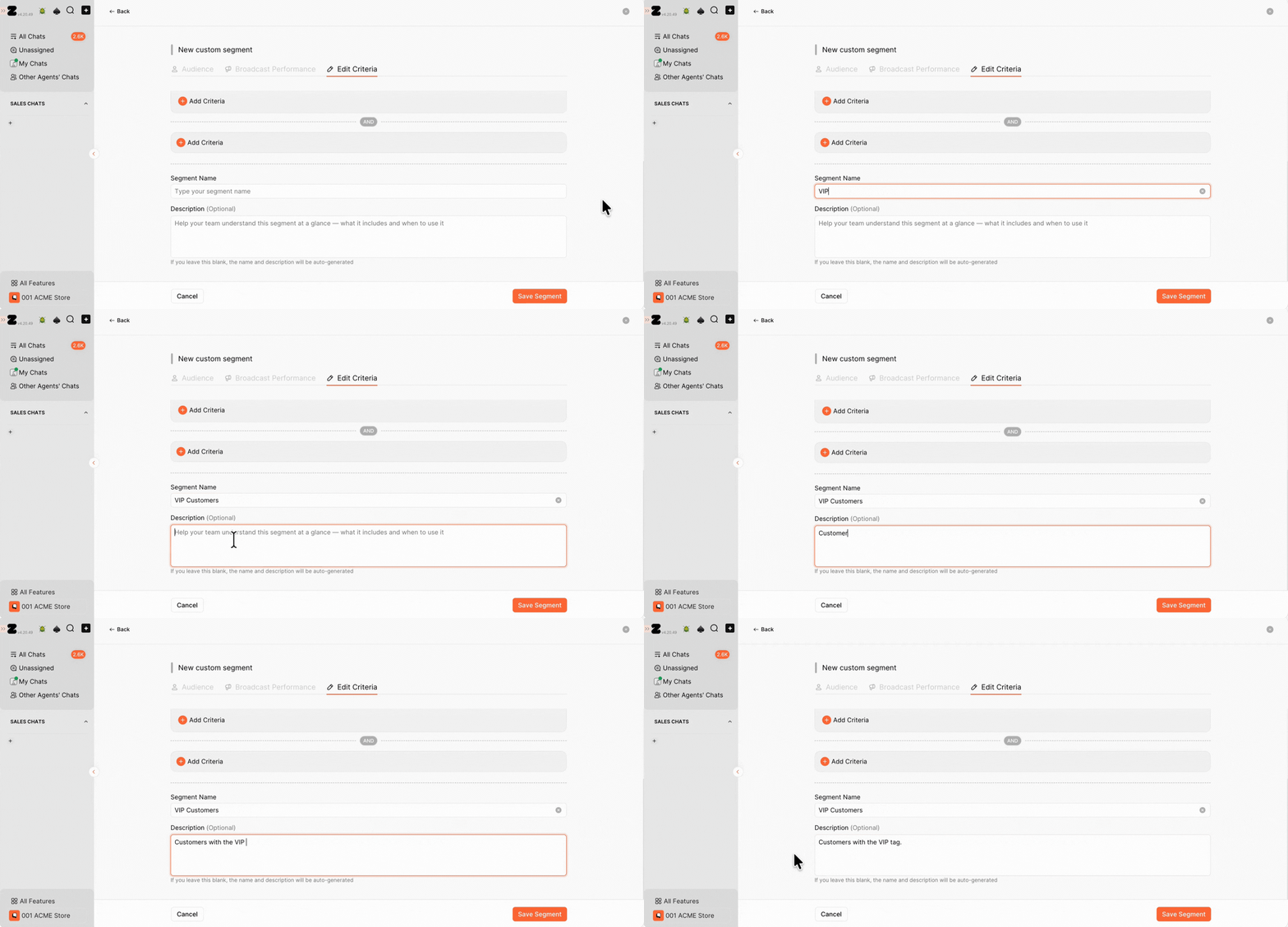
10. Click Save Segment.
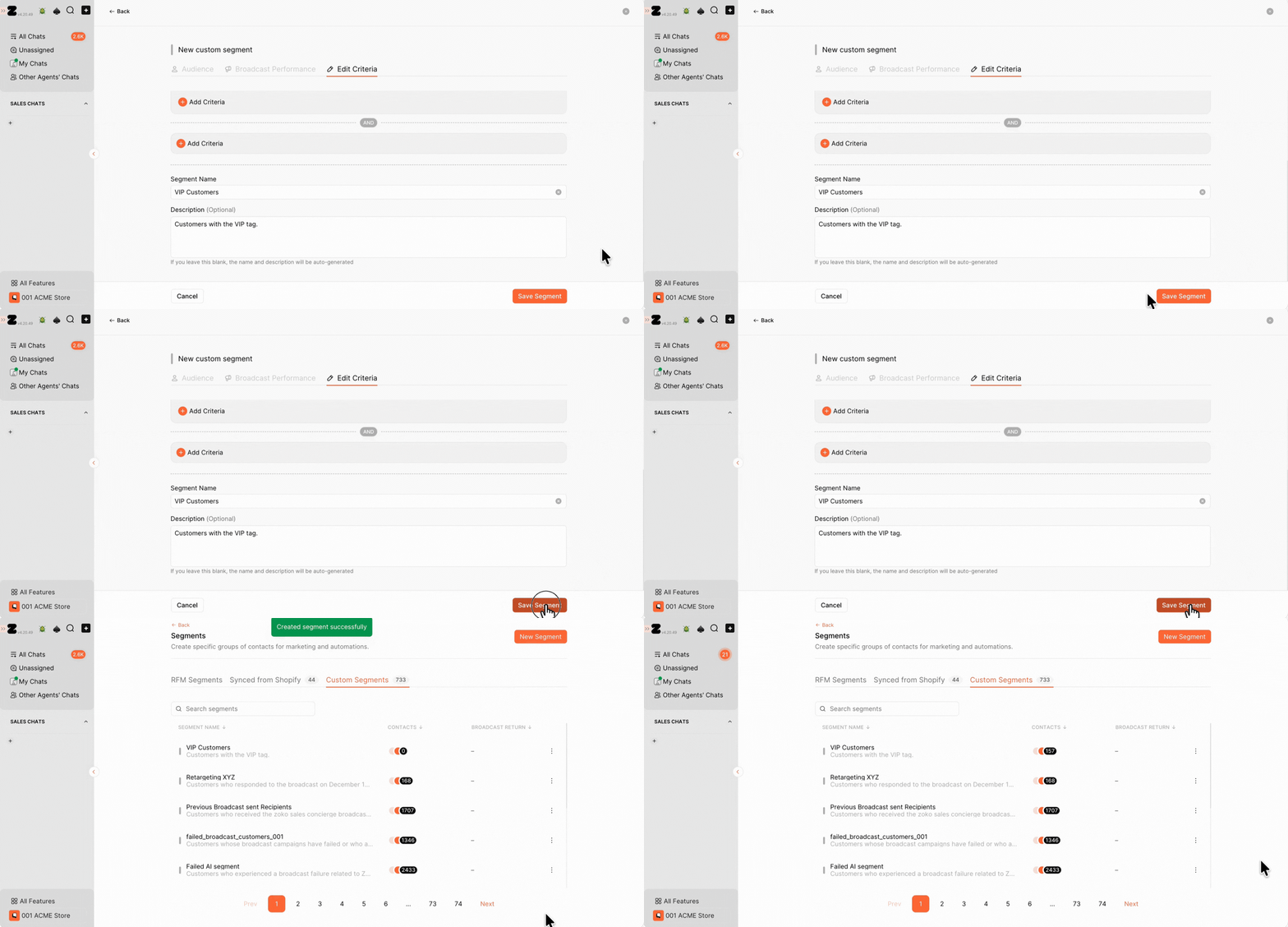
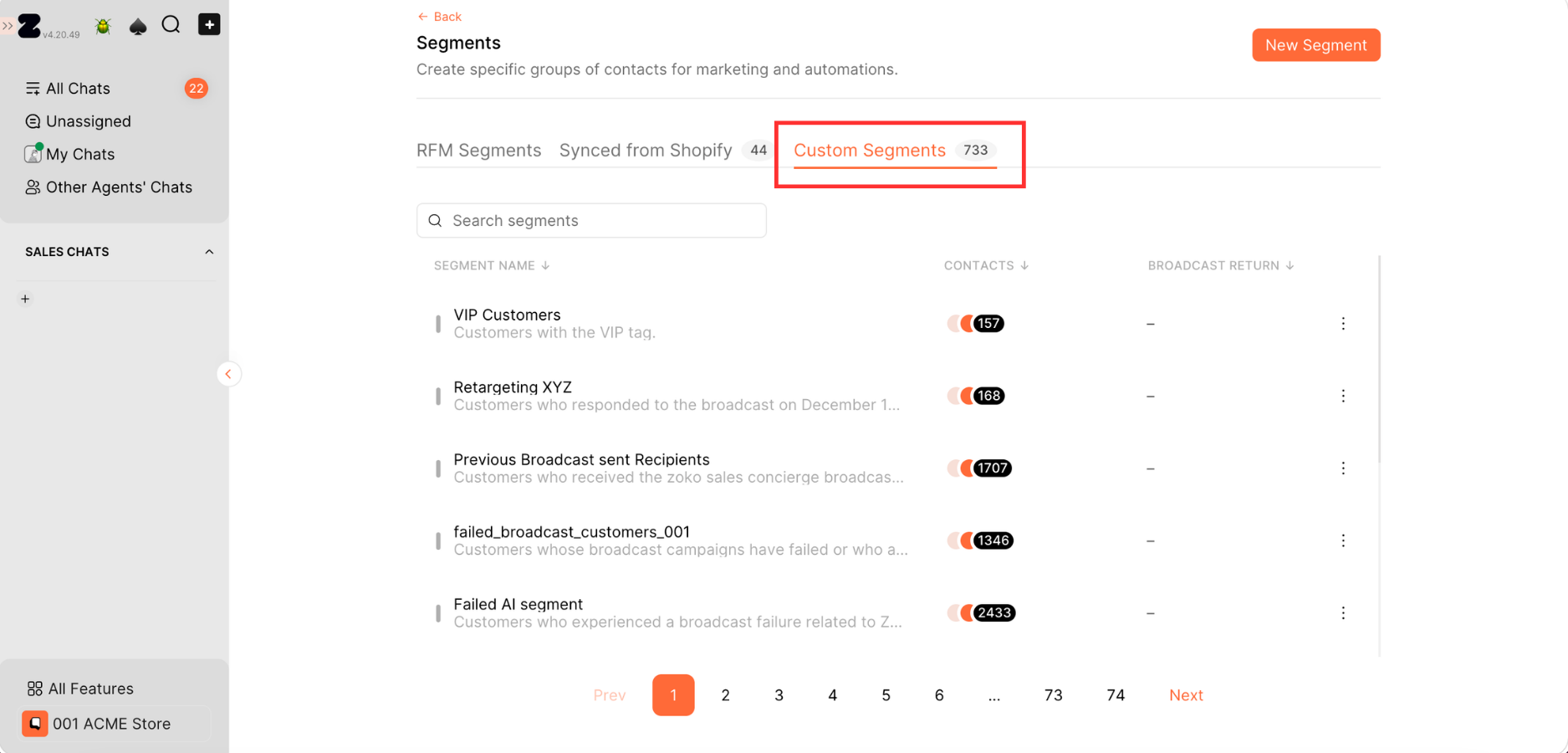
You can find all your saved segments under the Custom Segments tab.
Keywords: Customer segment, Customer properties, Zoko segments, Segment contacts
