


How to Set Up Conversation Routing
Learn how to route all your WhatsApp conversations to Zoko from Meta Business Suite.

Share on WhatsApp


If your WhatsApp number is connected to more than one partner, Meta decides which partner responds to each conversation based on how the customer contacts you. To make sure every conversation lands in your Zoko inbox, set all message routes to Zoko in Meta Business Suite.
Important Note: Complete this step before scanning the QR code during the activation process. Otherwise, incoming messages may continue going to your previous provider instead of Zoko.
To do this:
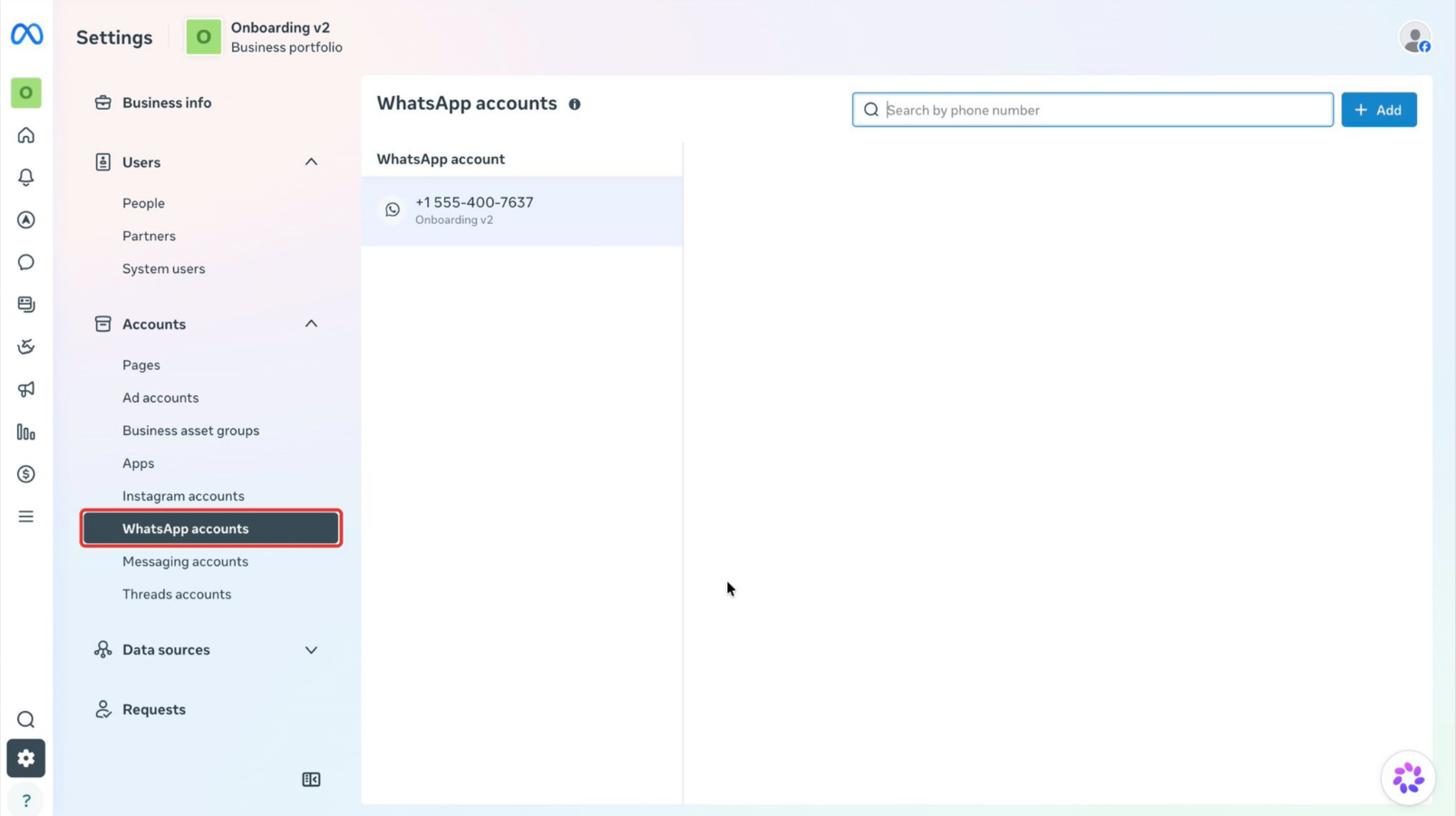
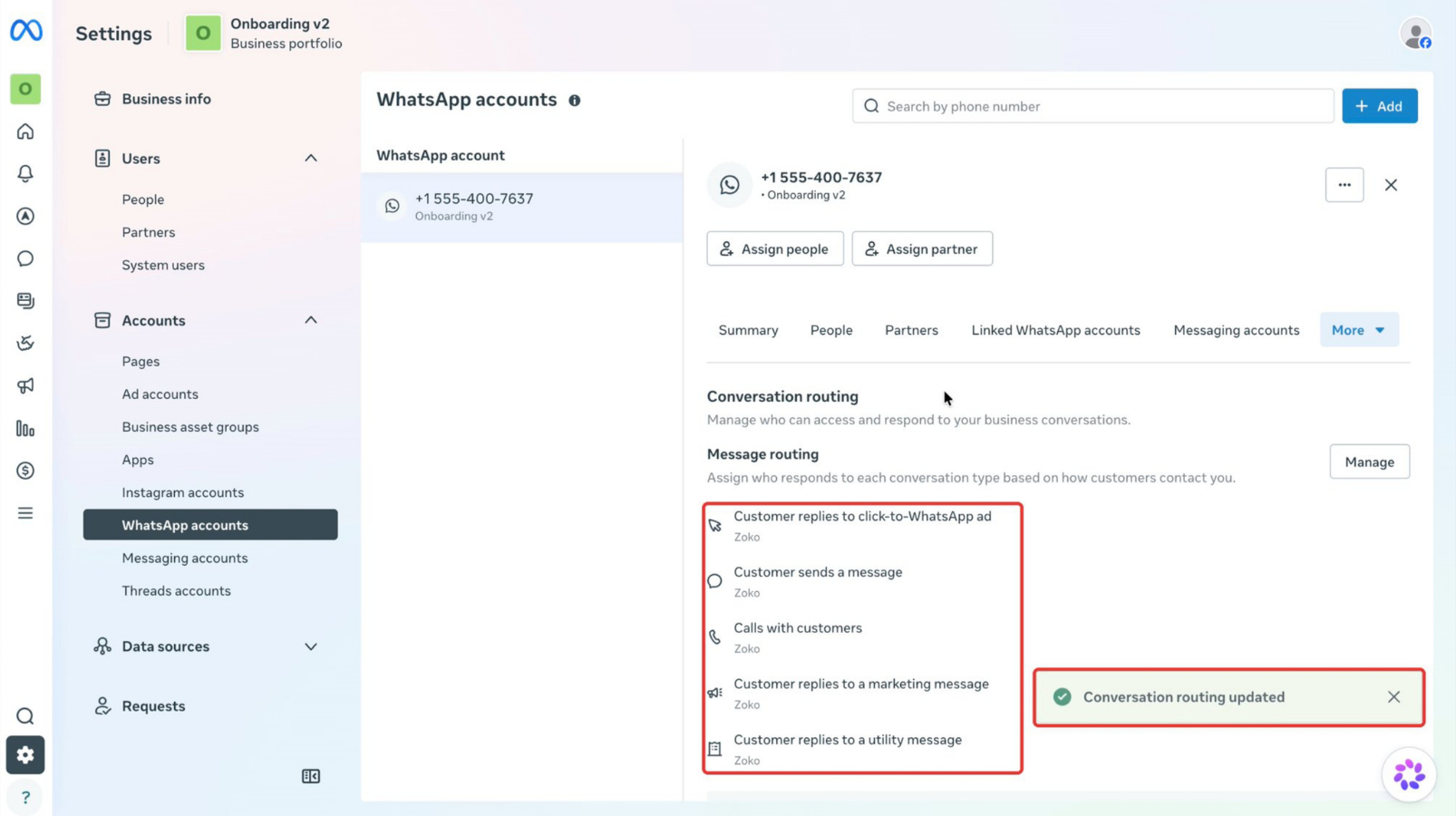
1. Go to Meta Business Suite >> Settings >> Accounts >> WhatsApp accounts.
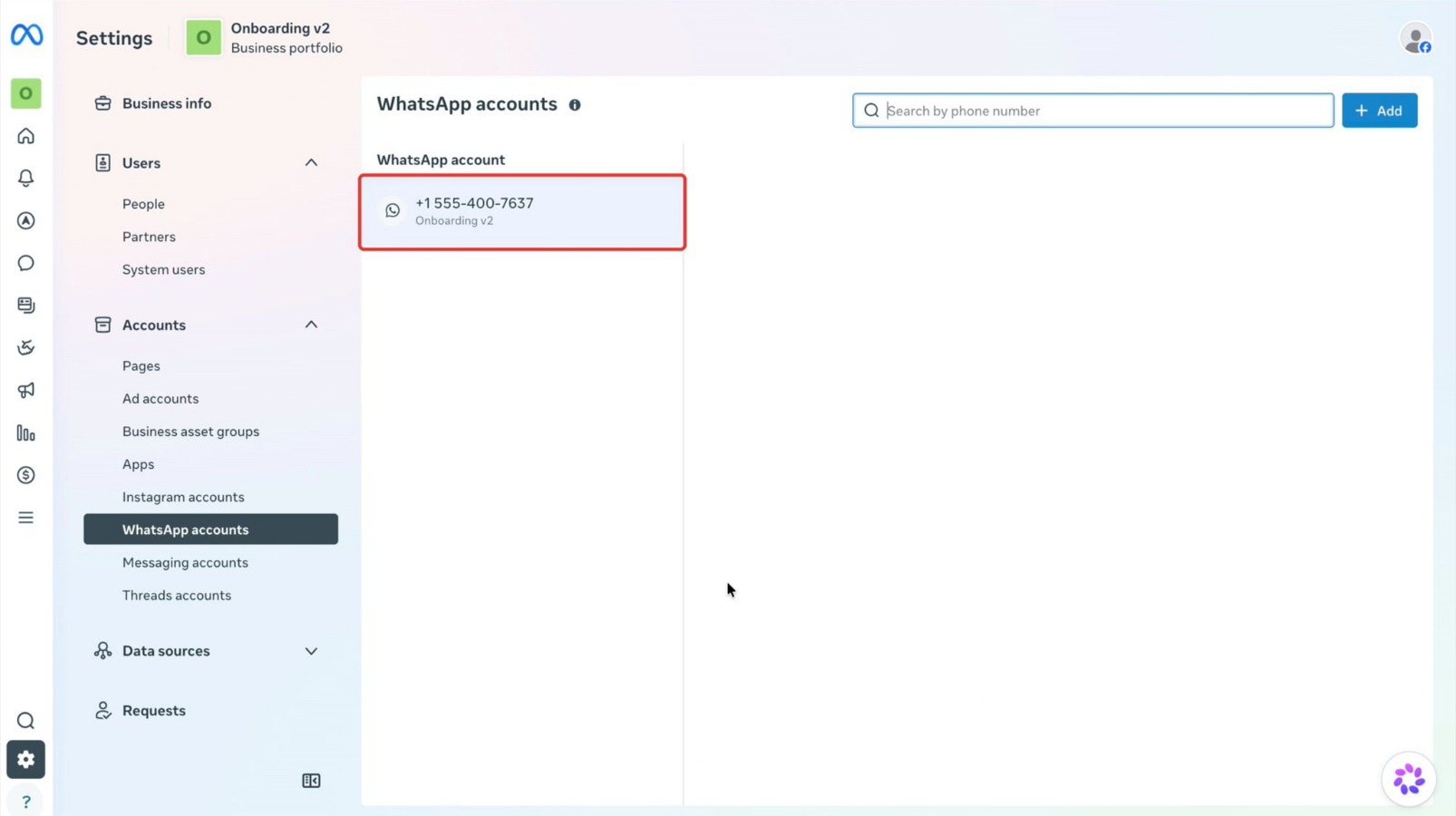
2. Click on WhatsApp number you want to route to Zoko.
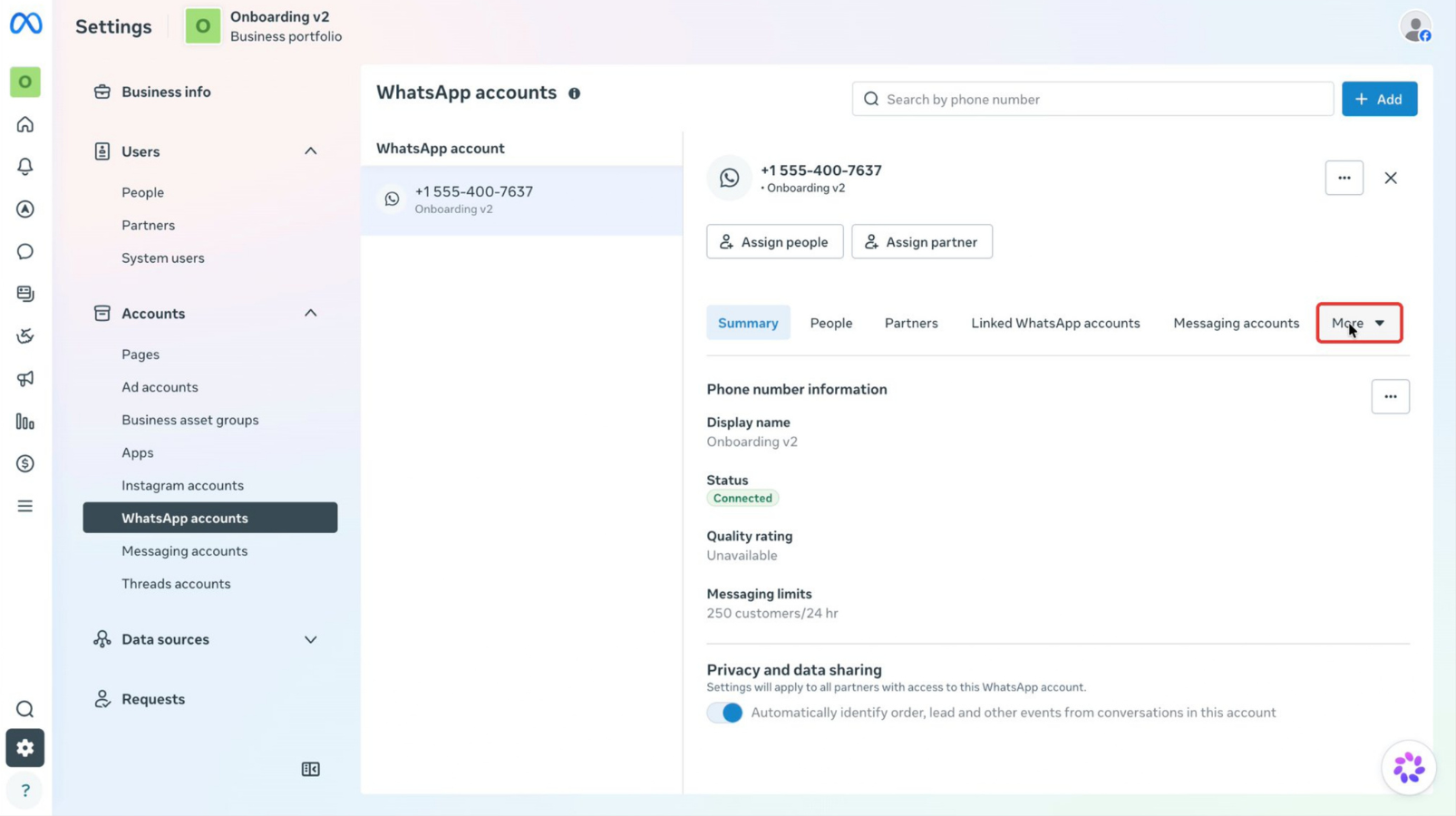
3. Click on More tab.
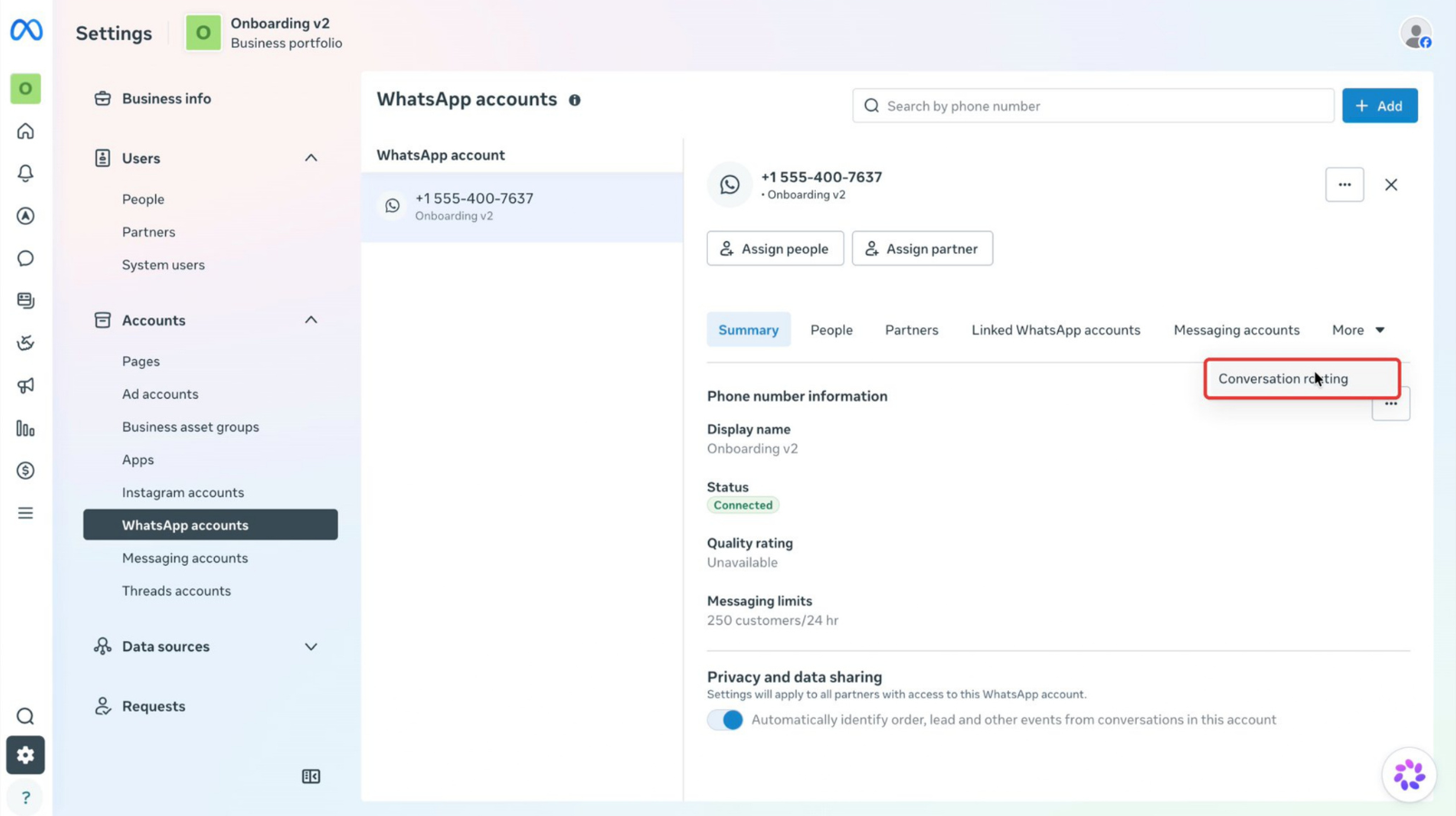
4. Click onvConversation routing from the menu.
5. Under Message routing, click on Manage.
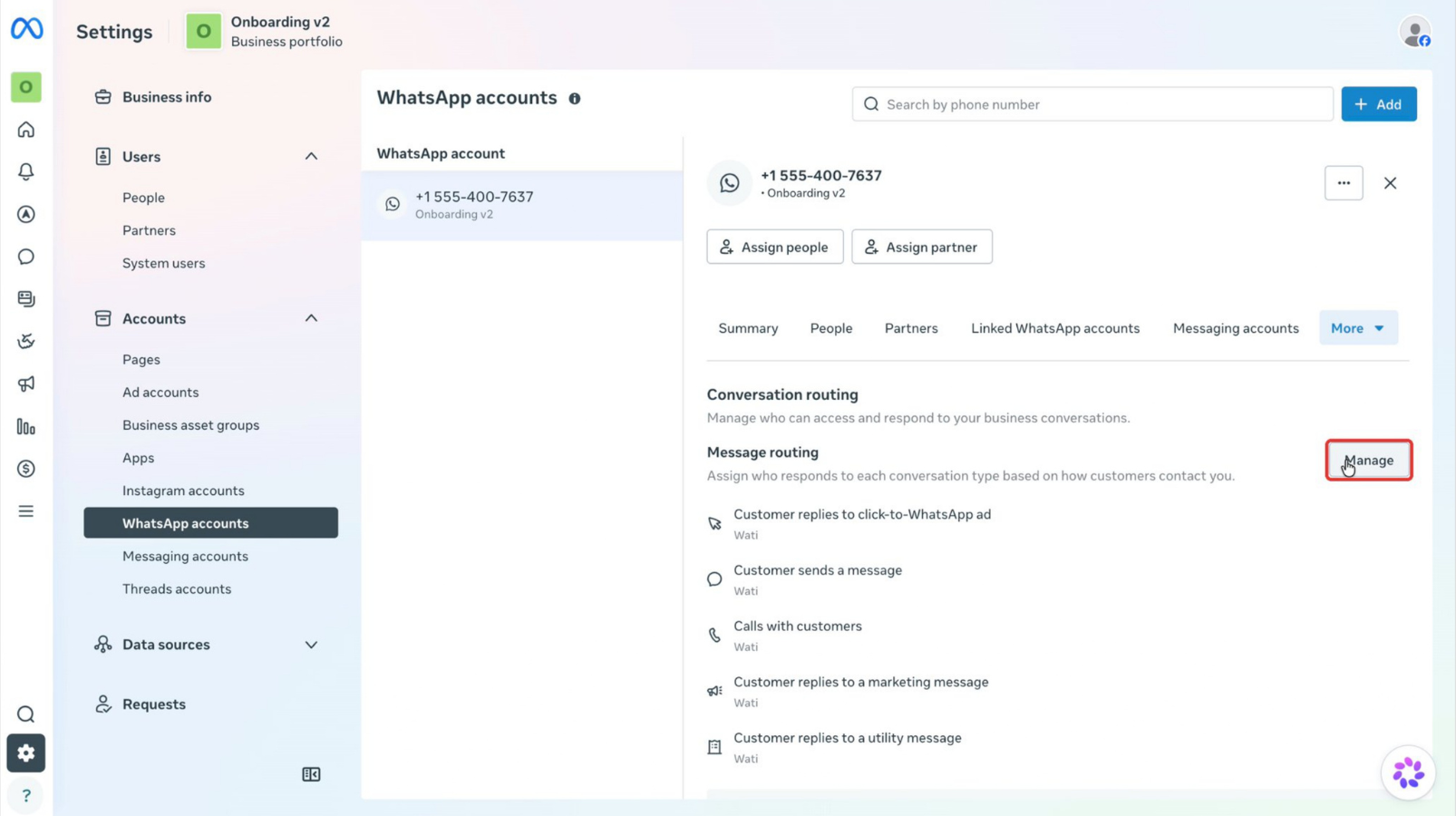
6. Open each dropdown and select Zoko.
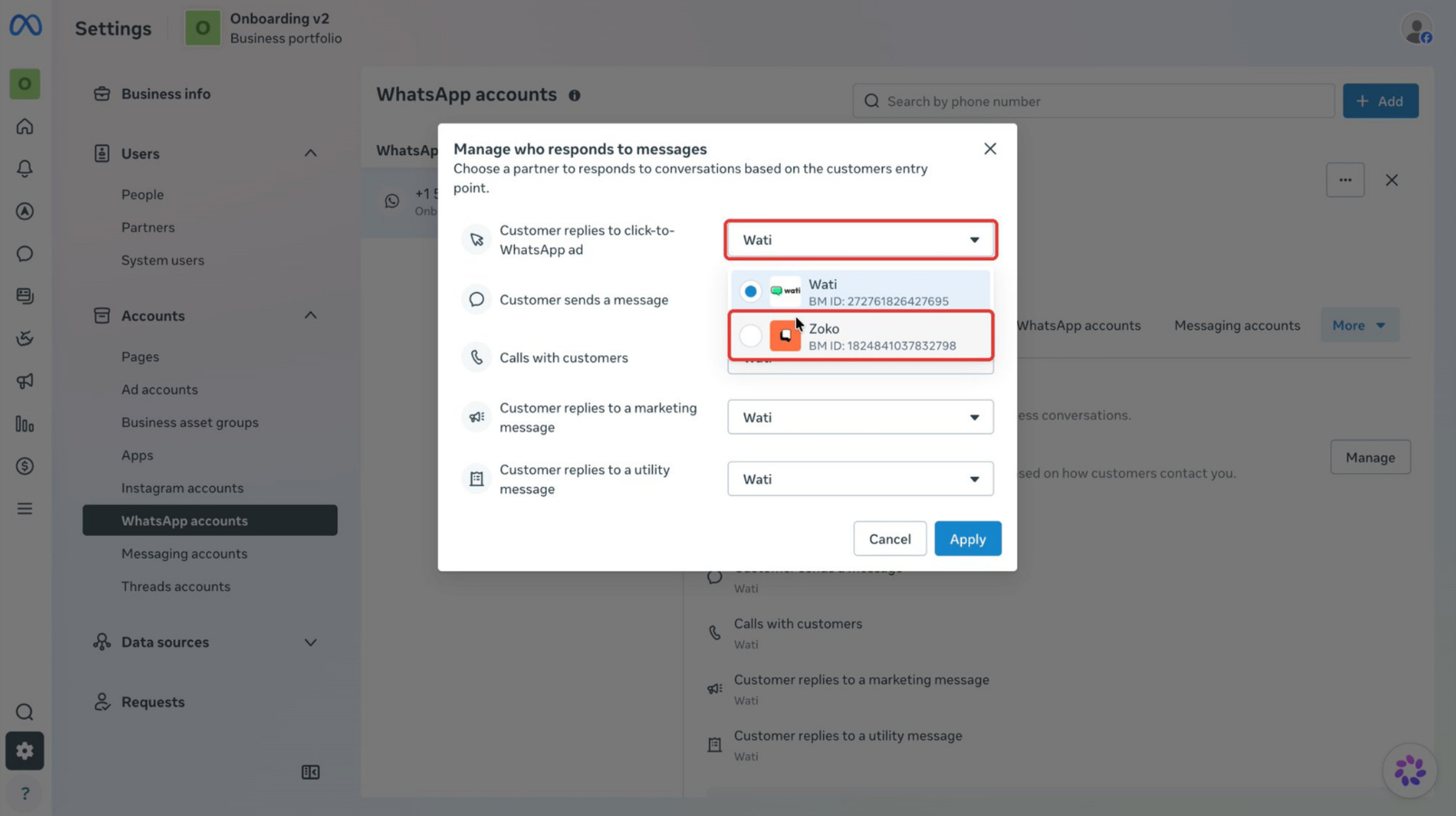
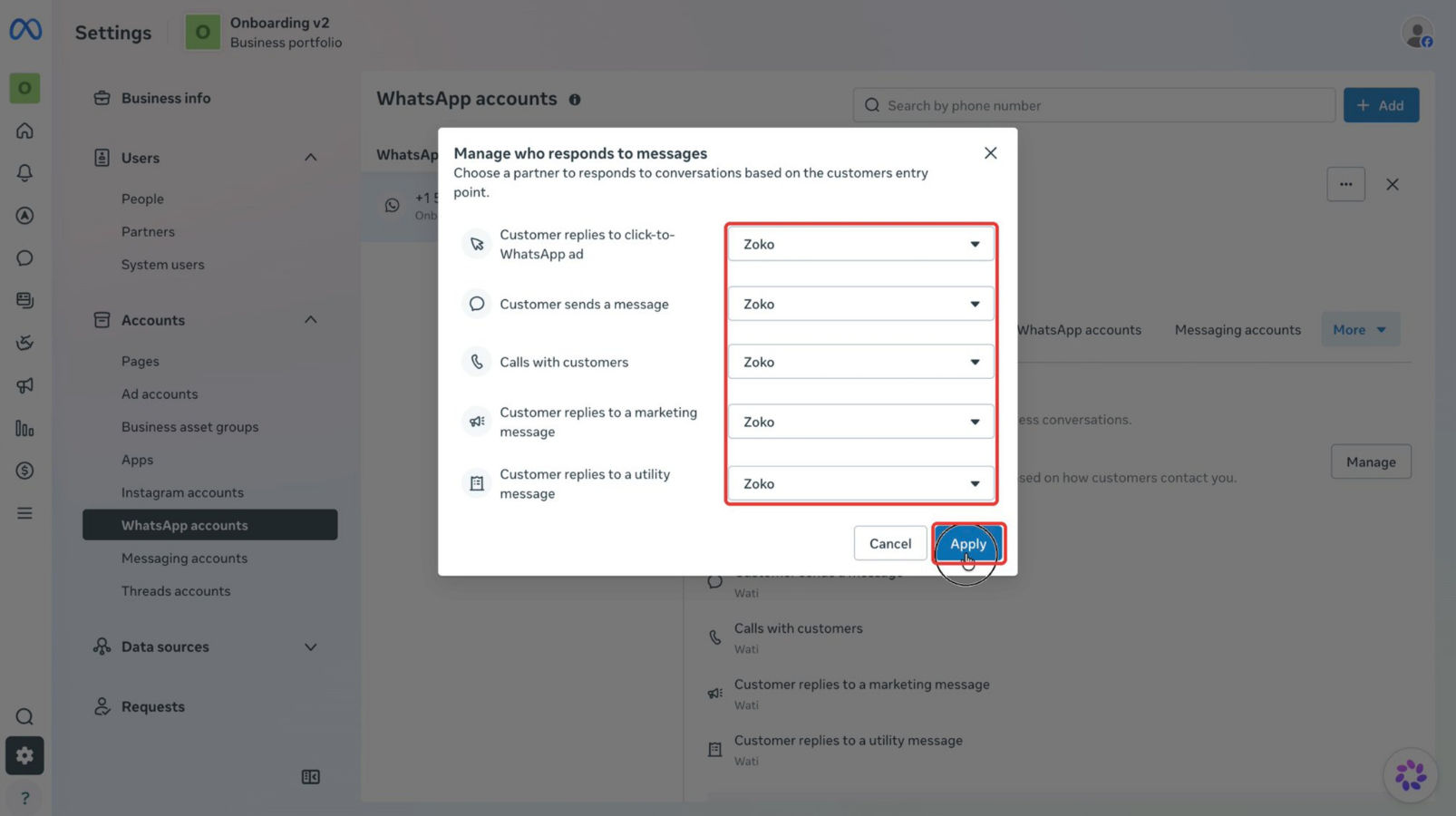
7. Make sure all five routes show Zoko, then click Apply.
Note: The five routes are: customer replies to a click-to-WhatsApp ad, customer sends a message, calls with customers, customer replies to a marketing message, and customer replies to a utility message.
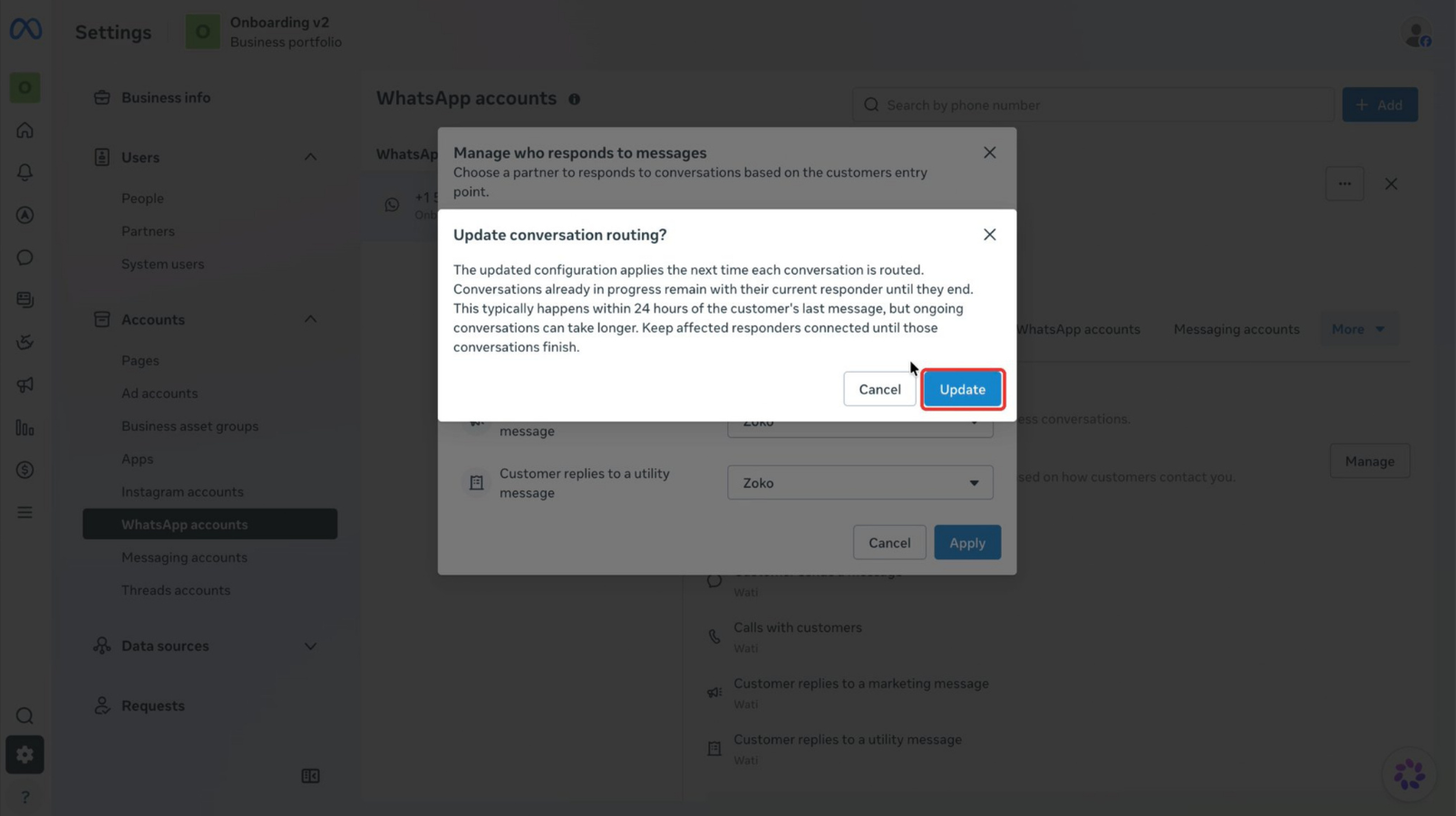
8. Click on Update to confirm.
9. Done! Every route now shows Zoko and Meta confirms “Conversation routing updated”.
Keywords: Conversation routing, Message routing, Meta Business Suite, WhatsApp accounts, Partner routing, Multi-partner, Route chats to Zoko.
