


How to Create a WhatsApp Carousel Template
Learn how to create carousel template to showcase multiple products and offers in a single WhatsApp message.
.png)
Share on WhatsApp
.png)


Carousel templates help you showcase multiple products or offers in a single WhatsApp message. Each card can include its own image or video, description, and call-to-action button, making them perfect for highlighting collections, new arrivals, recommended products, and promotional campaigns.
To do this:
1. Go to All Features and select Templates.
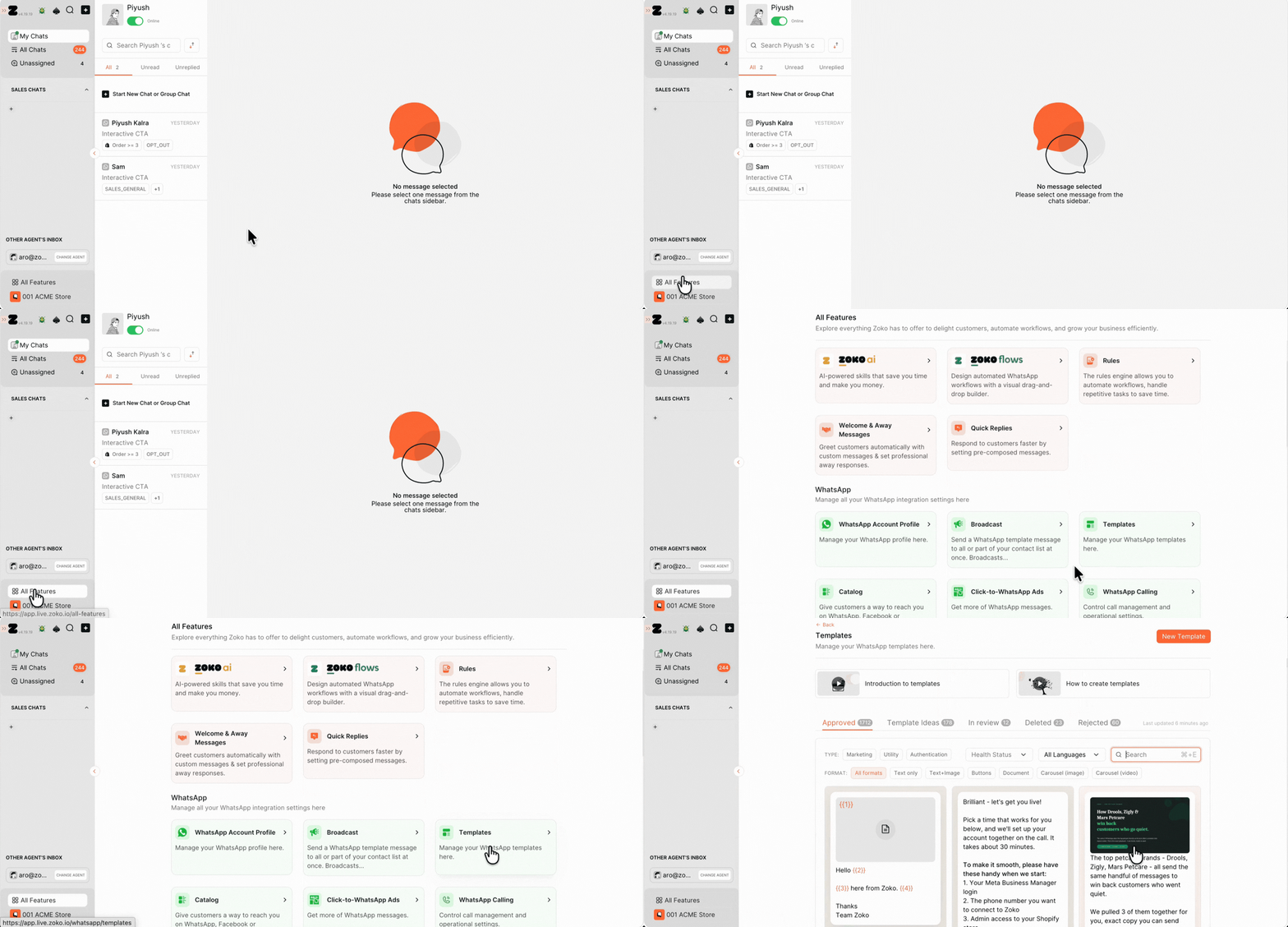
2. Click New Template.
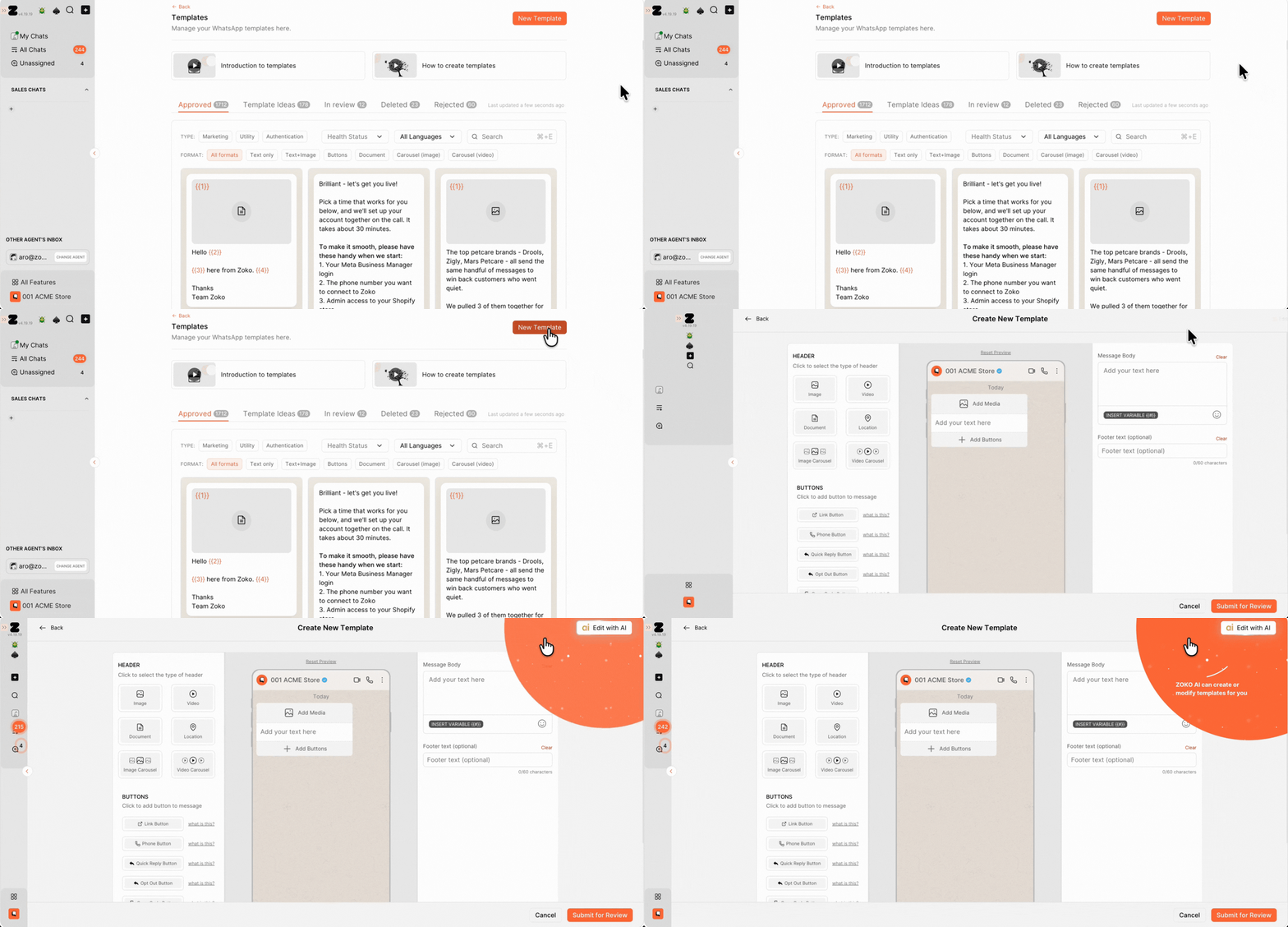
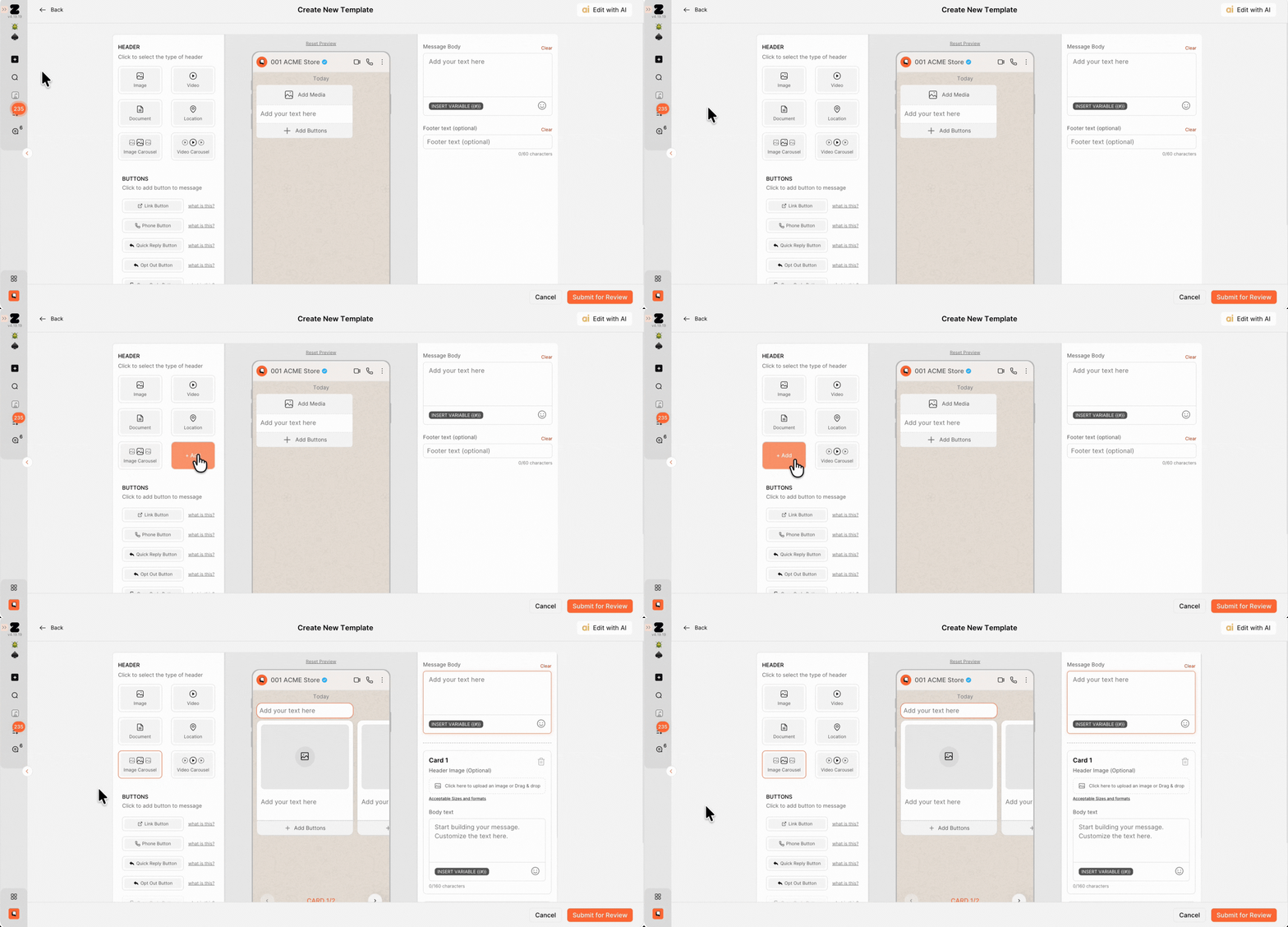
3. Under Click to select the type of header, choose the carousel type:
- Image Carousel: Show multiple images in a single message.
- Video Carousel: Show multiple videos in a single message.
For this example, we will select Image Carousel.
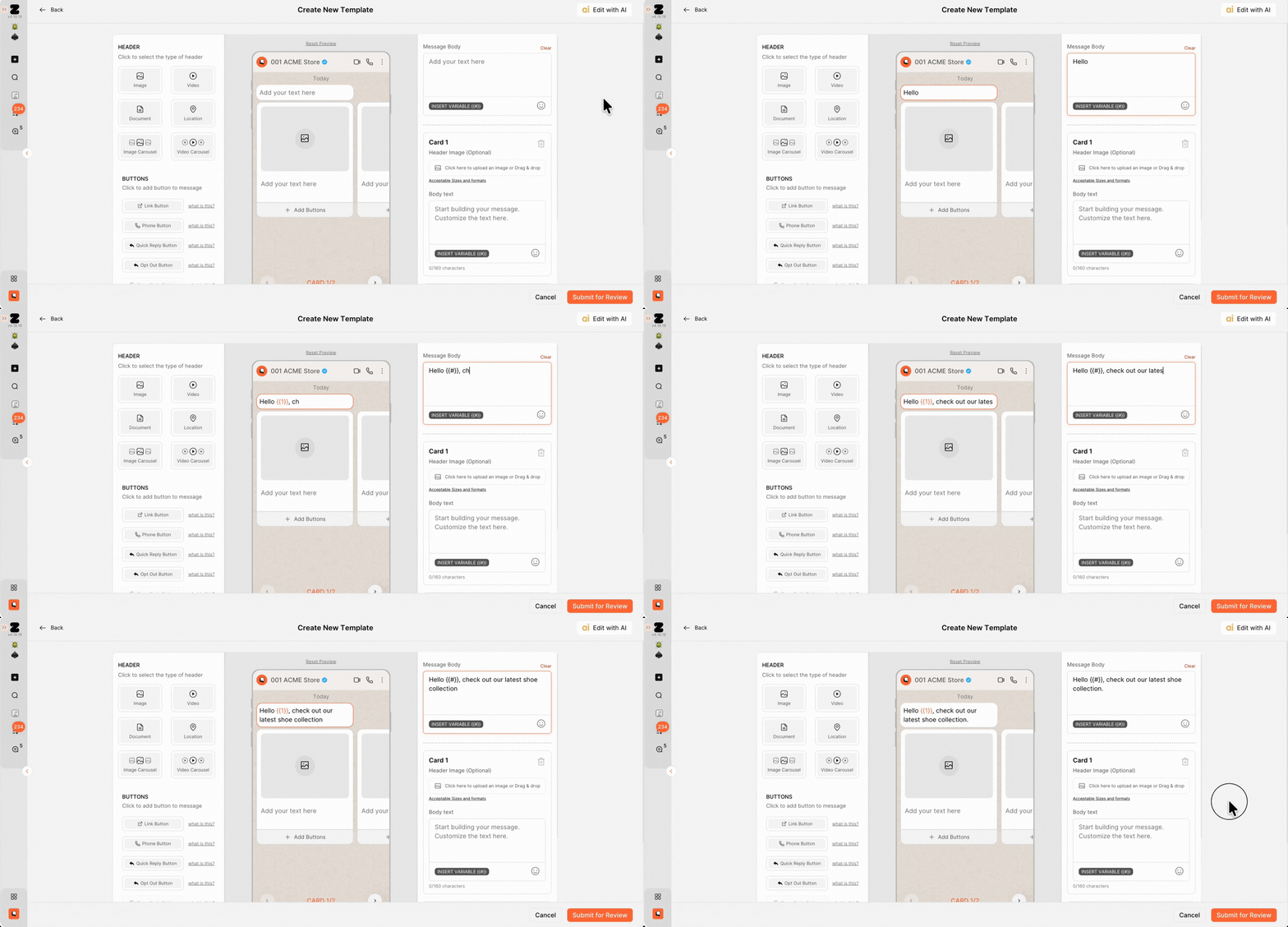
4. After selecting the carousel type, type the Message Body.
The Message Body is shown at the top of the WhatsApp message, above all carousel cards. Use this section to introduce your campaign, announce an offer, or provide additional context.
Example we have added - Hello {{#}}, check out our latest shoe collection.
You can also insert variables {{#}} to personalize the message for each customer
5. By default, two cards are automatically added to the template when you select a carousel type.
Each card contains:
- Header Image: Upload the image that customers will see for each carousel card.
- Card Body Text: Add the product name, description, or any supporting text that will be shown below the image.
- Buttons: Add a call-to-action, such as visiting a product page, calling your business, or allowing customers to reply directly.
Each card has its own body text, allowing you to add different product details or offers for every card.
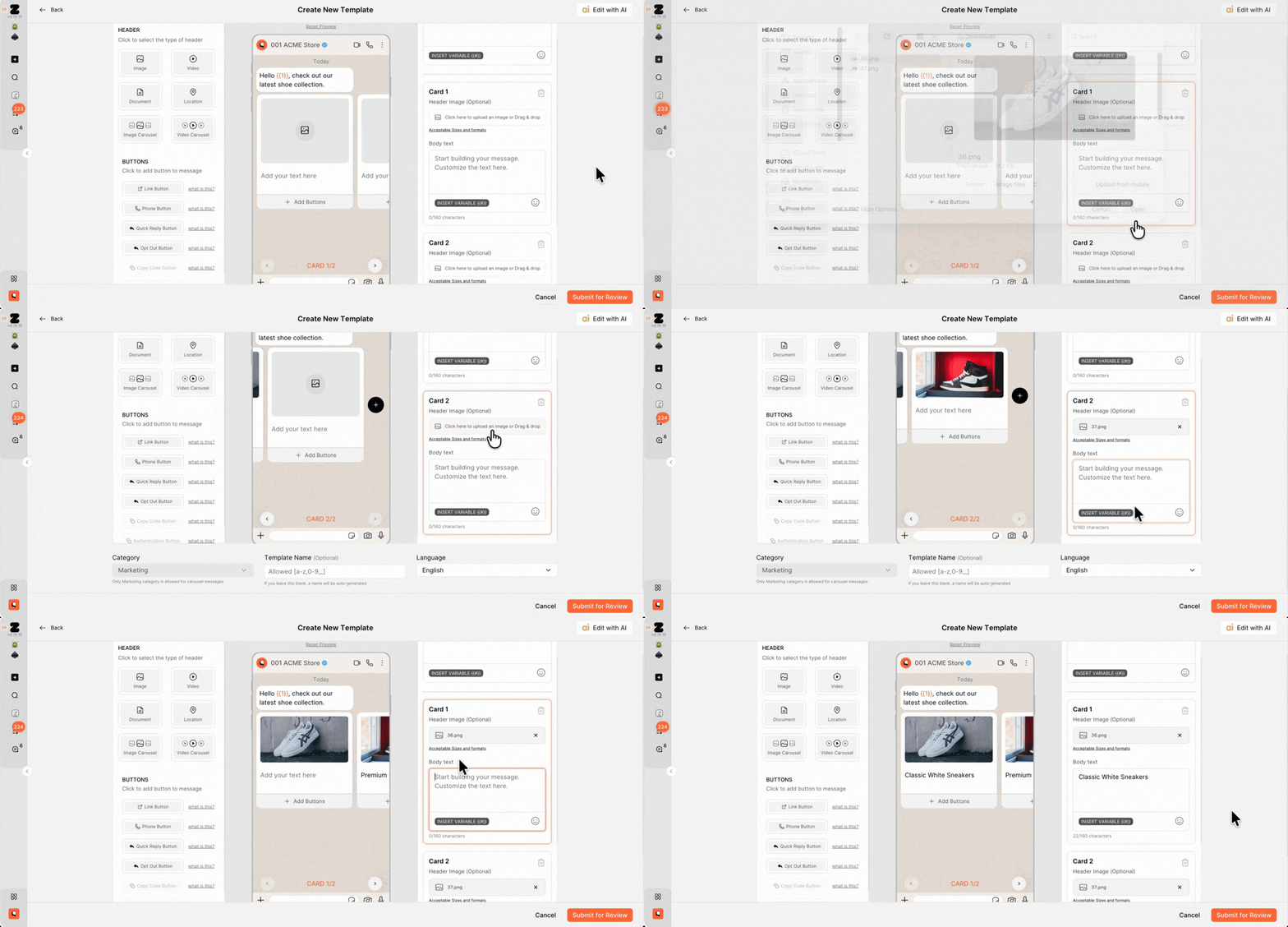
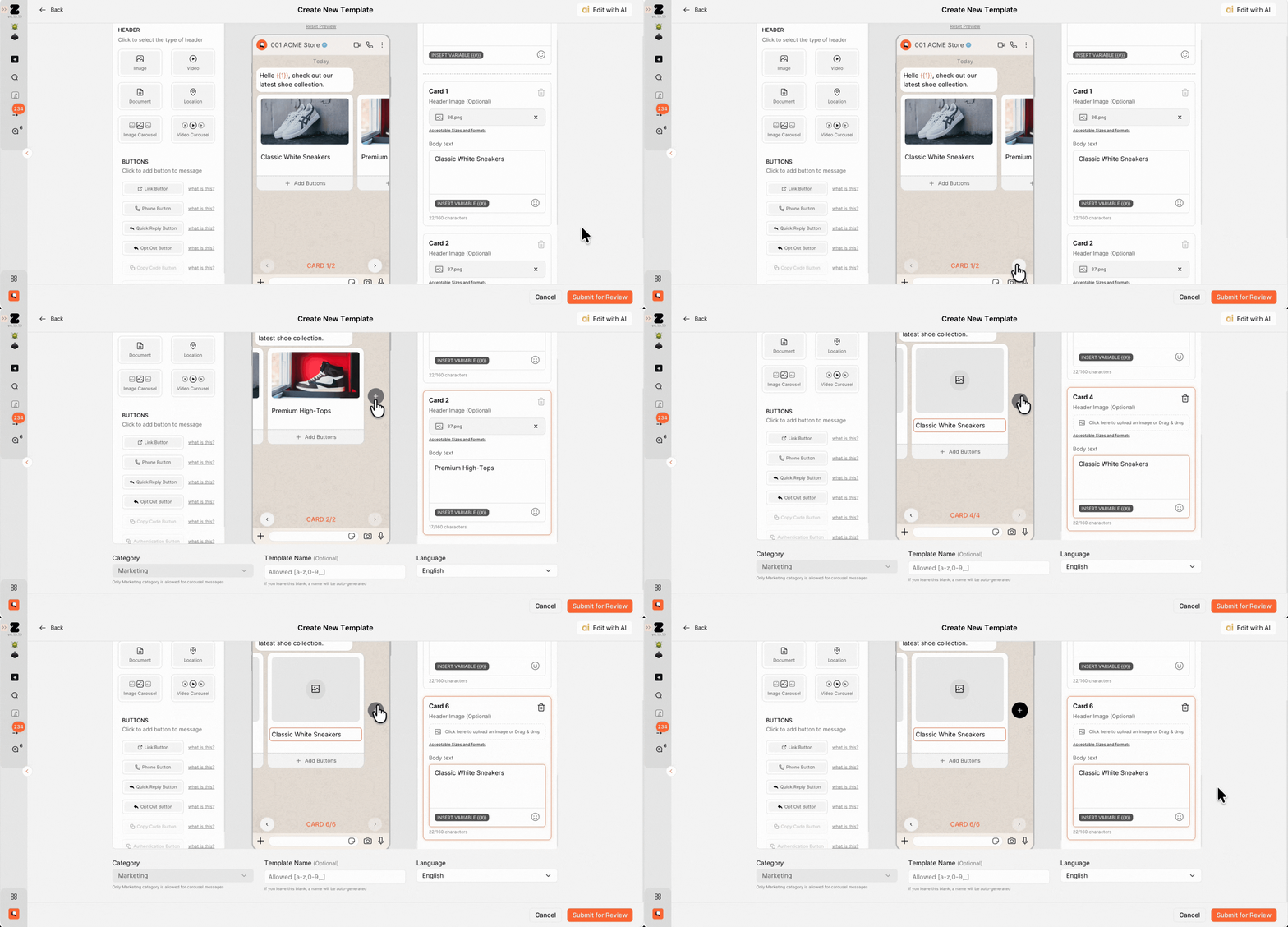
Note: You can add up to 10 cards in a single carousel template by clicking the + icon in the preview section. Each card can be customized with its own image, text, and link.
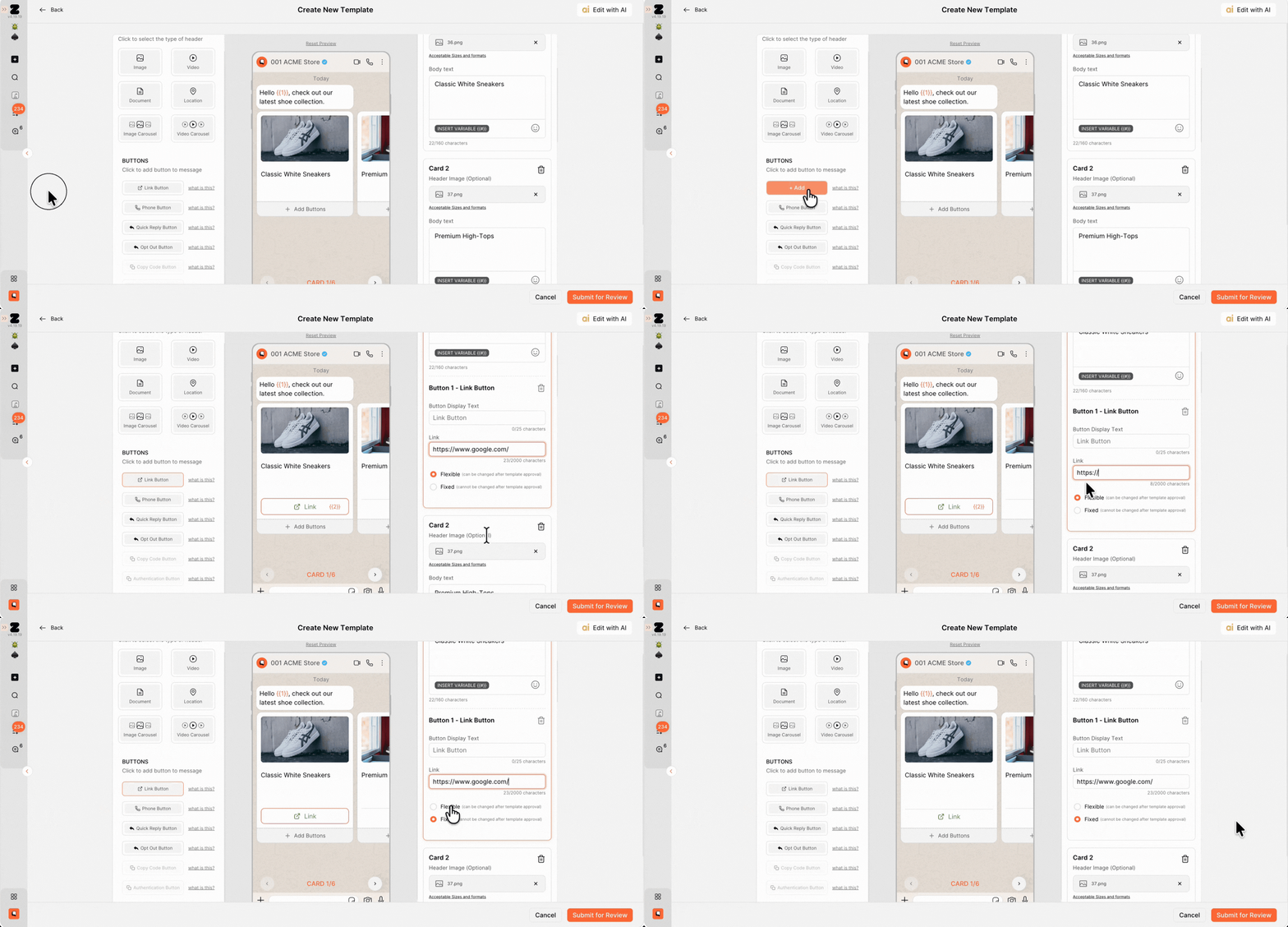
6. Now, add a button to define what action customers can take after viewing your carousel.
You can choose from different button types, such as:
- Link Button: Redirect customers to your website or product page.
- Phone Number Button: Allow customers to call your business directly.
- Quick Reply Button: Let customers respond with predefined options.
For this example, we have selected the Link Button, as we want customers to visit our website directly from the carousel.
Once added, buttons are automatically applied to all cards, and you can customize the destination for each card individually.
For Link Buttons, you can choose between:
- Fixed Link: Uses the same URL across all cards.
- Flexible Link: Allows each card to have a different URL.
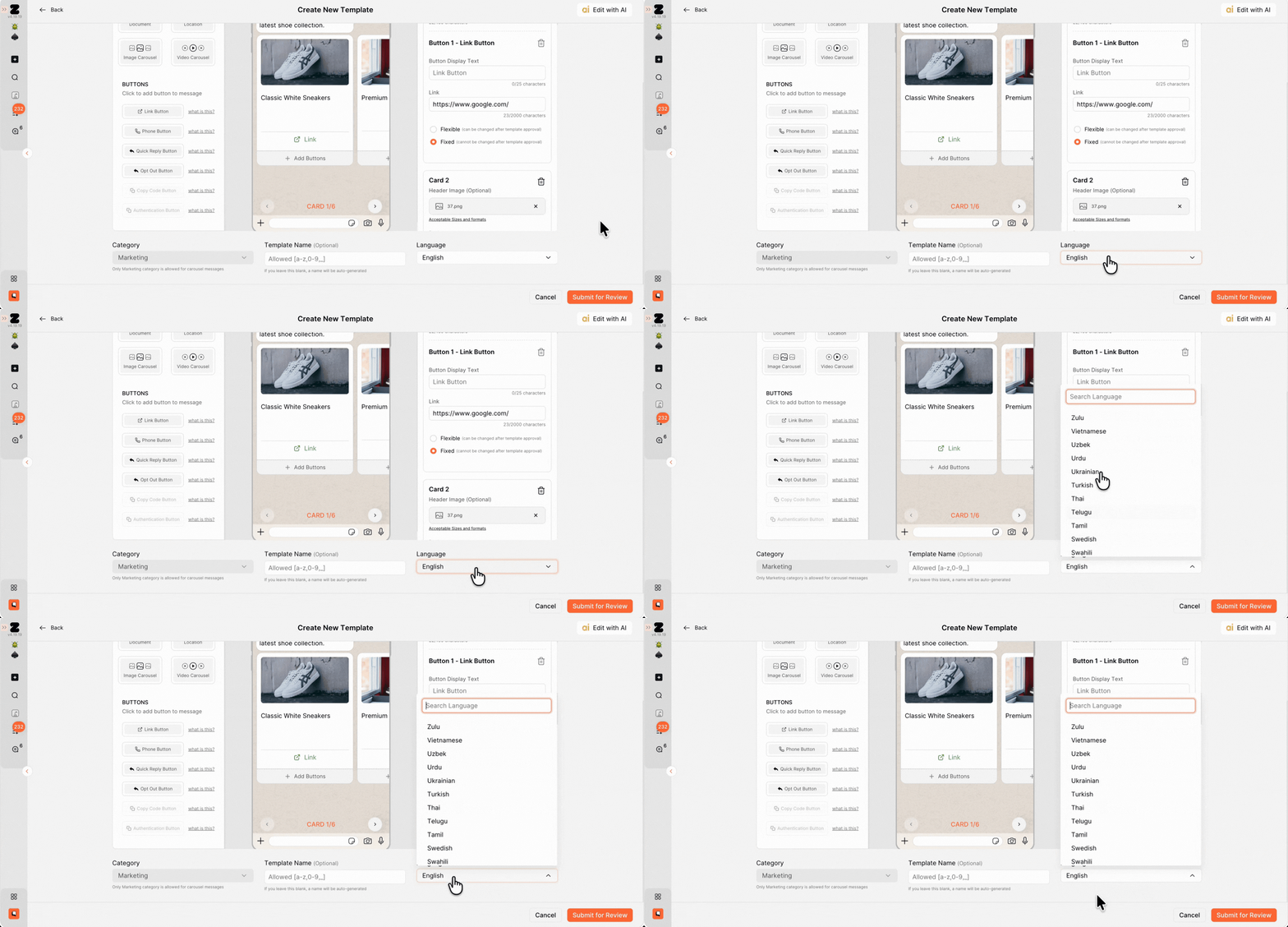
7. Select the template language from the dropdown menu. Make sure you choose the same language that will be used in your carousel message, as Meta reviews and approves templates based on the selected language.
8. Once your carousel template is ready, click Submit for Review.
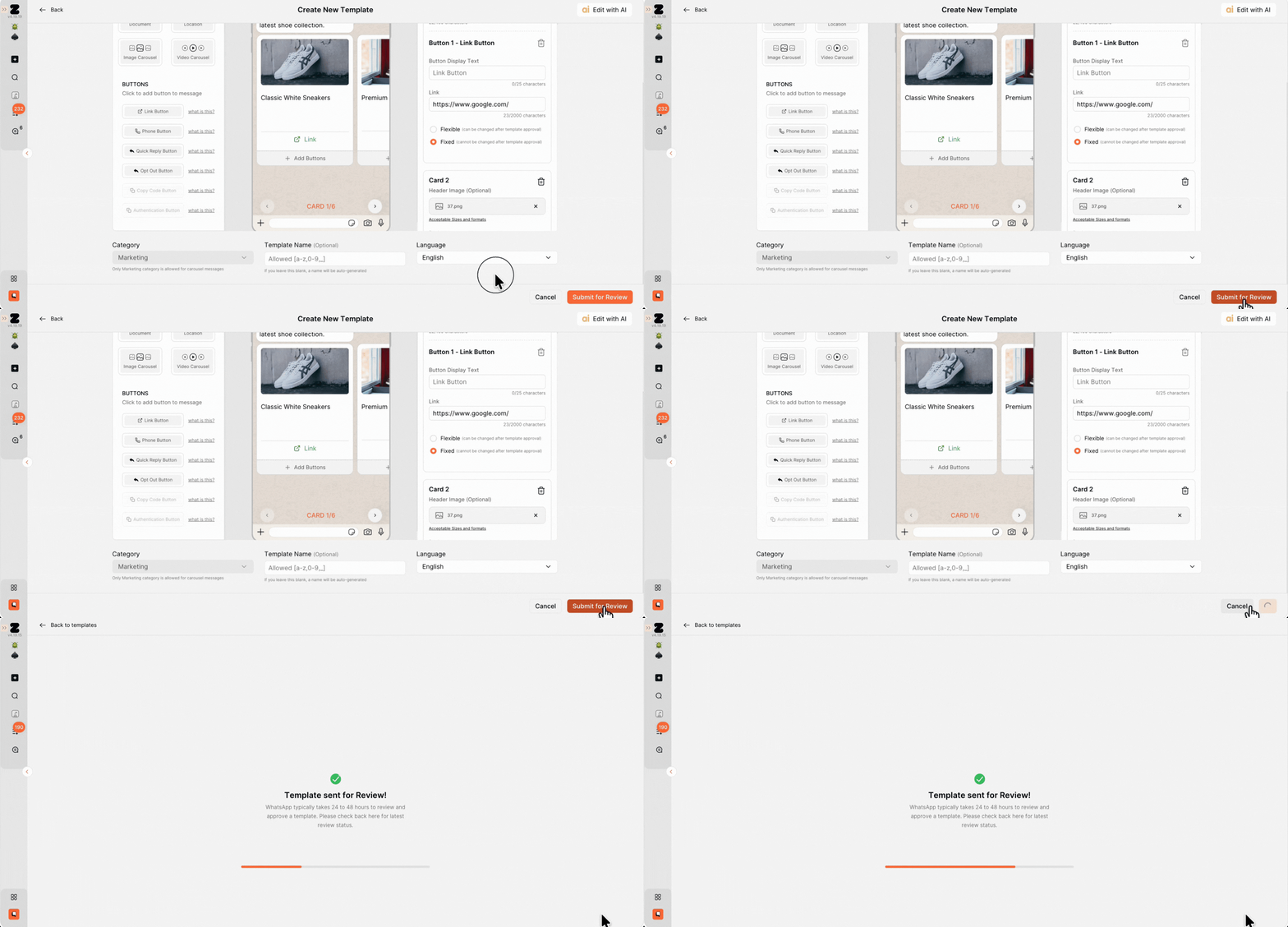
That's it! Your template will be sent to Meta for approval. Once approved, you can start using it.
Keywords: WhatsApp Carousel Template, Create Carousel Template, WhatsApp Image Carousel, WhatsApp Video Carousel
