


Preparing Your Number for WhatsApp API Activation
.png)
Share on WhatsApp
.png)


Before activating a number with Zoko, make sure it is ready to be connected to the WhatsApp API. The preparation depends on whether the number is currently used in the WhatsApp mobile app or is already connected to another WhatsApp API provider.
Choose the situation that applies to your number
If the number is used on the WhatsApp mobile app
Delete the WhatsApp account before activation. Simply uninstalling WhatsApp or WhatsApp Business does not delete the account or release the number. Account deletion must be completed from the primary device while you are logged into the account.
Before deleting the account: save anything you need. WhatsApp states that deletion is irreversible and it cannot restore or transfer chats, documents, media files, backups, or call history from a deleted account.
Android
1. Open WhatsApp or WhatsApp Business.
2. Tap More options, then go to Settings > Account > Delete my account.
3. Enter the number in full international format and tap Delete account.
4. Select a reason for deleting the account from the dropdown.
5. Tap Delete account again to confirm.
iPhone
1. Open WhatsApp or WhatsApp Business.
2. Tap Settings or your profile picture.
3. Tap Account > Delete My Account.
4. Enter the number in full international format and tap Delete My Account.
What account deletion does: It removes the account from WhatsApp and all connected devices, erases the message history, removes the account from WhatsApp groups, and deletes the associated Google Account backup on Android.
If the number is connected to another WhatsApp API provider
If the number is already connected to the WhatsApp API through another Business Solution Provider and you are migrating it to Zoko, turn off two-step verification for that number before activation. You need admin access to the Meta Business Manager that owns the WhatsApp account.
1. Login to your Facebook Business Manager.
2. From Business Settings, select Accounts in the left-hand menu, then select WhatsApp accounts.
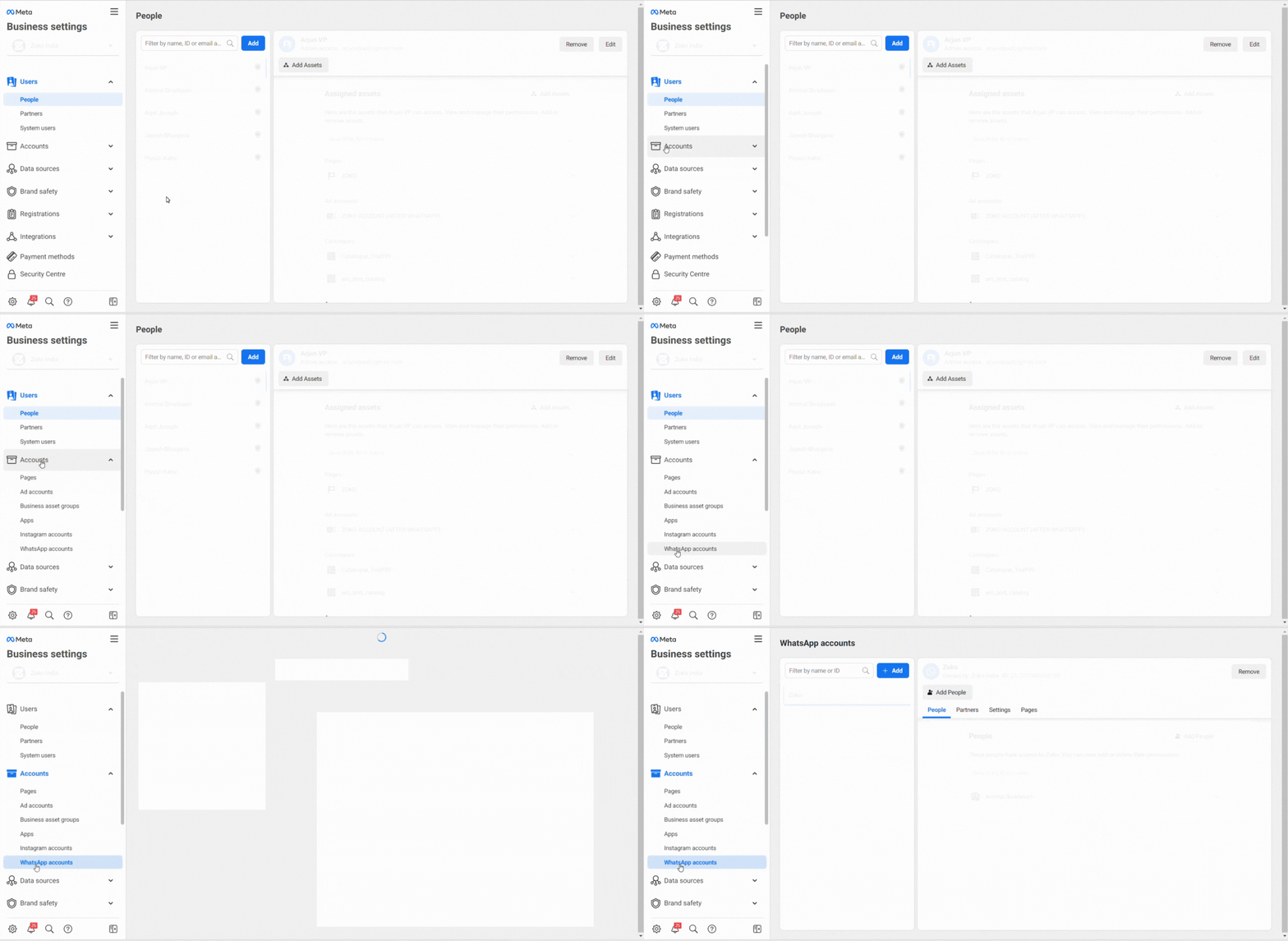
3. Click on Settings under WhatsApp accounts.

4. Click on the WhatsApp Manager button to be redirected to the WhatsApp overview page.
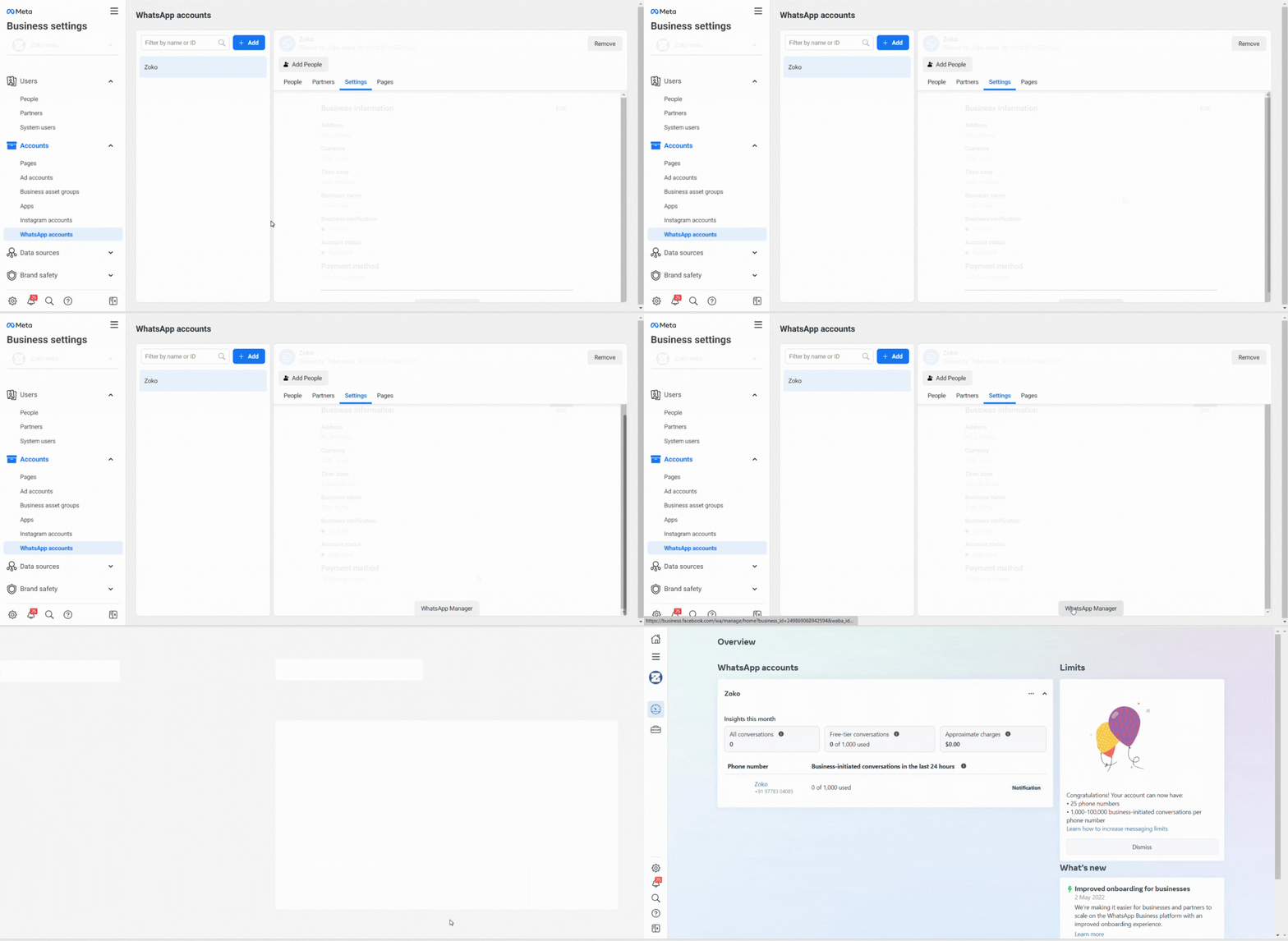
5. Hover the mouse over the left to reveal the settings and click on Phone numbers under Account Tools.
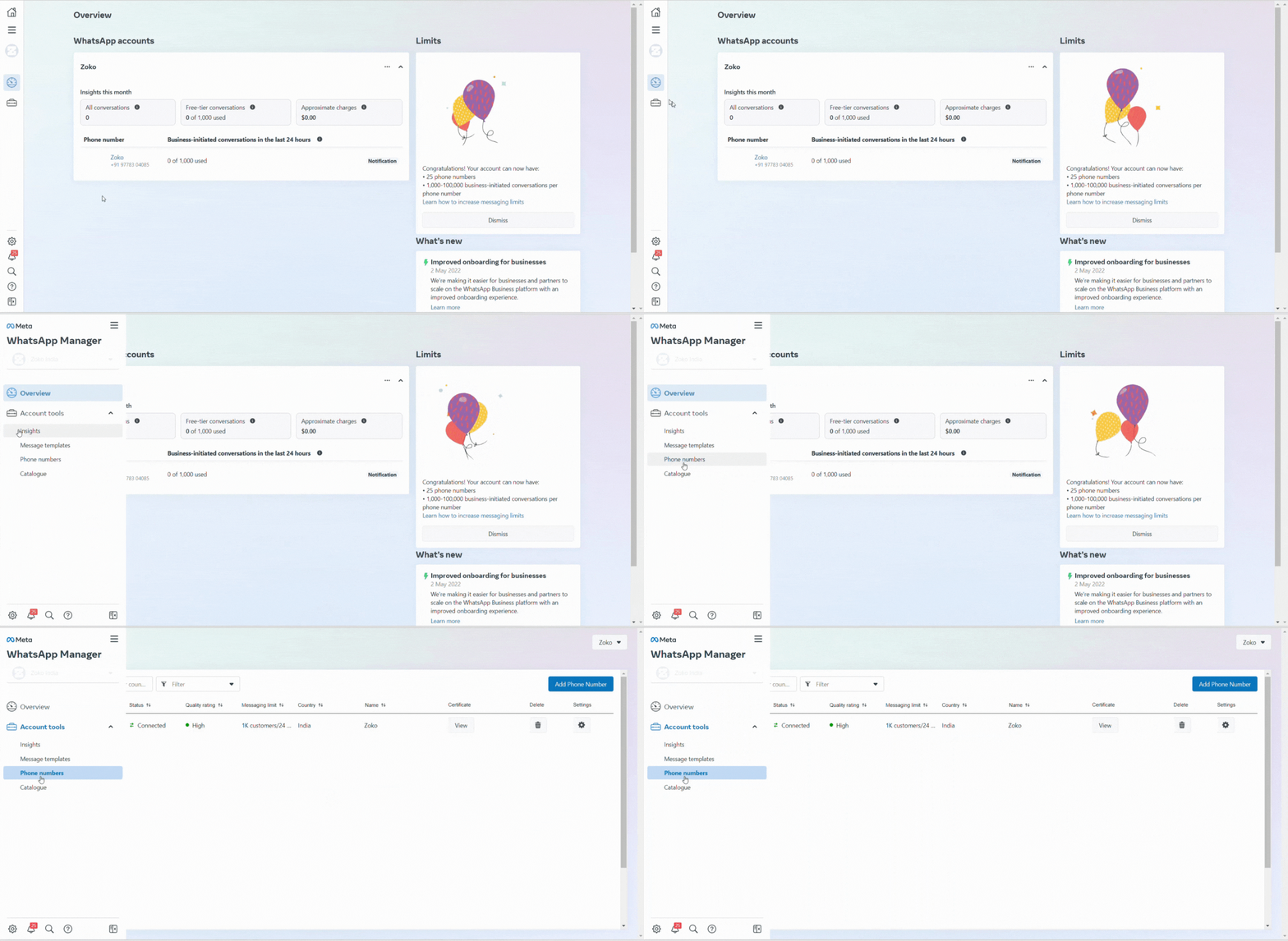
6. You can see the lists of connected phone numbers here. Find your phone number and click on Settings.
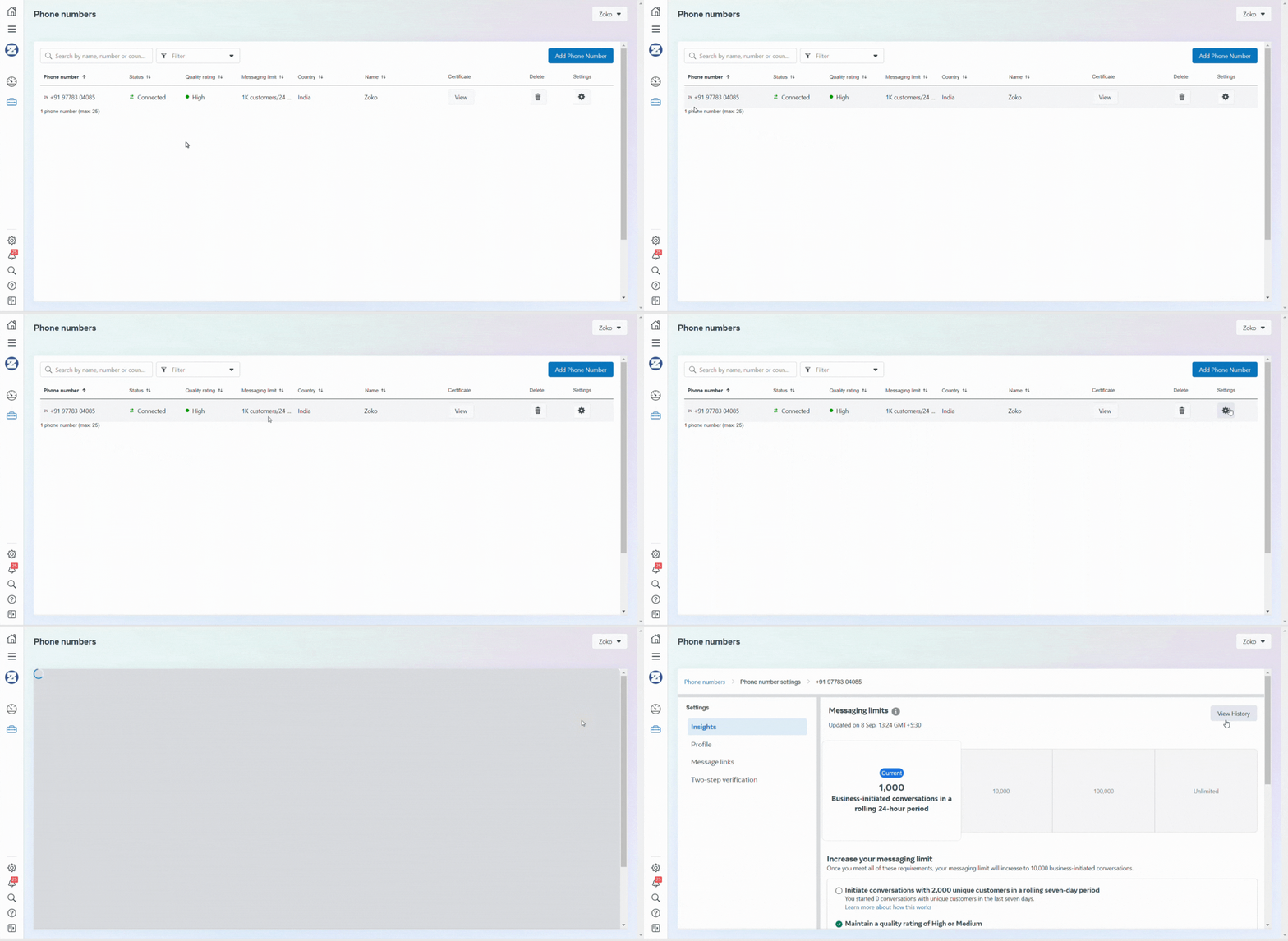
7. Click on Two-step verification.
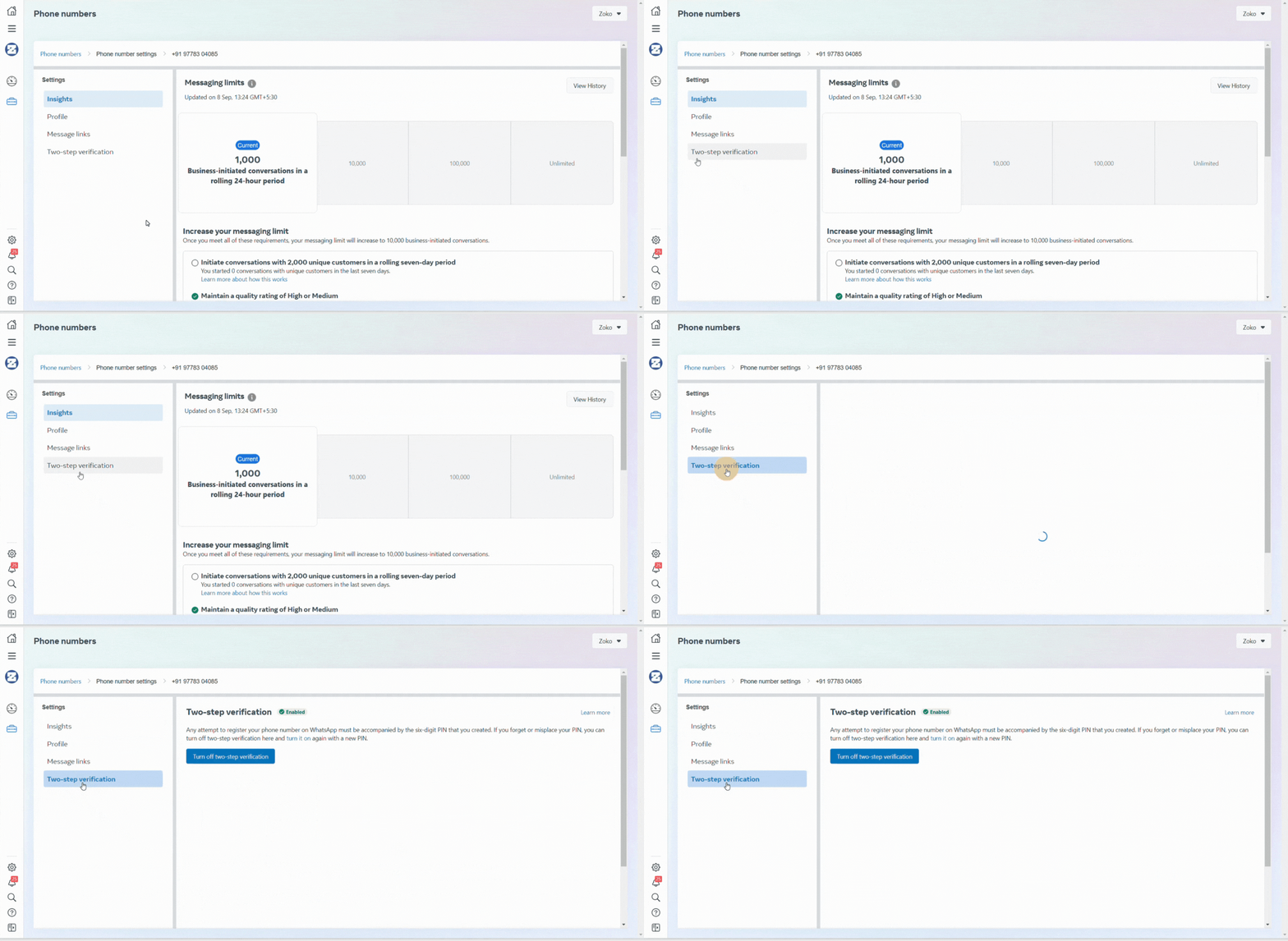
8. Click on Turn off two-step verification.
Note: Once you have disabled 2FA, a confirmation email will be sent to your registered email address.
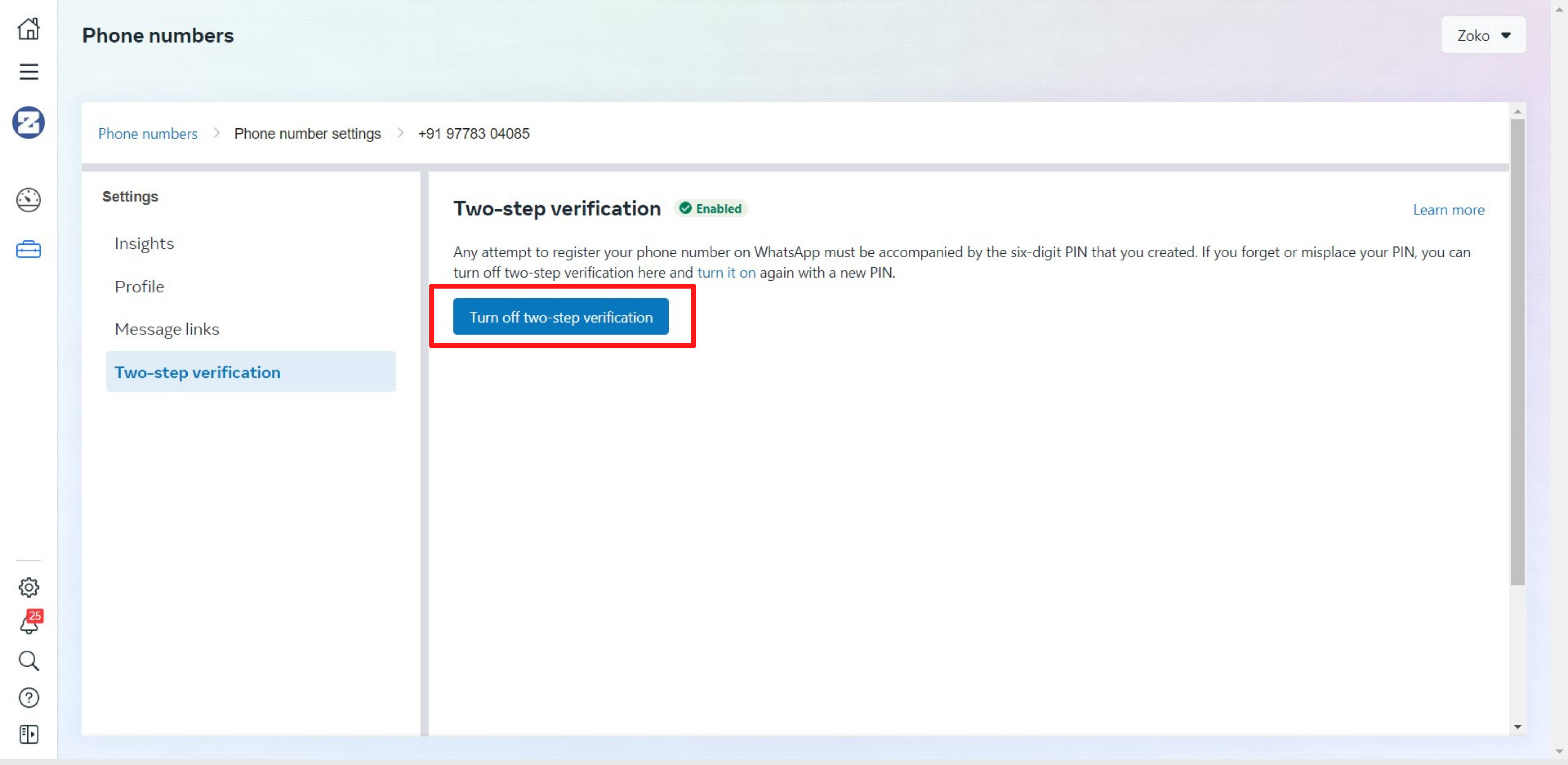
Important Note: If you cannot turn off 2FA, contact your previous WhatsApp API provider and ask them to disable it for the number.
Before starting activation
• If the number was used in the mobile app, confirm that the WhatsApp account has been deleted.
• If the number is migrating from another BSP, confirm that two-step verification has been turned off.
• If neither situation applies, no preparation step is required.
Once the relevant requirement is complete, the number is ready for the WhatsApp API activation process with Zoko.
Keywords: Phone number, Whatsapp number, Disabling 2FA, Activation, Delete number
