


How to Publish a Flow Saved in Drafts
.png)
Share on WhatsApp
.png)
When you're creating or editing a flow, you might not want to publish it immediately. In such cases, the flow can be saved as a draft so you can come back and publish it later when everything is ready.
Here’s how you can publish a flow that’s saved in Drafts.
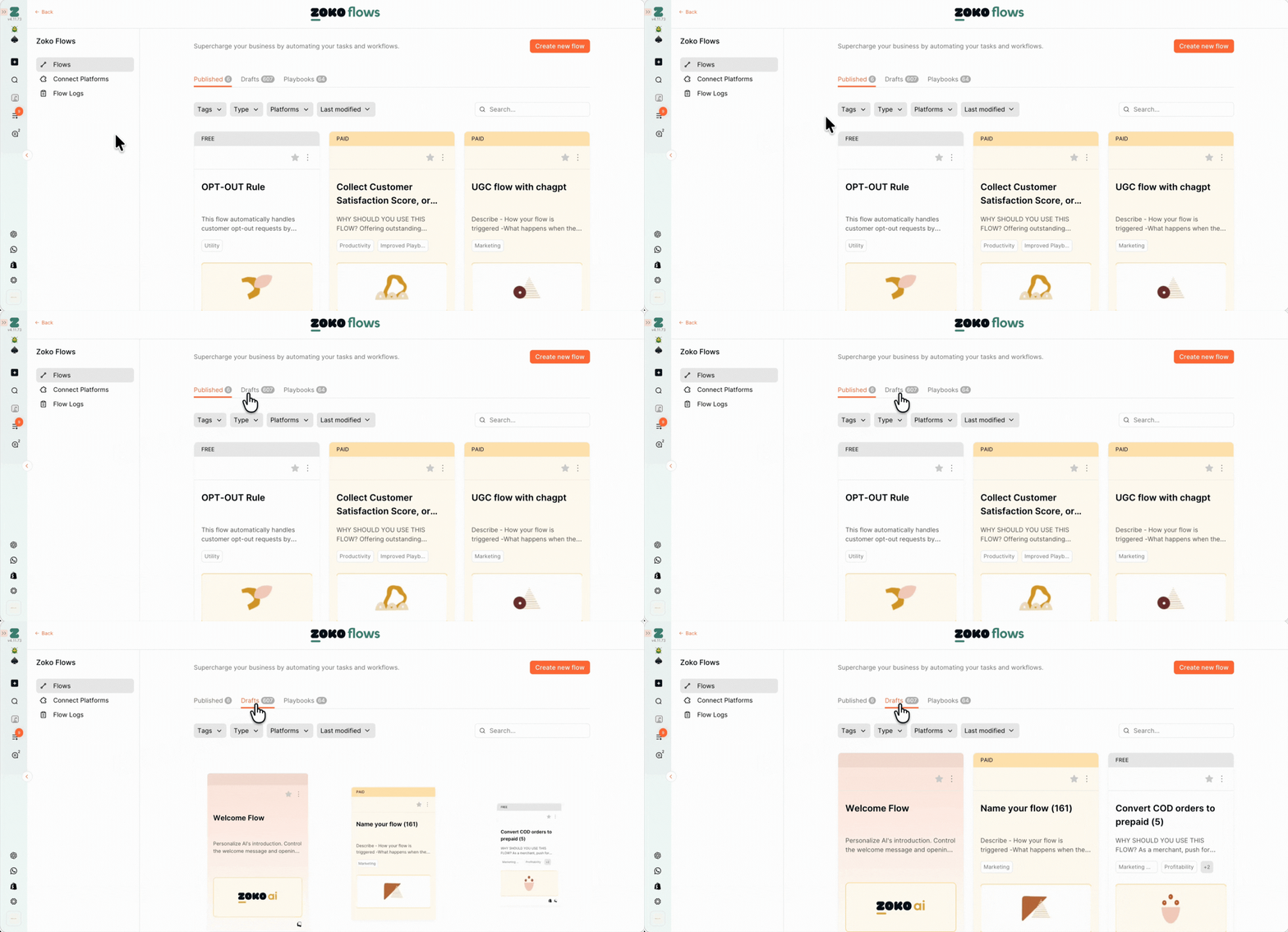
1. Go to the Zoko Flows - https://app.live.zoko.io/ai-automation/zoko-flows
2. Click on Drafts section.
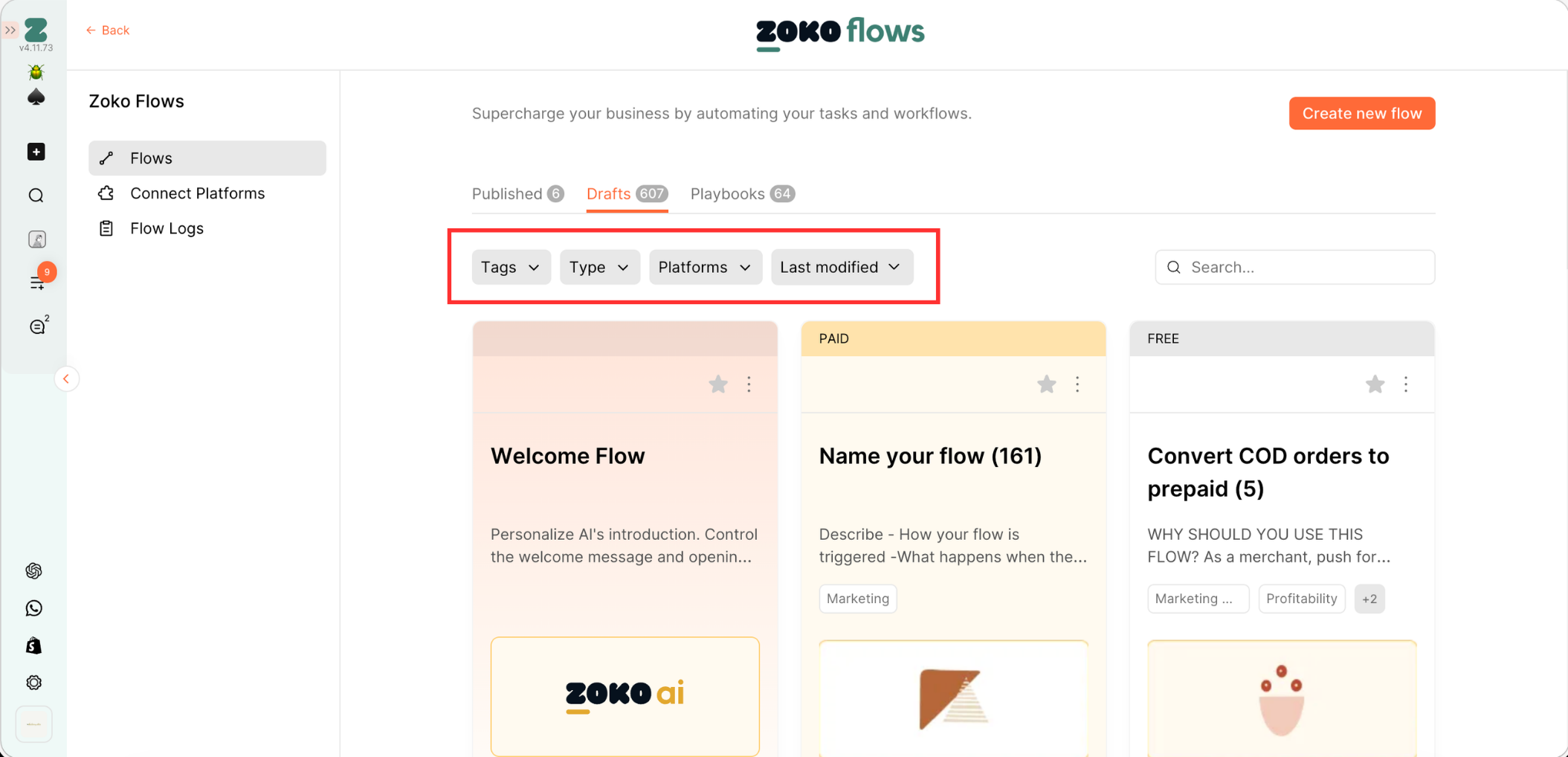
2. To find the flow you want to publish, you can use filters such as Tags, Type, Platforms, or Last Modified. You can also combine multiple filters to quickly narrow down and find the flow you’re looking for.
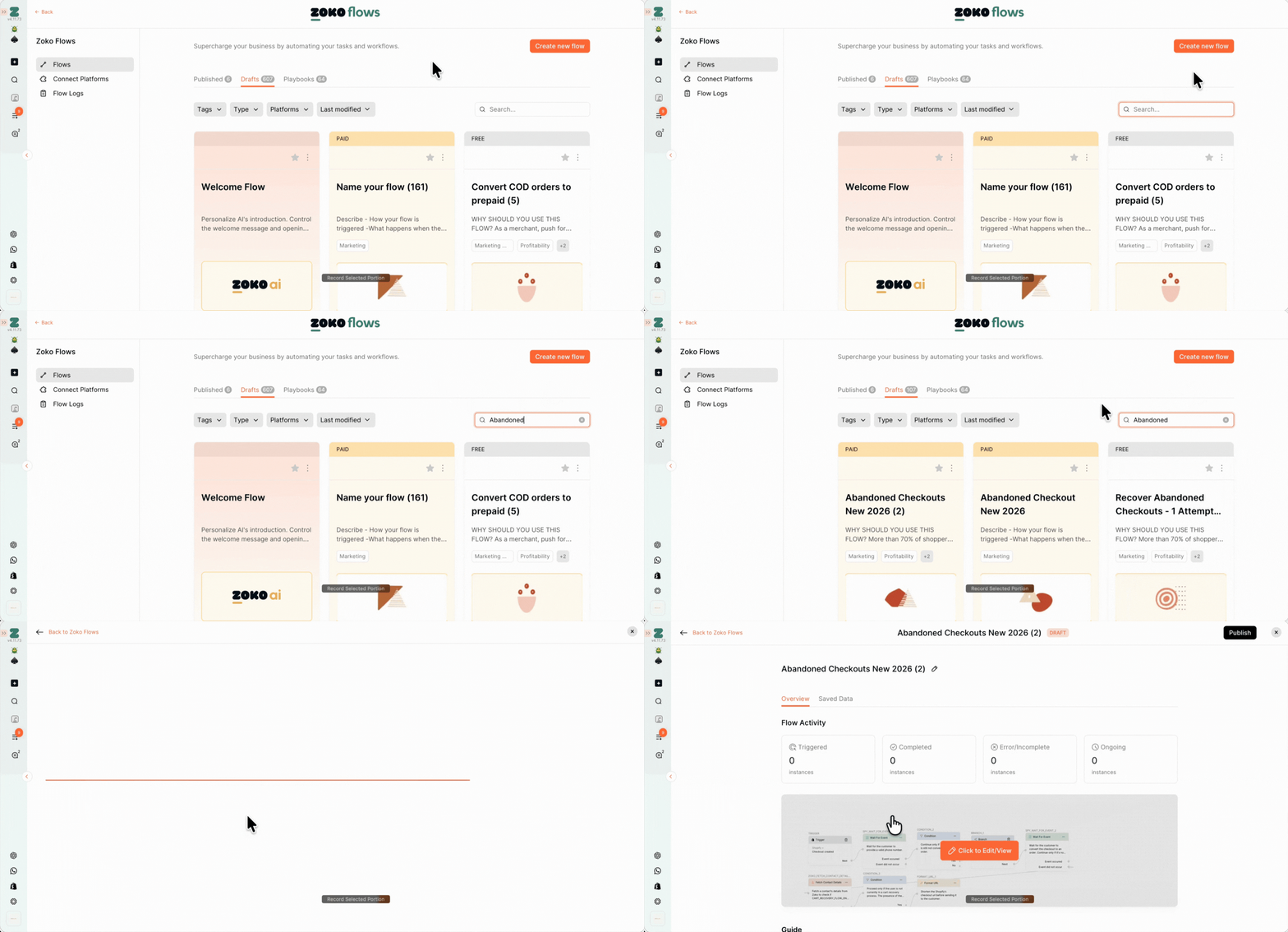
3. If you already know the flow name, simply use the search bar, type the name of the flow, and select it to open it in the flow details.
4. Once inside the details, click Publish.
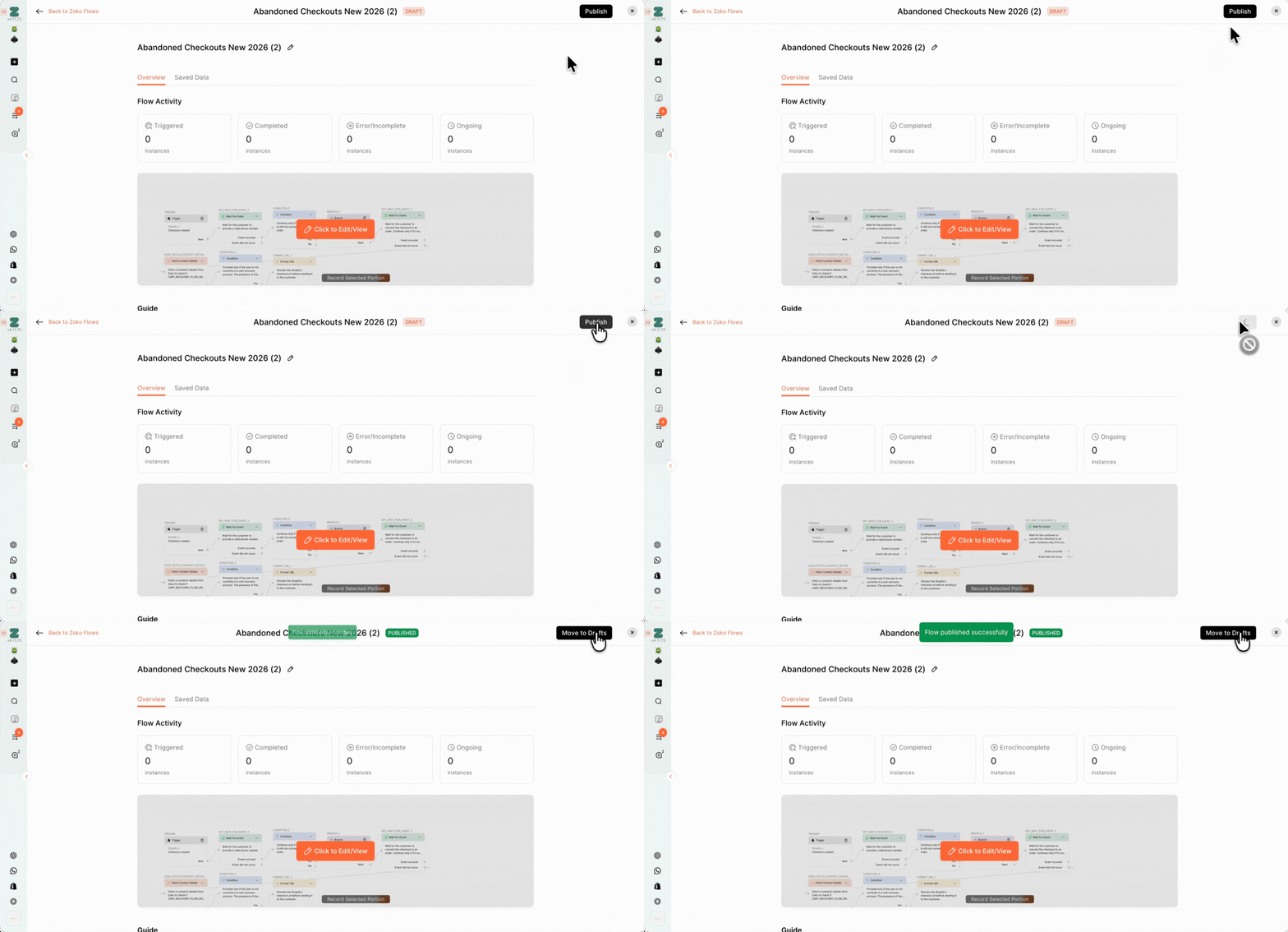
After publishing, the flow will become active and will start running based on the triggers you have set.
Keywords: Draft flow, Publish draft flow, How to publish flow, Make flow live, Where to publish flow, Publish flow.
