


How to Raise a Request for WhatsApp Template Recategorisation
Learn how to raise a request for WhatsApp template recategorisation in Meta Business Manager.
.png)
Share on WhatsApp
.png)
If your WhatsApp message template has been automatically recategorised by WhatsApp, it means Meta believes the template fits better under a different category than the one you originally selected.
Templates can be recategorised in either direction if Meta detects a mismatch between the template content and its intended use case.
If you believe your template is purely transactional and has been incorrectly categorised, you can raise a request with Meta for a manual review.
To do this:
1. Log in to your Meta Business Manager using your Facebook account.
2. Go to All Tools and click on Business Support Home.
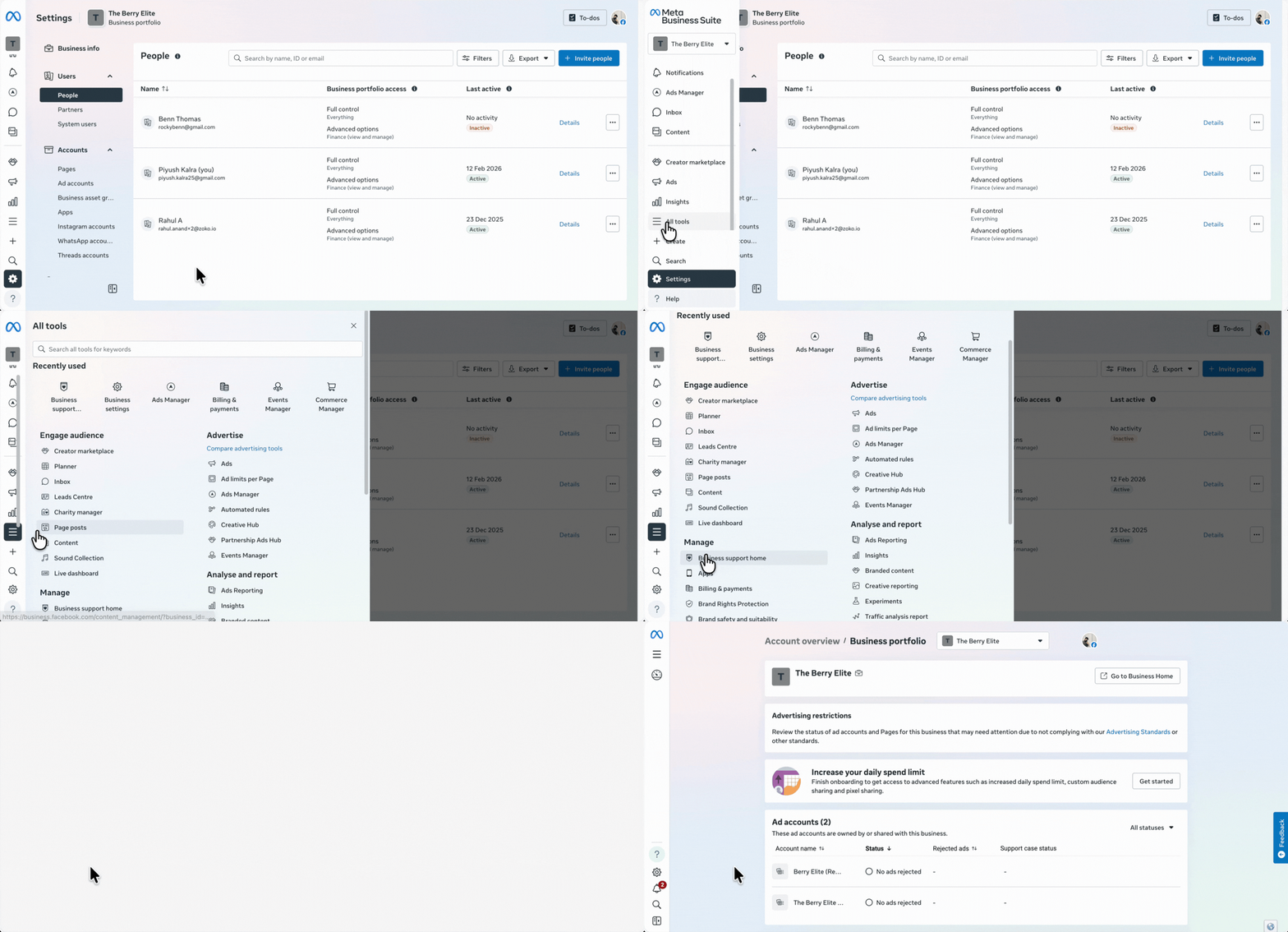
3. Scroll down and select the WhatsApp account for which you want to raise the request.
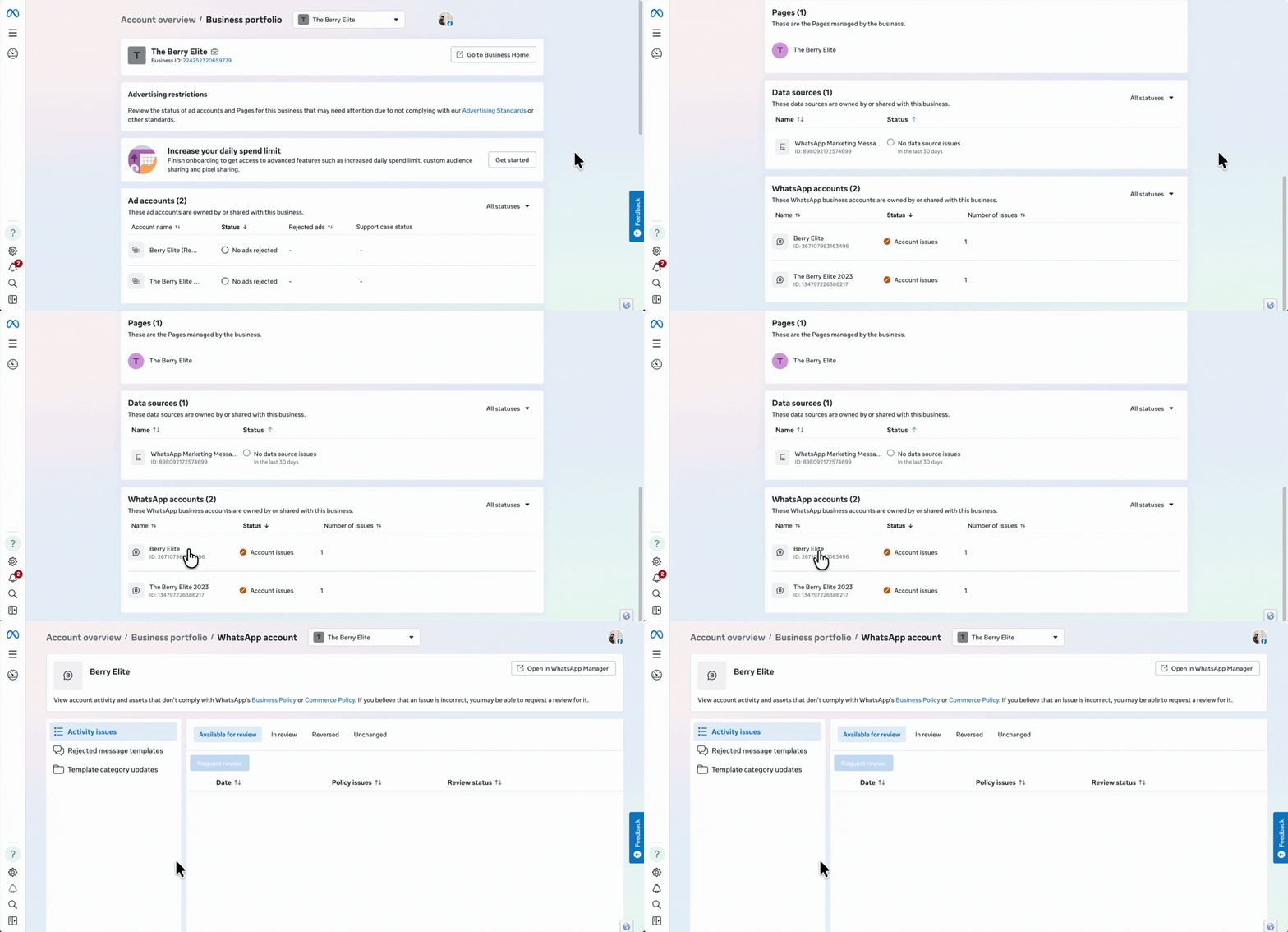
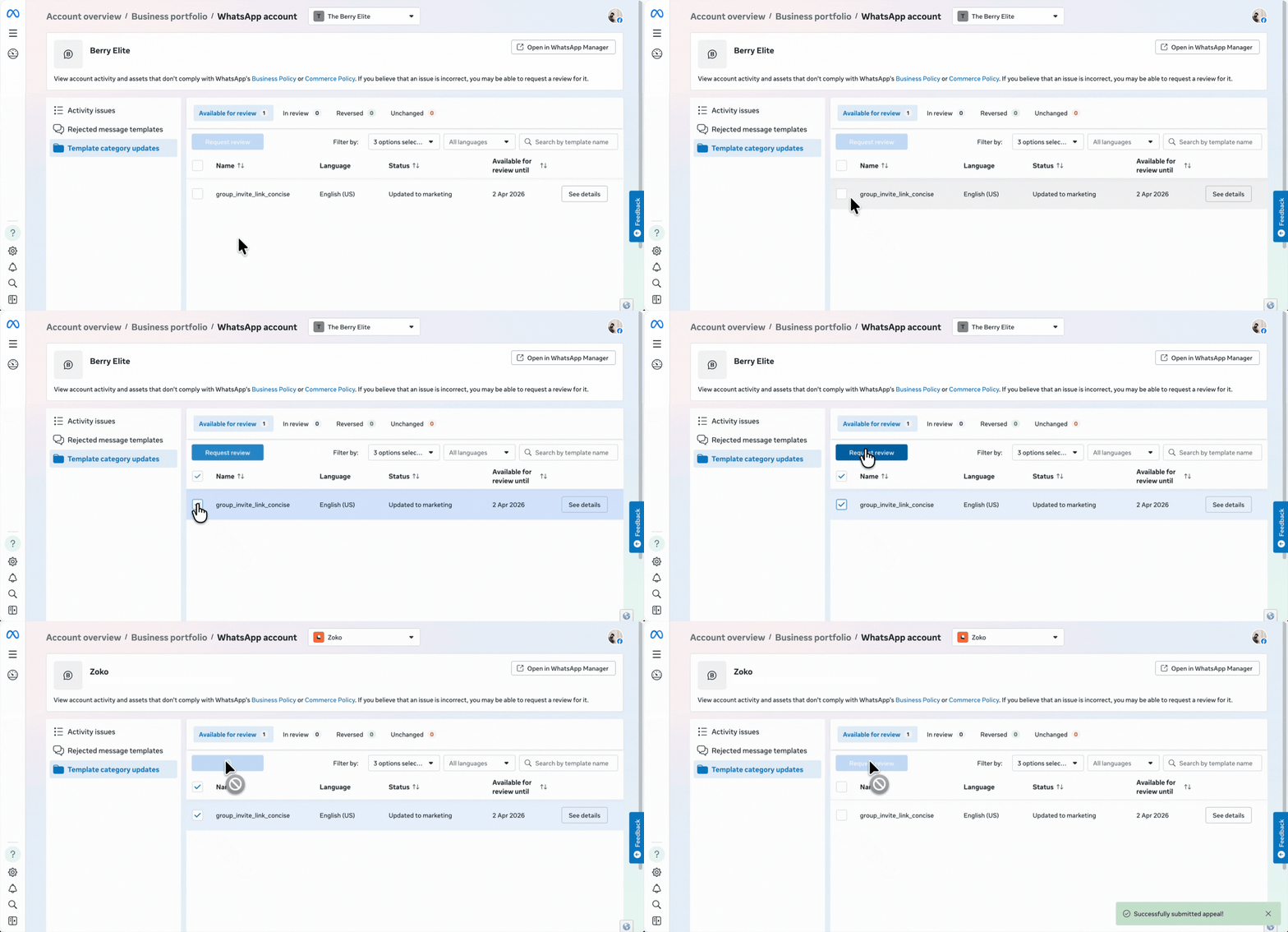
4. Click on Template Category Updates.
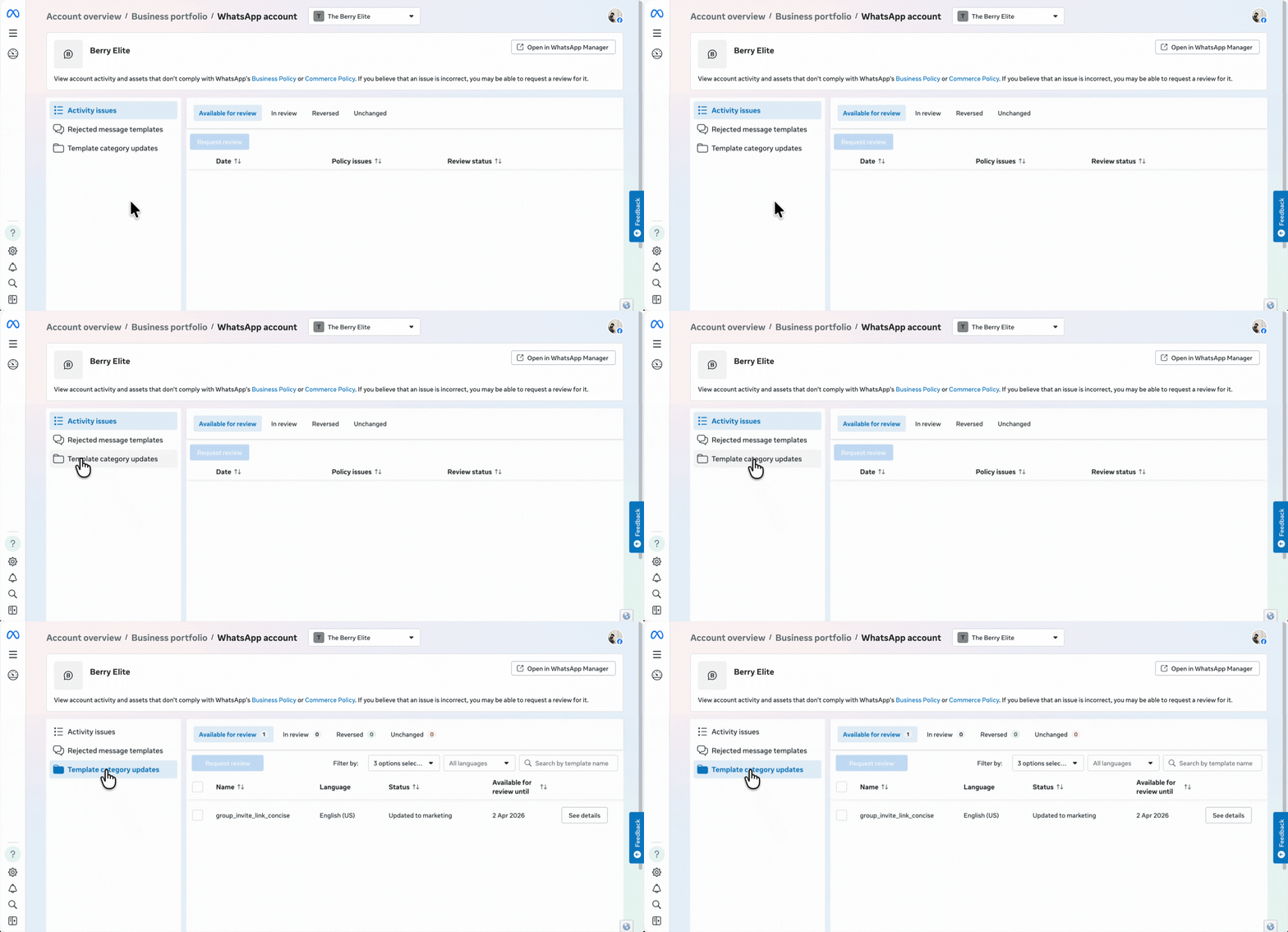
5. Select the template you want to review and click See details to understand why it was recategorised.
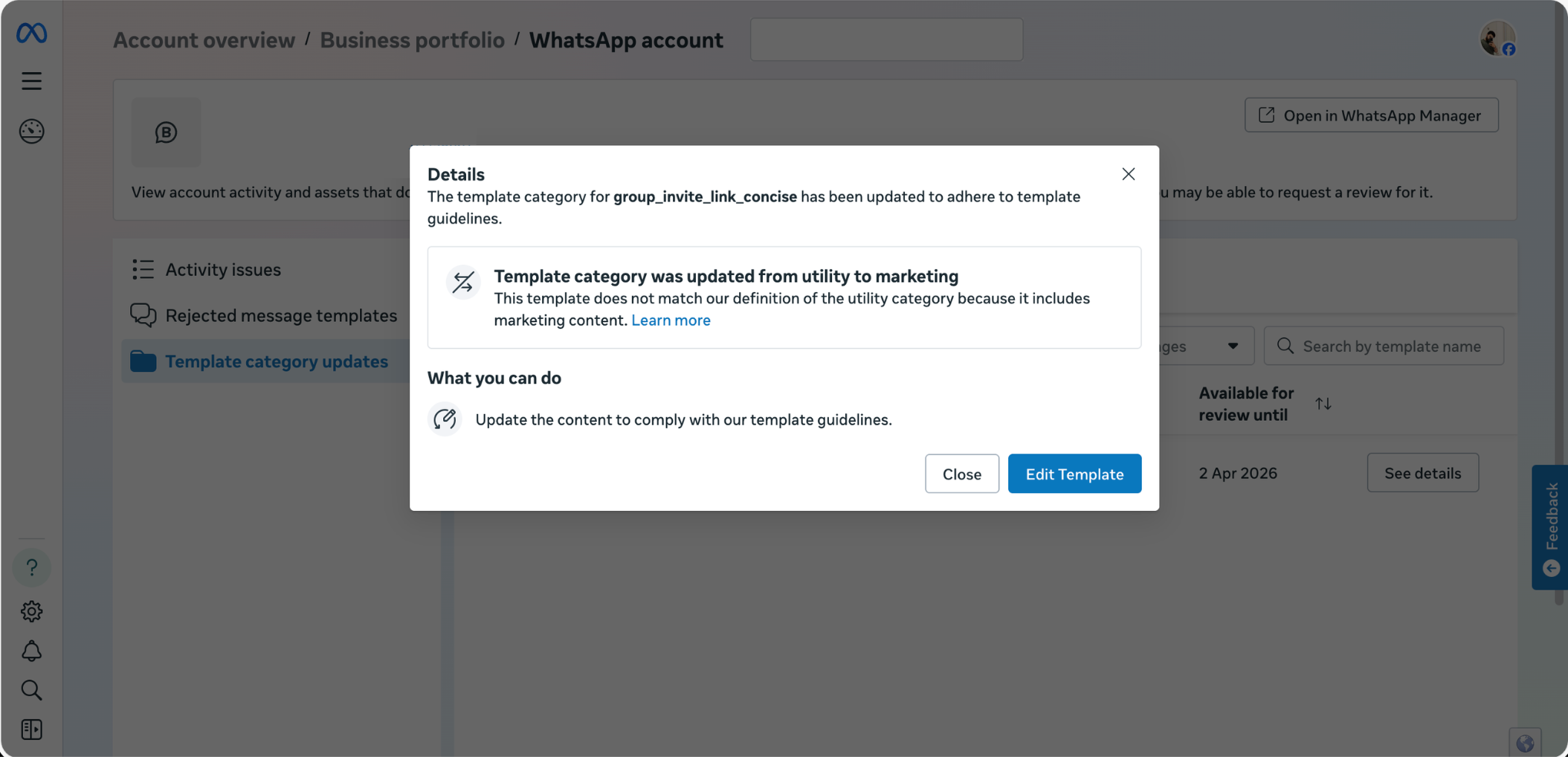
6. Select the template and click Request Review.
Keywords: Template recategorisation, template category changed, Whatsapp template category change, Utility template, Marketing template.
