


How to Find Your Shopify Invoices
.png)
Share on WhatsApp
.png)
Zoko's subscription and usage fees are charged on your Shopify invoice. You can view and download every Shopify invoice from the Billing page in your Shopify admin.
1. Open Billing in your Shopify admin
Go to Settings and click Billing.
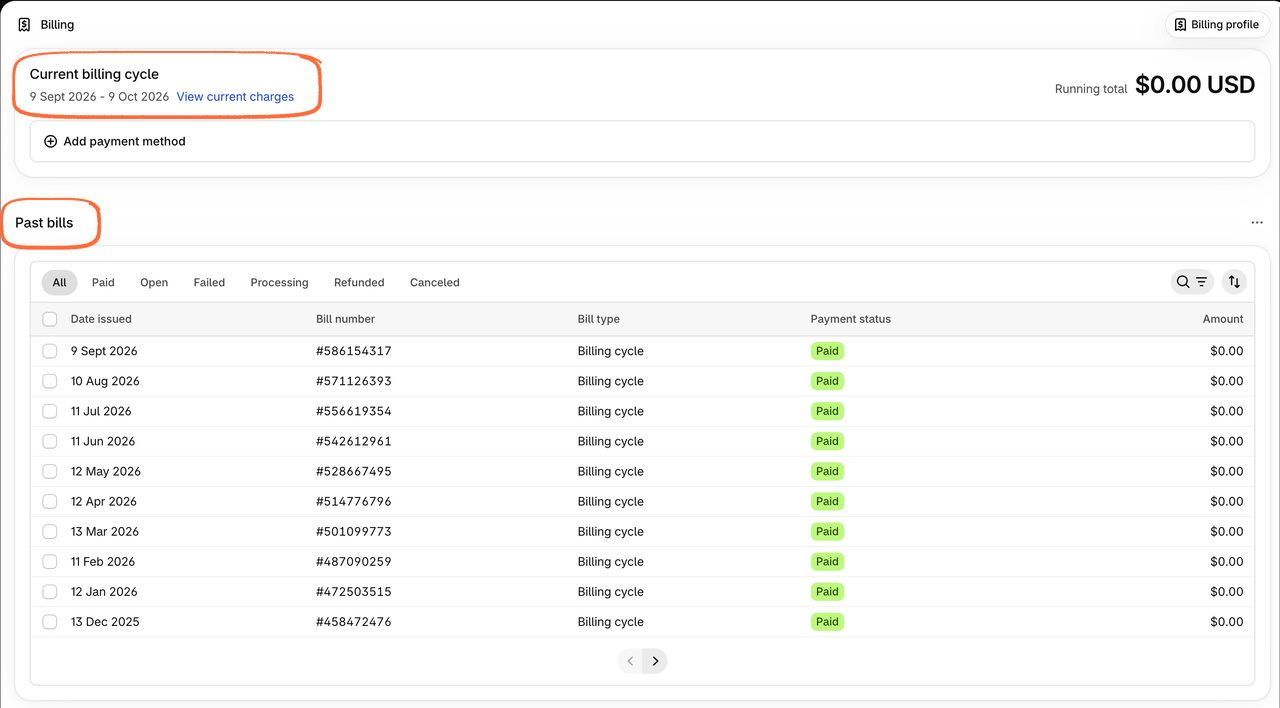
2. Find the invoice you need
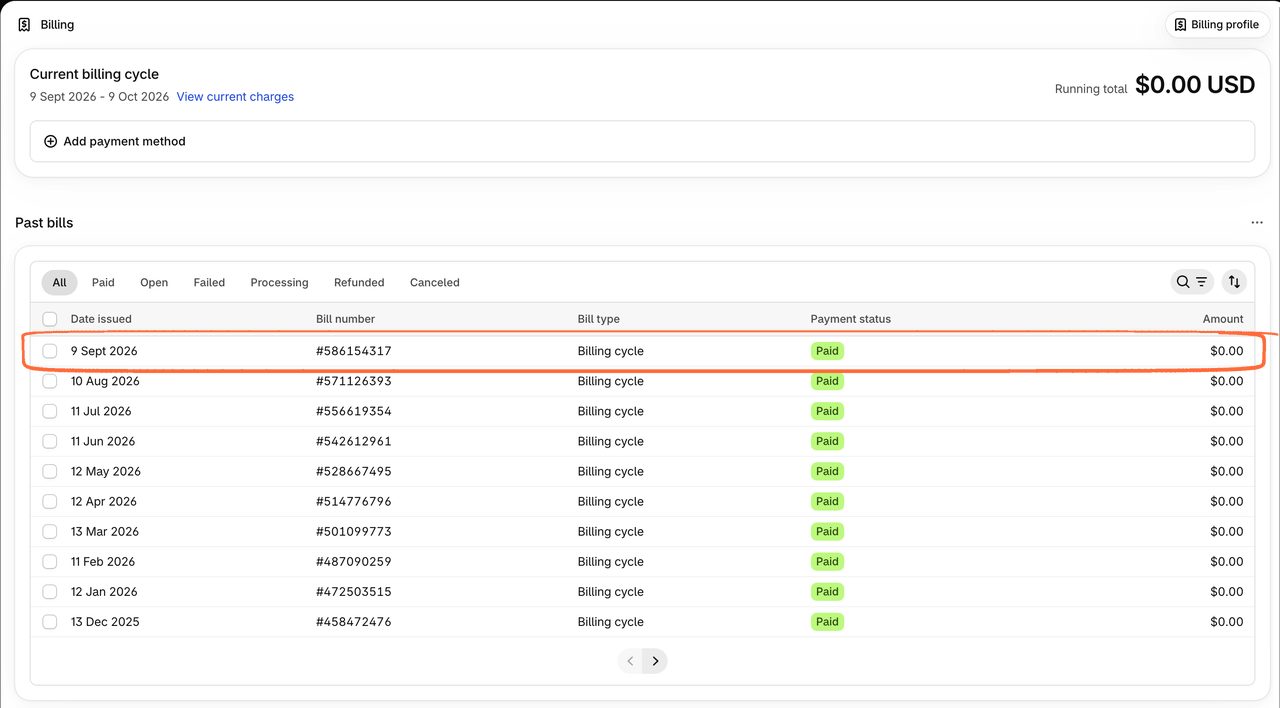
Under Past bills, each row is one Shopify invoice, with the date it was issued, its bill number, its payment status and the amount. Use the tabs to show only paid, open or failed bills, or use the search and sort buttons to find a specific one.
3. Open it and download it
Click the invoice to open it, then click Download. Shopify gives you a PDF you can keep for your records or share with your accountant.
Reading your Shopify invoice
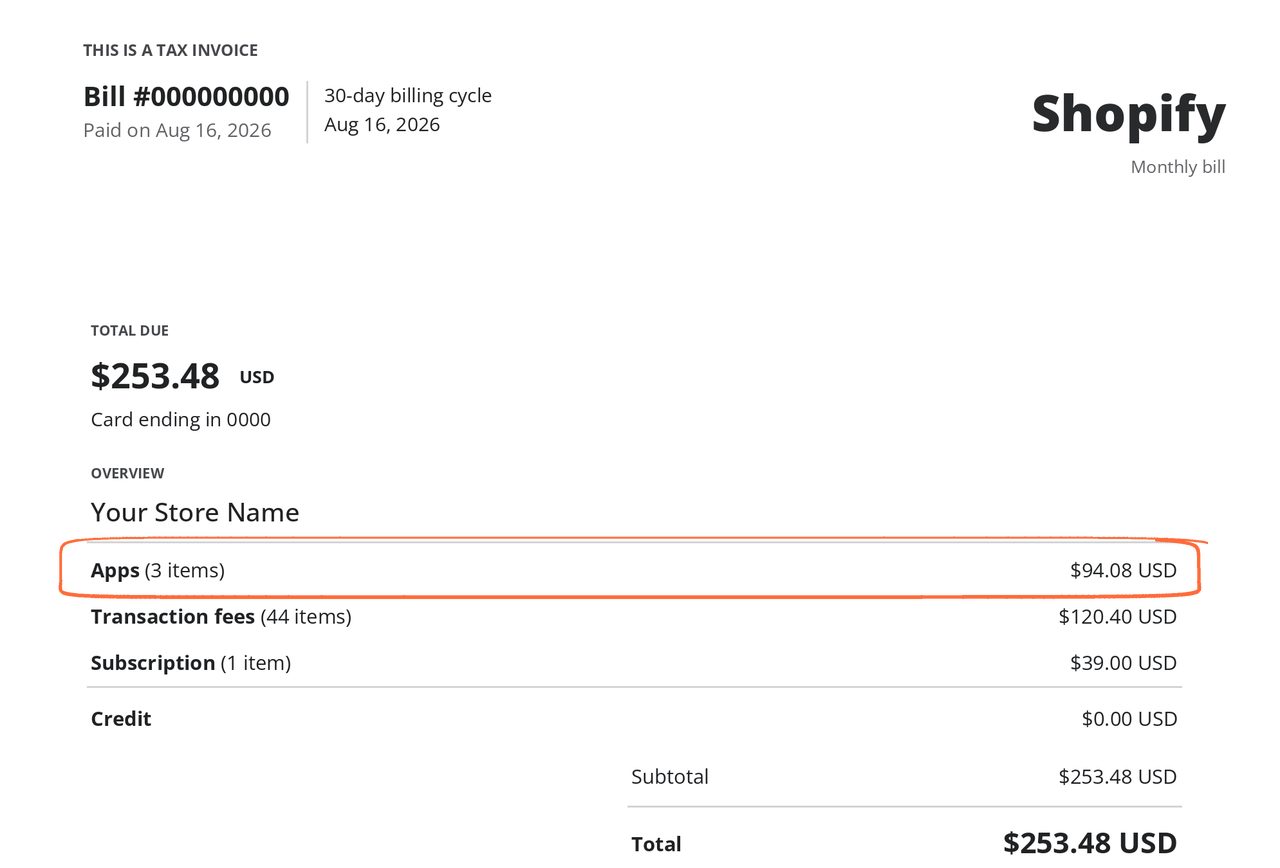
The PDF has two parts. The first page is an overview of your charges. Zoko is one of your apps, so Zoko's charges are included in the Apps total.
The second page breaks the Apps total down by app. Zoko appears twice, as Zoko - WhatsApp Marketing API: once for your monthly subscription, which shows your plan name and the dates it covers, and once for your usage fees.
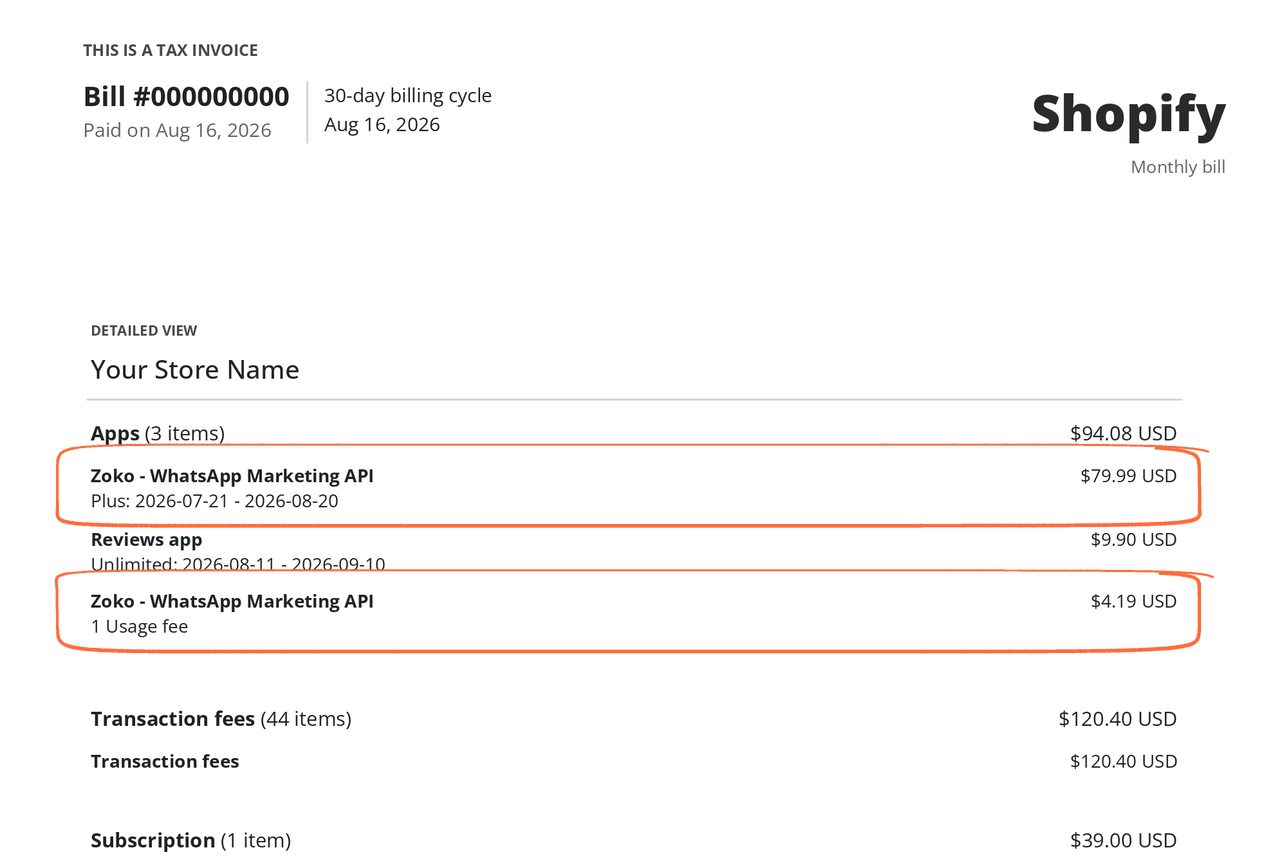
For more on what each line means, see why there are two Zoko charges on your Shopify invoice.
The Date issued column tells you when each Shopify invoice was created. Because Shopify invoices every 30 days, this date moves a little earlier each month: in the example above, 11 Jul, 10 Aug, then 9 Sept. You'll need these dates to match your Shopify invoice to Zoko's billing page.
Keywords: Shopify invoices, Shopify billing, Find Shopify invoice, Zoko billing, Usage charges
