






How to Delete Catalog in WhatsApp Business: 2026 Guide for Shopify Merchants

How to Delete Catalog in WhatsApp Business: 2026 Guide for Shopify Merchants
If a customer opens your WhatsApp profile and sees a sold-out product, the problem rarely ends there. Your team may get extra questions. A saved reply may send the wrong link. A broadcast may push shoppers towards an item you can no longer sell.
For a Shopify store, catalog cleanup is really about keeping WhatsApp, product data, and customer conversations pointed at the same sellable items.
That is why Shopify merchants need to look beyond the basic steps when asking how to delete catalog in WhatsApp Business. You may need to remove one item, disconnect a Meta catalog, or fix the Shopify collection that feeds your WhatsApp product list.
This guide walks you through the right approach for each situation and shows how to manage product cleanup without disrupting the buying experience for customers already engaging with your business on WhatsApp.
Key Takeaways
- WhatsApp Business lets you remove a single product or service from the catalog shown on your business profile.
- A connected Meta catalog needs to be disconnected separately from item deletion.
- Shopify merchants should fix product, stock, and collection issues in Shopify before changing what shoppers see in WhatsApp.
- Product removal should protect chat sales, saved replies, broadcasts, and order conversations.
- Zoko helps Shopify merchants connect selected store collections with WhatsApp Catalog, so product browsing stays closer to the store setup.
Before You Delete: Understand What “Catalog” Means in WhatsApp Business
A WhatsApp Business Catalog is the product or service list shown on your business profile. The WhatsApp Help Center says each catalog item needs a title, at least one image, and country of origin. Optional fields include price, description, website link, and item code.
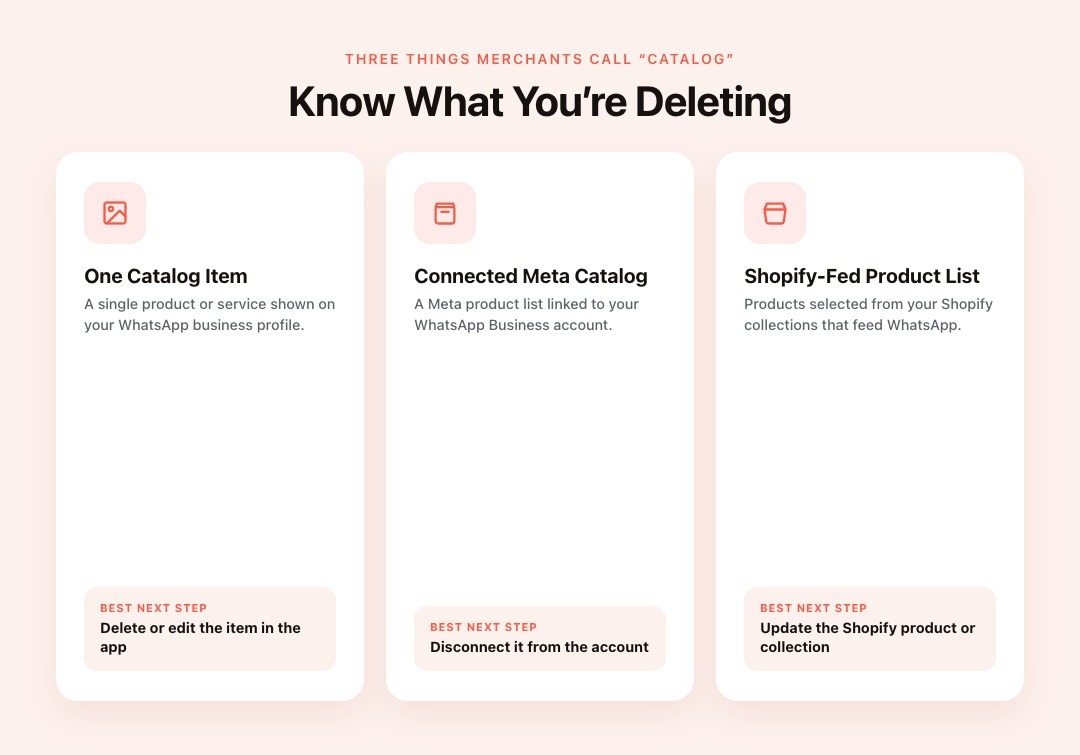
For Shopify merchants, the word “catalog” can mean three different things:
| What you are changing | What it means | Best next step |
|---|---|---|
| One catalog item | A single product or service in WhatsApp | Delete or edit the item in the app. |
| Connected Meta catalog | A Meta product list linked to WhatsApp Business | Disconnect it from the account. |
| Shopify-fed product list | Products selected from Shopify collections | Update the Shopify product or collection. |
This distinction prevents the wrong fix. If one product is discontinued, delete that item. If the wrong Meta list is linked, disconnect it. If your Shopify collection contains products you do not want to show, fix the collection first.
How to Delete Catalog in WhatsApp Business App

Use this path when you only want to remove one product or service from the WhatsApp Business app.
To remove one item from the Tools tab, WhatsApp’s catalog maintenance guide gives this process:
- Open WhatsApp Business.
- Tap Tools.
- Tap Catalog.
- Long press the image of the product or service.
- Tap the delete icon.
- Tap Delete.
This removes the selected item from the WhatsApp product list. It does not remove the same product from Shopify. It also does not edit old customer chats where the item may have been shared.
If you need to delete a collection, that is a separate action. A collection is a group of products inside the WhatsApp product list. You can delete a collection, and collection changes can take no more than 24 hours.
Do not use collection deletion as a shortcut for stock changes. If a few items are unavailable, edit those items or change the source group. If the whole group is old, remove the collection.
Also read: How to Connect Your WhatsApp Catalog on Zoko
How to Disconnect a Catalog From Your WhatsApp Business Account
Disconnect a catalog when the linked Meta product list is wrong. This is different from deleting one product inside WhatsApp Business.
The official Meta page explains how to disconnect a catalog from a WhatsApp Business account. WhatsApp also gives an app path for connected catalogs. You can tap Tools > Catalog > More Options > Catalog settings to disconnect a connected Meta catalog.
Use this option when:
- You connected the wrong Meta catalog.
- You changed the way products are sent to WhatsApp.
- You want a different product source attached to your WhatsApp account.
- Your team rebuilt the product feed in Meta Business tools.
Disconnecting only removes the link between the connected Meta catalog and your WhatsApp Business account. It does not delete products from Shopify or rewrite old chat messages.
Before you disconnect, tell the people who handle campaigns and customer replies. They may need to pause messages that point to the old product list.
When Should You Delete, Hide, Edit, or Disconnect a WhatsApp Catalog?
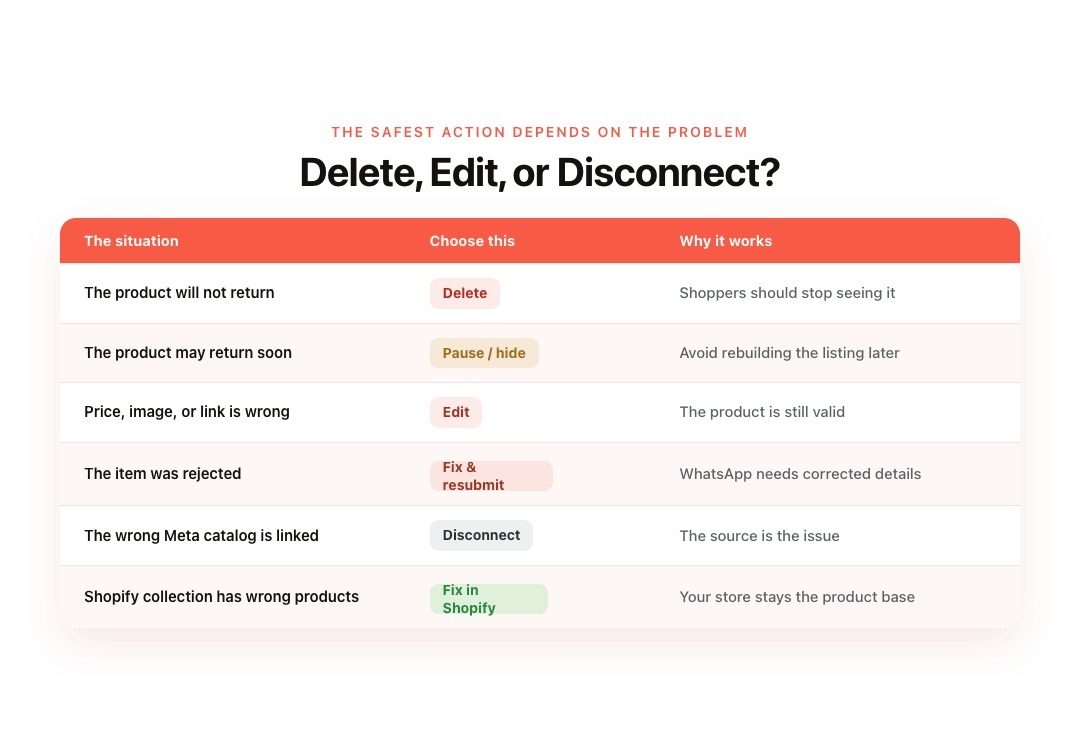
The safest action depends on the product problem. A discontinued product needs a different fix from a wrong price or a short-term stock issue.
| Situation | Choose this action | Why it works |
|---|---|---|
| The product will not return | Delete | Shoppers should stop seeing it. |
| The product may return soon | Pause promotion or change its visibility | You avoid rebuilding the listing later. |
| Price, image, or link is wrong | Edit | The product is still valid. |
| The item was rejected | Check the reason and request review if needed | WhatsApp may need corrected details. |
| The wrong Meta catalog is linked | Disconnect | The source is the issue. |
| Shopify collection has the wrong products | Update the Shopify collection | Your store remains the product base. |
Use deletion for permanent removal. Use editing for detail fixes. Use disconnection only when the linked product source is wrong.
Also read: WhatsApp Business Catalog Bulk Upload: A Step-by-Step Guide for Shopify Merchants
Common WhatsApp Catalog Problems After Deleting or Removing Products
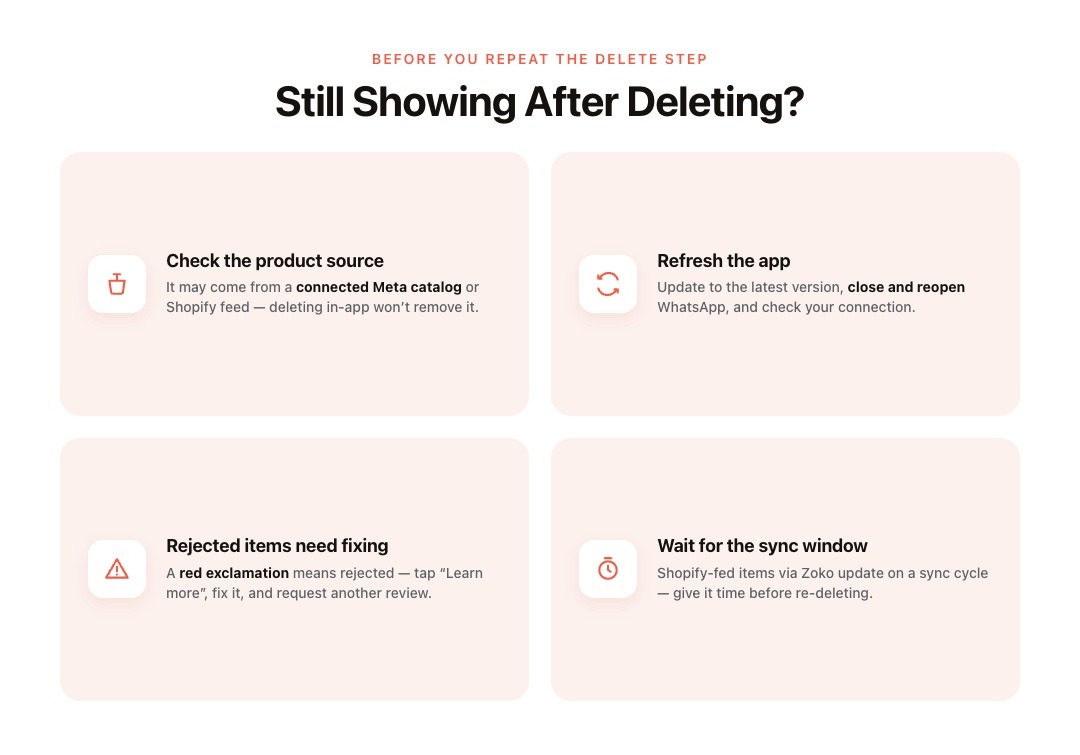
If a product or collection does not disappear immediately after removal, the issue is often related to where the catalog data is coming from or how updates are syncing. Before repeating the same steps, use the checks below to identify the actual cause.
- Check whether the item is coming from a connected Meta catalog or a Shopify-fed setup. Repeating the delete step inside the app may not remove a product that is being pulled from another source.
- If your app is not showing catalog changes, WhatsApp recommends basic troubleshooting steps:
- Update to the latest version of the app.
- Close and reopen WhatsApp.
- Check that your internet connection is stable.
- Review WhatsApp's guidance on its catalog issues page.
- Rejected items require a different approach:
- WhatsApp marks rejected catalog items with a red exclamation icon.
- Tap Learn more to understand why the item was rejected.
- From the item page, you can request another review after addressing the issue.
- If you are unable to delete a collection:
- Try removing all products from the collection first.
- Once the collection is empty, attempt to delete it again.
- If your WhatsApp products come from Shopify through Zoko:
- Check the sync window before repeating the same deletion steps.
- The product may still be waiting for the next catalog update.
Also read: Understand the Shopify and WhatsApp Catalog Sync Time
How Shopify Merchants Should Manage WhatsApp Catalog Cleanup
For a Shopify store, product cleanup should start in Shopify. That is where you manage the product page, stock, image, price, and product groups.
Shopify calls these groups collections. The Shopify Help Center says collections help group products by category, item type, sale status, size, colour, or season. If your WhatsApp list is based on Shopify collections, this is where you should fix the source.
Use this cleanup flow before removing a product from WhatsApp:
- Open the product in Shopify.
- Check stock, price, images, and product status.
- Check the Shopify collection used for WhatsApp selling.
- Review broadcasts, saved replies, and product links.
- Update the product or collection.
- Check WhatsApp after the expected sync window.
For example, you sell apparel in India and a kurta variant sells out after a weekend offer. First, update the variant in Shopify. Then check whether it belongs to the collection shown in WhatsApp. Next, pause any broadcast that still points to that variant. After that, direct shoppers to another available style.
This keeps your store, chat team, campaigns, and order conversations working from the same product truth. Customers see fewer unavailable items, and your team spends less time correcting avoidable questions.
Also read: How to Connect your Shopify Store to Zoko
Use Zoko’s Shopify Catalog Sync to Reduce Manual Catalog Cleanup
Manual cleanup works when your Shopify store has a small product list. It becomes harder once you manage many SKUs, variants, offers, and seasonal collections.
The issue is speed. Product changes often happen faster than your team can update WhatsApp messages, saved replies, broadcasts, and customer chats. That is where a Shopify-connected catalog setup helps.
Instead of treating WhatsApp as a separate product list, you can control product visibility from Shopify collections and then check how those products appear in WhatsApp.
How Zoko Connects Shopify Products With WhatsApp Catalog
Zoko helps Shopify merchants bring store products into WhatsApp, so customers can browse and buy from the chat. This fits stores that already use WhatsApp for product questions, order intent, and customer support.
Once your Shopify store is connected with Zoko, you can choose which Shopify collections appear in WhatsApp Catalog. That gives your team one place to review products before they appear in customer chats.
What This Changes For Catalog Cleanup
With Zoko, you do not have to treat WhatsApp Catalog as a separate product list. Your Shopify collections become the main place to decide which products should appear in WhatsApp.
That changes the cleanup workflow. Instead of deleting products directly from WhatsApp first, your team can start with three checks:
- Check the product in Shopify. Confirm whether the product is discontinued, out of stock, wrongly priced, or still active.
- Check the Shopify collection connected to WhatsApp Catalog. If the product should not appear in WhatsApp, remove it from that collection.
- Check the customer-facing WhatsApp touchpoints. Review broadcasts, saved replies, product messages, and order chats that may still mention the product.
This keeps cleanup tied to the store setup. If a product is permanently discontinued, remove it from the WhatsApp-facing Shopify collection. If it is only out of stock for a few days, avoid deleting it completely. If agents keep sharing an old product in chat, update the collection and the saved replies together.
Zoko’s Shopify setup flow also supports catalog sharing, WhatsApp orders, and automated order, shipping, and confirmation updates. This matters because product cleanup affects more than browsing. It can also affect what customers order, what your team shares in chat, and which updates customers receive after purchase.
How Sync Timing Should Shape Your Workflow
Catalog changes may not appear instantly. Zoko’s Shopify to WhatsApp catalog sync guide says the first sync may take up to 48 hours. Later daily syncs usually happen within 1 to 24 hours.
So your team should note when the Shopify product or collection changed. Then check WhatsApp after the expected sync window before treating it as a setup issue.
When To Consider Zoko For WhatsApp Catalog Management
Consider Zoko if WhatsApp is part of your sales flow. It helps Shopify merchants connect product browsing, chat orders, order updates, and customer conversations around the store catalog.
This is useful when your team wants WhatsApp selling to stay close to the Shopify product source, instead of relying on repeated manual edits. You can explore WhatsApp for Shopify by Zoko to see how Zoko connects Shopify products, WhatsApp conversations, and customer orders in one setup.
Conclusion
The safest way to delete catalog in WhatsApp Business depends on what you need to remove. Delete one item when it should no longer appear. Edit it when the details are wrong. Disconnect the catalog when the linked Meta product source is incorrect.
If you use Shopify, start with your store products and collections before changing WhatsApp. To manage WhatsApp Catalog, orders, broadcasts, and updates from a Shopify-first setup, start a 7-day free trial or book a demo with Zoko.
FAQs
Q. How Do I Delete Catalog in WhatsApp Business?
Open WhatsApp Business and go to Tools > Catalog. Long press the product or service you want to remove, tap the delete icon, then tap Delete to confirm. This removes the selected item from your WhatsApp Business Catalog, but it does not delete the product from Shopify or old chats where it was already shared.
Q. Can I Delete My Entire WhatsApp Business Catalog?
If your account uses a connected Meta catalog, you may need to disconnect it rather than delete products one by one. WhatsApp lists this path under Tools > Catalog > More Options > Catalog settings.
Q. Why Is My WhatsApp Catalog Product Still Showing After Deletion?
The item may be coming from a connected Meta catalog or Shopify-fed setup. Check the product source, app refresh, and sync timing before repeating the deletion step.
Q. Should Shopify Merchants Delete WhatsApp Catalog Products Manually?
Manual deletion is fine for one old item. For regular product changes, update Shopify products and collections first, then check the WhatsApp product list.
Q. Can Zoko Help Shopify Merchants Manage WhatsApp Catalog?
Yes. Zoko lets Shopify merchants select store collections for WhatsApp Catalog and connect product browsing with WhatsApp orders and customer updates.
Interested to know more?
.svg)
Case Studies





















Featured Posts


Continue reading

The E-Commerce Divide: How the Top 10% of Brands Use AI to Grow 5X Faster (And Why It’s Not for Everyone)
Drive Sales with WhatsApp Catalog Integration: Here's How