





WhatsApp Business Catalog Bulk Upload: A Step-by-Step Guide for Shopify Merchants

WhatsApp Business Catalog Bulk Upload: A Step-by-Step Guide for Shopify Merchants
If your Shopify store has more than a handful of products, adding them to your WhatsApp Business catalog one by one is not a realistic approach. A 100-SKU store could spend hours doing it manually. A store with 300 products could spend days.
The WhatsApp Business catalog bulk upload solves this. You prepare a structured file, upload it through Meta Commerce Manager or a connected platform, and your products go live on WhatsApp without the repetitive manual work. For Shopify merchants, the bigger question is how to keep WhatsApp, Shopify, and customer conversations in sync after the catalog goes live.
This guide covers what to prepare, how to run the upload, how to fix the errors that come up, and how Shopify merchants can skip much of this friction using a direct catalog sync.
Key Takeaways
- WhatsApp business catalog bulk upload helps Shopify merchants add many products faster without entering each item manually.
- Meta Commerce Manager works well for structured file uploads, while Shopify-connected catalog sync is better for stores with frequent product, price, or stock changes.
- A clean product file matters because errors in image links, prices, currency codes, field mapping, or duplicate IDs can stop products from appearing correctly.
- Shopify merchants should start with the products customers are most likely to ask about or buy through WhatsApp, such as bestsellers, COD-friendly items, bundles, and seasonal collections.
- Zoko connects Shopify catalogs with WhatsApp chats, broadcasts, flows, and AI support so catalog browsing can lead into customer conversations and orders.
What Is a WhatsApp Business Catalog
A WhatsApp Business catalog is a product listing attached to your WhatsApp Business profile. It lets customers view products or services inside WhatsApp, ask questions, and continue the buying conversation in the same chat.
For Shopify merchants in India, Brazil, and the Middle East, this matters because customers often use WhatsApp to ask about price, availability, COD, and delivery. A catalog gives them product details before the conversation moves to order questions.
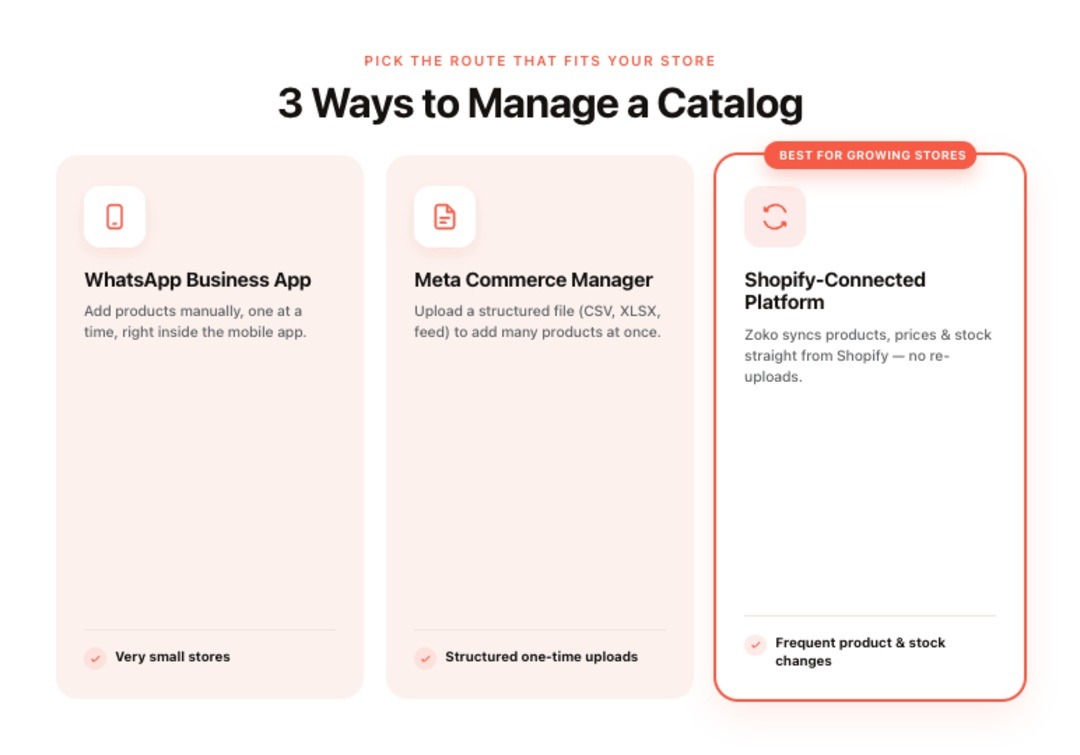
Shopify merchants usually manage a WhatsApp catalog in one of three ways:
- WhatsApp Business App: Best for very small stores that add products manually.
- Meta Commerce Manager: Best for merchants who want to upload structured product data through Meta.
- Shopify-connected WhatsApp platform: Best for stores that often change products, prices, stock, or collections.
For growing Shopify stores, the best fit is usually either Meta Commerce Manager uploads or Shopify-connected catalog sync.
Why Bulk Upload Beats Adding Products One at a Time
The WhatsApp Business App requires individual entry for every product: upload an image, type a name, write a description, enter a price, and save. For five products, that is fine. For 50 or 500, it pulls you away from running your store for hours at a stretch.
Manual entry across a large inventory also creates small errors, such as mismatched product names, outdated prices, or old images. These errors hurt trust when customers browse your catalog inside WhatsApp.
Bulk uploading through Meta Commerce Manager or a connected Shopify platform helps you:
- Add many products in one session from a structured file
- Keep product formatting cleaner across the catalog
- Update catalog data from one product source
- Reduce re-entry from your existing Shopify inventory
Also read: Drive Sales with WhatsApp Catalog Integration: Here's How
Catalog Bulk Upload Checklist for Shopify Merchants
Before preparing your file, make sure these basics are in place:
- A verified Meta Business Manager account
- A WhatsApp Business account connected to your business setup
- A catalog created inside Meta Commerce Manager
- Access to the correct catalog upload or data feed option
- Compliance with WhatsApp Commerce Policy
Some connected tools may ask you to add at least one product manually before importing the full file. Check the requirement inside your upload tool before preparing the final sheet.
The WhatsApp Business App is commonly documented with a 500-item catalog limit. For Meta Commerce Manager or WhatsApp Business Platform catalog setups, verify the current limit inside your Meta account before planning a full catalog upload. If your store has more SKUs than your setup supports, start with bestsellers, high-margin products, COD-friendly products, and products customers often ask about.
Preparing Your Product Data File
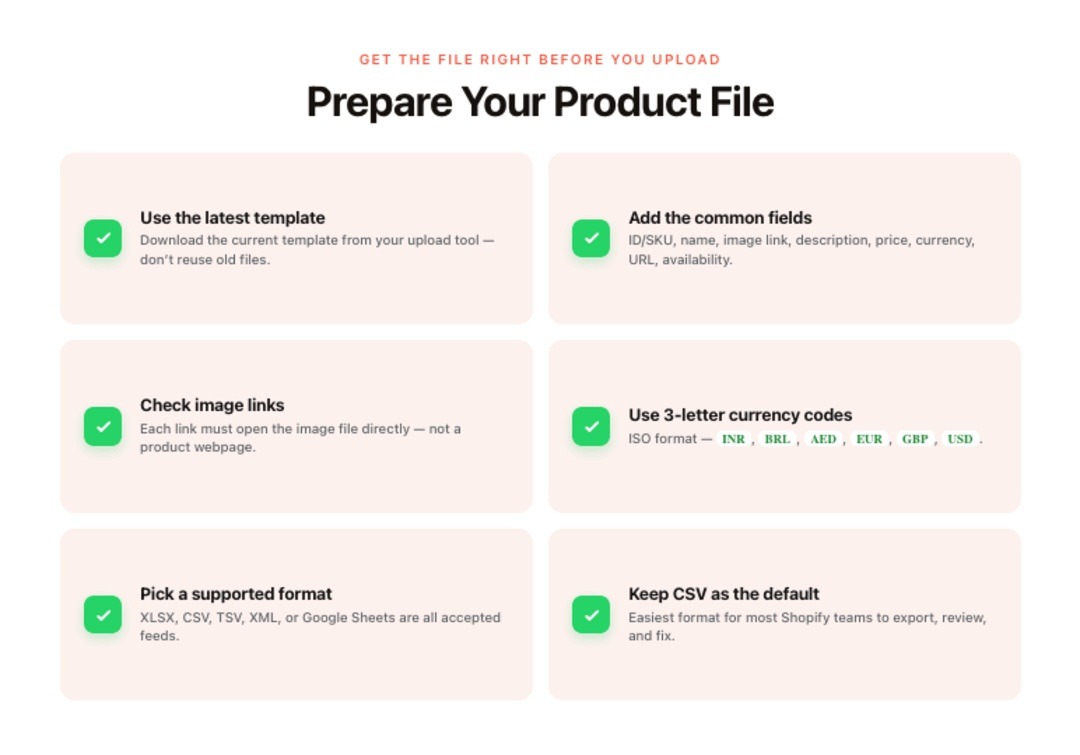
Before uploading your WhatsApp catalog file, check these points:
- Use the right template: Your upload file must follow the structure required by your chosen method. Meta Commerce Manager, third-party tools, and Shopify-connected platforms may use different column names.
- Download the latest version: Always use the current template from the tool you are using. Do not reuse an old file if the platform has changed its format.
- Add the common product fields: Include product ID or SKU, product name, image link, description, price, currency, product URL, and availability.
- Check image links: Image links should open the image file directly, not a webpage.
- Use the correct currency format: Currency should use a 3-letter ISO code, such as INR, BRL, AED, EUR, GBP, or USD.
- Choose the right file format: Meta catalog data feeds can use formats such as XLSX, CSV, TSV, XML RSS/ATOM, or Google Sheets.
- Keep CSV as the default choice: For most Shopify teams, CSV is the easiest file format to prepare, review, and fix.
Method 1: Bulk Upload via Meta Commerce Manager
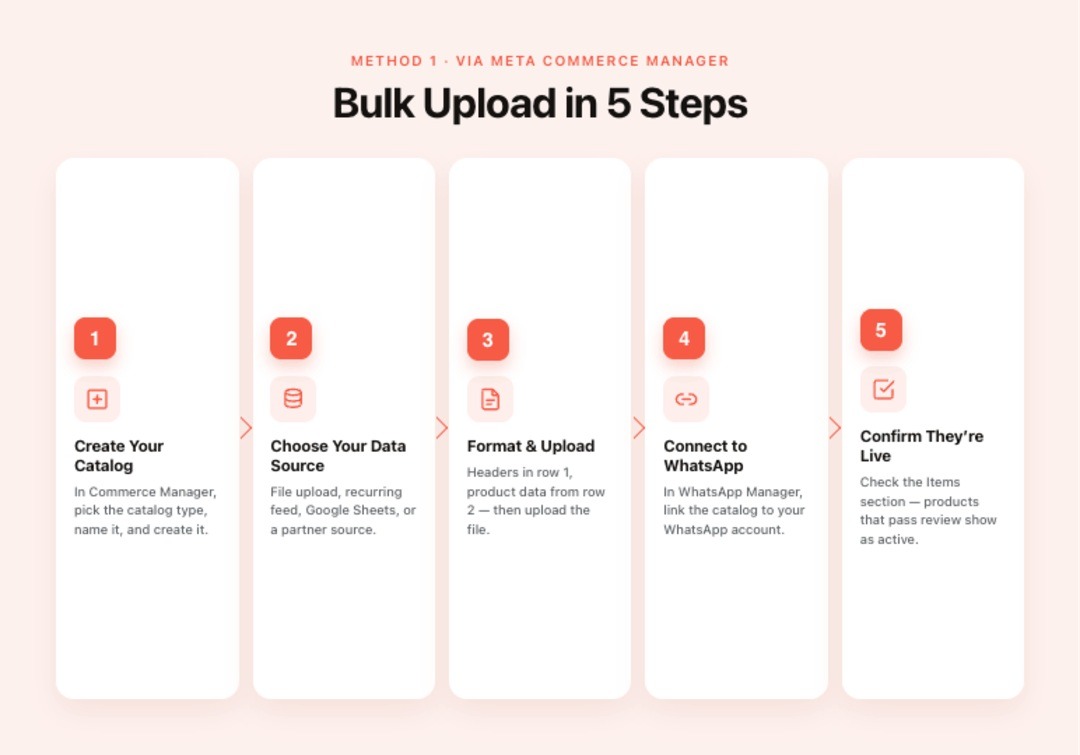
This is the standard route for merchants who want to manage the catalog through Meta. It may change Commerce Manager labels and screen flows, so use this as the general process and follow the current prompts inside your account.
Step 1: Create Your Catalog
Go to business.facebook.com/commerce, choose the catalog creation option, select the catalog type that fits your products, name your catalog, and create it.
Step 2: Choose Your Data Source
In Commerce Manager, open your catalog and look for the option to add items or connect a data source. You may see manual entry, file upload, recurring feed, Google Sheets, or partner options.
Use file upload for a first setup, recurring feed for hosted product files, and Google Sheets or partner options when your product data already sits in a connected source.
Step 3: Format And Upload Your File
Structure your file with headers in Row 1 and product data from Row 2 onward. A sample CSV row can look like this:
|
id, name, description, price, currency, image_link, link
SKU001, Blue Cotton Kurta, Hand-woven blue kurta for men, 899.00, INR, https://yourstore.com/images/kurta.jpg, kurta |
Column names may differ based on your Meta template or connected tool. Use the exact field names from the template you downloaded. Upload the file and continue through the prompts.
Step 4: Connect The Catalog To Your Whatsapp Account
In WhatsApp Manager, go to the catalog section for your account. Choose the catalog you created and connect it to your WhatsApp account.
Step 5: Confirm Your Products Are Live
Go back to Commerce Manager and check the Items section. Products that pass review appear as active. Review time can vary based on catalog size, account history, product category, and policy checks.
Method 2: Sync Your Shopify Catalog Through a WhatsApp Platform
The Commerce Manager route works well for an initial setup. Its limitation shows up over time: whenever a product price changes, a SKU goes out of stock, or you add a new collection, someone has to keep WhatsApp catalog data aligned with Shopify.
For Shopify merchants, a WhatsApp Business API platform that connects directly to Shopify can reduce this catalog work. Product data comes from the same source your store runs on. Changes made in Shopify, such as new products, price edits, and stock updates, can sync with your WhatsApp catalog based on the platform’s sync rules and timing.
When evaluating platforms, check for:
- Direct Shopify sync for products, prices, and availability
- In-chat selling from the catalog
- A shared multi-agent inbox for customer questions
- Flows for abandoned carts, order updates, COD checks, and repeat purchases
- Broadcasts that point customer segments to specific products or collections
- AI support for common customer questions where available
Also read: 5 Ways WhatsApp Workflow Automation Boosts Your Store's Performance
Also read: How to Delete Catalog in WhatsApp Business: 2026 Guide for Shopify Merchants
Common Bulk Upload Errors and How to Fix Them
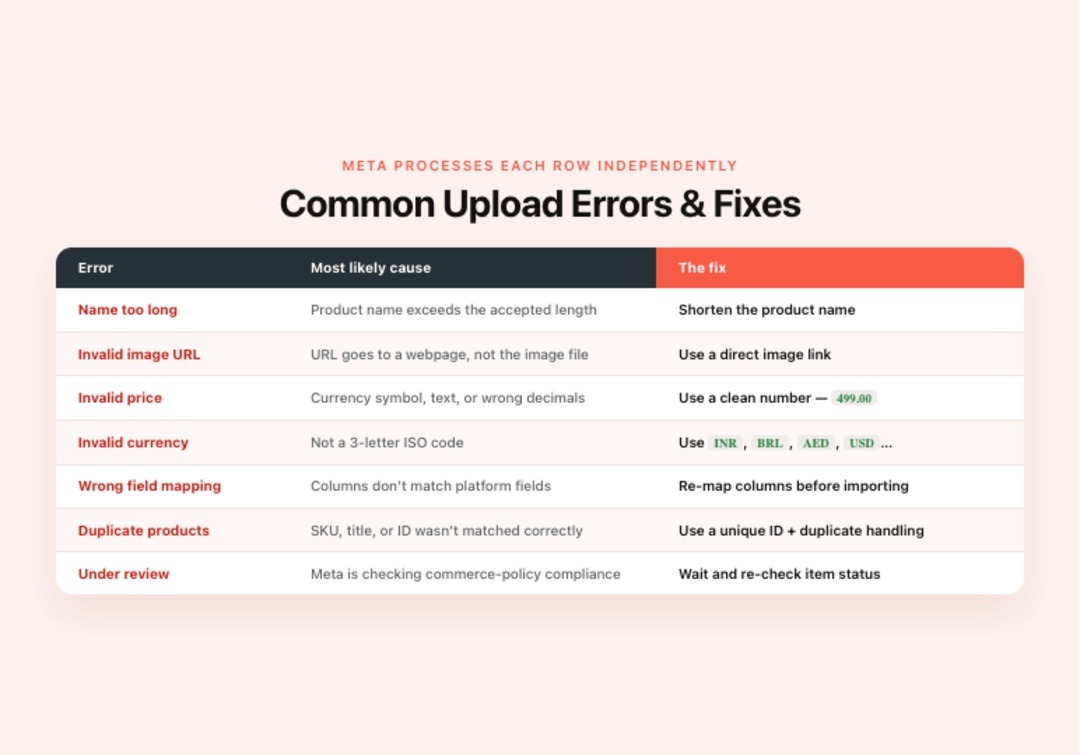
Meta processes catalog rows independently. One failed row may not block the rest of your upload, but it can still leave important products missing. Check Commerce Manager after upload to identify which rows failed and why.
| Error | Most Likely Cause | Fix |
|---|---|---|
| Name too long | Product name exceeds the accepted length | Shorten the product name |
| Invalid image URL | URL goes to a webpage, not the image itself | Use a direct image link |
| Invalid price | Currency symbol, text, or wrong decimal format | Use a clean number, such as 499.00 |
| Invalid currency | Currency is not a 3-letter ISO code | Use INR, BRL, AED, EUR, GBP, USD, or another valid ISO code |
| Wrong field mapping | Columns do not match platform fields | Re-map columns before importing |
| Duplicate products | SKU, title, or product ID was not matched correctly | Use a unique ID and the right duplicate handling setting |
| Product under review | Meta is checking for commerce policy compliance | Wait and check the item status later |
How to Keep Your Catalog Current After the First Upload
Getting your catalog uploaded is the easier part. Keeping it updated over weeks and months is where most merchants hit friction.
You have three options:
- Manual re-upload: Works for stable inventory and rare changes.
- Recurring data feed: Works when your product file or sheet can refresh on a schedule inside Commerce Manager.
- Direct Shopify platform sync: Works for stores that often update products, prices, or stock. Zoko states that initial Shopify catalog sync may take up to 48 hours, while later syncs usually occur within 1 to 24 hours.
For Shopify merchants, catalog accuracy should be checked before any major WhatsApp campaign. Review price, stock, variants, product images, URLs, sale dates, bundle details, COD eligibility, delivery notes, and seasonal collections.
The third option makes the most sense for Shopify merchants whose inventory changes regularly. It also reduces the gap between what a customer sees in your WhatsApp catalog and what is actually available in your store.
Which Bulk Upload Method Should a Shopify Merchant Choose
The right method depends on your catalog size, update frequency, and how much of your buying journey happens on WhatsApp.
| Store situation | Better option | Why |
|---|---|---|
| Under 20 products with rare changes | WhatsApp Business App manual catalog | Simple setup and easy upkeep |
| 50 to 300 products with stable inventory | Meta Commerce Manager file upload | Faster than adding products one by one |
| Frequent price or stock changes | Recurring feed or Shopify sync | Keeps WhatsApp product data closer to store data |
| Shopify store using WhatsApp for sales | Shopify-connected WhatsApp platform | Connects catalog, chats, campaigns, and flows |
| COD-heavy store in India | Shopify sync with COD flows | Helps confirm orders before fulfillment |
| Seasonal or campaign-heavy store | Shopify sync with broadcasts | Helps teams promote current products faster |
If customers regularly ask about products, prices, delivery, COD, or availability inside WhatsApp, a Shopify-connected setup is usually the stronger long-term choice.
Which Products Should Shopify Stores Add to WhatsApp First
A large Shopify catalog does not always need to move into WhatsApp on day one. For many stores, the better starting point is a focused catalog that matches what customers are most likely to ask about or buy through chat.
Start with bestsellers, high-margin products, COD-friendly products, bundles, repeat-purchase products, back-in-stock items, seasonal collections, and products customers often ask about on WhatsApp.
This keeps the WhatsApp catalog easier to review, cleaner for customers, and more useful for sales conversations. Once the first set performs well, add more categories in batches.
How Zoko Connects Shopify Catalogs With WhatsApp Sales
Getting products onto WhatsApp is an important first step. For Shopify merchants, the next step is connecting that catalog with customer chats, campaigns, and order-related workflows.
The Catalog Syncs From Shopify
Zoko's WhatsApp Catalog feature connects your Shopify store catalog with WhatsApp. This reduces CSV work, Commerce Manager handling, and repeat uploads for growing stores.
The first Shopify and WhatsApp catalog sync may take up to 48 hours. After that, catalog updates usually sync within 1 to 24 hours. For merchants managing large inventories in India or Brazil, this reduces repeat catalog work while keeping Shopify as the main product source.
Customers Can Browse And Buy Inside The Conversation
With Zoko, customers can browse products, ask questions, and move toward purchase inside WhatsApp. In markets like India and Brazil, where customers already use WhatsApp to talk to businesses, this reduces steps between interest and order.
Broadcasts And Flows Move Customers From Browsing To Buying
Once the catalog is connected, Shopify merchants can point customers to relevant products through timely campaigns and automated follow-ups. Zoko helps with:
- WhatsApp broadcasts for new arrivals, restocks, and limited-time offers
- Zoko Flows for abandoned carts, COD confirmations, order updates, reorder reminders, and review requests
- Zoko AI bots for common customer questions where the feature is enabled
For a COD-heavy store, this can mean fewer manual verification calls. GIVA, a jewellery brand, used Zoko's COD confirmation flow to eliminate hundreds of daily manual calls for order verification.
For a store losing shoppers after checkout starts, this can mean more recovered orders. Flexnest used the Abandoned Cart Flow to convert 1 in 4 abandoned carts into completed orders.
Also read: WhatsApp Bulk Messaging: A Complete Guide for E-commerce Success
Conclusion
WhatsApp business catalog bulk upload helps Shopify merchants add products to WhatsApp faster without entering each item manually. Small catalogs may still be easy to handle one by one, but growing stores usually need Meta Commerce Manager uploads or Shopify-connected catalog sync.
Once products are uploaded, the next step is keeping them accurate and connected to customer conversations, campaigns, COD confirmations, order updates, and abandoned cart flows.
If your catalog changes often, Zoko helps connect your Shopify products, customer chats, broadcasts, and automated flows inside WhatsApp. Start a 7-day free trial or book a demo to see how Zoko's Shopify catalog sync works for your store.
Also read: Top 10 Best Shopify Apps for Product feeds
Also read: WhatsApp Business Catalog Setup Guide
FAQs
Q. Can I bulk upload products to WhatsApp Business Catalog?
Yes. Businesses can bulk upload products through Meta Commerce Manager if their catalog setup supports file uploads or product feeds. Shopify merchants can also use a connected WhatsApp platform to sync product data instead of preparing upload files every time.
Q. What file format does WhatsApp accept for bulk catalog upload?
Meta catalog data feeds can use formats such as XLSX, CSV, TSV, XML RSS/ATOM, or Google Sheets. CSV is often the easiest option for Shopify teams because it is simple to export, check, and edit before upload.
Q. What fields do I need for WhatsApp catalog bulk upload?
Common fields include product ID, name, image link, description, price, currency, product URL, and availability. The exact field names can vary by upload method, so always follow the template from Meta Commerce Manager or your connected platform.
Q. Can Shopify merchants sync products to WhatsApp instead of uploading files?
Yes. Shopify merchants can use a platform like Zoko to connect Shopify catalog data with WhatsApp. This helps reduce repeat file uploads and keeps Shopify as the main source for product updates.
Q. Why did my WhatsApp catalog bulk upload fail?
Bulk uploads often fail because of invalid image links, long product names, wrong price format, unsupported currency codes, field mapping mistakes, duplicate IDs, or restricted product categories. Check the failed rows, fix the specific error, and upload the corrected file again.
Q. Is bulk upload enough to sell more on WhatsApp?
Bulk upload gets products into the catalog, but it does not drive sales on its own. Shopify merchants should connect catalog items with broadcasts, abandoned cart flows, COD confirmations, order updates, and fast customer replies to turn product interest into orders.
Interested to know more?
.svg)
Case Studies





















Featured Posts


Continue reading

The E-Commerce Divide: How the Top 10% of Brands Use AI to Grow 5X Faster (And Why It’s Not for Everyone)
Drive Sales with WhatsApp Catalog Integration: Here's How